

Are you looking to start earning money from your WordPress blog? Adding AdSense code to your site is one of the easiest ways to turn your content into a steady income stream.
But if you’re not sure how to do it, don’t worry—you’re in the right place. You’ll learn simple, step-by-step instructions to add AdSense code to your WordPress blog quickly and without any hassle. By the end, you’ll be ready to show ads that can start boosting your earnings.
Keep reading to unlock the full potential of your blog!
Credit: www.namecheap.com
Preparing Your Blog For Adsense
Preparing your blog for AdSense is an important first step. It helps ensure your site meets Google’s requirements. This process can make your application smooth and fast. Follow these simple steps to get your blog ready for AdSense.
Checking Adsense Eligibility
Check if your blog meets the basic AdSense rules. Your content must be original and useful. Make sure your blog has enough posts and pages. Avoid adult or copyrighted content. Your site should have clear navigation and a privacy policy page. Google also requires your blog to be at least six months old in some countries.
Creating A Google Adsense Account
Visit the Google AdSense website to create an account. Use a Google email address to sign up. Provide your blog’s URL and other details. Submit your application for review. Google will check your blog to see if it follows their policies. This step may take a few days. Be patient and check your email for updates.
Setting Up Payment Details
After approval, you must set up payment information. Enter your personal details correctly. Choose your preferred payment method. Google offers several options like bank transfer or checks. Verify your address by entering a PIN sent by Google. This step is important to receive your earnings without delay.
Credit: www.crazyegg.com
Getting Adsense Code
Getting your Adsense code is the first step to show ads on your WordPress blog. This code connects your site to Google Adsense. It lets Google display ads that match your content and audience. You will create this code inside your Adsense account. The process is simple and only takes a few minutes.
Generating Ad Unit Code
Log in to your Google Adsense account. Click on “Ads” in the menu. Choose “By ad unit” and then click “Create new ad unit.” Select the ad type you want, such as display ads or in-feed ads. Name your ad unit clearly to keep track. Click “Save and get code.”
Copy the generated code shown on the screen. This code is unique for your ad unit. Do not change it. Keep it ready to paste into your WordPress blog.
Customizing Ad Formats
Before generating the code, customize how ads appear on your blog. Choose the size that fits your site layout. Options include fixed sizes or responsive ads that adjust to screen size. Pick the style to match your blog’s look. You can change colors and fonts in some ad types.
Customizing ads helps keep your blog clean and user-friendly. It also improves the chance visitors will click the ads. After adjusting settings, save your ad unit. The code will include your custom choices.
Adding Adsense Code To WordPress
Adding Adsense code to your WordPress blog helps you earn money from your content. This process is simple and does not require deep technical skills. You can place ads in different parts of your site to catch visitors’ attention.
There are several ways to add Adsense code. Choose the method that fits your comfort level and blog setup. Each method has its own benefits and ease of use.
Using WordPress Widgets
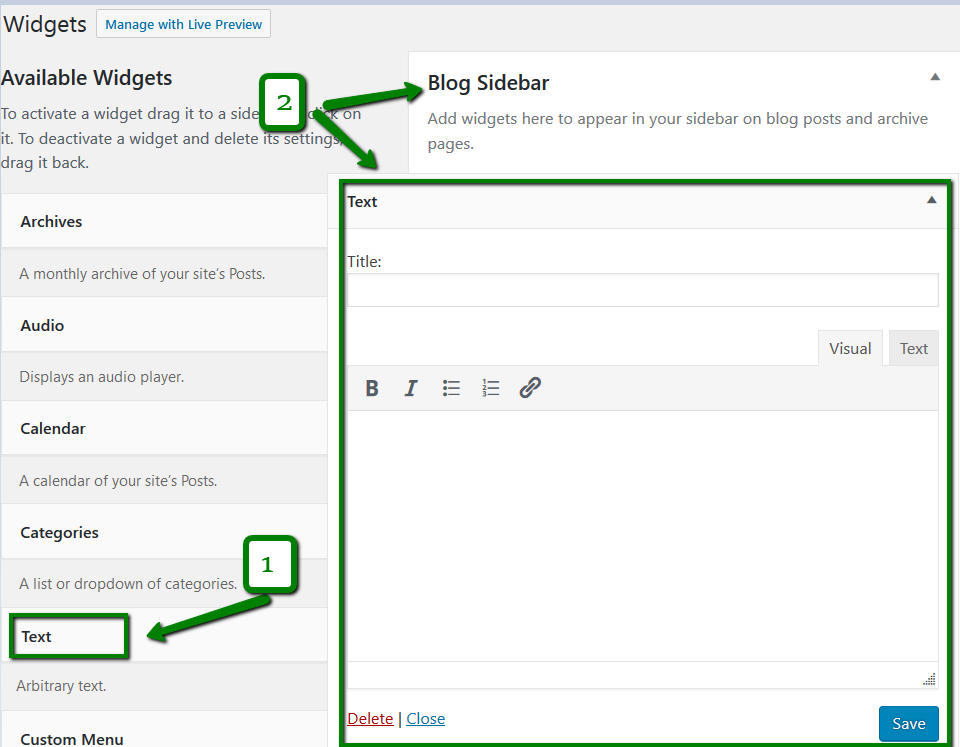
WordPress widgets offer a quick way to add Adsense code. You can place ads in sidebars, footers, or other widget-ready areas. Go to the WordPress dashboard, then to Appearance > Widgets. Select the Custom HTML widget and drag it to your preferred widget area.
Paste your Adsense code inside the widget and save it. The ads will appear where you placed the widget. This method is easy and needs no coding skills.
Inserting Code In Theme Files
For more control, insert Adsense code directly into your theme files. Use this method to place ads inside posts, headers, or footers. Access your theme files through Appearance > Theme Editor or via FTP.
Find the file where you want the ad to show, like header.php or single.php. Paste the Adsense code in the right spot, then save the file. This method requires some coding knowledge and care.
Utilizing Adsense Plugins
Adsense plugins simplify ad management on your WordPress site. Install a plugin that supports Adsense, such as Advanced Ads or Ad Inserter. These plugins help place ads without touching code.
After installation, enter your Adsense code in the plugin settings. Choose where and how ads appear on your blog. Plugins offer features like scheduling and ad rotation. This method suits users who want easy ad control.
Optimizing Ad Placement
Optimizing ad placement is key to making money from your WordPress blog. Well-placed ads catch visitors’ eyes without annoying them. This balance helps you earn more while keeping readers happy. Thoughtful ad spots increase clicks and improve user experience.
Best Locations For Ads
Place ads where visitors naturally look. The top of the page, near the header, gets good attention. Ads inside or near blog content also perform well. Sidebar ads can work, but they get less focus on small screens. Footer ads see fewer clicks but still add value. Test different spots to find what works best for your audience.
Balancing User Experience And Revenue
Too many ads make your site look crowded and slow. Visitors may leave quickly if ads block content. Use a few well-placed ads for steady income. Keep ads relevant and not overwhelming. Clear spacing between ads and text improves reading. This balance keeps visitors engaged and your income steady.
Troubleshooting Common Issues
Troubleshooting common issues with AdSense code on WordPress helps keep your ads running smoothly. Many users face problems that stop ads from showing or cause account suspensions. Knowing how to fix these issues saves time and effort.
Below are the most frequent problems and easy ways to solve them. This guide helps you understand why ads may not appear and why accounts get suspended.
Ads Not Showing Up
Ads might not show due to incorrect code placement. Make sure you paste the AdSense code in the right part of your WordPress theme or use a plugin designed for ads.
Clear your site cache after adding the code. Cached pages may not display new ads immediately.
Check if your site has enough traffic. Low traffic can delay ad display. Also, ensure your AdSense account is fully approved.
Disable any ad blockers during testing. Ad blockers can prevent ads from appearing on your site.
Account Suspension Reasons
Account suspension often happens due to policy violations. Avoid clicking your own ads or asking others to click them.
Do not place ads on prohibited content. Review Google AdSense policies carefully to keep your account safe.
Repeated invalid traffic, like bots or accidental clicks, can cause suspension. Use analytics to monitor your site traffic quality.
Keep your contact and payment information up to date in your AdSense account settings.
Tracking Adsense Performance
Tracking Adsense performance helps you understand how well your ads work. It shows which ads get clicks and how much money you earn. You can use this data to improve your blog’s income. Monitoring performance regularly keeps your ads effective and relevant.
Using Adsense Reports
Adsense provides detailed reports on ad performance. These reports show clicks, impressions, and earnings. You can see which pages get the most clicks. Use this information to focus on high-performing content. Check reports often to spot trends and changes.
Improving Click-through Rates
Click-through rate (CTR) measures how many people click your ads. A higher CTR means better ad success. Try placing ads in visible spots, like near content or headlines. Use ad sizes that fit well on your blog. Testing different ad types can also raise CTR.
Credit: www.namecheap.com
Frequently Asked Questions
How Do I Insert Adsense Code In WordPress?
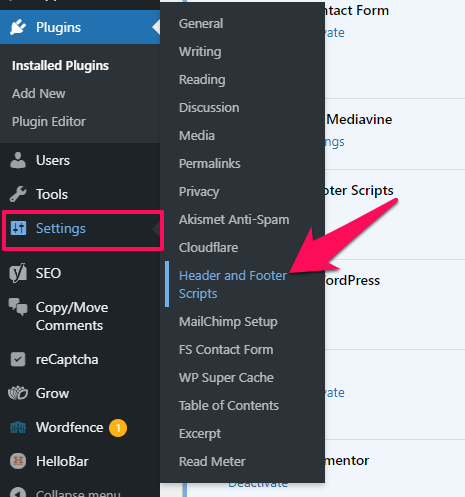
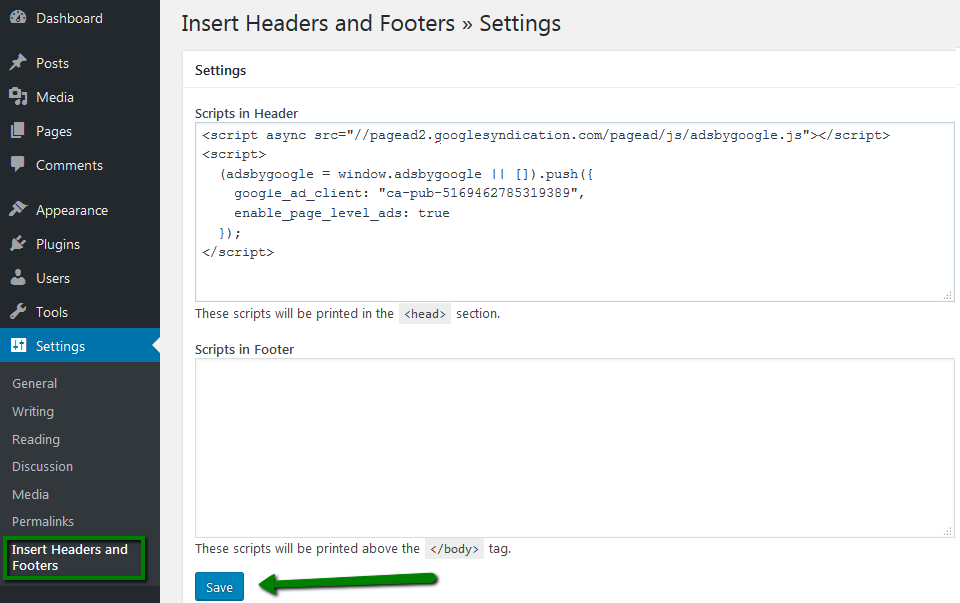
To insert Adsense code, go to your WordPress dashboard. Navigate to Appearance > Widgets, then add a Custom HTML widget. Paste your Adsense code into this widget and save. Alternatively, use a plugin to insert code in the header or footer.
Can I Add Adsense Code Without A Plugin?
Yes, you can add Adsense code manually by editing your theme files. Go to Appearance > Theme Editor, find the header.php file, and paste your Adsense code just before the closing tag. Always back up your site before making changes.
Where Should Adsense Code Be Placed On WordPress?
Place Adsense code in areas with high visibility for better revenue. Common spots include the header, sidebar, or within posts. Use widgets or theme editor to add code. Avoid placing too many ads to maintain user experience.
How To Verify Adsense Code Is Working On WordPress?
After adding the code, visit your site and check if ads appear. It may take up to 30 minutes for ads to show. You can also use Google Adsense dashboard to check if your site is verified and ads are active.
Conclusion
Adding Adsense code to your WordPress blog is simple and quick. Follow the steps carefully to avoid errors. Place the code where it fits best on your site. Check your site often to see if ads appear correctly. Earning money from your blog becomes easier this way.
Keep your content fresh to attract more visitors. This helps increase ad clicks and income. Stay patient; results take some time to show. Keep learning and improving your blog steadily. Success grows with consistent effort and good practice.


