

Are you ready to turn your WordPress site into a money-making machine? Adding ads is one of the easiest ways to start earning from your content.
But where do you begin? How do you make sure the ads don’t annoy your visitors? In this guide, you’ll learn simple, step-by-step methods to add ads that fit perfectly with your site. By the end, you’ll know how to boost your income without losing your audience’s trust.
Keep reading to discover how to make your WordPress site work harder for you.
Credit: help.one.com
Choosing The Right Ad Network
Choosing the right ad network is key to earning money from your WordPress site. The right network matches your site’s content and audience. It also fits your goals and technical skills. Picking a good network can increase your earnings and keep visitors happy.
Popular Ad Networks For WordPress
Google AdSense is a top choice for many. It offers easy setup and many ad types. Media.net works well for sites with lots of text. It focuses on contextual ads. Another option is AdThrive, best for high-traffic blogs. It offers good payouts but needs many visitors. Amazon Native Shopping Ads fit sites that promote products. They show related items and can boost sales.
Factors To Consider When Selecting
Check the ad network’s approval rules. Some require a minimum traffic level. Look at the types of ads they offer. Choose ads that fit your site style and audience. Consider the payment methods and thresholds. Find out how often they pay. See if the network supports your country. Think about how easy it is to place ads on your WordPress site. Finally, read reviews to learn from other users’ experiences.

Credit: themegrill.com
Installing Ad Plugins
Installing ad plugins on your WordPress site makes placing ads easy and efficient. These plugins help manage ads without needing to change the code. They offer tools to control where and how ads appear. This saves time and keeps your site clean.
Many plugins support popular ad networks like Google AdSense. They also allow custom ad placements. Some plugins offer advanced features like ad rotation and tracking. Choose one that fits your site’s needs.
Top WordPress Ad Plugins
Ad Inserter: A flexible plugin that supports many ad types. It allows automatic insertion in posts, pages, or widgets. It also supports Google AdSense and other ad networks.
Advanced Ads: Offers easy ad management with scheduling and targeting options. It helps display ads based on user device or location.
WP Quads: A fast plugin that supports multiple ad units. It is compatible with Google AdSense and AMP pages.
AdRotate: Good for users who want simple ad management. It offers basic features like ad scheduling and statistics.
Step-by-step Installation Guide
First, log into your WordPress dashboard. Go to the Plugins menu and click “Add New.”
Type the name of your chosen ad plugin in the search box. Click “Install Now” next to the plugin.
Once installed, click “Activate” to start using the plugin. You will see a new menu or settings page for the plugin.
Follow the plugin’s instructions to connect your ad account or create ad units. Set the location and display options for your ads.
Save your settings and check your site. Ads should appear in the places you selected.
Setting Up Manual Ad Placement
Setting up manual ad placement on your WordPress site gives you full control. You decide exactly where ads appear. This method works well if you want to place ads in specific areas. It helps keep your site clean and organized. You can avoid clutter and show ads in places visitors notice the most.
Manual placement requires some basic steps. You need to copy your ad code and paste it where you want the ad to show. WordPress makes this easy with widgets and the post editor. Both ways let you add ads without extra plugins or tools.
Using Widgets For Ads
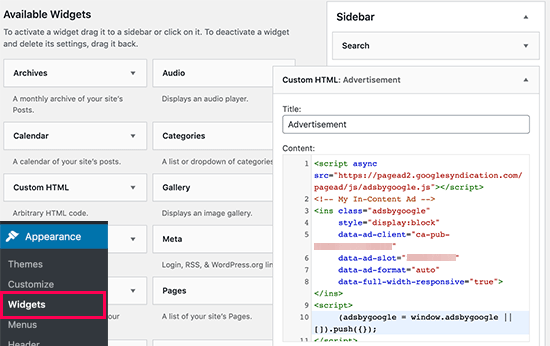
Widgets are simple blocks you add to your sidebar or footer. Many WordPress themes support widgets. Go to Appearance > Widgets in your dashboard. Drag a “Custom HTML” or “Text” widget to your sidebar or footer area.
Paste your ad code inside the widget content box. Save your changes. Now, your ad will appear in that widget area on every page. This method works well for ads that show site-wide, like banners or small boxes.
Adding Ads In Posts And Pages
You can place ads inside your posts or pages too. Open the post or page editor. Switch to the HTML or “Code” view. Find the spot where you want the ad to show. Paste your ad code directly in that spot.
Update or publish your content. The ad will appear where you placed the code. This method works well for in-content ads. They blend naturally with your text and get more attention from visitors.
Automating Ad Management
Managing ads on a WordPress site can take time. Automating ad management saves effort and keeps ads running smoothly. Automation helps place ads in the right spots without constant updates. It also improves user experience by showing relevant ads.
Using Plugin Features For Automation
Many WordPress ad plugins offer automation tools. These tools place ads automatically in posts, pages, or sidebars. Some plugins detect the best spots for ads. Others let you set rules for which ads show where. This reduces manual work and keeps ads fresh.
Plugins also handle ad code and tracking. They update ads without needing your input. This makes managing multiple ads easier and faster. Automation features in plugins help keep your site clean and organized.
Scheduling And Rotating Ads
Scheduling lets you choose when ads appear or stop. You can set start and end dates for each ad. This is useful for promotions or seasonal ads. The site shows the right ad at the right time without your help.
Rotating ads means showing different ads in the same space. This keeps the site interesting for visitors. It also spreads ad impressions across various advertisers. Rotation can be random or follow a set order. Scheduling and rotation together improve ad performance and earnings.
Optimizing Ad Performance
Optimizing ad performance is key to earning more from your WordPress site. Ads must attract visitors without annoying them. Good optimization improves user experience and boosts ad revenue. Small changes can make a big difference in ad results.
Tracking Clicks And Impressions
Track how many people see and click your ads. Use tools like Google Analytics or ad network dashboards. These tools show which ads work best and which need changes. Track data daily or weekly to spot trends fast. Knowing your ad performance helps make smart decisions.
Improving Ad Placement For Better Earnings
Place ads where visitors notice them naturally. Common spots include above the content, inside posts, and sidebar areas. Test different positions to find what gets the most clicks. Avoid placing too many ads close together. Clean layout keeps visitors happy and increases ad views.
Credit: aioseo.com
Complying With Policies And Guidelines
Adding ads to your WordPress site requires following certain rules. These rules help keep your site safe and trustworthy. They also protect your visitors and maintain your site’s reputation. Ignoring these guidelines can lead to penalties or account suspension. Always read the policies carefully before placing ads on your site.
Ad Network Rules To Follow
Each ad network has its own set of rules. These rules cover where and how you can place ads. Some networks limit the number of ads per page. Others ban certain types of content near ads. Violating these rules can cause your account to be banned. Check the ad network’s policy page regularly for updates. Follow their guidelines to ensure your ads run smoothly.
Ensuring User Experience
Good user experience keeps visitors on your site longer. Avoid placing too many ads that disrupt reading. Ads should not cover important content or navigation. Make sure ads load fast and do not slow your site. Use clear labels to distinguish ads from regular content. Balancing ads and content creates a better experience for everyone.
Frequently Asked Questions
How Can I Add Ads To My WordPress Site Easily?
Use plugins like Ad Inserter or Advanced Ads. Install, activate, and configure ad placements in your dashboard. These tools simplify ad integration without coding.
Which Ad Networks Work Best With WordPress?
Google AdSense is popular and user-friendly. Other networks include Media. net, Amazon Associates, and AdThrive. Choose based on your niche and traffic volume.
Can I Place Ads Without Slowing Down My Site?
Yes, optimize ad scripts and use caching plugins. Limit the number of ads per page. Faster loading improves user experience and SEO.
How Do I Choose The Best Ad Locations On WordPress?
Place ads above the fold, within content, and sidebar areas. Test different spots to see which yield higher clicks and revenue.
Conclusion
Adding ads to your WordPress site can help you earn money. Start by choosing the right ad network for your needs. Place ads carefully so they do not annoy visitors. Keep your site fast and easy to use. Check your ad performance often and make changes as needed.
Stay honest and avoid too many ads. This keeps visitors happy and returning. With patience and care, ads can support your website well.


