

Are you managing a WordPress site and need to give someone else full control? Adding an admin to your WordPress site might sound tricky, but it’s actually quick and simple.
Giving the right person admin access can save you time and help your site grow smoothly. In this guide, you’ll learn exactly how to add an admin step-by-step, so you can feel confident about sharing the responsibilities. Keep reading—you’re just minutes away from mastering this essential skill!
Why Add An Admin User
Adding an admin user in WordPress helps share control of your website. It allows trusted people to manage content and settings easily. This can make website management faster and smoother. But it is important to understand why you might need more than one admin.
Benefits Of Multiple Admins
Multiple admins can work together on your site. Tasks like updating posts, fixing issues, and managing plugins get done quickly. It also reduces the workload on one person. More admins mean better coverage if someone is unavailable. Teamwork improves site maintenance and content quality.
Security Considerations
Giving admin access requires caution. Only trusted users should be admins. Each admin has full control, so misuse can harm your site. Use strong passwords and update them often. Limit admin accounts to those who need full access. Regularly review admin users to keep your site safe.
Credit: yoast.com
Preparing To Add An Admin
Preparing to add an admin to your WordPress site is an important step. It helps keep your site safe and working well. Taking a few simple precautions protects your content and user data. Follow these easy tips before adding a new admin account.
Backup Your Website
Backing up your website saves a copy of all your files and data. This copy helps restore your site if something goes wrong. Use a trusted plugin or your hosting service to create backups. Do this regularly and especially before adding new admins. A backup gives peace of mind and security.
Choose A Strong Password
A strong password keeps your admin account secure. Use a mix of letters, numbers, and symbols. Avoid simple or common words. Make it at least 12 characters long. Changing passwords regularly adds extra protection. Strong passwords help prevent unauthorized access to your site.
Add Admin Via WordPress Dashboard
Adding an admin through the WordPress dashboard is a simple process. It lets you give full access to trusted users. This method keeps your site secure while sharing management tasks.
Follow the steps below to create a new admin user easily. The WordPress dashboard is user-friendly and guides you through each step clearly.
Access User Settings
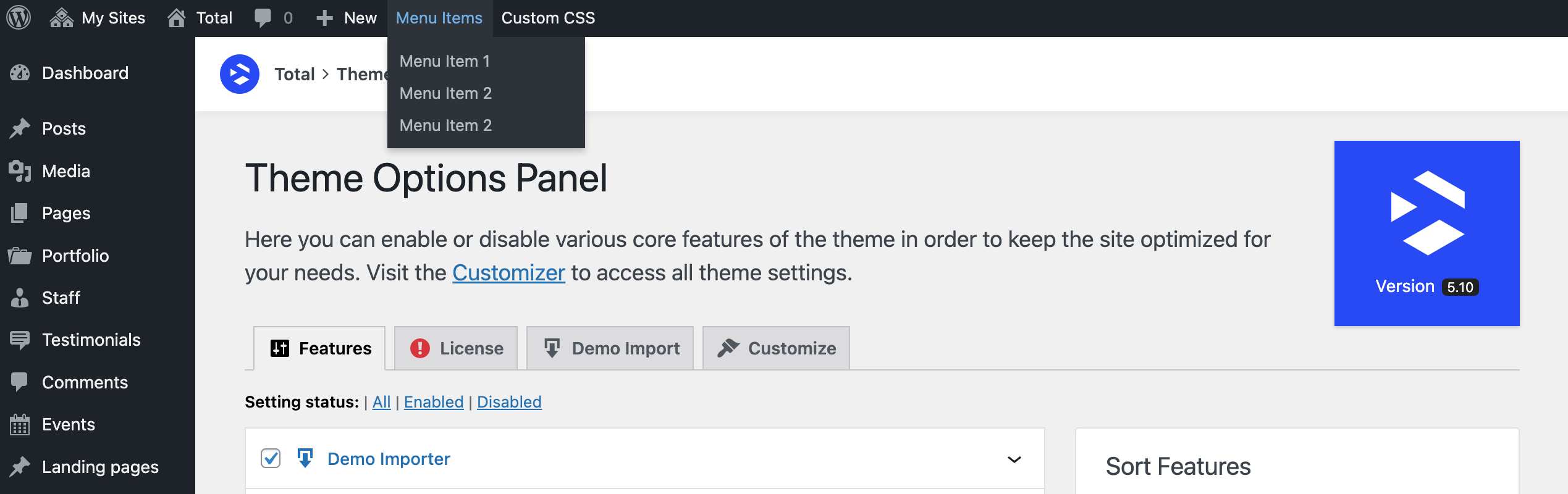
Log in to your WordPress dashboard. On the left menu, find and click “Users.” This section manages all site users. Click on “Add New” to start creating a user.
Create New User Account
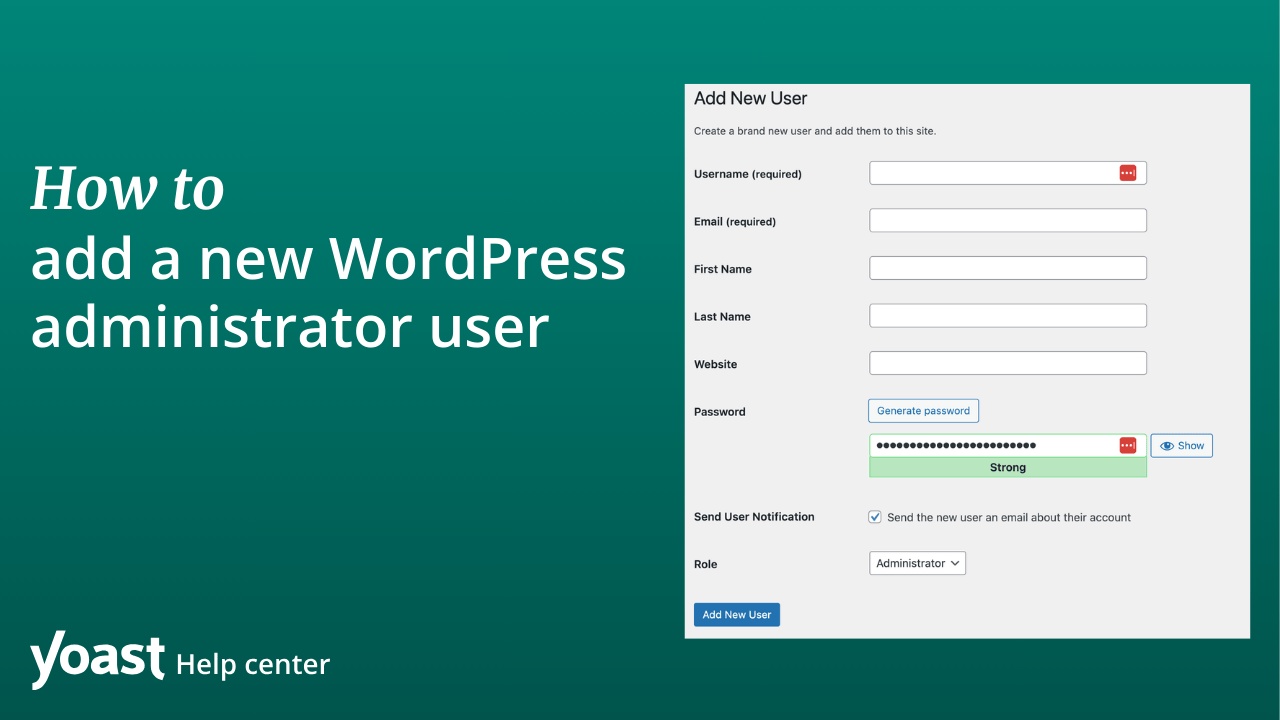
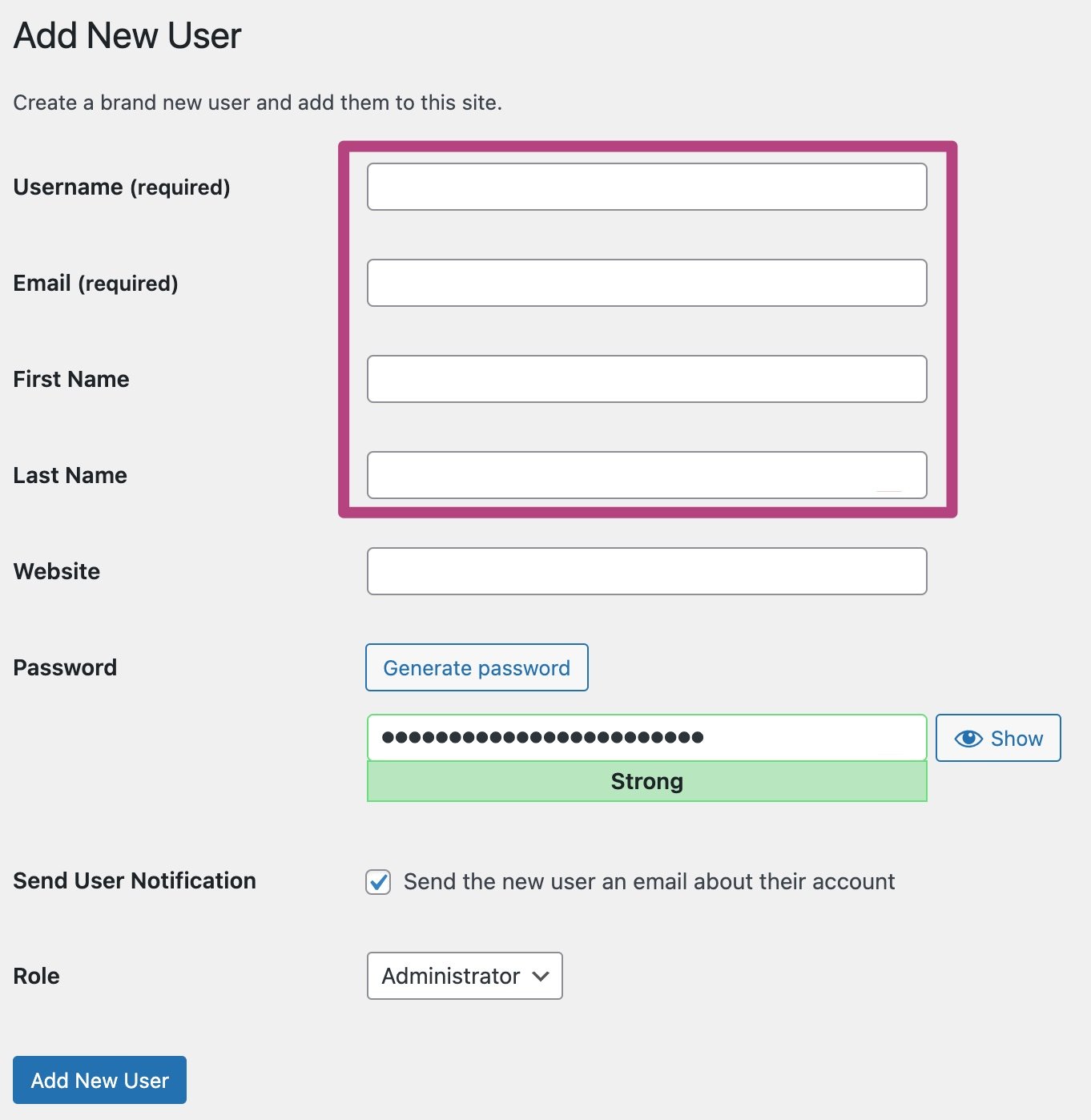
Enter a username for the new user. Add a valid email address. Type the first and last name if needed. Create a strong password or use the suggested one. Make sure to save this password safely.
Assign Admin Role
Look for the “Role” dropdown menu. Select “Administrator” from the list. This grants full access to the user. Click the “Add New User” button to finish. The new admin can now manage the site fully.
Credit: www.wpexplorer.com
Add Admin Using Phpmyadmin
Adding an admin user through phpMyAdmin is a direct way to manage your WordPress database. This method helps when you cannot access your WordPress dashboard. It involves editing the database tables where user information is stored.
This guide explains how to add an admin user step-by-step. Follow the instructions carefully to avoid any errors.
Access Database
First, log into your hosting control panel. Find and open phpMyAdmin. Select your WordPress database from the list on the left. This is where all your site data is stored. Always back up your database before making changes. It keeps your site safe if something goes wrong.
Insert New User Record
Click on the table named wp_users. This table holds user details. Click the “Insert” tab to add a new row. Fill in the fields: user_login, user_pass, user_email, and others.
For user_pass, choose MD5 from the function dropdown. Enter your password in the value field. This encrypts your password for security. Set user_registered to the current date and time.
Set User Permissions
Next, open the wp_usermeta table. Insert two new rows for the user you added. In the first row, enter the user ID, wp_capabilities as meta_key, and a:1:{s:13:"administrator";b:1;} as meta_value. This grants admin rights.
In the second row, use the same user ID, wp_user_level as meta_key, and 10 as meta_value. This sets the highest user level. Now, your new user has full admin access.
Manage Admin Permissions
Managing admin permissions in WordPress is essential for website security and smooth operation. Admin users have full control over the site. Careful permission management stops mistakes and protects sensitive data.
Setting clear limits on what each admin can do reduces risks. It also helps keep the website organized and easy to maintain. Use tools and regular checks to manage admin roles smartly.
Limit Access With Plugins
Plugins can help control what admins can access. They let you set specific rules for different users. This way, each admin sees only what they need for their tasks.
Choose plugins that are easy to use and updated often. Some popular plugins allow you to create custom roles. These roles can restrict access to certain pages or settings.
Using plugins reduces the chance of accidental changes. It also helps keep your site safe from unauthorized actions.
Regularly Review Admins
Check your list of admin users often. Remove or downgrade users who no longer need full access. This keeps your site safe and organized.
Reviewing admins helps spot unusual or unknown users. It is a simple step to prevent security problems. Make this a regular part of your website routine.
Troubleshooting Admin Access Issues
Admin access issues can block your ability to manage your WordPress site. These problems often stop you from adding new admins or editing settings. Knowing how to fix these issues saves time and stress. Below are simple ways to troubleshoot common admin access problems.
Reset Admin Password
Start by resetting the admin password. Use the “Lost your password?” link on the login page. Enter your admin email to get a reset link. Follow the link to create a new password. Choose a strong but easy-to-remember password. This step often restores access quickly.
If email reset fails, use phpMyAdmin. Open your site’s database and find the “wp_users” table. Locate your admin username. Edit the password field and select MD5 from the function dropdown. Enter your new password and save. This method updates your password directly.
Fix Permission Errors
Permission errors can block admin functions. Check your file permissions using an FTP client. WordPress files should have 644 permissions. Folders must be set to 755. Incorrect permissions cause access issues. Correcting these restores normal admin rights.
Plugins or themes may also cause permission conflicts. Disable all plugins by renaming the “plugins” folder via FTP. Try logging in again. If access returns, enable plugins one by one. This helps find the problematic plugin. Do the same for themes by switching to a default theme.
Credit: yoast.com
Frequently Asked Questions
How Do I Add A New Admin In WordPress?
To add a new admin, go to your WordPress dashboard. Navigate to Users > Add New. Fill in the user details and select “Administrator” as the role. Finally, click “Add New User” to grant admin access securely.
Can I Add Multiple Admins In WordPress?
Yes, WordPress allows multiple admins. You can add several users with the Administrator role. This helps in managing your site collaboratively while maintaining full control for each admin user.
Is It Safe To Add An Admin In WordPress?
Adding an admin is safe if you trust the person. Always assign admin rights cautiously to avoid security risks. Use strong passwords and limit admin access to essential users only.
What Permissions Does A WordPress Admin Have?
A WordPress admin has full control over the site. They can add, edit, or delete content, manage users, change themes, and install plugins. Admins essentially have unrestricted access to all site settings.
Conclusion
Adding an admin in WordPress is quick and simple. Just follow the steps carefully. This helps share website control safely. Always choose trusted people as admins. Keep your site secure by managing roles well. Regular checks prevent unwanted access. Now, you can easily give others admin rights.
Your website teamwork just got better.


