
Are you looking to customize your WordPress site without diving into the complex world of coding? Adding additional CSS to your WordPress theme can be the perfect solution.
It’s a straightforward way to tailor your site’s appearance, making it uniquely yours without the need for a full-blown redesign. Imagine tweaking your site’s colors, fonts, and layout with just a few lines of code. Whether you’re a seasoned developer or a WordPress newbie, this guide will show you how to enhance your website’s style effortlessly.
Keep reading to discover simple tips and tricks that will empower you to transform your WordPress theme and captivate your visitors.
Importance Of Custom Css
Custom CSS is a great tool in WordPress. It helps you change your website look. You can make it match your style. Many themes have their own styles. Sometimes, these styles do not fit your needs. Adding your own CSS can help fix this. It allows you to change colors, fonts, and more. You can make buttons bigger or smaller. You can hide things you do not want. This makes your site unique and special. It also helps you keep your brand style. Custom CSS gives you control. It is like giving your site a personal touch. This makes visitors remember your site. They will know it is yours. Easy to use and very helpful.
Credit: www.wpbeginner.com
Accessing Theme Customizer
Begin by logging into your WordPress dashboard. Look for the menu on the left side. Find the Appearance option. Click on it to see more choices.
After clicking Appearance, choose Customize. A new screen opens. This is the Theme Customizer. Look for a section named Additional CSS. It’s usually at the bottom. Click on it to open the editor.
Using The Theme Editor
Open your WordPress dashboard. Find the Appearance menu on the left. Click it. Then, select Theme Editor. A new page will open. Here, you can see all your theme files. Be careful while editing them. It’s easy to make mistakes. Always keep a backup.
In the Theme Editor, look for the style.css file. This is your stylesheet. Click on it to open. Now, you can add your CSS code. Make changes slowly. Test them on your site. Check how it looks. If something breaks, you can fix it. Remember to save your changes. Use the Update File button.
Credit: themetry.com
Adding Css Via Plugins
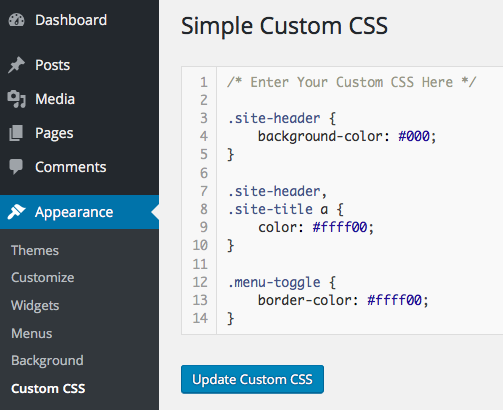
Start by selecting a plugin that is easy to use. Simple Custom CSS and CSS Hero are popular choices. They are user-friendly and reliable. Always read reviews before picking a plugin. This ensures the plugin is trusted by others. A good plugin helps you add CSS quickly.
First, go to your WordPress dashboard. Find the Plugins section and click Add New. Search for your chosen plugin. Click Install Now and wait for it to finish. Once done, click Activate. Your plugin is now ready to use. This process is simple and fast.
Go to the plugin settings in your dashboard. Look for a box to enter your Custom CSS. Type your CSS code in this box. Check if the changes appear on your site. Save your changes once done. This lets you customize your site easily.
Using A Child Theme
Enhance your WordPress theme by creating a child theme. This allows easy addition of extra CSS without altering the main theme. Maintain custom styles even after updates, ensuring your site looks unique and consistent.
Creating A Child Theme
A child theme is a way to change a WordPress theme. It keeps the main theme safe. To create one, make a folder in the themes directory. Name it your-theme-child. Next, add a style.css file inside. This file stores all your CSS changes. Write a comment at the top. Include theme name and template. Link it to the parent theme.
Adding Css To The Child Theme
Open the style.css file. You can add your custom CSS here. Use simple styles like changing colors. For example, body {background-color: #f0f0f0;} changes the background color. Save the file. Your changes will appear on the website. It’s easy to update. No risk to the main theme.

Credit: www.pair.com
Best Practices For Custom Css
Organize your CSS code neatly. Group similar styles together. Use comments to explain sections. This helps you and others understand the code later. Keep your code clean and simple. Avoid long, complex styles. Use consistent naming for classes and IDs. This makes the code easy to read. A well-organized file saves time and effort.
Test your CSS changes carefully. Check how your site looks in different browsers. Small mistakes can cause big problems. Use browser tools to inspect elements. These tools help find errors quickly. Test your site on mobile devices too. Mobile users need a good experience. Debugging is like solving a puzzle. Find what works, fix what doesn’t. It makes your site better for everyone.
Troubleshooting Common Issues
Learn to fix common problems when adding CSS to a WordPress theme. Ensure your custom styles appear correctly by checking theme settings and using the WordPress Customizer. Tackle issues like CSS not applying by clearing cache and verifying selector accuracy.
Css Not Applying
Sometimes, your custom CSS won’t show on the site. This can be frustrating. First, check if you saved your changes. Saving is important. Next, clear your browser cache. Browsers store old versions of your site. This can stop new styles from showing. Also, ensure your CSS is added in the right place. WordPress themes have specific areas for custom CSS. Wrong placement can cause problems.
Conflicts With Existing Styles
Conflicts happen when new CSS clashes with existing styles. This can make your site look odd. Use the Inspect Tool in your browser. It helps find which styles are causing trouble. Try using !important in your CSS. This makes your new styles take priority. But use it sparingly. Too much !important can create new issues. Always test your site after changes. Testing ensures everything works well together.
Frequently Asked Questions
How Can I Add Custom Css In WordPress?
You can add custom CSS to your WordPress theme through the WordPress Customizer. Navigate to Appearance > Customize, then select Additional CSS. Enter your CSS code and publish changes. This method is simple and doesn’t require file editing. It’s an efficient way to enhance your site’s design.
Is It Safe To Modify Css In WordPress?
Yes, modifying CSS in WordPress is safe when done correctly. Using the Customizer, you can preview changes before publishing. This ensures your modifications don’t break your site. Always back up your website before making significant changes to avoid any issues.
Will Custom Css Affect My WordPress Theme Updates?
No, adding custom CSS through the Customizer won’t affect theme updates. The changes are stored separately from the theme files. This means your customizations will remain intact even after updating the theme. It’s a reliable method for maintaining design consistency across updates.
Can I Use Plugins To Add Css In WordPress?
Yes, you can use plugins like Simple Custom CSS to add CSS. These plugins offer a user-friendly interface for managing custom styles. They are particularly helpful if you frequently switch themes. Plugins keep your custom CSS organized and separate from the theme’s core files.
Conclusion
Adding custom CSS enhances your WordPress theme’s appearance. It allows for unique styling. Follow simple steps to apply CSS effectively. Use the WordPress Customizer or a child theme. These methods keep your changes safe during updates. Testing changes before publishing is crucial.
Mistakes can disrupt your site’s layout. Regularly updating CSS knowledge helps in creating stunning websites. Practice makes perfect. Experiment with different styles. Observe how they transform your site. Remember, small changes make a big difference. Happy styling with WordPress!


