
Are you looking to monetize your WordPress blog or website? Adding ad space to your WordPress theme can be a game-changer for generating income.
But where do you start? If you’ve ever felt overwhelmed by the technical side of integrating ads, you’re not alone. Many WordPress users share your concerns, but the good news is that it doesn’t have to be complicated. Imagine turning your site into a revenue stream with just a few strategic steps.
In this guide, you’ll discover simple, effective ways to seamlessly incorporate ad space into your theme. By the end, you’ll feel empowered and in control, ready to maximize your site’s earning potential. Let’s unlock the secrets to boosting your website’s profitability together.

Credit: wpmayor.com
Choosing The Right Ad Placement
High-traffic areas are key for ad placement. Sidebar and header are popular spots. Users often look there. Articles that get many visits are ideal. Choose places where users stay longer. Homepage can be effective. Check analytics for top pages. Engagement is important. Ads should be visible but not annoying. Avoid clutter. Ads must blend with design. Keep user attention. Balance is crucial.
Ads bring revenue. But user experience matters too. Ads must not block content. Users should find what they need easily. Design impacts user experience. Ads should be neat. Avoid too many ads. It can upset users. Quality content is vital. Users visit for content. Balance ads and content well. Users should feel happy. Happy users return. Returning users increase revenue.
Installing A WordPress Ad Plugin
Adding ad space in a WordPress theme is simple with an ad plugin. Install the plugin and configure settings for optimal ad placement. This helps monetize your site effectively.
Popular Ad Plugins
Many plugins help with ads on WordPress. Ad Inserter is a great choice. It is simple and easy to use. Advanced Ads offers many features. It helps manage ads better. WP Quads is another option. It supports Google AdSense well. Ads Pro Plugin is more advanced. It provides many options for ads.
Plugin Installation Guide
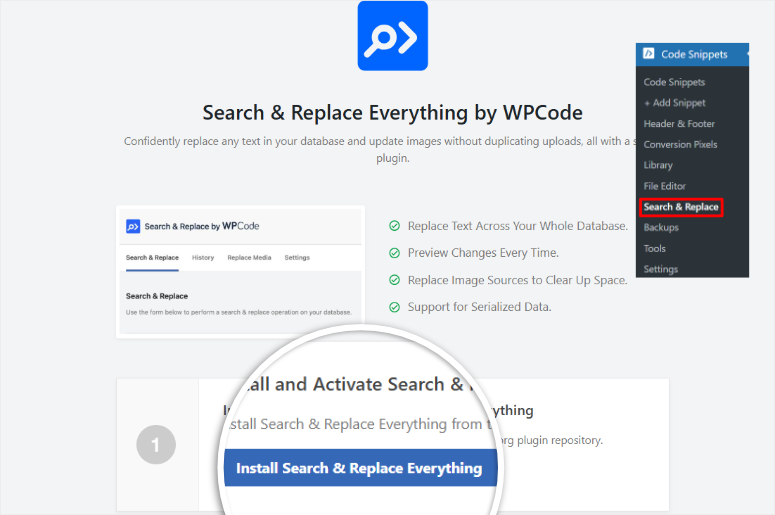
Find the plugin you want. Click on the ‘Plugins’ menu. Choose ‘Add New’. Type the plugin name in the search box. Click ‘Install Now’. Wait for installation to finish. Click ‘Activate’. Your plugin is now ready to use. Follow any setup instructions.
Customizing Ad Space With Widgets
Widgets make it easy to add ad space to your WordPress theme. Begin by going to your WordPress Dashboard. Click on Appearance and then Widgets. This is where you will manage your widgets.
Adding Widgets To Sidebars
Find the Sidebar section on the Widgets page. Look for a widget called Text or Custom HTML. Drag this widget to your sidebar area. A box will appear for you to enter details.
Configuring Widget Settings
Enter your ad code in the widget box. Make sure it fits the space well. You can adjust the title or leave it blank. Click Save when you are done. Check your site to see how the ad looks.

Credit: athemes.com
Inserting Ads With Shortcodes
Shortcodes are tiny code snippets. They help insert ads into your site. First, you need a plugin. Many plugins create ad shortcodes easily. After installing, open the plugin settings. There, you will find options to create a new ad. Add details like ad size and type. Once done, the plugin generates a shortcode. This shortcode is unique for each ad. It’s simple and quick to create.
Shortcodes can be placed in posts and pages. Go to your page or post editor. Find the spot where you want the ad. Paste the shortcode there. Make sure the shortcode is correct. After pasting, save or update your page. The ad will now show on your site. It’s that easy to place ads. You can add ads anywhere with shortcodes.
Editing Theme Files For Ad Integration
Integrating ad spaces into a WordPress theme involves editing theme files. By modifying header or sidebar files, ads can be placed strategically. This customization enhances visibility and optimizes ad revenue.
Accessing Theme Editor
The WordPress Theme Editor helps you change files easily. First, log in to your WordPress dashboard. Look for Appearance on the left side. Click on it, then select Theme Editor. You can see a list of theme files. It’s important to be careful when editing these files.
Editing Header And Footer Files
To add ads, you often edit the header.php or footer.php files. These files control parts of your site’s layout. Click on the file you want to edit. You will see the code. Paste your ad code in the right place. Save the changes by clicking Update File. Always backup your files before editing. This keeps your site safe if something goes wrong.
Using Custom Ad Codes
Custom ad codes easily add ad spaces to a WordPress theme. Simply paste the code into the theme’s widget area. This allows for seamless integration of advertisements, enhancing monetization opportunities on your website.
Creating Custom Ad Html
Custom ads can be added by creating HTML codes. This requires basic HTML knowledge. First, design your ad using HTML tags. Use for layout and for images. Text can be added with or tags. Once designed, copy the entire code. This code will be placed in your theme.
Embedding Custom Code In Theme
Place the custom ad code inside the theme files. Access theme through the WordPress dashboard. Navigate to Appearance and click Editor. Choose the file where you want the ad. Common places are header.php or sidebar.php. Paste the code in the desired location. Save the changes. Ads should now appear on your site.
Testing Ad Performance
It’s important to track clicks and impressions on your ads. Clicks show how many people click the ad. Impressions tell how often the ad is shown. Use tools like Google Analytics to track these numbers. These tools give detailed reports. They help you understand ad performance. You can see which ads get more clicks. This helps in improving your ad strategy.
Tracking Clicks And Impressions
Clicks and impressions are key metrics. They show ad effectiveness. Clicks measure user engagement. Impressions measure ad visibility. Use plugins or software for tracking. They provide easy-to-read data. This data helps in making informed decisions. Adjusting ads based on this data improves results.
Adjusting Ad Placements
Ad placement affects clicks and impressions. Experiment with different placements. Try ads in headers, sidebars, or footers. Test each placement for a week. Compare the results. Adjust based on performance. Proper placement boosts engagement. It also increases visibility. Regular testing is crucial for success.
Complying With Ad Policies
Placing ad space in a WordPress theme requires aligning with ad policies. Customize your theme by accessing the editor. Insert ad code in widget areas or directly within the theme files. This ensures ads display properly, meeting compliance standards.
Understanding Ad Network Requirements
Ad networks have rules. Follow them to keep your ads. Some networks need specific ad sizes. Others ask for certain placements. Study their guidelines. Read carefully. This helps your ads stay active. Avoid violations. They can lead to account suspension. Every network is different. Always check updates. Policies may change. Stay informed for best results.
Ensuring User Privacy And Consent
User privacy is important. Always show a privacy policy. Users need to know how their data is used. Ask for consent before tracking. Use cookie banners. They help with compliance. Respect user choices. Some may not want tracking. Always offer a clear opt-out. This builds trust with users. Happy users mean more ad clicks. More clicks mean more earnings.
Credit: www.isitwp.com
Frequently Asked Questions
How Can I Add Ad Space In WordPress Themes?
To add ad space in WordPress, use widget areas or install ad management plugins. Customize your theme’s header, footer, or sidebar to integrate ads. Opt for plugins like Ad Inserter or Advanced Ads for more control. Always test placements to ensure optimal visibility and user experience.
What Are The Best Plugins For Ad Management?
Popular ad management plugins include Ad Inserter, Advanced Ads, and WP AdCenter. These plugins offer features like automatic ad rotation, targeting, and tracking. Choose a plugin based on your specific needs and budget. Regularly update your plugins to ensure security and compatibility with your WordPress version.
Can I Customize Ad Placement In WordPress?
Yes, you can customize ad placement in WordPress using widgets and plugins. Widgets allow you to place ads in designated theme areas. Plugins offer advanced options for custom placements. Ensure your ads enhance user experience without disrupting content flow. Experiment with different positions to find the most effective setup.
How Do I Monetize My WordPress Site With Ads?
Monetize your WordPress site by integrating ad networks like Google AdSense. Use ad management plugins to control placements and formats. Focus on optimizing ad visibility without compromising user experience. Regularly review analytics to refine strategies and maximize revenue. Consider affiliate marketing and sponsored content for additional income.
Conclusion
Adding ad space in your WordPress theme boosts your site’s revenue potential. It enhances user experience and makes your blog look professional. Follow simple steps to integrate ads seamlessly. Choose strategic locations for maximum visibility. Consider your audience’s preferences when placing ads.
Keep your site’s design clean and clutter-free. Test different ad formats to see what works best. Monitor ad performance regularly for optimal results. Stay updated with WordPress features for efficient ad management. A well-placed ad can be effective without being intrusive.
Make sure ads complement your content and engage your readers.


