
Are you ready to give your WordPress site a fresh, new look? Adding a WordPress theme is one of the simplest ways to transform your website’s appearance and functionality.
It’s like giving your online presence a makeover that can attract more visitors and keep them engaged. But if you’re not sure where to start, don’t worry—you’re not alone. Many people find the process intimidating, but it doesn’t have to be.
You’re about to discover just how easy it is to add a WordPress theme to your site. In this guide, you’ll learn step-by-step instructions that will help you do it effortlessly and confidently. By the end of this article, you’ll be equipped to choose the perfect theme and install it with ease, ensuring your website stands out in the crowded digital space. Keep reading, and unlock the key to transforming your WordPress site today!
Credit: www.wpbeginner.com
Choosing The Right Theme
Know what you want from your website. Is it a blog, shop, or portfolio? Each type has different needs. Identify the main purpose of your site. This helps in selecting the best theme. Consider how you want your site to look. Colors, layout, and style matter. A good theme supports your goals.
Many themes are available on WordPress. Some are free, others paid. Browse through the theme library. Look at the previews. See if they match your vision. Popular themes often have better support. They also get regular updates. This keeps your site secure and fresh.
Check if the theme has features you need. Responsive design is important. It makes your site look good on phones and tablets. Look for customization options. Can you change colors and fonts easily? Some themes offer built-in SEO settings. This helps in getting more visitors. Choose a theme with good reviews and ratings. Happy users mean a reliable theme.

Credit: wpmarmite.com
Preparing For Installation
Always backup your site before adding a new theme. This keeps your data safe. Use plugins like UpdraftPlus for easy backups. Save your backup files in a secure place. This helps in case something goes wrong.
Not all themes work with every site. Check if the theme is compatible with your WordPress version. Visit the theme’s page for details. Some themes may need special settings. Always read the theme description.
Plugins add features to your site. Make sure your theme works well with existing plugins. Test your site with the theme in a safe mode. This helps avoid plugin issues. Update plugins to their latest versions.
Installing A Theme Via WordPress Dashboard
Begin by accessing your WordPress dashboard. Find the Appearance menu on the left. Click on it to open the Theme Directory. This is where you can see all themes available.
Next, search for a theme. Use the search bar to type keywords. This helps you find a theme you like. Look for themes that match your website’s needs.
Once you find a theme, click Install. After installation, a button named Activate will appear. Click this button to activate your new theme. Now your website will have a fresh look.
Uploading A Theme Manually
First, go to the WordPress theme website. Find a theme you like. Click on the download button. Your theme will be saved as a .zip file. Keep this file safe on your computer.
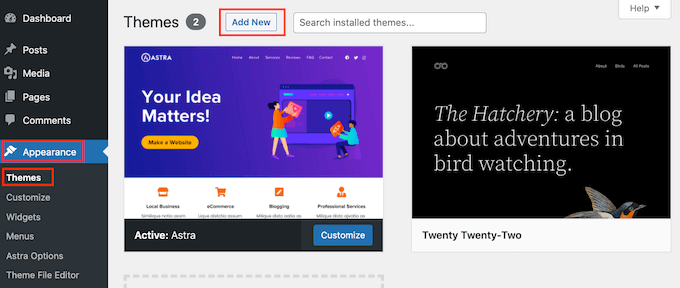
Log in to your WordPress dashboard. Find the Appearance option. Click on Themes. Now, click on Add New. Choose the Upload Theme button. Select your downloaded .zip file. Click Install Now to upload.
Use an FTP client like FileZilla. Connect to your website server. Navigate to the /wp-content/themes/ folder. Upload your theme’s unzip folder here. Go back to the WordPress dashboard. Activate the theme under Appearance and Themes.
Customizing Your Theme
Explore the simplicity of adding a WordPress theme. Begin by navigating to the ‘Appearance’ section in your dashboard. Select ‘Themes’ and click ‘Add New’. Browse themes, choose your favorite, and hit ‘Install’. After installation, customize settings to match your brand’s style.
Effortlessly transform your website’s look in minutes.
Using The WordPress Customizer
The WordPress Customizer lets you make changes easily. You can change colors, fonts, and layouts. This tool shows changes live. Adjust settings as you like. Make your site look unique. Click save to keep changes.
Adding Widgets
Widgets add features to your site. Drag and drop them in place. Choose from options like calendar, search, or text. Widgets appear on the sidebar or footer. They are easy to manage. Make your site more functional with a few clicks.
Configuring Menus
Menus help users navigate your site. Create new menus in the menu section. Add links to pages or posts. Arrange items by dragging them. Save changes to update the menu. Menus guide visitors through your site.
Testing The New Theme
Make sure all buttons work on your site. Check if pages load quickly. Try clicking on links and see if they open. Test the contact form. Make sure it sends messages. Look at your site from top to bottom. Ensure everything is in its place.
Open your site on a phone. Does it look good? Try a tablet next. Make sure text and images fit well. Swipe through pages. Everything should be easy to read. Check if the menu is easy to use. A good design works on all devices.
Open your site in different browsers. Use Chrome, Firefox, and Safari. Do all images show up? Are fonts the same everywhere? Check if colors look right. Sometimes a site looks different. Fix any problems you see. A site should look good in every browser.
Troubleshooting Common Issues
Adding a WordPress theme can sometimes lead to issues. Fix common problems by ensuring compatibility with your WordPress version. Clear your cache to see changes. Double-check theme installation steps if errors occur.
Fixing Display Problems
Display problems can be annoying. Check your theme settings first. Make sure everything is set correctly. Clear your browser’s cache often. This helps update the view. Check if your theme is compatible with your version of WordPress. Update both if needed. Sometimes, the issue is with the browser itself. Try using a different browser. This can solve many display issues.
Resolving Plugin Conflicts
Plugins can cause conflicts. Deactivate all plugins first. Activate them one by one. This helps find the problem plugin. Always choose plugins from trusted sources. This reduces conflict chances. Check for updates. Update plugins regularly. Avoid using too many plugins. They can slow down your site.
Contacting Theme Support
Contact theme support when problems persist. Provide detailed information. Share screenshots if possible. This helps them understand the problem. Be polite and clear. They will help solve issues faster. Check their response time. Some support teams reply quickly. Others might take longer. Always keep backups. This keeps your site safe.

Credit: www.greengeeks.com
Frequently Asked Questions
How To Install A WordPress Theme?
To install a WordPress theme, navigate to your dashboard. Click on “Appearance” and then “Themes. ” Select “Add New,” search for your desired theme, and click “Install. ” After installation, activate the theme by clicking “Activate. ” Ensure compatibility with your website’s plugins for optimal performance.
Can I Customize My WordPress Theme?
Yes, you can customize your WordPress theme. Access the “Customize” option under “Appearance” in your dashboard. Use the WordPress Customizer to modify colors, fonts, layouts, and other elements. Some themes offer more customization options, so choose one that fits your needs.
Are Free WordPress Themes Reliable?
Free WordPress themes can be reliable if sourced from reputable developers. Check user reviews and ratings before downloading. Ensure the theme is updated regularly for security and compatibility. For additional features and support, consider premium themes. Always back up your website before making changes.
What Is A Child Theme In WordPress?
A child theme in WordPress is a sub-theme that inherits functionality from a parent theme. It allows customization without altering the original theme files. This ensures updates don’t overwrite your customizations. Create a child theme to safely modify appearance and functionality.
It enhances flexibility and preserves changes.
Conclusion
Adding a WordPress theme is simple. First, choose the theme you like. Next, upload it to your WordPress site. Then, activate the theme to see changes. Customize it to fit your needs. With a new theme, your site looks fresh and appealing.
Make sure the theme is responsive. Mobile users will appreciate it. Regularly update your theme. It keeps your site secure and running smoothly. Now you know how to add a WordPress theme. Start exploring different themes today. Your website deserves a new look.
Feel confident in making those changes. Happy blogging!


