
Are you looking to give your WordPress site a fresh look by adding a new theme? Sometimes, you might encounter situations where the usual WordPress dashboard method just doesn’t cut it.
Maybe you’re dealing with a file size that’s too large, or perhaps there are compatibility issues. Whatever the reason, knowing how to add a WordPress theme via FTP can save the day. This method is not only reliable but also gives you more control over the entire process.
In this guide, you’ll discover a step-by-step approach to installing your WordPress theme using FTP. It’s simpler than you might think, and by the end of the article, you’ll feel empowered and ready to tackle any theme installation challenge. With the right tools and a little know-how, you’ll have your new theme up and running in no time. So, let’s dive in and transform your WordPress site together!
Preparation Steps
Choose a WordPress theme that you like. Check if it fits your website style. Make sure it’s compatible with your WordPress version.
An FTP client helps you upload files. FileZilla is a good choice. Download and install it on your computer. It is free and easy to use.
You need FTP credentials to log in. Get them from your web host. These include a username and password. Keep them safe.

Credit: docs.presscustomizr.com
Connect To Your Server
Easily add a WordPress theme via FTP by first connecting to your server. Use an FTP client like FileZilla. Upload the theme folder to the WordPress themes directory. Then activate the theme in your WordPress dashboard. It’s a straightforward process.
Launch Ftp Client
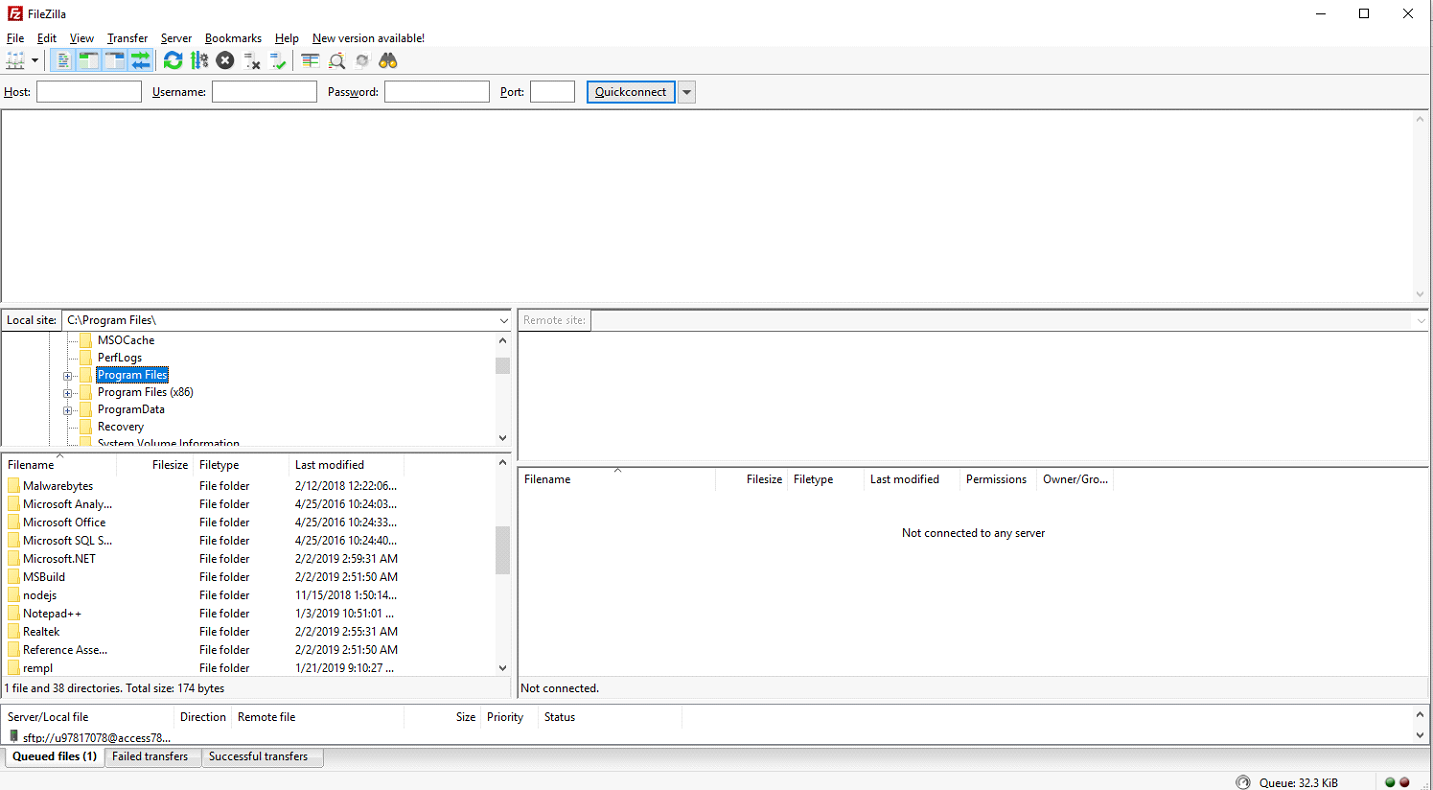
First, open your FTP client on your computer. Popular options include FileZilla and Cyberduck. Make sure the program is installed and ready. The FTP client helps in transferring files from your computer to the server.
Enter Ftp Details
Locate your server’s FTP details. These include the hostname, username, and password. Input them into the FTP client. Double-check to avoid errors. These details are crucial for connecting successfully.
Navigate To WordPress Directory
Once connected, find the WordPress directory. It’s often named ‘public_html’ or ‘www’. Navigate through the folders. Look for ‘wp-content’. This is where themes are stored. Ensure you are in the right folder before proceeding.
Upload Theme Files
First, find your WordPress theme on your computer. It should be in a .zip file. Unzip this file to see the theme folder. This folder contains all the theme files you need. Remember where this folder is saved. You will need it soon.
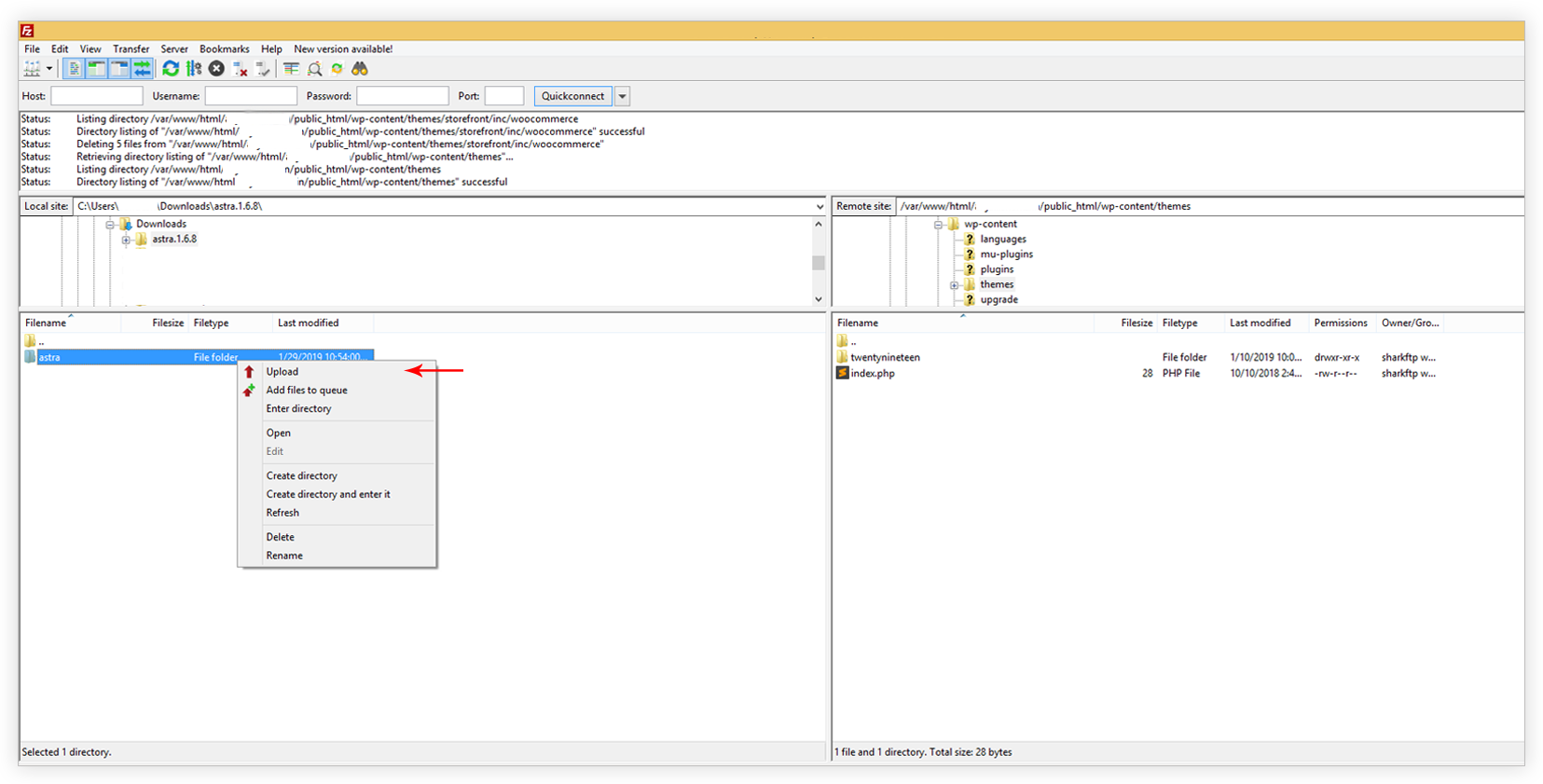
Open your FTP client. Connect to your website server using your login details. Go to the wp-content/themes folder. Drag and drop the theme folder you unzipped earlier here. Wait for the files to transfer completely.
Check that all theme files are on the server. Go back to your WordPress dashboard. Navigate to Appearance > Themes. You should see your new theme there. If it’s there, the upload is successful.
Credit: wpastra.com
Activate The Theme
First, log in to your WordPress Dashboard. It’s like the control room for your site. Find the Appearance section on the left side. Click on it. You’ll see the Themes option. Select it to view all your themes.
Next, look for the theme you added via FTP. It should be there. If not, check if you uploaded it correctly. Once found, hover over the theme. A button will appear. Click on Activate. This will make your new theme live.
Check your website. It should have a new look now. If something’s wrong, go back and see if the theme is compatible. Sometimes themes need updates or fixes. Ensure everything is working fine.
Troubleshoot Common Issues
Easily add a WordPress theme via FTP by uploading the theme folder to the wp-content/themes directory. Ensure your FTP client is connected to your web server. Activate the theme in your WordPress dashboard.
Resolve File Permission Errors
File permission errors can stop themes from uploading. Check permission settings in your FTP client. Set permissions to 644 for files and 755 for folders. This allows WordPress to read and write files. Contact your hosting provider for help if needed.
Check For Theme Compatibility
Sometimes a theme may not work with your WordPress version. Always check the theme’s compatibility before uploading. Read the theme’s documentation for required versions. Update WordPress to the latest version for better results.
Clear Cache
A cached version can cause display problems. Clear browser cache to see changes. Use plugins to clear WordPress cache. This refreshes the site and resolves issues.
Credit: helpcenter.qodeinteractive.com
Best Practices
Backups are very important. They keep your data safe. If something goes wrong, you can always restore it. Use a reliable plugin. Schedule backups every week. Store them in a safe place. Cloud storage is a good choice. It is always available. Make sure your backup is complete. Test it often. This ensures everything works well.
Updating themes keeps your site fresh. It also fixes bugs. Bugs can make your site slow. Use the latest version for best features. Check the theme’s website. They will have updates there. Don’t forget to backup before updating. This helps if something breaks. Always update plugins too. They work better with new themes.
Security is key to a safe website. Use strong passwords. Change them often. Avoid using common words. Install a security plugin. It protects against threats. Keep your WordPress updated. Updates fix security holes. Monitor your site regularly. Look for strange activities. Report anything suspicious. This keeps your site secure.
Frequently Asked Questions
What Is Ftp In WordPress?
FTP stands for File Transfer Protocol. It’s used to transfer files between your computer and your website’s server. In WordPress, FTP allows you to upload themes, plugins, or any other files directly to your site. It’s useful for managing files when you can’t access WordPress dashboard.
How Do I Find My Ftp Credentials?
You can find your FTP credentials in the hosting account dashboard. Typically, they are in the “FTP accounts” or “FTP access” section. If you can’t find them, contact your hosting provider. They will provide the necessary username, password, and server address details for FTP access.
Can I Add Any Theme Via Ftp?
Yes, you can upload any WordPress theme via FTP, whether it’s free or premium. Ensure the theme is compatible with your WordPress version. After uploading, activate the theme through the WordPress dashboard. This method is helpful if you face issues installing themes directly through WordPress.
Is Ftp Safer Than WordPress Dashboard?
FTP can be secure if used correctly. Use secure protocols like FTPS or SFTP instead of standard FTP. These encrypt data during transfer, protecting sensitive information. Always use strong, unique passwords for FTP access. Regularly update your FTP client and server software for enhanced security.
Conclusion
Adding a WordPress theme via FTP is straightforward. Follow each step carefully. Ensure you have FTP access to your website. Remember to download your theme file first. Open your FTP client and connect. Navigate to your WordPress theme folder. Upload the theme file.
Check your WordPress dashboard. Activate your new theme. Enjoy a refreshed website look. Regular updates keep your site secure. Practice this method for future theme changes. Keep exploring WordPress features. Enhance your site’s design with new themes. Keep learning and improving your WordPress skills.


