
Are you looking to give your WordPress website a fresh, new look without the hassle? Adding a WordPress theme is the easiest and most effective way to transform your site’s appearance.
But where do you start, and how can you make sure you choose the perfect theme for your needs? In this guide, you’ll discover the simple steps to add a WordPress theme to your website, ensuring your site not only looks stunning but also functions seamlessly.
Imagine your website capturing attention and keeping visitors engaged from the moment they land on your page. Ready to turn your vision into reality? Let’s dive into the process and unlock the potential of your site with just a few clicks.
Choosing The Right Theme
Identify your needs for the website. Is it a blog, a store, or a portfolio? Each type has different requirements. Make a list of what you want. Include colors, layout, and features. This will help narrow your choices.
Explore popular theme options on the WordPress site. Look at the ratings and reviews. Popular themes are often well-supported. They have updates and fixes. A good theme has lots of downloads. This shows trust from users.
Consider responsive design. This means the theme looks good on phones and tablets. Many people use phones to browse. A responsive theme makes sure your site works for everyone. It’s important for keeping visitors happy.
Downloading A Theme
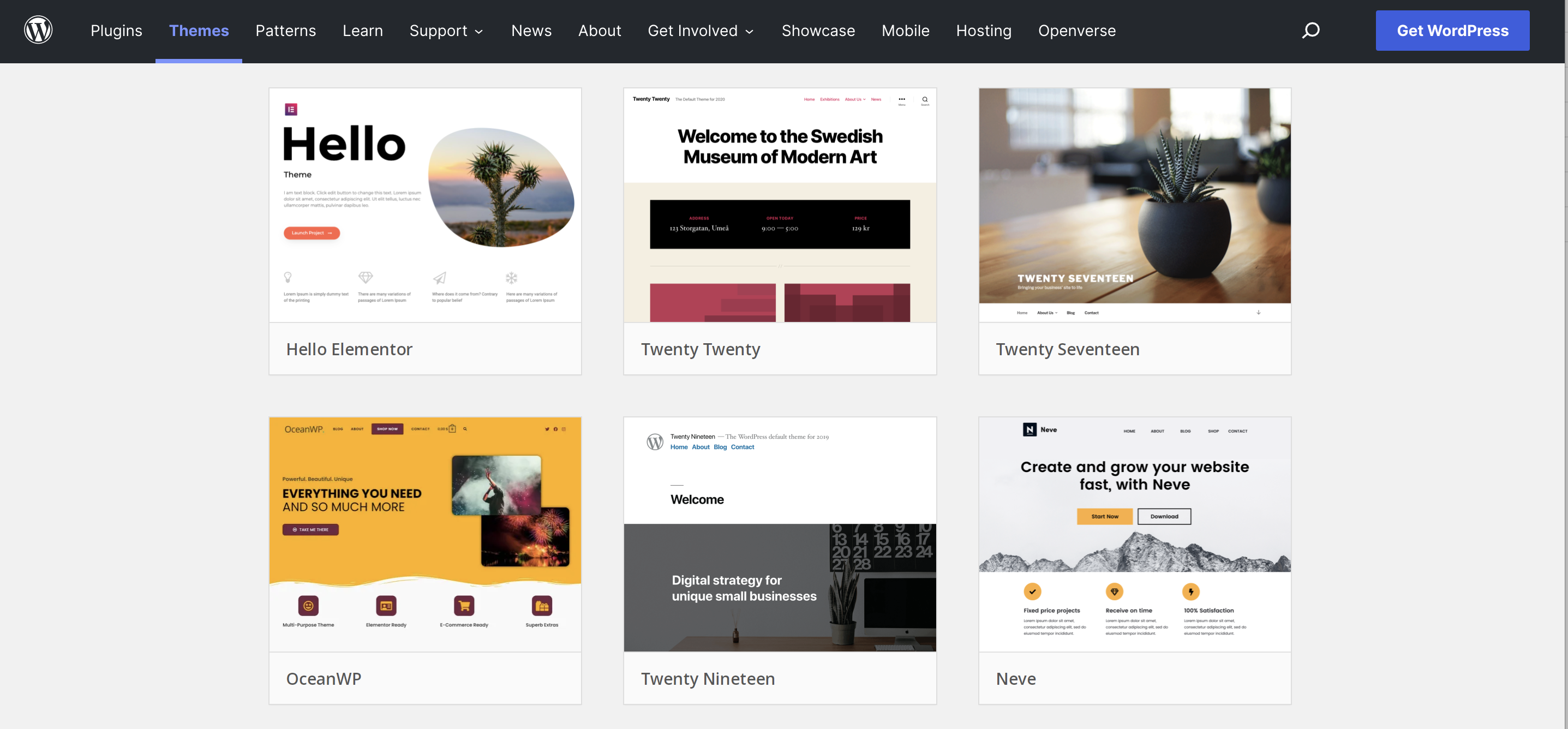
The WordPress Repository is a safe place for themes. You can find many themes there. Click on Appearance in your dashboard. Then select Themes. Next, click on Add New. You will see many themes. Use the search box to find themes you like. Read the reviews and see the ratings. Download the theme by clicking Install.
Many third-party websites offer themes. Some are free, some are paid. Sites like ThemeForest have many choices. Visit the website and browse themes. Check features and reviews. Buy the theme if it fits your needs. Download the theme file to your computer. Then, go to your WordPress dashboard. Click Appearance, then select Themes. Click Add New and upload the theme file.
Installing A Theme From The WordPress Dashboard
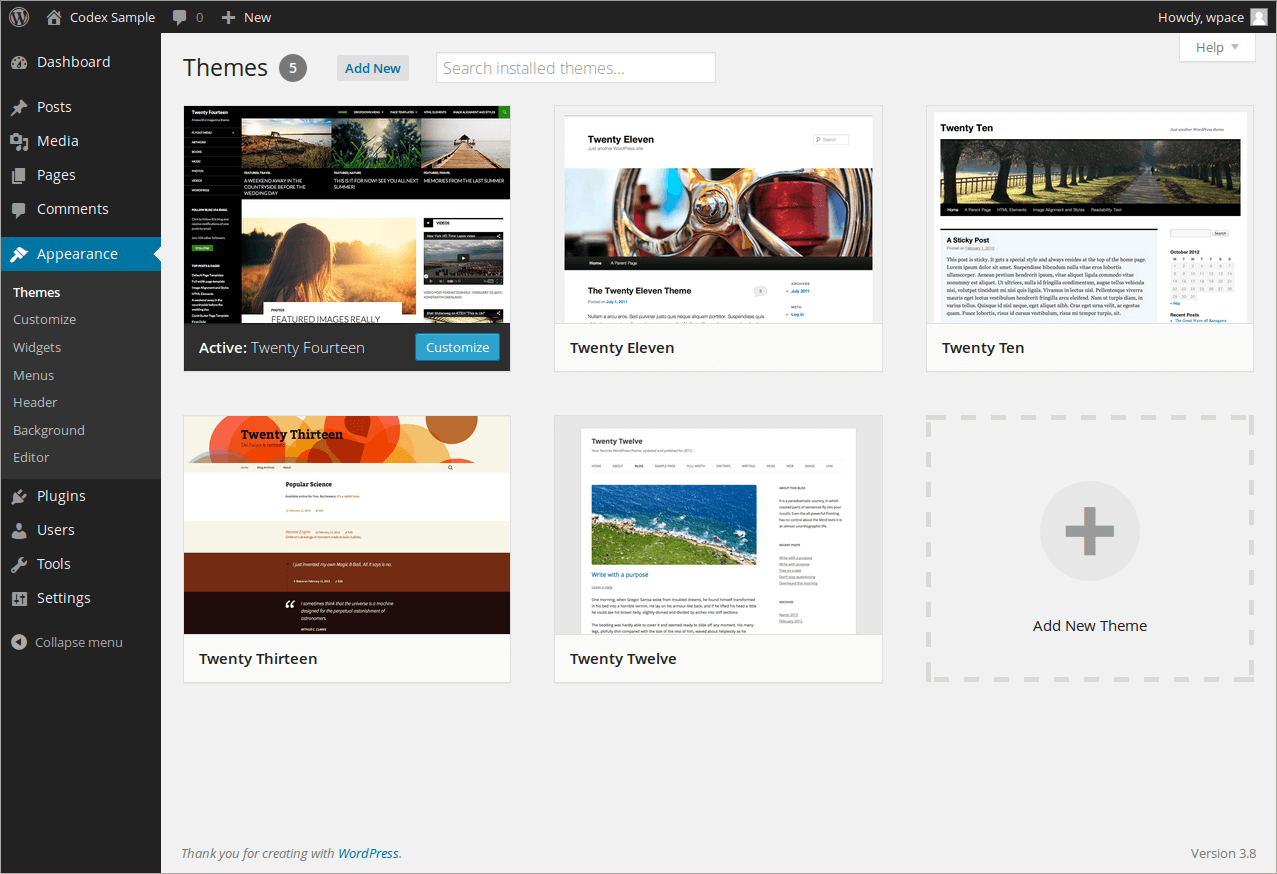
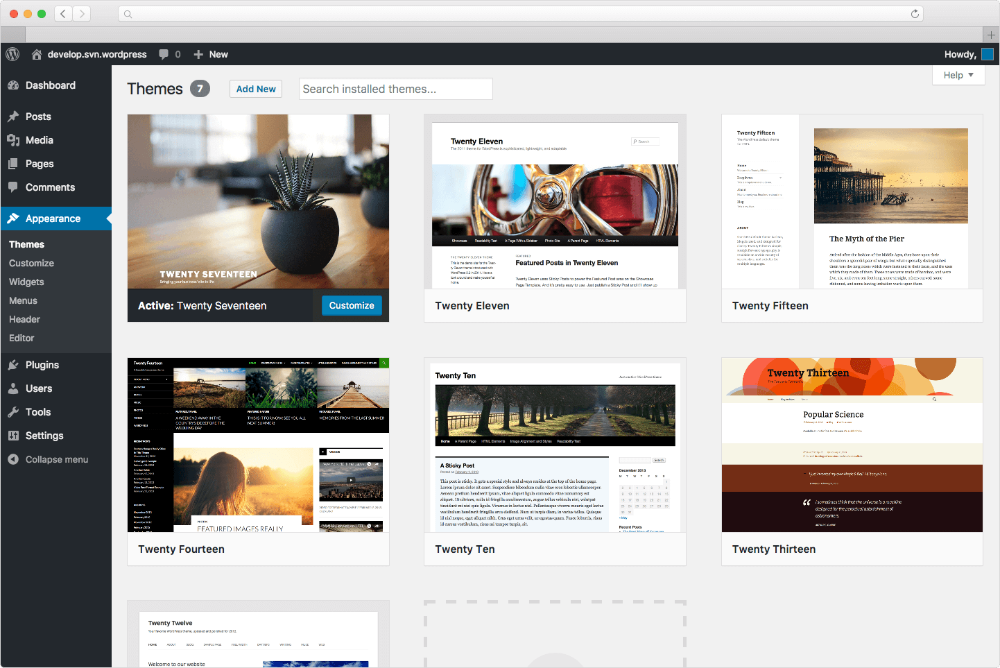
First, log into your WordPress Dashboard. Look for the Appearance option on the left menu. Click on it. This will take you to the themes page. Here, you can see your current theme. Also, you can see other themes that are already installed.
At the top, find the Add New button. Click it. You will see many themes. To upload your own theme, click Upload Theme. Choose the file from your computer. Make sure it is a .zip file. Then, click Install Now. Wait for it to finish.
After installation, click Activate. This makes the new theme live. You can now see your site with the new theme. Check if everything looks good. You might want to customize it a bit. Go back to Appearance to make changes.
Credit: jetpack.com
Installing A Theme Via Ftp
First, download an FTP client like FileZilla. Open the FTP client and enter your server details. Use your username and password. Connect to your website server. This helps you access your site files easily.
Find the theme folder on your computer. It’s usually in a ZIP file. Unzip it. Look for the unzipped folder. On the FTP client, go to the wp-content/themes directory. Drag and drop the unzipped theme folder there. Wait until it finishes uploading.
Go to your WordPress dashboard. Click on Appearance, then Themes. Find the new theme you uploaded. Click Activate. Your theme is now live. Check your site to see the new look. Make sure everything looks good.
Customizing Your Theme
The WordPress Customizer helps you change your site easily. Access it from your dashboard. You can see changes in real time. Choose to change colors, layout, and more. It’s simple and quick.
Widgets and menus add useful features to your site. Drag and drop widgets to the sidebar. Create menus for easy navigation. Customize them to fit your needs. They enhance user experience.
Colors and fonts create a unique look for your site. Select colors that match your brand. Choose fonts that are easy to read. Adjust them in the customizer. Make your site visually appealing.
Troubleshooting Common Issues
Facing issues while adding a WordPress theme? Check theme compatibility with your WordPress version. Ensure proper installation by uploading the theme in ZIP format. Activate the theme from the Appearance menu to see immediate changes.
Resolving Compatibility Problems
Some themes may not work with your plugins. This can cause issues on your site. Always check theme details for compatibility. Update plugins and themes regularly to avoid conflicts. If issues persist, try deactivating plugins one by one. This can help identify the problem plugin. Updating your WordPress version might also help.
Fixing Broken Themes
A theme may break after an update. This can make your site look odd. First, clear your browser cache. Then, switch to a default theme temporarily. If the site looks fine, the theme is the issue. Reinstall the theme if necessary. Always back up your site before making changes.
Contacting Support
Sometimes, you can’t fix issues alone. Contact the theme developer for help. Provide details about the problem. This helps them understand and solve it quickly. Many developers have forums for help. Use them to find answers. Help is often just a message away.
Ensuring Theme Updates
Automatic updates make life easier. They keep your theme fresh and safe. First, check if your theme supports this feature. Many themes do. Look for an option in the theme settings. Turn on automatic updates if available. Updates will now happen on their own. No need to remember or worry. Your site stays up-to-date without effort.
Sometimes, themes need manual updates. This is not hard to do. Go to your WordPress dashboard. Click on “Themes”. Look for update notifications. If an update is available, click “Update Now”. Wait a few moments. Your theme will be updated. Always back up your site first. It helps if something goes wrong. Keeping themes updated is important for security and performance.
Credit: www.hostpapa.com
Credit: docs.presscustomizr.com
Frequently Asked Questions
What Is A WordPress Theme?
A WordPress theme is a collection of files that define the appearance and functionality of your website. It includes templates, stylesheets, and images. Themes allow you to customize your site’s design without altering core WordPress files. Choose a theme based on your site’s purpose and desired aesthetic.
How To Install A WordPress Theme?
To install a WordPress theme, go to your dashboard. Navigate to “Appearance” and click “Themes. ” Search for a theme or upload a. zip file. Click “Install” and then “Activate” to apply the theme. Ensure compatibility with your WordPress version before installation.
Can I Customize My WordPress Theme?
Yes, you can customize your WordPress theme using the built-in customizer. Access it through “Appearance” > “Customize. ” Modify colors, fonts, and layout to match your brand. Advanced customizations may require coding knowledge or a child theme. Always back up your site before making significant changes.
Are Free Themes Good For WordPress?
Free themes can be good if they’re well-coded and updated regularly. They offer basic functionalities and designs. However, they may lack advanced features and support. Evaluate user reviews and updates frequency before choosing a free theme. Always prioritize security and compatibility with plugins.
Conclusion
Adding a WordPress theme is simple and quick. Choose a theme that suits your website’s style. Upload it through the WordPress dashboard. Customize it to fit your branding and content. Test the theme to ensure it looks good on all devices.
Check the speed and functionality. Make adjustments as needed. Enjoy your new website design. Feel free to explore different themes for better results. Keep your site updated for security and performance. Regularly review your theme’s compatibility with plugins. With patience, your website will stand out and engage visitors effectively.


