
Are you looking to spice up your WordPress website with a fresh new theme but feeling a bit overwhelmed by the process? You’re not alone.
Switching themes can breathe new life into your site, making it more visually appealing and user-friendly. But how do you add a WordPress theme manually without getting lost in the technical details? In this guide, you’ll discover the step-by-step process to manually install a WordPress theme, demystifying what might seem like a daunting task.
Imagine the satisfaction of seeing your website transform right before your eyes, reflecting your unique style and personality. Whether you’re a beginner or a seasoned WordPress user, mastering this skill can give you more control and flexibility over your website’s look and feel. Stick around, and by the end of this article, you’ll be ready to take your website to the next level with confidence and ease.
Credit: www.kadencewp.com
Pre-installation Preparations
Ensure a smooth WordPress theme installation by preparing your site first. Backup existing data to prevent loss. Check theme compatibility with your WordPress version.
Backup Your Website
Backing up your website is very important. It saves your data. Use a plugin to back up easily. This protects your site from loss. Always have a backup before changes. It keeps your content safe. Save your backup in a secure place. Many plugins can do this job. Choose one that suits you.
Choose A Suitable Theme
Picking the right theme is crucial. First, decide the purpose of your site. Is it a blog or a store? Different themes serve different needs. Look for a theme that fits well. It should match your site’s style. Check if it is updated regularly. Make sure it is fast and responsive. A good theme enhances user experience. It makes your site look nice and professional.
Download The Theme
Choose a trusted website to download your theme. Some sites might offer poor themes. Always check reviews. A good source keeps your site safe.
Downloaded themes should not harm your site. Look for popular sites like WordPress.org. They offer safe and tested themes.
Make sure the theme works with your WordPress version. Check the theme details. Themes need to fit your site’s needs.
A compatible theme avoids problems. It should work well with your plugins. Compatibility keeps your site running smoothly.
Upload The Theme Via WordPress Dashboard
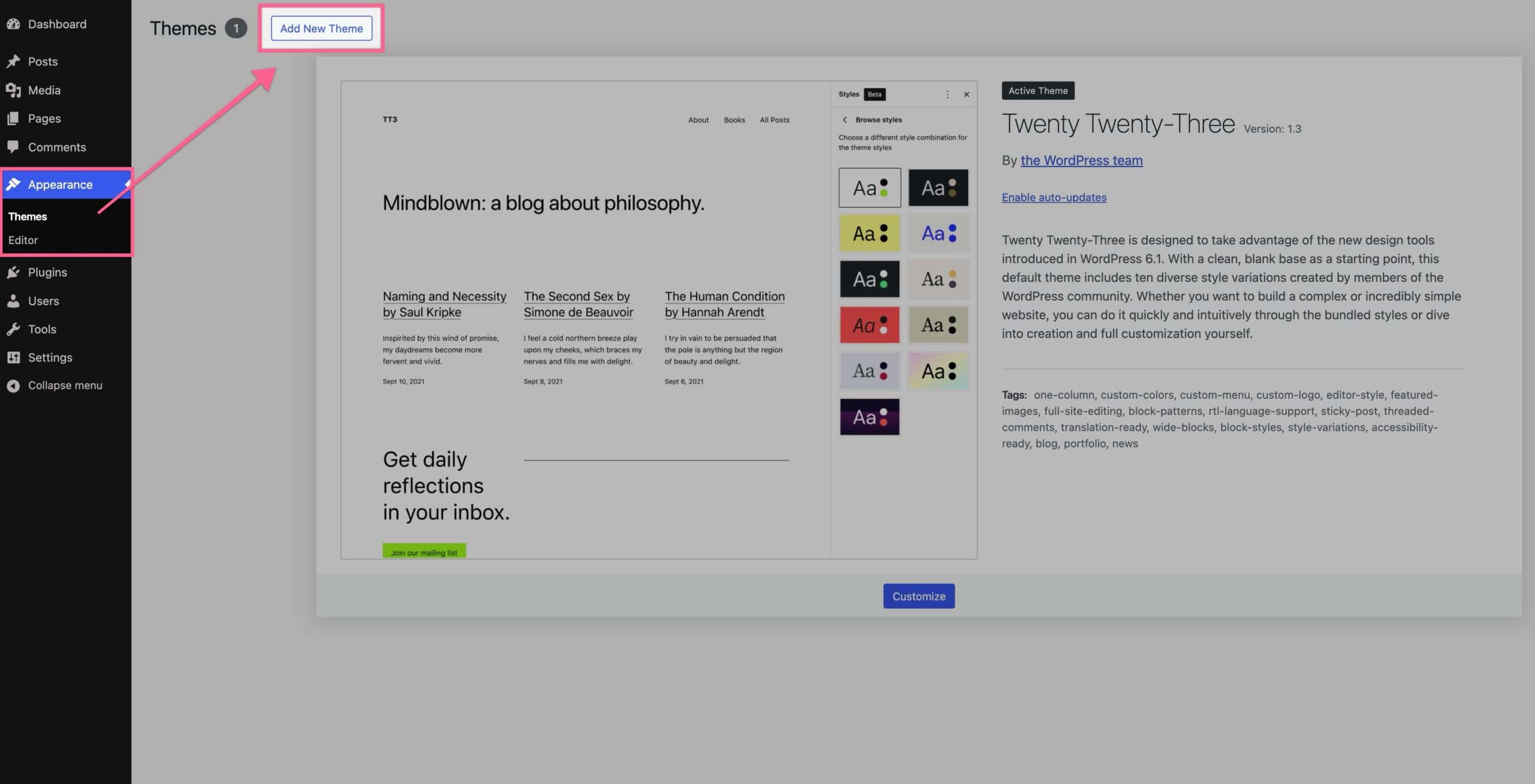
Go to your WordPress dashboard. Find and click on Appearance. Then choose Themes.
Use The Upload Feature
Click on Add New. Look for the Upload Theme button. Click it. Choose your theme file. It should be a zip file.
After selection, click Install Now. Wait for the installation. Once done, click Activate. Your theme is now live.
Install The Theme Via Ftp
First, open your FTP client. Enter your website’s FTP credentials. You need a username, password, and host address. Click on the connect button. Wait until the connection is established.
Navigate to the WordPress themes folder. It is located in wp-content/themes. Find the theme you want to upload on your computer. Drag and drop the theme folder into the FTP client. Wait for the upload to complete. Check for any errors during upload.
Activate The New Theme
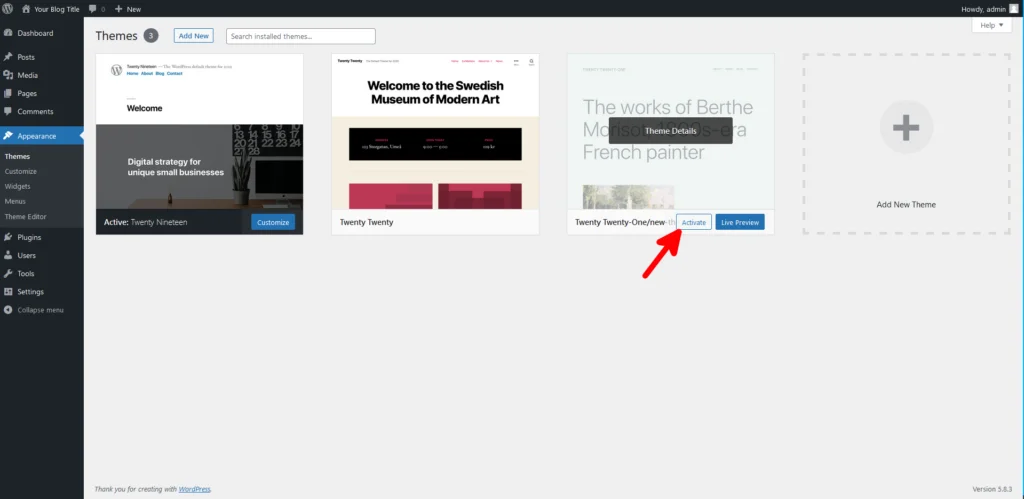
First, go to the WordPress dashboard. This is where all the magic happens. Look for the Appearance tab on the left side. Click it. Now you will see the Themes option. This is where you can find all your themes.
Find the new theme you want. It should be at the top. Once you see it, click on the Activate button. This will make the theme live on your site. Now, your website looks new and fresh. It’s that easy!
Check For Errors
Errors can halt the smooth installation of a WordPress theme. Carefully check file permissions and compatibility issues. Ensure the theme files are correctly uploaded to the ‘wp-content/themes’ directory.
Test Theme Functionality
Activate the new theme in your WordPress dashboard. Navigate to your website’s front end. Ensure everything looks as expected. Check the header, footer, and menu. Make sure all links work properly. Click on different pages and see how they load. Test any widgets or sidebars you have. Observe if any content is missing. If you find errors, note them down. You may need to fix them later.
Inspect For Compatibility Issues
Check if the theme works with your plugins. Some themes may conflict with plugins. This might cause your site to break. Disable all plugins first. Then, turn them on one by one. Check your site each time. If an issue arises, note the plugin causing it. Also, test different browsers like Chrome or Firefox. Make sure your site looks good everywhere. This ensures a smooth experience for visitors.
Customize The Theme
To make your theme special, you need to adjust it. First, go to your WordPress dashboard. Find the Appearance option on the left side. Click on it, then select Customize. This will open the theme customization screen. Here, you can change colors, fonts, and more.
Adjust Layout And Design
In the customization screen, look for the Layout section. Change how your site looks. You can move things around or change sizes. Try different options and see what you like best. Next, find the Design section. Choose your favorite colors and fonts. Make sure it looks nice and easy to read. Save your changes when done. Now your theme looks just the way you want!
Credit: www.scalahosting.com
Update Theme Regularly
Updating your WordPress theme regularly ensures security and fresh features. Manually adding a theme involves downloading it, then uploading via the dashboard. This keeps your website running smoothly and looking modern.
Check For Theme Updates
Theme updates bring new features and fix problems. Visit your WordPress dashboard. Look for any update notifications. Check the theme’s website for updates. Updates keep your site secure and working well. Regular updates are very important. They help improve performance and security. If updates are available, consider applying them soon. This ensures your website stays current.
Backup Before Updating
Always backup your website before updating. Use a backup plugin if needed. A backup keeps your data safe. It helps if something goes wrong. If an update causes issues, restore from your backup. This saves time and effort. Backing up is a smart habit. It can prevent data loss. Regular backups protect your hard work. Keep them updated often. This makes recovery easy and stress-free.

Credit: www.youtube.com
Frequently Asked Questions
How Do I Manually Install A WordPress Theme?
To manually install a WordPress theme, download the theme’s zip file first. Then, go to your WordPress dashboard, navigate to Appearance > Themes, and click ‘Add New’. Select ‘Upload Theme’, choose your downloaded zip file, and click ‘Install Now’. Finally, activate your new theme.
Can I Upload A Theme Via Ftp?
Yes, you can upload a theme via FTP. First, extract the theme’s zip file. Connect to your server using an FTP client. Navigate to ‘wp-content/themes’ and upload the extracted theme folder. After uploading, go to your WordPress dashboard and activate the theme under Appearance > Themes.
What Are The Benefits Of Manual Theme Installation?
Manual installation gives you control over the theme files. It allows you to upload custom or premium themes not available in the WordPress repository. This method also helps in troubleshooting issues by ensuring all files are correctly uploaded and not corrupted during the process.
Is It Safe To Manually Add A Theme?
Yes, manually adding a theme is safe if you download from trusted sources. Always ensure the theme is compatible with your WordPress version. It’s recommended to backup your site before making changes. Check the theme for malicious code using security plugins to protect your site.
Conclusion
Installing a WordPress theme manually is straightforward. First, download your theme’s ZIP file. Next, log into your WordPress dashboard. Navigate to “Appearance” and click “Themes. ” Select “Add New” and then “Upload Theme. ” Choose your downloaded file and hit “Install Now.
” Activate your theme once installed. Manual installation gives control and flexibility. It’s a useful skill for WordPress users. Remember to check theme compatibility with your WordPress version. Regular updates keep your site secure and functional. Now, enjoy customizing your site with your new theme!


