
Are you looking to enhance your WordPress site with a touch of functionality or a dash of personalization? Adding widgets to your WordPress theme is a simple yet powerful way to do just that.
Whether you’re aiming to display recent posts, social media feeds, or a custom HTML block, widgets can help you achieve your goals effortlessly. Imagine the satisfaction of transforming your site into a more engaging, user-friendly space that captivates your audience’s attention.
In this guide, you’ll discover how to seamlessly incorporate widgets into your WordPress theme, turning your creative vision into reality. Stay with us, and you’ll be equipped to elevate your website’s performance and aesthetic in no time.

Credit: wordpress.org
Choosing The Right Widget
Think about what your website needs. Do you need a search bar? Or maybe a calendar? Each widget has its own job. Knowing what you need is important. It helps you choose the right one. Some widgets show pictures. Others display text or numbers. Choose based on your website’s goal.
WordPress has many widgets to offer. You can find them in the Widget section. Take your time to look at each one. Some are basic, like text or image widgets. Others can be complex, like social media feeds. Compare their features. This helps in deciding which one to use. A good choice can make your website better.

Credit: qodeinteractive.com
Preparing Your WordPress Theme
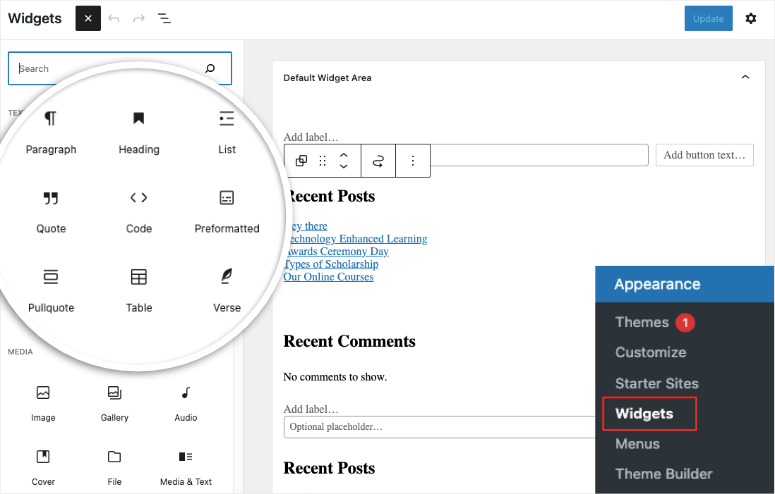
Adding a widget to a WordPress theme enhances functionality and user experience. Start by accessing the WordPress dashboard. Navigate to the Appearance section, then select Widgets. Choose your desired widget, drag it to your theme’s sidebar or footer area, and customize its settings to fit your needs.
Backup Your Theme
Always keep a backup of your WordPress theme. This step is very important. Use a plugin for easy backups. Many plugins are free. Backups save your theme files. They help if something goes wrong. You can restore files anytime.
Access The Theme Editor
Find the theme editor in your WordPress dashboard. Navigate to “Appearance” then “Theme Editor”. Select the theme you wish to edit. The theme files will show on the right. Choose the file you want to change. Make edits carefully. Save changes after editing. This helps keep your site safe.
Adding A Widget Area
Open your theme’s functions.php file. This file tells your theme what to do. You will need to add a special code here. Find a place in the file to add the code.
Use the register_sidebar() function. This function creates a space for your widget. Use a unique name for your widget area. This helps to keep things clear. Also, add a description if you like. This helps you remember what the area is for.
Add the code to register your widget area. Below is an example:
function my_custom_widget_area() {
    register_sidebar( array(
        'name'          => __( 'My Widget Area', 'textdomain' ),
        'id'            => 'custom-widget-area',
        'description'   => __( 'A custom widget area', 'textdomain' ),
        'before_widget' => '',
        'before_title'  => '',
    ) );
}
add_action( 'widgets_init', 'my_custom_widget_area' );
Save your changes. Now your theme knows about the new widget area. You can add your custom widgets there.
Inserting Widgets Into The Theme
Adding a widget to a WordPress theme is simple. First, open your theme files. Look for the sidebar template. This is where widgets usually go. You will see some code here. Find the spot where you want the widget. It is often at the top or bottom.
Add your widget code there. Save the changes. Now, go to your WordPress dashboard. Click on Appearance. Then select Widgets. Drag your new widget to the right spot. Check your site to see the widget. If it is not there, check your code again. Sometimes a small error can hide the widget.
Customizing Widget Appearance
Widgets make websites look nice. Use CSS to change how widgets appear. Change colors, sizes, and fonts. CSS makes widgets unique.
Use a stylesheet for your changes. Easy to update later. Keep your CSS tidy. Group similar styles together. Use comments to remember what each style does.
Responsive design means widgets look good on all screens. Use media queries in CSS. They adjust styles based on screen size. Make sure text is readable. Buttons should be easy to click.
Test your widget on different devices. Check phones, tablets, and computers. Adjust CSS if needed. Responsive design keeps users happy.
Testing And Troubleshooting
Learn how to add a widget to a WordPress theme by testing and troubleshooting. Ensure the widget functions correctly and fits the theme’s design. Troubleshoot any issues to enhance your site’s functionality and user experience.
Check Widget Functionality
Ensure your widget works as expected. Go to your website and view the page where you added the widget. Check if the widget appears correctly. Make sure it displays the right content. Click on any buttons or links to see if they work. If something doesn’t look right, you may need to adjust your code.
Resolve Common Issues
Sometimes, widgets don’t work due to theme conflicts. Try switching to a default theme to see if the issue persists. Clear your browser cache if changes aren’t visible. Check for JavaScript errors in your browser’s console. These errors might point to the problem. If you use a caching plugin, clear its cache. This can resolve display issues.
Advanced Widget Features
Custom widgets make your site unique. They help show special content. Custom widgets are made using HTML and CSS. They can be dragged and dropped into any widget area. This makes them easy to place. Use custom widgets to display text, images, or videos. They can even show social media feeds. This lets visitors see your latest posts. Custom widgets make your WordPress site stand out.
Plugins add more features to your site. Some plugins help create widgets. They make it simple to add new content. With plugins, you can add weather updates or news feeds. Plugins are easy to find in the WordPress directory. Just install and activate them. Many plugins are free, so they fit any budget. Explore different plugins to find the best fit for your needs.
Credit: www.isitwp.com
Frequently Asked Questions
How Do I Add A Widget In WordPress?
To add a widget, navigate to your WordPress dashboard. Go to Appearance, then select Widgets. Drag your desired widget from the list to the designated area. Customize the widget settings as needed. Save the changes to activate the widget on your site.
Can I Customize Widget Appearance In WordPress?
Yes, you can customize the appearance of widgets. Use the Customizer found under Appearance in the dashboard. You can adjust the widget’s size, color, and placement. Some widgets might offer additional settings for further customization. Always save changes after customizing to update your site.
What Are Widget Areas In WordPress Themes?
Widget areas are predefined sections in your WordPress theme where you can place widgets. Common areas include sidebars, footers, and headers. Each theme may offer different widget areas. Check your theme’s documentation for specific widget area locations and customize accordingly.
Why Are WordPress Widgets Important?
Widgets enhance your site’s functionality and user experience. They allow you to add features like search bars, social media links, and recent posts. Widgets help organize content and improve navigation, making your site more user-friendly and engaging.
Conclusion
Adding a widget to your WordPress theme is simple. Widgets enhance your site’s functionality. They make content accessible and organized. Follow the steps outlined, and you’ll succeed. First, access your WordPress dashboard. Then, navigate to the Appearance section. Choose Widgets and select your desired widget.
Drag it to the preferred widget area. Save your changes to apply them. You can customize settings for a personal touch. Try experimenting with different widgets. This adds variety to your site. Regular updates keep your site engaging. Now, enjoy a more interactive WordPress website!


