

Are you looking to make your WordPress page more interactive and user-friendly? Adding a widget can be the perfect solution.
Widgets help you display important features like calendars, search bars, or social media feeds right where your visitors can see them. But if you’re unsure how to add a widget to your WordPress page, don’t worry—you’re in the right place.
In this guide, you’ll learn simple, step-by-step methods to enhance your site quickly and easily. Keep reading, and by the end, you’ll have the tools to make your page stand out and keep your visitors coming back for more.
Choosing The Right Widget
Choosing the right widget for your WordPress page is very important. Widgets add extra features and improve user experience. They help you share information, engage visitors, and make your site look better. Picking the best widget depends on what your website needs and what your visitors want. Spend time to find widgets that fit your goals and style.
Popular Widget Types
Many widgets are available for WordPress sites. Common ones include text widgets, image galleries, and social media feeds. You can also find contact forms, recent posts, and calendar widgets. Each type has a specific use. Some show news updates, while others collect visitor feedback. Choose widgets that add value and keep your site clean.
Matching Widgets To Your Site Goals
Think about what your site should do. Want to share news? Use recent post widgets. Need more visitors? Try social media widgets. Sell products? Add a shopping cart widget. Each widget supports a different goal. Avoid clutter by adding only useful widgets. This helps visitors find what they need fast. Clear goals make widget choice easier and your site stronger.
Credit: blog.hubspot.com
Accessing The Widget Area
Accessing the widget area is the first step to customize your WordPress page. Widgets add useful features like calendars, search bars, or recent posts. They improve site navigation and user experience. Knowing how to find the widget area helps you manage these elements easily.
Using The WordPress Dashboard
The WordPress Dashboard is the control center for your website. It lets you manage content, appearance, and settings. To access widgets, start by logging into your WordPress account. The dashboard will appear after login. It shows different menu options on the left side.
Navigating To Widgets Section
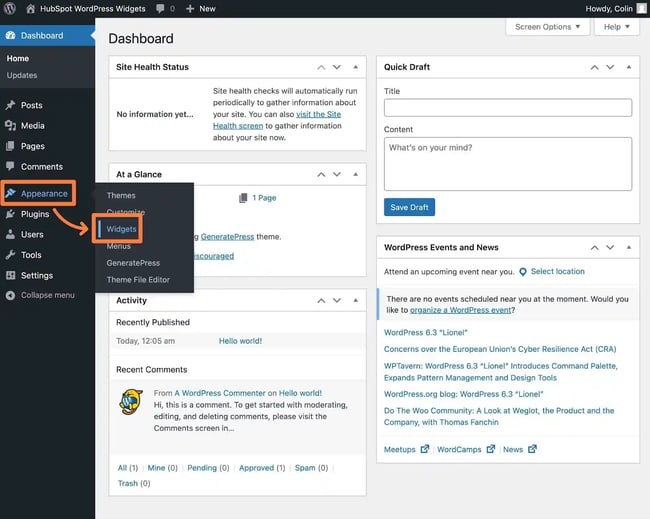
On the dashboard menu, find the “Appearance” tab. Click on “Appearance” to open a dropdown menu. Select “Widgets” from this list. This opens the widget area page. Here, you see all available widgets and widget-ready areas on your site. You can drag and drop widgets to add or remove them.
Adding Widgets To Your Page
Adding widgets to your WordPress page lets you customize content easily. Widgets display useful features like calendars, search bars, or recent posts. They improve your site’s look and help visitors find information fast.
WordPress offers simple ways to add widgets. You can use the drag and drop method or the Customizer tool. Both options work well for beginners and save time.
Drag And Drop Method
Go to your WordPress dashboard and click on Appearance. Then choose Widgets from the menu. You will see a list of available widgets on the left side.
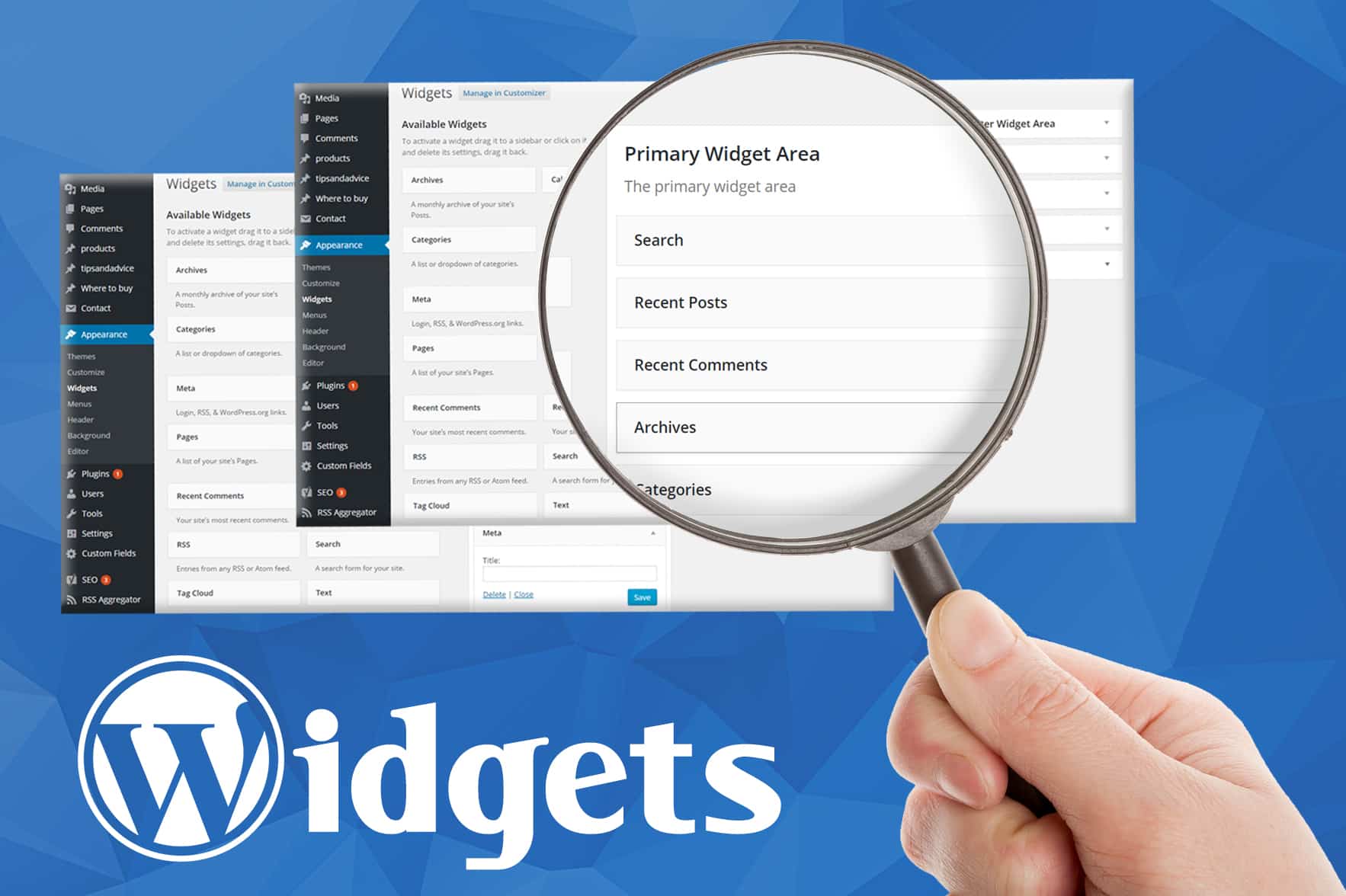
On the right side, find the widget area where you want to add your widget. Click and hold the widget you want. Drag it to the chosen widget area and release it.
After placing the widget, you can customize its settings. Click on the widget to open options. Make your changes and then click Save. Your widget will appear on the page immediately.
Using The Customizer Tool
Open your WordPress dashboard and go to Appearance. Click on Customize to open the live preview tool. On the left, find the Widgets section and click it.
Select the widget area you want to change. Click Add a Widget button to see all available widgets. Choose a widget by clicking on it.
The widget will appear in the preview on the right. Customize the widget settings as needed. Click Publish to save your changes and update the live site.

Credit: wordpress.org
Configuring Widget Settings
Adding widgets to a WordPress page should be simple. Sometimes, issues appear that stop widgets from showing or working correctly. These problems can frustrate users. This section helps solve common widget issues quickly.
Widgets Not Showing
Widgets may not appear due to incorrect placement. Check if the widget is added to the right widget area. Some themes have specific widget zones. Also, confirm the widget is active and saved properly.
Clear your browser cache. Old data can block new changes. Refresh the page after clearing the cache. Use another browser to test if the widget shows. This helps find browser-related issues.
Conflicts With Themes Or Plugins
Themes or plugins can cause widget conflicts. Some plugins change how widgets behave. Disable plugins one by one to spot the problem. Switch to a default WordPress theme to see if the theme causes the issue.
Update all plugins and themes to the latest versions. Outdated software often leads to conflicts. If a conflict persists, seek help from the plugin or theme support forum.
Placing Widgets With Page Builders
Widgets help improve your WordPress page by adding useful features. Using widgets well makes your site look better and work smoothly. Follow these tips to use widgets effectively and keep your site neat and easy to use.
Avoiding Clutter
Too many widgets make your page look messy. Visitors get confused and leave quickly. Choose only the most important widgets. Place them with space around to keep a clean look. Avoid repeating the same information in different widgets. A tidy page feels welcoming and professional.
Enhancing User Experience
Widgets should help visitors find what they need fast. Use clear titles and simple text in widgets. Put popular features where visitors expect them. Test your widgets on phones and tablets. Easy-to-use widgets keep visitors happy and on your site longer.
Credit: www.greengeeks.com
Frequently Asked Questions
How Do I Add A Widget To A WordPress Page?
Go to Appearance > Widgets in your dashboard. Drag the widget to a widget area or use a plugin to place widgets directly on pages. Some themes support widget blocks in the block editor for easier placement.
Can I Add Widgets To Any WordPress Page?
Yes, if your theme supports widget areas or you use a plugin that allows widget placement on pages. Using the block editor’s widget block also lets you add widgets anywhere on your pages.
What Plugins Help Add Widgets To WordPress Pages?
Popular plugins like Widget Options, SiteOrigin Widgets Bundle, and Custom Sidebars allow flexible widget placement on pages. They provide control over where and how widgets appear beyond default widget areas.
Are Widgets Mobile-friendly On WordPress Pages?
Most modern widgets and themes are mobile-responsive. However, always test your page on different devices to ensure widgets display correctly and don’t affect user experience negatively.
Conclusion
Adding a widget to a WordPress page is simple and quick. You can customize your site easily with just a few clicks. Widgets help show important information to your visitors. Try different widgets to see what fits best. Keep your site fresh and user-friendly.
Practice often to get comfortable with the process. Your WordPress page will look better and work well. Start adding widgets today and enjoy a better website.


