
Are you looking to make your WordPress page more engaging? Adding a video can grab your visitors’ attention instantly and keep them on your site longer.
But if you’re not sure how to do it, don’t worry—you’re in the right place. This guide will walk you through simple, step-by-step instructions to add a video to your WordPress page quickly and easily. By the end, you’ll know exactly how to boost your content and connect better with your audience.
Ready to make your page stand out? Let’s dive in!
Credit: www.wpexplorer.com
Choosing The Right Video Format
Choosing the right video format is key to a smooth experience on your WordPress page. The format affects how well your video plays across devices and browsers. Picking the correct format ensures fast loading and clear playback. It also helps keep your site running efficiently without slowing down.
Supported Video Formats
WordPress supports several popular video formats. MP4 is the most common and widely accepted. It works on almost all browsers and devices. WebM is another option, especially good for modern browsers. OGG also works but is less common. Use MP4 for best compatibility and ease of use.
Optimizing Video Size
Keep your video file size small for faster loading. Large videos can slow down your page and harm user experience. Compress videos using tools before uploading. Choose a resolution that fits your site’s design. Lower resolution still looks good on most screens and saves space.

Credit: thewebsitearchitect.com
Uploading Videos Directly To WordPress
Uploading videos directly to WordPress makes your content richer and more engaging. Videos can show product demos, tutorials, or personal messages. WordPress allows easy video upload and embedding without extra tools.
Uploading videos directly saves time. It keeps your media organized inside WordPress. This way, you control your content without relying on external sites.
Using The Media Library
Start by opening your WordPress dashboard. Click on “Media” and select “Add New.”
Drag your video file or click “Select Files” to upload. WordPress accepts many video formats like MP4 and MOV.
After uploading, the video appears in your Media Library. Click on it to see details like URL and file size.
Use this URL to insert the video into any page or post. The Media Library keeps all your files ready to use.
Embedding Videos In Pages
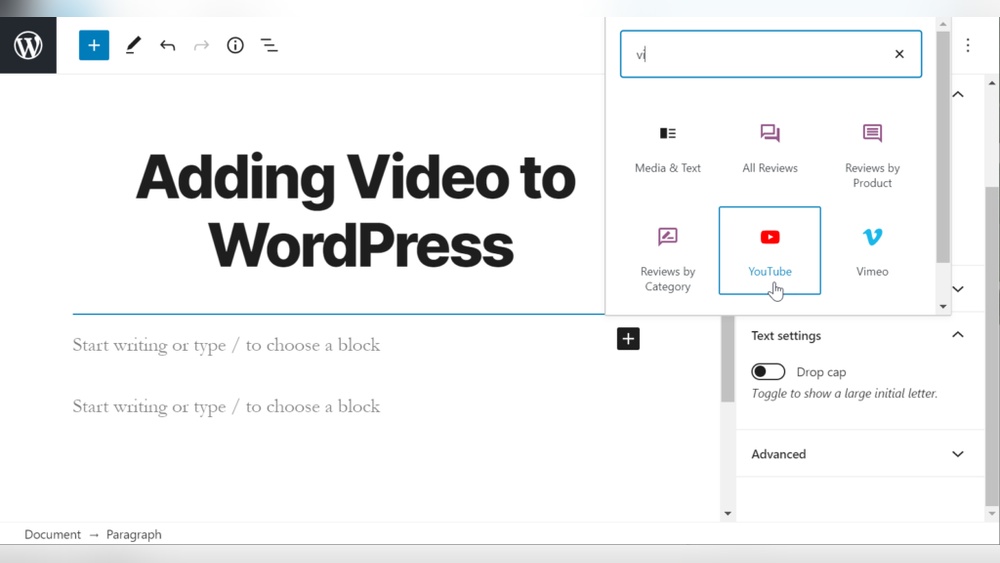
Open the page or post where you want the video. Click the “+” button to add a new block.
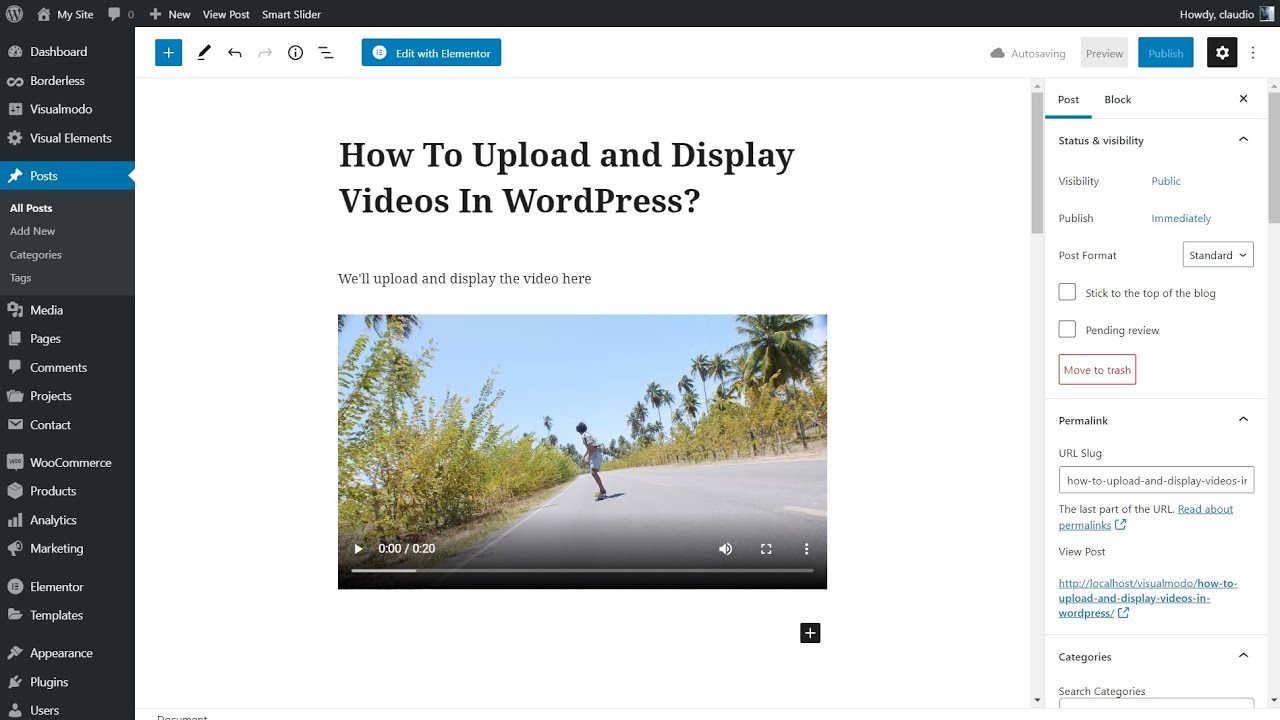
Choose the “Video” block from the options. Select “Media Library” to pick your uploaded video.
The video will appear on the page. You can adjust its size and alignment easily.
Publishing the page shows the video directly to visitors. They play it without leaving your site.
Embedding Videos From External Platforms
Embedding videos from external platforms is a simple way to enhance your WordPress pages. Videos make content more interesting and keep visitors engaged. External platforms host videos so you do not need to use your own server space. This also helps your page load faster.
Most video platforms provide easy tools to embed videos. You just need to copy a small piece of code and paste it into your WordPress editor. This method works well with popular platforms like YouTube and Vimeo.
Youtube Embeds
YouTube is the largest video platform and very easy to use with WordPress. Find the video you want on YouTube. Click the “Share” button below the video. Then select “Embed” to get the HTML code.
Copy the code and go to your WordPress page editor. Switch to the “Text” or “HTML” view and paste the code where you want the video. WordPress will show the video player on your page after saving.
Vimeo Integration
Vimeo is another popular video host known for high quality videos. Like YouTube, find the Vimeo video and click the “Share” icon. Choose the “Embed” option to get the code.
Paste this code in your WordPress HTML editor at the spot you want the video. Vimeo videos load smoothly and look professional on your page. You can also customize the embed settings before copying the code.
Other Video Hosting Services
Many other platforms like Dailymotion and Wistia offer embed codes. Look for the “Share” or “Embed” option on their video pages. Copy the provided HTML code.
Insert the code into your WordPress editor in the HTML mode. Always check how the video looks on the page after embedding. This way, you ensure the video fits well and works correctly.
Using WordPress Video Plugins
Using WordPress video plugins makes adding videos simple and effective. These plugins help you embed videos without coding. They also improve video display and performance on your page.
Many plugins offer extra features like video galleries, customization, and playback controls. These tools enhance user experience and keep visitors engaged longer.
Top Video Plugins
Several popular video plugins work well with WordPress. “Video Embed & Thumbnail Generator” helps add videos easily. “WP Video Lightbox” displays videos in a popup window. “FV Flowplayer Video Player” supports many video formats. “YouTube Embed Plus” is great for adding YouTube videos with extra options.
Features And Benefits
Video plugins often include easy video embedding options. They support multiple video formats like MP4, WebM, and YouTube links. Many allow customization of player size and colors. Some plugins enable video galleries to show many videos in one place.
These plugins improve site speed by loading videos efficiently. They offer mobile-friendly video players for better viewing on phones. Controls like autoplay, loop, and mute provide a better user experience. Using plugins avoids manual coding, saving time and effort.
Customizing Video Appearance
Customizing the appearance of your video on a WordPress page helps it fit your site style. You control how the video looks and works for visitors. Small changes can make a big difference in user experience.
Adjusting size and alignment ensures the video matches your page layout. Adding captions and thumbnails improves accessibility and visual appeal. These tweaks help your video look professional and clear.
Adjusting Video Size And Alignment
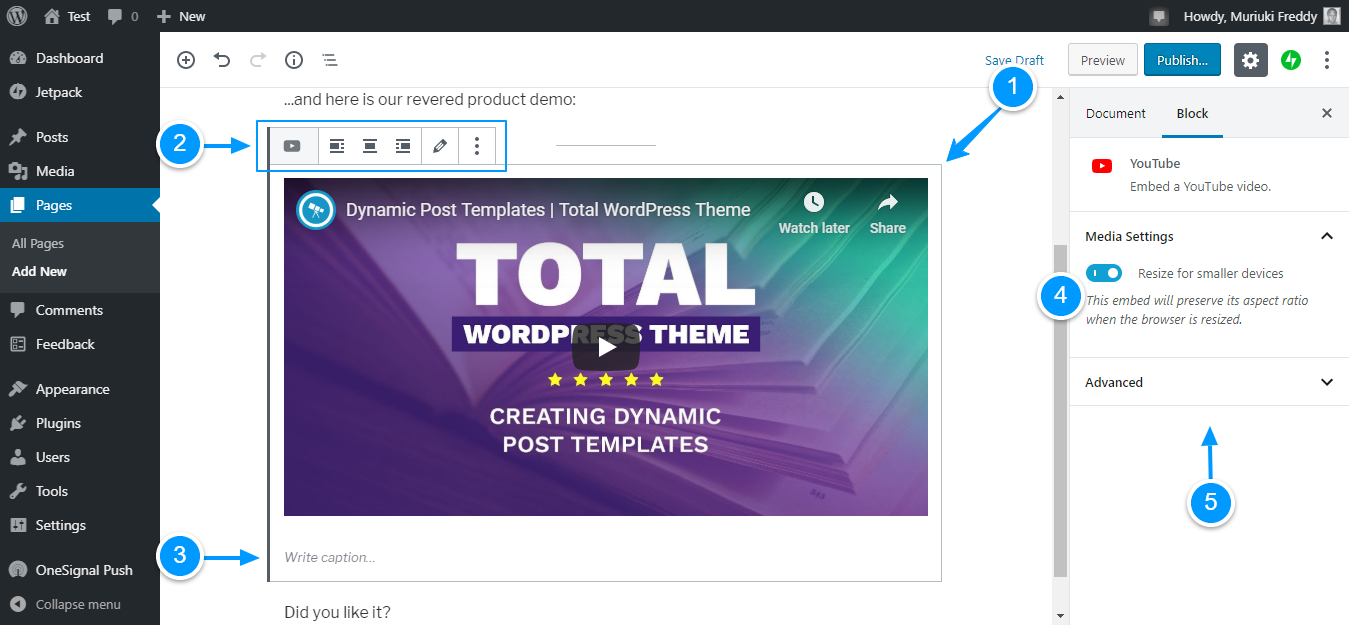
To change video size, use the block editor’s settings. Drag the corners to resize or enter exact width and height values. Choose sizes that fit your content area well.
Align the video left, center, or right using alignment buttons. Center alignment works best for most videos. Left or right alignment lets text flow beside the video.
Adding Captions And Thumbnails
Captions describe your video for viewers who cannot hear sound. Upload a caption file or add text directly in the video block. Captions improve understanding and SEO.
Thumbnails are preview images shown before the video plays. Upload a custom thumbnail to attract clicks and match your brand. Without thumbnails, WordPress uses a default, less appealing image.
Improving Video Performance
Adding a video to your WordPress page can make it more engaging. But videos can slow down your site. Improving video performance helps your page load faster. It also keeps visitors happy and lowers bounce rates.
Focus on techniques that reduce loading time. Ensure videos play smoothly on all devices. This helps your site rank better in search engines.
Lazy Loading Videos
Lazy loading delays video loading until the user scrolls to it. This saves bandwidth and speeds up the initial page load. WordPress supports lazy loading by default for videos.
You can also use plugins to enable this feature. It reduces the strain on your server. Visitors see content faster, improving their experience.
Optimizing For Mobile Devices
Most visitors watch videos on their phones. Your videos must fit small screens and different orientations. Use responsive video players that adjust automatically.
Compress videos to reduce file size. Smaller files load quicker on mobile networks. Test videos on various devices to ensure smooth playback and clear visuals.
Troubleshooting Common Issues
Adding a video to a WordPress page is simple, but sometimes issues occur. Troubleshooting common problems helps keep videos playing smoothly. Understanding these issues saves time and improves user experience.
Video Not Playing
Check the video file format. WordPress supports MP4, WebM, and OGG files. Make sure the video is uploaded correctly. Clear your browser cache and reload the page. Sometimes, plugins or themes block videos. Disable them temporarily to test. Also, check your internet connection speed.
Slow Loading Times
Large video files cause slow loading. Compress videos before uploading to reduce size. Use a content delivery network (CDN) to speed up delivery. Avoid using auto-play for long videos. Lazy loading can help by loading videos only when visible. Update your WordPress and plugins to improve performance.
Compatibility Problems
Different browsers support different video formats. Provide multiple video formats for better compatibility. Test your video on Chrome, Firefox, Safari, and Edge. Use responsive video players for mobile device support. Keep WordPress, themes, and plugins updated. This avoids conflicts and errors.
Credit: www.youtube.com
Frequently Asked Questions
How Do I Embed A Video In A WordPress Page?
To embed a video, click the plus (+) icon in the editor. Select the “Video” block or “Embed” block for URLs. Paste your video link or upload a video file directly to add it to your WordPress page easily.
Can I Add Youtube Videos To WordPress Pages?
Yes, WordPress supports YouTube video embedding. Simply paste the YouTube video URL in a block. The editor automatically converts it into an embedded video player for seamless playback on your page.
What Video Formats Does WordPress Support Natively?
WordPress supports MP4, WebM, and Ogg video formats natively. MP4 is the most compatible format across browsers. Upload videos in these formats for smooth playback without requiring extra plugins.
Is It Better To Self-host Or Embed Videos?
Embedding videos from platforms like YouTube saves bandwidth and improves site speed. Self-hosting gives more control but can slow your site. Choose embedding for ease and performance, self-host for full control.
Conclusion
Adding a video to your WordPress page is simple and quick. Choose the right video, upload it, and place it where you want. Videos make your page more interesting and keep visitors longer. Try to keep the video size small for faster loading.
Check how it looks on different devices. Practice a few times to feel confident. Now, your page can share stories in a clearer, more fun way. Give it a try today.


