
Is your WordPress site looking a bit plain or outdated? Adding a new theme can transform its appearance, making it more appealing and engaging for your visitors.
But you might be wondering, how do you actually add a theme to your WordPress site? Don’t worry, you’re not alone. Many WordPress users face this question, and the good news is that it’s easier than you might think. In this guide, you’ll discover step-by-step instructions on how to effortlessly enhance your website’s look and feel.
By the end, you’ll not only know how to change your theme but also why it’s crucial for your site’s success. Ready to give your website a fresh new look that captivates your audience? Let’s dive in.
Choosing The Right Theme
Picking a theme is important. It changes how your site looks. Think about your site’s purpose. A blog needs a simple theme. An online store needs a strong theme. Colors and fonts should match your brand. Read reviews from others. They help you know if the theme is good.
Free themes cost nothing. They are great for beginners. But, they have limited features. Paid themes offer more options. They have better support. Updates keep them safe. Choose a theme that fits your budget. Always check for security features.
A theme should work well on phones. This is called responsive design. It helps your site look good on any device. A good theme is also SEO-friendly. It helps people find your site on search engines. Fast themes load quickly. This keeps visitors happy.
Credit: www.namecheap.com
Installing A Theme From WordPress Repository
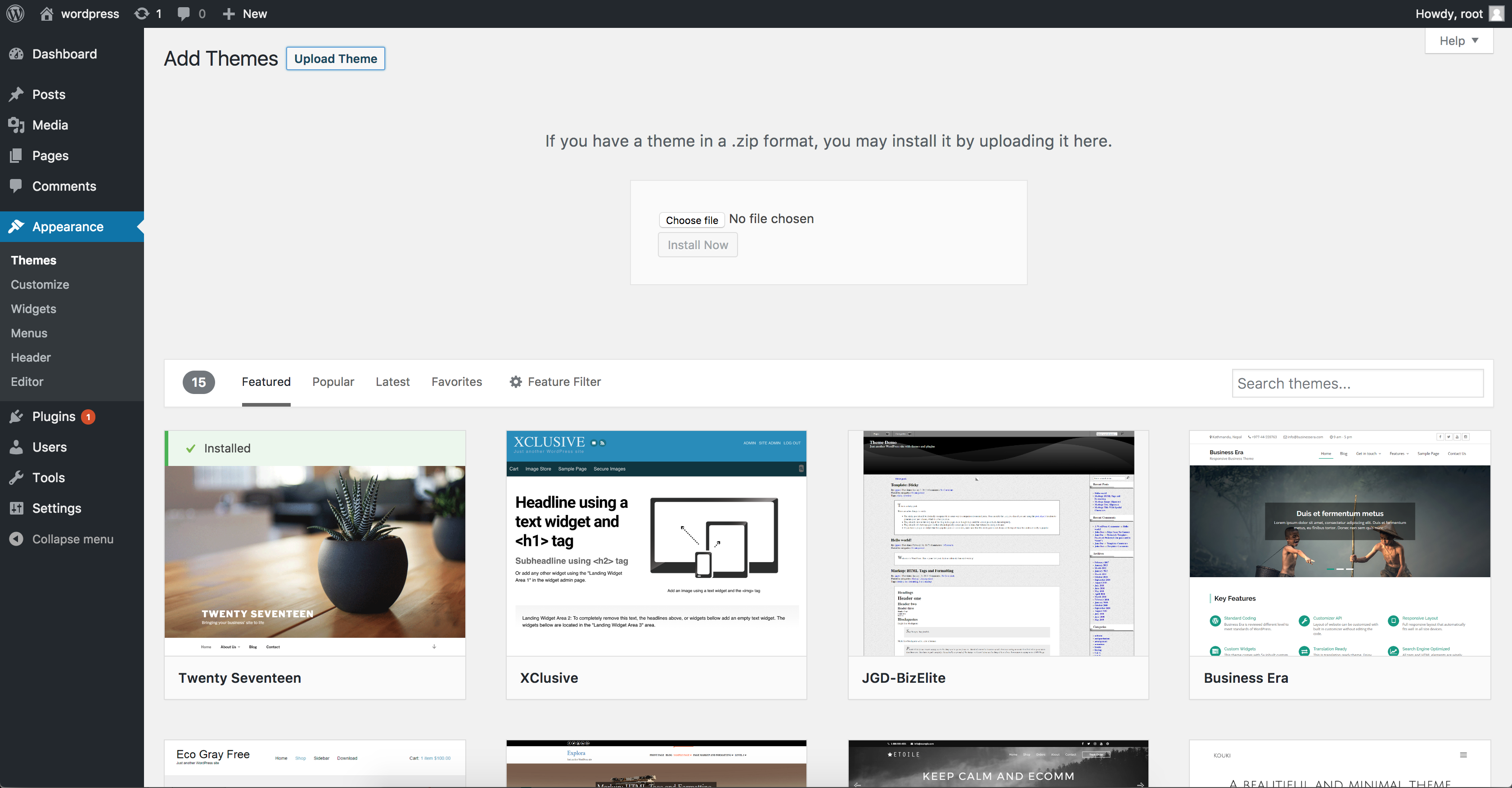
Start by logging into your WordPress admin panel. Click on “Appearance” in the sidebar. Select “Themes” to open the theme directory. The directory is full of free themes. You can browse or search for themes. Use filters to narrow down choices. Pick a theme that suits your site.
Find a theme you like. Click “Details & Preview.” This shows what the theme looks like. Check how it fits your site. Preview lets you see without installing. Look at colors, layout, and features. Make sure it matches your needs.
Ready to install? Click “Install” on your chosen theme. Wait a few seconds for installation. After installing, click “Activate.” Your site now uses the new theme. Visit your site to see changes. Remember, only one theme can be active at a time.
Uploading A Theme Manually
Downloading theme files is the first step. Visit a trusted website. Click on the download button. Save the theme file on your computer. Ensure you remember the location.
Once downloaded, use the WordPress Dashboard. Log in to your site. Find the Appearance section. Click on Themes. Select Add New. Choose Upload Theme. Locate your saved theme file. Click Upload. Wait for the process to complete. Ensure the upload is successful.
After uploading, the next step is activating the uploaded theme. Find the theme in your dashboard. Click Activate. Your site now uses the new theme. Check your site to see changes. Make sure everything looks good. Enjoy your new look!
Customizing Your Theme
The WordPress Customizer is easy to use. It helps in changing themes. Click on the “Customize” option. You can see many options. Adjust the site title and tagline. Change colors and fonts. Try different styles. See changes live. It is fun and simple.
Adjusting Layout And Colors
Adjusting layout is simple. Choose from preset layouts. Each layout looks different. Pick colors you like. Use bold colors for emphasis. Soft colors for calmness. See changes instantly. Play with options. Make your site unique.
Adding Widgets And Menus
Widgets add features. Drag and drop them. Popular widgets include search bars and recent posts. Menus help navigate. Create clear menus. Add important pages. Organize items neatly. Visitors find them helpful.
Updating Themes Safely
Installing a theme on a WordPress site involves navigating to the dashboard and selecting ‘Themes’ under ‘Appearance’. Choose ‘Add New’, browse, and activate the desired theme. Always backup your site before making changes to ensure safety. This keeps your content and settings protected.
Importance Of Regular Updates
Regular updates keep your theme secure and fast. Old themes might have bugs or security issues. Updates fix these problems. They also bring new features. Always check for theme updates. It keeps your site safe and smooth. Never skip an update. It might cause trouble later.
Backing Up Your Site
Backing up your site is very important. It protects your data. Before updating, make a backup. If something goes wrong, you can restore it. Use plugins for easy backups. They save your time. Backups keep your site safe. Always have a backup plan.
Using Child Themes
Child themes help in customizing your site. They keep the main theme intact. Changes don’t affect the original theme. Updates become easier with child themes. You don’t lose your custom styles. It’s a smart way to manage themes. Use a child theme for better control.

Credit: www.greengeeks.com
Troubleshooting Common Issues
Adding a theme to your WordPress site can sometimes cause issues. Ensure the theme is compatible with your WordPress version. Always check for installation errors and resolve them by updating or reinstalling the theme correctly.
Theme Compatibility Problems
Theme compatibility can cause headaches. Some themes might not work with your plugins. This can break your site. Always check the theme details. Look for compatibility with your WordPress version. Update your plugins regularly. This helps to fix many issues. If problems persist, consider switching to another theme. Choose one with strong compatibility reviews.
Resolving Display Errors
Display errors can make your site look strange. Broken layouts and missing images are common. Clear your browser cache to see recent changes. Sometimes, a simple refresh helps. Ensure your theme settings are correct. Adjust them if needed. Disable plugins one by one. This finds the one causing trouble. If errors remain, check the theme’s support forum. You might find a solution there.
Seeking Support And Help
Struggling with theme issues? You are not alone. Check the theme’s documentation. It may have a guide for your issue. Visit the theme’s support forum. Other users might have faced the same problem. Post your question there. You can also contact the theme developer. They might offer direct help. Remember, getting help takes patience. Keep trying different solutions.

Credit: wpmarmite.com
Frequently Asked Questions
How Do I Install A WordPress Theme?
To install a WordPress theme, navigate to your WordPress dashboard. Click on “Appearance” and then “Themes. ” Select “Add New” and browse themes. Choose your preferred theme and click “Install. ” Once installed, click “Activate” to apply the theme to your website.
Can I Customize A WordPress Theme?
Yes, you can customize a WordPress theme. Go to your WordPress dashboard and click “Appearance” then “Customize. ” Use the built-in tools to adjust colors, fonts, and layout. Some themes offer additional customization options through plugins or custom code.
Where Can I Find Free WordPress Themes?
You can find free WordPress themes in the official WordPress repository. Access it from your dashboard by clicking “Appearance” then “Themes” and “Add New. ” Browse thousands of themes or use the search feature to find themes based on keywords.
Are Premium Themes Worth The Cost?
Premium themes can be worth the cost for advanced features and support. They often include custom design elements and additional functionality. If your site requires specific features or a unique design, investing in a premium theme might be beneficial.
Conclusion
Adding a theme to your WordPress site is simple. Follow the steps outlined here. Choose a theme that fits your style. Consider your site’s purpose. Always preview before activating. This helps ensure everything looks right. Remember to update themes regularly.
This keeps your site secure and fresh. A well-chosen theme enhances user experience. It also reflects your brand effectively. Experiment with different styles. Find what works best for you. Enjoy the process of customizing your site. Happy blogging!


