
Are you ready to give your WordPress site a fresh new look? Adding a theme manually can seem a bit daunting at first, but it’s easier than you might think.
Imagine the satisfaction of watching your website transform with just a few simple steps. By taking control and customizing your site, you’re not only enhancing its visual appeal but also boosting its functionality. In this guide, you’ll discover how to manually add a theme to WordPress, empowering you to create a site that truly reflects your unique style and vision.
Stick around, and by the end of this article, you’ll be equipped with the confidence and knowledge to make your WordPress site stand out from the crowd.

Credit: www.domains.co.za
Choosing The Right Theme
Picking a theme is important for your website. It should match your site’s purpose. Design and layout matter. Make sure the theme is responsive. This means it looks good on phones and computers. Check if the theme supports plugins you need. Some themes load fast, which is good for users. Consider the customization options. You might want to change colors or fonts. Read reviews from others who used the theme. This helps you decide if it’s good.
Many websites offer WordPress themes. WordPress.org is a trusted source. It has many free themes. ThemeForest sells premium themes. These often have more features. Elegant Themes is another option. It offers a package of themes. TemplateMonster has both free and paid themes. Each source provides different styles and features. Choose one that fits your needs.
Downloading The Theme Files
First, visit the website where the theme is available. Look for the download link on the theme page. The link might be a button or text. It’s usually labeled as “Download” or “Get Theme”. Click the link to start downloading. The theme files will save to your computer.
After downloading, find the theme package on your computer. It usually saves in the Downloads folder. Check the file name. It should end with .zip. This format means it’s compressed. Keep this file safe. You will need it soon. Do not unzip it yet.
Accessing WordPress Dashboard
Open your web browser. Type in the website address. Add “/wp-admin” at the end. Press enter. A login page will show up. Enter your username and password. Click the “Log In” button. Now you are in the WordPress dashboard.
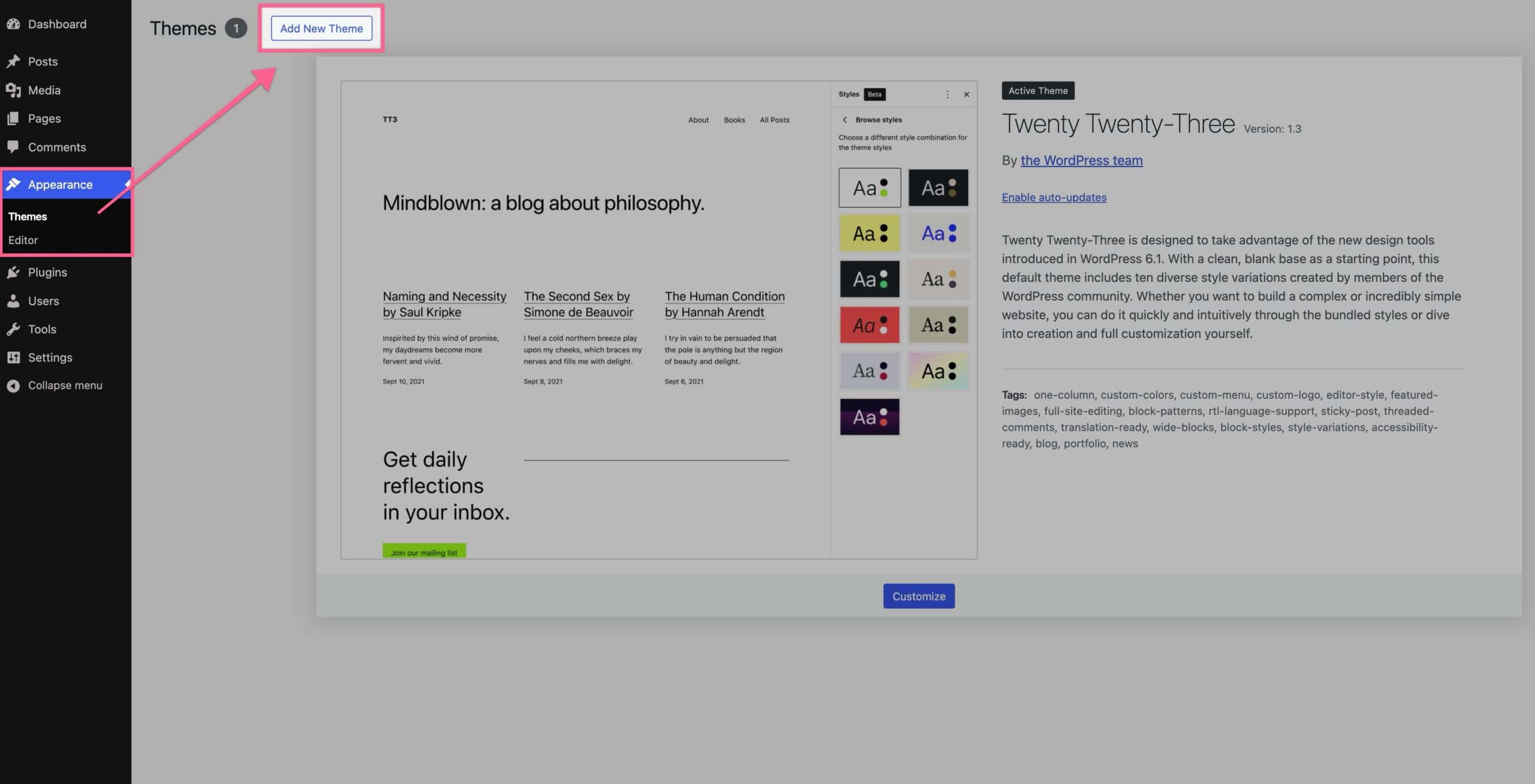
Look at the left side of the dashboard. Find the “Appearance” option. Click on it. A menu will drop down. Choose “Themes” from the list. This page shows all your available themes. From here, you can manage your themes.
Uploading The Theme
Start by logging into your WordPress dashboard. Find the Appearance tab on the side. Click on it, then select Themes. Look for the Add New button at the top. Press it. You will see an Upload Theme button. Click on it. A box will pop up. It will ask you to choose a file.
Ensure your theme file is a .zip format. Click on the Choose File button. Find your theme file on your computer. Select it. Now, click on the Install Now button. Wait a few moments. Your theme will be uploaded. After uploading, click Activate. Your new theme is now ready to use.
Activating The Theme
Find your uploaded theme in the WordPress dashboard. Look for the Appearance option. Click on it. Next, select Themes. All installed themes appear here. Check your theme’s name. Make sure it is visible.
Choose the theme you want to activate. Hover over your theme. An Activate button appears. Click on it. Your theme is now active. Visit your site to see the changes. Refresh the page if needed. The new look is ready.
Customizing The Theme
Adding a theme to WordPress manually is straightforward. First, download your desired theme file. Then, navigate to the WordPress dashboard, select “Themes,” and upload the file. Finally, activate the theme to customize your site’s look.
Exploring Theme Options
WordPress themes offer many options for customization. These options help to create a unique website. Users can change colors, fonts, and layouts. Each theme has different settings. It’s important to explore them all. This exploration helps to understand the theme better. Trying different settings can be fun. It allows for creativity. Users can adjust the appearance to fit their style. Experimenting with options leads to a personalized site.
Using The Customizer Tool
The Customizer tool is easy to use. It helps with theme adjustments. Users can see changes in real time. This feature is helpful for making quick edits. The tool offers various sections to edit. These include the header, footer, and widgets. Users can also add a logo or change the site’s title. The Customizer is a powerful tool. It makes theme customization simple and effective.
Troubleshooting Common Issues
Upload errors can be frustrating. Sometimes the file is too large. Check your file size first. WordPress limits file sizes. You can adjust settings in php.ini. Also, ensure your internet is stable. Slow connections cause errors. Try uploading again later.
Compatibility issues occur often. Themes may not work with plugins. Ensure the theme is updated. Updates fix many problems. Check for plugin updates too. Sometimes plugins need updates. Disable plugins to test the theme. One by one. Look for plugin conflicts. If found, remove or replace the plugin.
Credit: www.kadencewp.com
Tips For Successful Theme Management
Start by downloading your desired theme from a reliable source. Next, access your WordPress dashboard and navigate to Appearance. Select Themes, click Add New, then Upload Theme. Choose the downloaded file and activate it. Proper theme management enhances website aesthetics and functionality, offering a more engaging user experience.
Regular Updates And Maintenance
Updating themes is important for security. New updates fix bugs. They also add new features. Always check for updates. Set a reminder to update regularly. Keeping themes current helps your site run smooth.
Maintenance involves cleaning unused themes. Delete themes you don’t use. This saves space. It also makes your site faster. Regular theme checks help avoid problems. Check themes monthly for best results.
Backup Best Practices
Backing up your site is very important. A backup saves your work. It protects against loss. Use tools to back up your theme. Store backups in safe places. Always have multiple backups. This ensures safety if something goes wrong.
Schedule regular backups. Weekly or monthly is good. Use reliable backup services. This makes recovering easy. You can restore themes quickly. Backing up is a smart practice. It gives peace of mind.
Credit: wedevs.com
Frequently Asked Questions
How Do I Manually Install A WordPress Theme?
Manually installing a WordPress theme involves uploading files via FTP. First, download the theme’s zip file. Unzip it to your computer. Connect to your server using an FTP client. Navigate to `wp-content/themes/` directory. Upload the unzipped theme folder here. Activate the theme through your WordPress dashboard.
Can I Upload A Theme Without Ftp?
Yes, you can upload a theme via WordPress dashboard. Go to Appearance > Themes > Add New. Click on “Upload Theme”. Choose the theme’s zip file from your computer. Click “Install Now”. Once installed, activate it. This method is simpler than using FTP.
What If My Theme Installation Fails?
If your theme installation fails, check file permissions and server settings. Ensure the theme is compatible with your WordPress version. Clear browser cache and retry. If the issue persists, contact your hosting provider or theme developer for support. They can offer additional troubleshooting steps.
How Do I Choose The Right Theme?
Choosing the right theme involves considering your site’s purpose, functionality, and aesthetics. Ensure the theme is responsive, SEO-friendly, and regularly updated. Check user reviews and ratings. Test the theme’s demo for compatibility with your content. Prioritize themes with good documentation and support.
Conclusion
Manually adding a theme to WordPress is straightforward. Follow steps carefully. Select the right theme for your site. Always check compatibility with plugins. Backup your site before changes. This avoids potential issues. Practice makes perfect. Experiment with different themes. Customizing improves your site’s look and feel.
Keep your audience in mind. Their experience matters most. Themes can change a website’s appearance. But, content remains key. Ensure quality content and design. Your site will thrive with these elements. Remember, patience is important. Success takes time and effort.
Happy blogging!


