
Are you ready to give your free WordPress website a fresh and exciting look? Adding a new theme can transform your site’s appearance, making it more attractive and engaging for your visitors.
The good news is, you don’t need to be a tech wizard to do this. With just a few simple steps, you can change the entire vibe of your website. Imagine having a site that not only reflects your style but also keeps your audience captivated.
In this guide, you’ll discover how to effortlessly add a theme to your WordPress website, unlocking its full potential. Stay with us, and by the end of this article, you’ll have the tools you need to create a stunning online presence that stands out.
Choosing The Right Theme
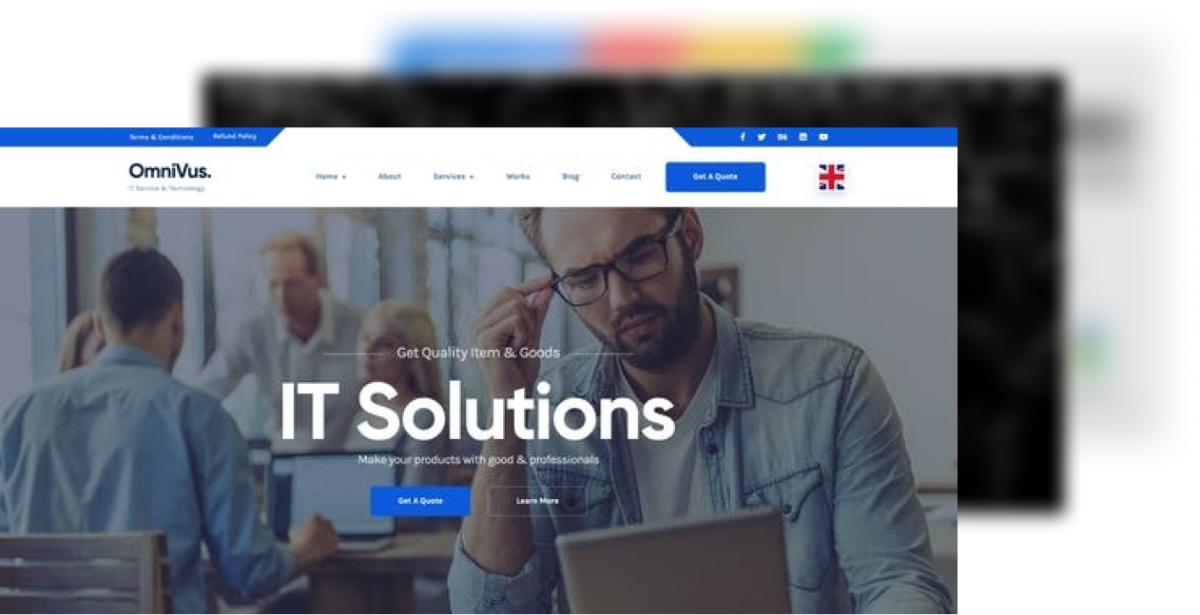
Your website needs a clear purpose. Blogs need simple themes. Business sites need professional looks. Think about your goal. Choose a theme that fits your purpose. A theme should help your visitors understand your site.
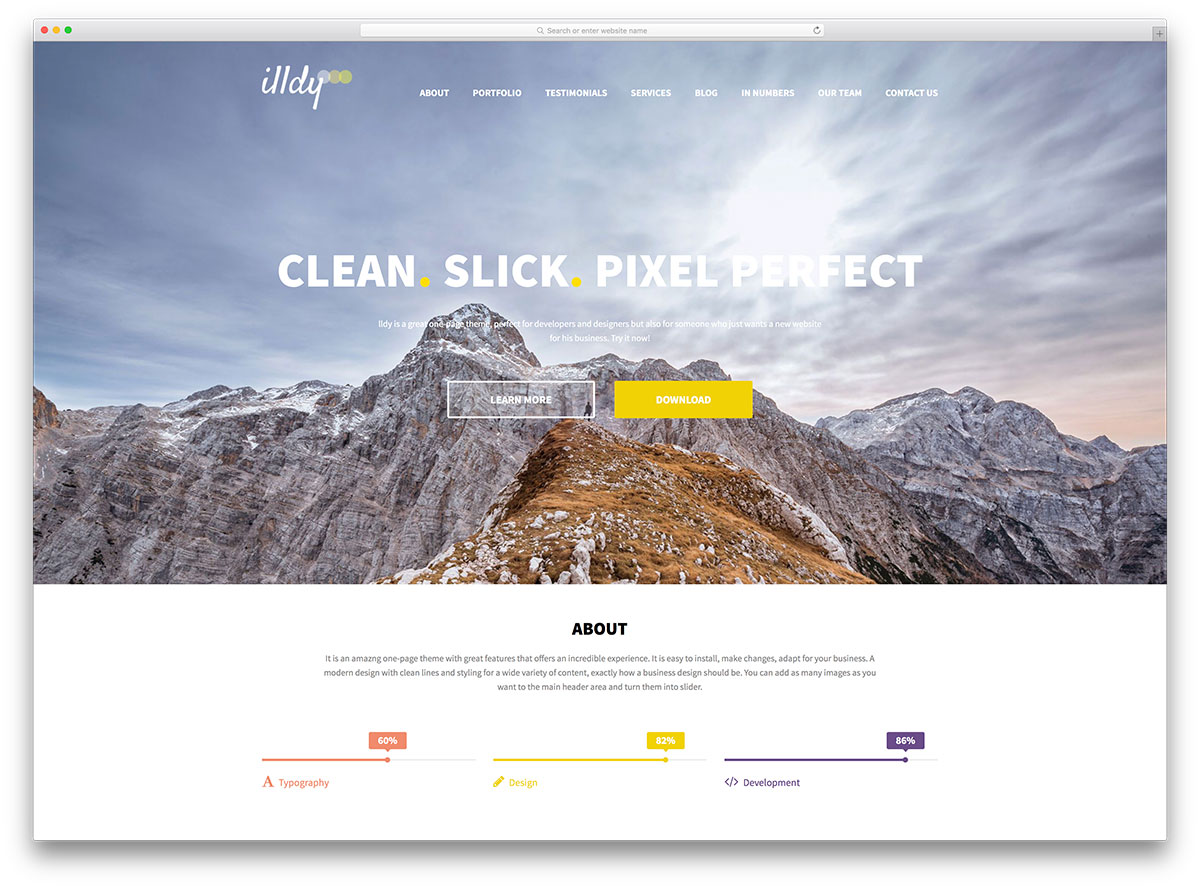
Themes come with different designs. Some are colorful. Others are minimal. Pick a design that matches your style. Features like sliders and galleries are important. Make sure the theme has the features you need. Do not choose too many. They can slow down your site.
Responsive themes change size for phones and tablets. Visitors use many devices. A responsive theme makes sure your site looks good. Always check if the theme adjusts well on small screens. It keeps your site user-friendly.
Credit: themeforest.net
Accessing The WordPress Dashboard
First, go to the WordPress website. Find the login button. It’s usually at the top right. Click it to start. Enter your username and password. These are your secret keys. Keep them safe. Press the login button. Now, you are in your account.
Look for the dashboard link. It’s on the left side. Click on it. This opens the dashboard. The dashboard is your control center. Here, you can manage your site. You can add themes from this spot. Find the appearance menu. It’s in the dashboard. Click it to see theme options. Choose a theme you like. Click to add it to your site.
Exploring The Theme Directory
Start by logging into your WordPress dashboard. Find the Appearance option on the left menu. Click on it to open the Theme section. This is where all your themes live. It is easy to use. Just a few clicks and you are ready.
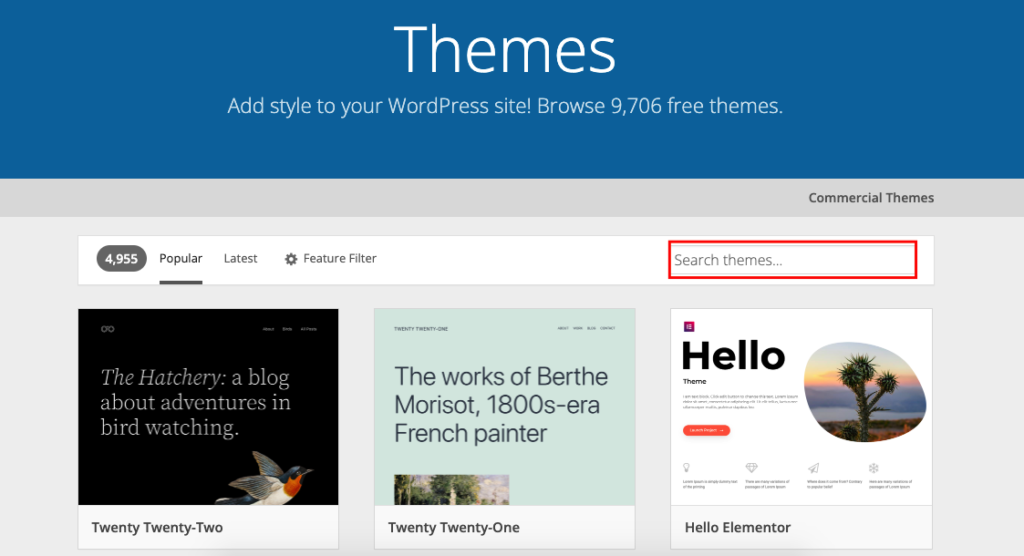
In the theme section, you see many themes. There are free and paid themes. Scroll through the options. Use filters to find the best theme for your site. The preview option helps you see how themes look. Choose a theme you like. Then, click to install it.
Installing A New Theme
First, log into your WordPress dashboard. Go to the Appearance tab. Click on Themes. You will see many themes there. Look through the list. Pick a theme you like. Make sure it fits your website style.
Found the theme you like? Click on the Install button. Wait a few seconds. The theme will download. You will see a message when it is done. Do not close the page yet.
After the theme installs, click Activate. This will make the theme live on your site. Now, your website looks new and fresh. Check your site to see the changes. Enjoy your new theme!
Customizing Your Theme
Enhancing your WordPress site begins with selecting a theme. Access the dashboard, navigate to “Appearance,” and explore themes. Find one you like, click “Install,” then “Activate. ” Customize settings to fit your style and brand.
Access The Customizer
Open the WordPress dashboard. Find Appearance on the left menu. Click Customizer. The Customizer lets you change your theme. You can see changes instantly. This is helpful for beginners. Explore the options available.
Modify Layout And Colors
The theme layout can be adjusted. Look for the Layout section. Choose a style that suits you. Change colors to match your taste. Find the Colors option. Pick colors that look good together. This makes your site unique and fun.
Add Widgets And Menus
Widgets add useful features. They can show your latest posts. Find the Widgets section. Drag widgets to your sidebar. Menus help users navigate. Go to the Menus section. Create a menu with links to your pages. This helps visitors find what they need.
Credit: colorlib.com
Testing The Theme
Adding a theme to a free WordPress website is simple. Access your dashboard, click on “Appearance,” then select “Themes. ” Browse available options, choose one you like, and click “Install. ” Activate it to change your site’s look. Themes enhance your site’s design without coding.
Check For Mobile Responsiveness
Themes must work well on all devices. Mobile responsiveness is crucial. Open your site on a phone. Look at text and images. Are they clear? If not, pick a new theme. Users love easy-to-read sites. They stay longer. Check buttons too. Are they easy to tap? If users struggle, they leave. Your theme should work like a charm on mobiles. This keeps users happy.
Verify Browser Compatibility
Open your site in different browsers. Common ones are Chrome, Firefox, and Safari. Does your theme look the same? If not, some users may face issues. Consistency across browsers is key. Check buttons and links. They should work everywhere. Ask friends to test it too. Different devices and browsers help find problems. Fix these to keep all users happy. A good theme works on all platforms.
Troubleshooting Common Issues
Adding a theme to a free WordPress website can be tricky. Issues often arise with theme compatibility and installation errors. Check the theme’s version and ensure it matches your WordPress. Review installation steps carefully for a smooth setup.
Resolve Theme Conflicts
Theme conflicts can cause problems on your website. They may affect how the site looks and works. Start by deactivating plugins one by one. Check if the theme works correctly. Sometimes, plugins clash with themes. If the problem goes away, the plugin may be the issue. Also, check your theme’s settings. Sometimes, changes in settings fix conflicts.
Address Layout Problems
Layout problems are common. Sometimes, the layout breaks or looks strange. Clear your browser cache first. Old files might cause display issues. Next, check for theme updates. An update can fix layout problems. If the layout still looks wrong, try changing the theme settings. Adjusting settings can help fix layout issues.
Credit: wedevs.com
Frequently Asked Questions
How Do I Change My WordPress Theme?
To change your WordPress theme, go to the dashboard. Click on “Appearance,” then “Themes. ” Browse available themes and select one. Click “Activate” to apply the theme. Make sure to customize settings to match your style. Preview changes before finalizing to ensure it suits your website’s design.
Can I Use Free Themes On WordPress?
Yes, WordPress offers a variety of free themes. Access them through the dashboard under “Appearance” and “Themes. ” Browse and select a theme that fits your needs. Free themes offer basic customization options. Ensure the theme is responsive and suits your website’s content for optimal user experience.
What Are The Steps To Install A Theme?
To install a theme, navigate to “Appearance” in the dashboard. Click “Themes,” then “Add New. ” Search or upload your desired theme. Click “Install,” then “Activate” to apply. Customize settings to fit your style and content. Preview changes to ensure everything looks perfect before publishing.
How To Customize WordPress Theme?
Customize your WordPress theme by accessing the “Customizer” under “Appearance. ” Modify settings like colors, fonts, and layout. Use widgets and menus to organize content. Preview changes instantly. Ensure your design is mobile-friendly and aligns with your branding for a consistent look across devices.
Conclusion
Adding a theme to your free WordPress site is simple. Follow these steps, and your site will look great. Choose a theme that fits your content and style. Customize it to match your needs. Explore different options to find the best one.
Ensure the theme supports your site’s functions. Regular updates keep your theme secure and fresh. Enjoy the creative freedom that themes offer. A well-chosen theme enhances user experience. Remember, your theme reflects your site’s personality. Keep it clean, modern, and easy to navigate.
Happy theming!


