
Are you ready to give your WordPress page a fresh, captivating look? Adding a theme is one of the simplest ways to transform your website’s appearance and make a lasting impression on your visitors.
But if you’re unsure where to start, don’t worry—you’ve landed in the right place. This article will guide you step-by-step on how to add a theme to your WordPress page, ensuring that your site reflects your unique style and brand.
Imagine the satisfaction of seeing your website come alive with a design that speaks to your audience. By the end of this guide, you’ll be equipped with the knowledge and confidence to make your WordPress page stand out. Let’s dive in and unlock the full potential of your website!

Credit: wpmarmite.com
Choosing The Right Theme
Consider your site’s purpose. A blog might need a simple layout. An online store may need more features. Think about what your site needs. This makes picking a theme easier.
Evaluate theme features. Some themes have sliders. Others have customizable colors. Check if the theme has what you need. It should match your site’s purpose.
Check responsiveness. A good theme looks great on any device. Phones, tablets, and computers. Test the theme on different screen sizes. Make sure it adjusts well. This helps visitors have a good experience.
Credit: docs.presscustomizr.com
Installing A Theme From WordPress Repository
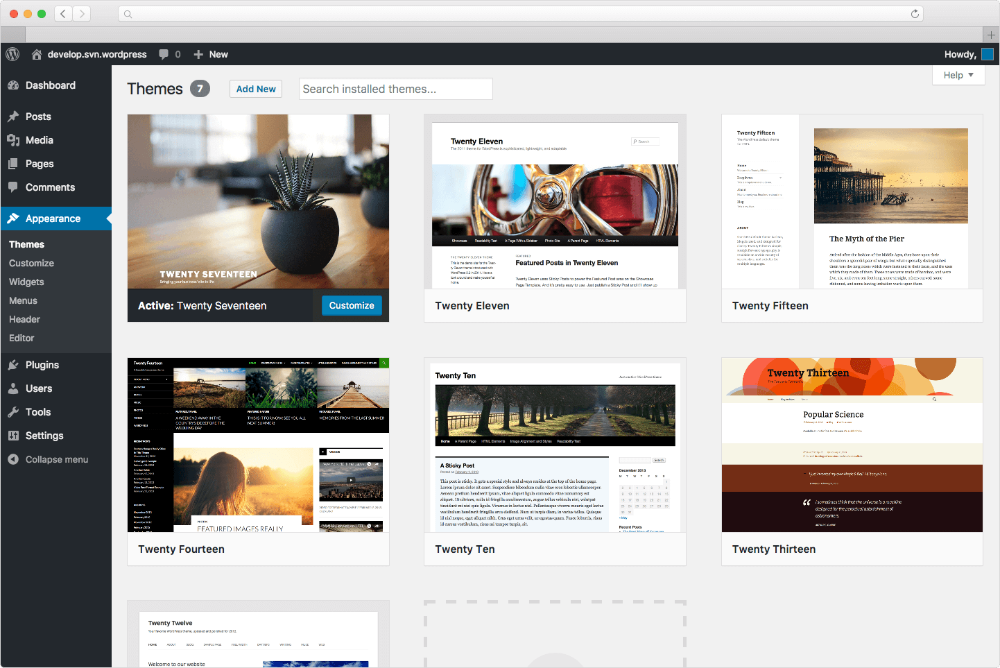
Start by opening your WordPress dashboard. Find the Appearance option on the left. Click on it. Then, select Themes. This takes you to the theme directory.
Use the search bar to find themes. Type keywords to find specific themes. Some themes are free. Others might cost money. Choose what fits your needs best.
Click on a theme to see a preview. This shows how your site will look. Like what you see? Click on the Install button. Wait a few seconds. Then, activate the theme. Your new theme is now live!
Uploading A Theme From A Third-party Source
Find a theme you like. Click to download it. A zip file will be saved on your computer. Keep this file safe. You will need it soon.
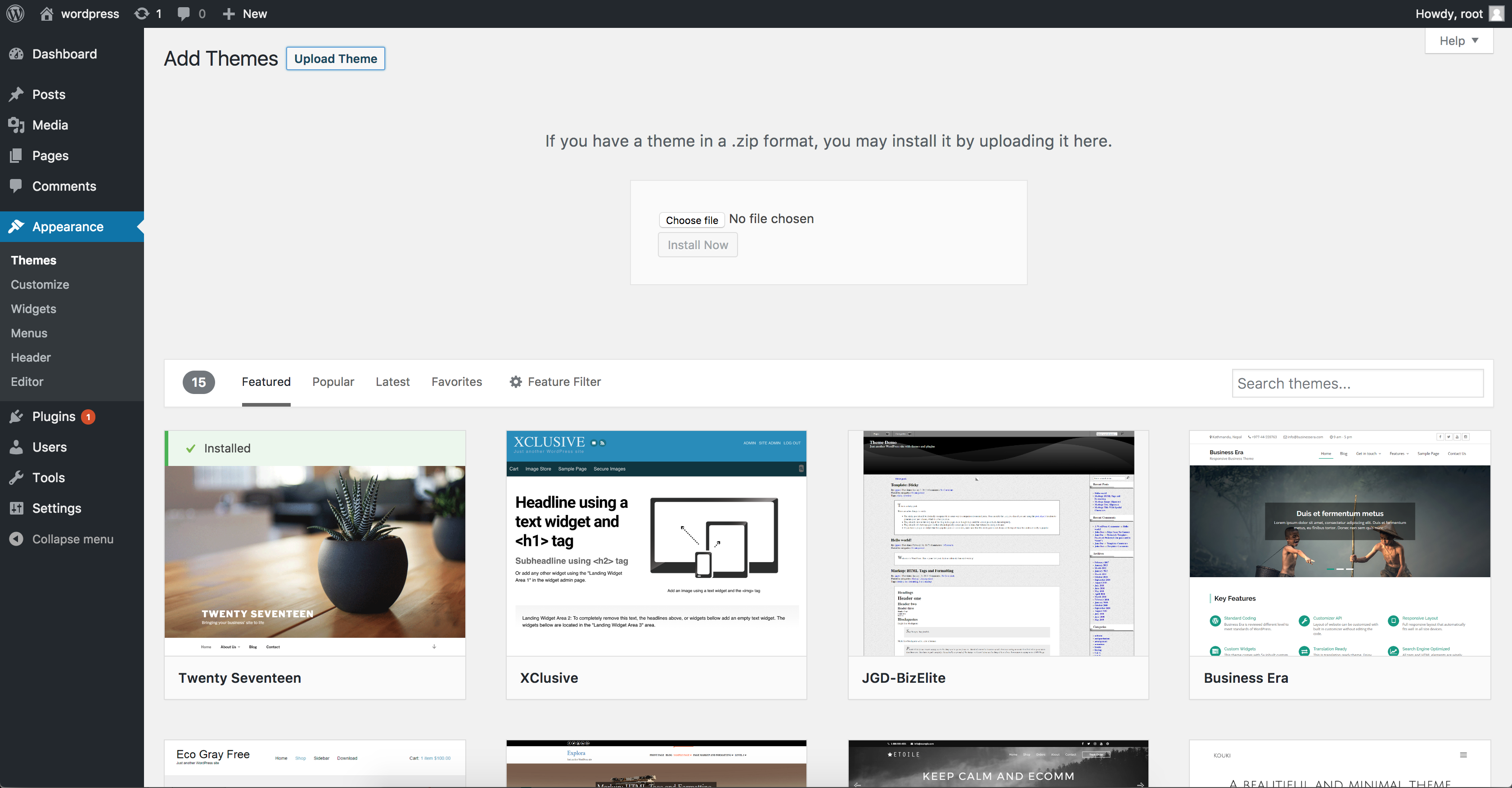
Go to your WordPress dashboard. Look for Appearance in the menu. Click on Themes. You will see an Add New button at the top. Click it. Then, choose Upload Theme. Select your downloaded zip file. Click Install Now to upload.
Once uploaded, you will see an Activate button. Click it to use your new theme. Your website will now have a fresh look. Make sure everything looks good. You can change it back if needed.
Credit: www.namecheap.com
Customizing Your Theme
The WordPress Customizer is easy to use. It helps you change your theme fast. You can see changes live. This tool is built into WordPress. Just go to your dashboard. Find the “Appearance” section. Click on “Customize” to start. Make sure to save your work often. This keeps your changes safe.
You can change the layout and colors. Choose different page styles. Try new color schemes. This makes your site unique. Use the settings in the Customizer. Find options for colors and layouts. Play around and see what you like. It’s fun and easy. Make your site look good.
Widgets add cool features to your site. Like calendars or search bars. Place them in sidebars or footers. Menus help users find pages. Add links to important sections. Use the Customizer to manage them. Just drag and drop items. It’s simple to arrange. Make sure your site is easy to use.
Testing Your Theme
Enhance your WordPress page by adding a new theme easily. Go to the dashboard and find the “Appearance” section. Choose “Themes,” click “Add New,” and browse through various options. Select and activate the theme that suits your style to give your site a fresh look.
Checking For Cross-browser Compatibility
Open your website on different browsers. Check if everything looks the same. Browsers like Chrome, Firefox, and Safari can show pages differently. Make sure all features work properly. Check your site’s appearance on these browsers. Look for any strange changes. Fix any problems you see.
Ensuring Mobile Friendliness
Test your site on a mobile phone. Look for easy navigation. Ensure buttons work well. Mobile users need quick access. Make sure text is readable. Check images fit nicely on small screens. Adjust any large elements. Make sure nothing is cut off. Your site should be easy to use.
Verifying Page Load Speed
Use tools like Google PageSpeed. They help check load times. See how fast your site opens. Faster sites keep users happy. Slow sites can lose visitors. Check large images and scripts. They can slow down pages. Optimize them for better speed. Fast loading is important for a good user experience.
Updating And Maintaining Your Theme
Enhance your WordPress page by easily adding a new theme. Navigate to the dashboard, select “Appearance,” then “Themes. ” Choose a theme from available options or upload your own. Activate your selected theme to transform your site’s design instantly. Regular updates and maintenance ensure your theme stays compatible and secure.
Monitoring For Theme Updates
Keeping themes updated is important for security. Check for updates regularly. Updates can bring new features too. Always check the theme dashboard. It shows if updates are available. Developers fix bugs through updates. This keeps your site safe.
Backing Up Before Updates
Always back up your site before updates. This is a safe practice. Backups protect your content. Use a plugin for easy backups. A backup saves your work. It can restore your site if needed. Backup files are important. They keep your work safe.
Dealing With Theme Conflicts
Sometimes themes conflict with plugins. Conflicts can break your site. Check for conflicts after updates. Disable plugins one by one. This helps find the problem. Always update plugins too. Updated plugins work better with themes. Test your site after updates. Fix any issues quickly.
Frequently Asked Questions
How Do I Install A WordPress Theme?
To install a WordPress theme, navigate to your dashboard. Click on ‘Appearance’ and then ‘Themes’. Select ‘Add New’ and browse for themes. Choose a theme and click ‘Install’. Once installed, activate the theme to apply it. You can customize settings to suit your preferences.
Can I Change My Theme Without Losing Content?
Yes, changing your WordPress theme won’t affect your content. Themes change the site’s appearance, but content remains intact. Ensure your widgets and menus are compatible with the new theme. Backup your site before making changes to avoid any issues.
What Are The Best Free WordPress Themes?
Popular free WordPress themes include Astra, OceanWP, and Neve. These themes offer customization options and are responsive. They suit various niches and provide great performance. Explore the WordPress theme repository for more options and reviews.
How Do I Customize A WordPress Theme?
To customize a WordPress theme, go to ‘Appearance’ and click ‘Customize’. Here, you can modify layout, colors, and fonts. Add widgets and menus to enhance functionality. Use custom CSS for advanced changes. Preview changes before publishing to ensure satisfaction.
Conclusion
Adding a theme to your WordPress page is simple. Follow the steps outlined above. Choose a theme that matches your style. Customize it to fit your needs. Remember to preview before activating. This ensures everything looks perfect. Themes can enhance your website’s appearance.
They also improve user experience. Explore different options available. Many themes offer unique features. Keep your audience in mind. Aim for a clean, professional look. This makes your website inviting. Enjoy creating your WordPress page. You now have the tools.
Happy designing!


