
Are you looking to make your WordPress theme stand out with a captivating screenshot? If so, you’re in the right place.
Adding a theme screenshot not only enhances your website’s visual appeal but also makes it easier for users to remember and recognize your brand. Imagine giving your visitors a sneak peek of your site’s design at a glance—this small addition can make a big difference.
Whether you’re a seasoned developer or just starting out, this guide will walk you through each step in a way that’s simple and easy to follow. Let’s dive in and transform your WordPress theme with a compelling screenshot that captures attention and leaves a lasting impression.
Credit: smartwp.com
Requirements For Theme Screenshot
The perfect size for a WordPress theme screenshot is 1200 x 900 pixels. This size makes sure your image looks clear on all screens. Screenshots that are too big or small can look blurry. Always use the correct dimensions for the best results. You want your screenshot to look neat and professional.
Use a PNG format for your theme screenshot. PNG images are clear and high quality. This format is preferred for WordPress themes. Other formats might not look as good. Choose PNG to keep your image sharp and detailed.

Credit: wpism.com
Creating A Theme Screenshot
Design software helps create perfect theme screenshots. Start by opening your design tool. Capture your theme display using screen capture function. Arrange elements neatly. Ensure high resolution for clarity. Add labels if necessary. Save your image in PNG format. This format keeps quality intact. Make sure your screenshot looks professional. Avoid cluttered designs. Keep it simple and clean.
Open your live site in a browser. Pick the page you want to capture. Press the Print Screen button on your keyboard. Open your image editing software. Paste the screenshot there. Crop unwanted areas out. You might need to adjust brightness. Keep the image clear and bright. Save in the correct format. Always check your image quality. Ensure it represents your theme well.
Editing The Screenshot
To make your screenshot fit, you need to crop and resize it. Open your image in a simple editor. Cut out any extra parts you don’t need. Make sure the important parts are clear. Use the resize tool to set the right size. Keep it under 1200×900 pixels. This keeps the file small and quick to load. Always save your work so changes don’t get lost.
A clear image looks better. Adjust the brightness and contrast for better viewing. Use a tool to sharpen the image. This makes details stand out. Avoid using too many filters. They can make the image look fake. Save the image as a JPEG or PNG for best results. These formats keep the quality high.
Uploading The Screenshot
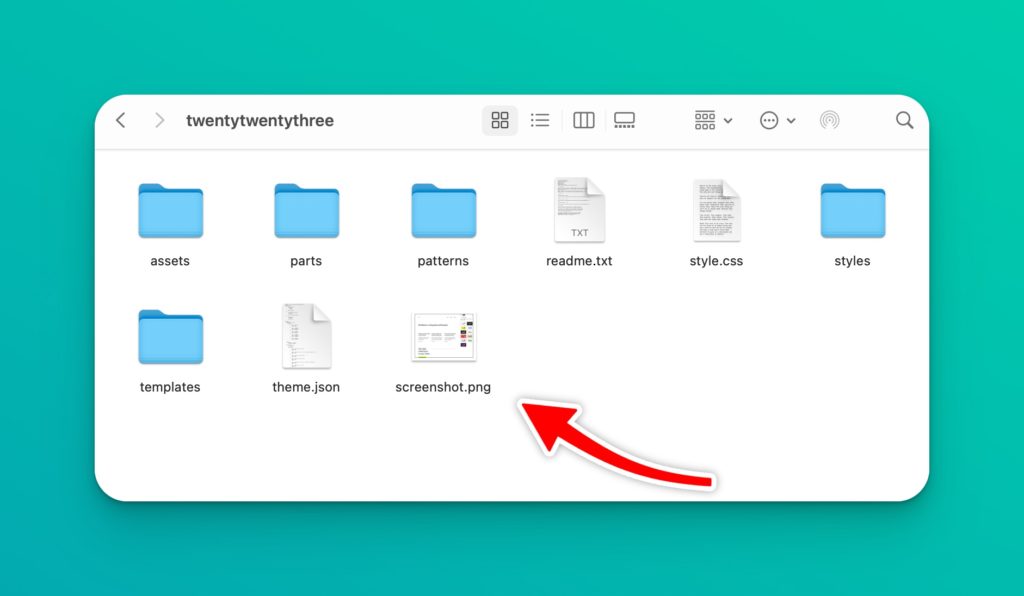
First, find the theme directory in your WordPress files. It is usually in the wp-content/themes folder. Open the folder of your current theme. This is where you’ll add the screenshot.
Next, name your screenshot as screenshot.png. The name must be this exact spelling. Otherwise, WordPress won’t recognize it. Keep the size under 1MB for fast loading. Use a 1200×900 pixel size for a clear image.
Now, upload the file to the theme folder. You can use FTP or your hosting file manager. Refresh your WordPress theme page. Check if the image appears correctly. If not, double-check the file name and size.
Testing The Screenshot
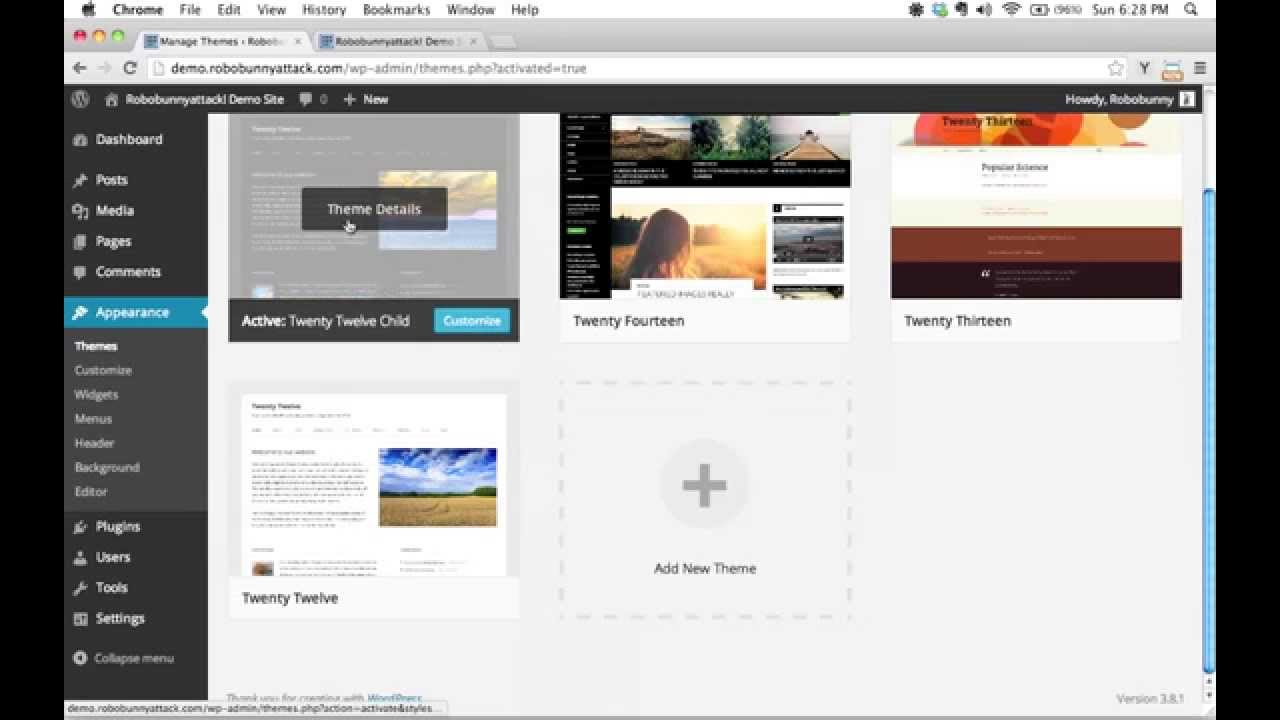
Refreshing the WordPress Dashboard is a simple step. Click the refresh button in your browser. The dashboard updates with new changes. Look for the new theme screenshot. It should appear on the theme page. If it does not show up, check the image path. Make sure the file name is correct. Clear your browser cache if needed.
Verifying Display is crucial. Open the theme section again. Confirm the screenshot is visible. If it is missing, check file permissions. Ensure the image is in the theme folder. Make sure the file format is correct. WordPress often uses PNG or JPEG. Double-check the image size. It should not be too large. Adjust if necessary.
Credit: www.youtube.com
Troubleshooting Common Issues
Sometimes, the theme screenshot might not show. Check if the image file is named screenshot.png. The name must be in lowercase. Also, make sure the file is in the theme folder. Double-check the image path. It should be correct.
The image needs to be the right size. The recommended size is 1200×900 pixels. If the image is too big or too small, it might not look good. Resize the image to fit. This helps it display properly.
Frequently Asked Questions
How Do I Upload A Theme Screenshot In WordPress?
To upload a theme screenshot in WordPress, navigate to your theme folder. Locate the ‘screenshot. png’ file. Replace it with your desired image using the same file name. Ensure the image dimensions are 1200×900 pixels for optimal display. This helps in previewing the theme correctly in the WordPress admin panel.
Why Is My Theme Screenshot Not Displaying?
If your theme screenshot isn’t displaying, check the image’s file name and format. It should be ‘screenshot. png’. Ensure the file is located in the theme’s root directory. Verify the image dimensions are 1200×900 pixels. Incorrect file placement or name can cause display issues in WordPress.
Can I Use Any Image Format For Screenshots?
No, WordPress requires theme screenshots to be in PNG format. Using other formats like JPEG or GIF might not display correctly. PNG ensures high quality and transparency features. Always name your screenshot file as ‘screenshot. png’ to maintain consistency and proper integration with WordPress themes.
How Do I Change The Theme Screenshot?
To change the theme screenshot, replace the existing ‘screenshot. png’ file in the theme directory. Ensure your new image is a PNG file and matches the dimensions of 1200×900 pixels. This process refreshes the theme preview in WordPress, allowing you to showcase your updated theme design effectively.
Conclusion
Adding a theme screenshot to WordPress is simple and useful. It helps showcase your theme visually. Users can easily identify your theme’s style. Follow the steps outlined for a smooth process. Take time to choose a quality image. It enhances your theme’s appeal.
A good screenshot attracts more interest. Keep your image relevant to your theme’s design. Ensure your theme stands out. This small detail can make a big impact. Embrace this feature to improve user engagement. Your WordPress site will look more professional.
Engage users with captivating visuals. Make your theme memorable and appealing.


