
Are you ready to give your WordPress site a fresh new look? Adding a theme is the easiest way to change how your website feels and functions.
Whether you want a sleek design for your blog or a professional style for your business, choosing the right theme can make all the difference. In this guide, you’ll learn exactly how to add a theme to your WordPress site step-by-step—no confusion, no tech jargon.
Keep reading, and you’ll have your site looking exactly how you want in no time.
Credit: www.elegantthemes.com
Choosing The Right Theme
Choosing the right theme is key to building a great WordPress site. The theme affects your site’s look and how visitors use it. Picking a theme that fits your content and goals makes your site stand out.
Consider your needs before choosing. Think about design, features, and ease of use. Your theme should help your site grow and work well on all devices.
Free Vs Premium Themes
Free themes are good for beginners or small sites. They offer basic features and simple designs. Many free themes get regular updates and support from the community.
Premium themes cost money but have extra features. They come with better support and more customization options. Premium themes often include built-in tools for SEO and speed.
Choose based on your budget and site needs. Free themes can work well but may lack advanced options. Premium themes offer more control but require investment.
Responsive Design Importance
A responsive theme changes its layout to fit all screen sizes. It works well on phones, tablets, and desktops. Responsive design improves user experience and keeps visitors longer.
Google favors sites with responsive design. This helps your site rank higher in search results. A non-responsive theme can lose visitors and lower your SEO score.
Always test your theme on different devices before deciding. A responsive theme is a must for modern websites.
Checking Theme Ratings And Reviews
Ratings and reviews show other users’ experiences. High ratings usually mean the theme is reliable and easy to use. Read reviews to find out about bugs or support issues.
Look for themes with many positive reviews and regular updates. Avoid themes with poor feedback or no recent updates. This helps avoid problems and keeps your site secure.
Spend time researching themes before installing. Good feedback saves time and improves your website’s quality.
Preparing Your WordPress Site
Preparing your WordPress site before adding a new theme is important. It helps avoid problems and keeps your site safe. Taking a few simple steps first can save time and effort later. Focus on backing up your site and updating WordPress core files.
Backing Up Your Website
Backing up your website protects your content and settings. You can save a copy of your entire site. Use a plugin or your hosting provider’s backup tool. Store the backup in a safe place, like your computer or cloud storage. This way, you can restore your site if anything goes wrong.
Updating WordPress Core
Updating WordPress core ensures your site runs smoothly. Updates fix bugs and improve security. Go to your WordPress dashboard and check for updates. Install the latest version before adding a new theme. This step helps avoid compatibility problems and keeps your site secure.
Installing A Theme From WordPress Directory
Installing a theme from the WordPress Directory is simple and fast. The directory offers many free themes that fit different styles and needs. You can browse, preview, and install themes directly from your WordPress dashboard. This method ensures your theme is safe and compatible with WordPress updates. Follow these steps to find and activate a theme easily.
Searching For Themes
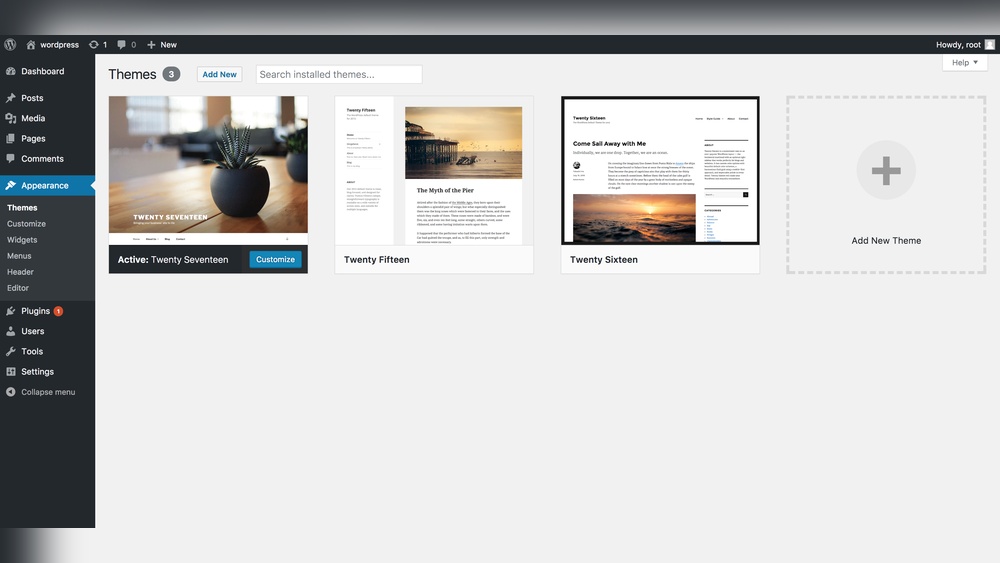
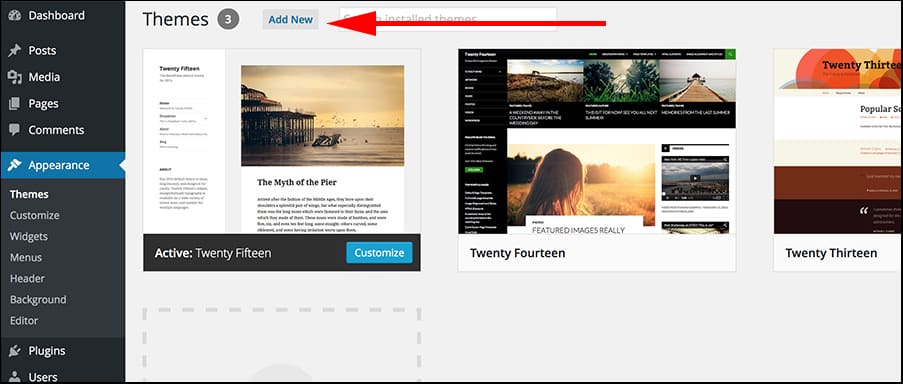
Go to your WordPress dashboard and click on Appearance > Themes. Then click the “Add New” button. Use the search bar to find themes by name or feature. You can also filter themes by popularity, latest, or specific features. This helps narrow down your choices to find the perfect look for your site.
Previewing Themes
Before installing, preview the theme to see how it looks. Click the “Preview” button on the theme thumbnail. This opens a live demo that shows your site with the new theme. Check the layout, colors, and fonts. Previewing saves time and avoids surprises after activation.
Installing And Activating
Once you find a theme you like, click the “Install” button. WordPress will download and install the theme quickly. After installation, click “Activate” to apply the theme to your site. Your website will update with the new design immediately. You can always switch themes later if needed.
Credit: www.greengeeks.com
Uploading A Theme Manually
Uploading a theme manually in WordPress is a simple process. It lets you use themes that are not available in the official directory. This method works well for premium themes or custom designs. Follow the steps below to upload your theme easily.
Downloading Theme Files
First, get the theme files in a .zip format. You can download this from the theme seller or developer. Keep the file saved on your computer. Do not unzip the file before uploading. WordPress needs the .zip file to install the theme correctly.
Using The Upload Feature
Log in to your WordPress dashboard. Go to Appearance > Themes. Click the “Add New” button at the top. Then click the “Upload Theme” button. Choose the .zip file from your computer and click “Install Now.” WordPress will start uploading the theme files.
Activating The Uploaded Theme
After uploading, you will see a success message. Click the “Activate” button to start using the theme. Your website will now display the new design. Check your site to make sure the theme looks right and works well.
Customizing Your New Theme
Customizing your new theme helps make your website unique. It lets you change the look and feel without touching code. This makes your site better suited for your audience.
WordPress offers easy tools to adjust settings. You can change colors, fonts, layouts, and more. These tools give control to users of all skill levels.
Using The Customizer
The Customizer is a built-in WordPress tool. Find it under Appearance > Customize in your dashboard. It shows a live preview of your site changes.
Use the Customizer to edit site identity, colors, and layout. You can see changes before saving them. This reduces mistakes and saves time.
Adding Widgets And Menus
Widgets add content blocks to sidebars and footers. Use Appearance > Widgets to place them. Drag and drop to arrange widget order.
Menus control website navigation. Create and edit menus under Appearance > Menus. Add pages, posts, or custom links easily.
Adjusting Colors And Fonts
Colors and fonts define your site’s style. Change them in the Customizer or theme settings. Pick colors that match your brand or mood.
Fonts affect readability and tone. Choose simple fonts for easy reading. Adjust font size and style for headings and paragraphs.
Troubleshooting Theme Issues
Adding a new theme to your WordPress site can improve its look and feel. Sometimes, issues may arise after installing or activating a theme. Troubleshooting these problems helps keep your site running smoothly and looking great.
Fixing Common Errors
Common theme errors include broken layouts and missing images. Clear your browser cache and reload the page first. Check if the theme is compatible with your WordPress version. Update the theme to the latest version for better performance. Look for error messages in your WordPress dashboard or logs. These clues point to what needs fixing.
Dealing With Plugin Conflicts
Plugins can clash with your theme and cause problems. Deactivate all plugins and see if the theme works correctly. Activate plugins one by one to find the conflicting one. Update all plugins to their latest versions. Contact plugin developers for support if conflicts continue.
Reverting To Previous Themes
Switching back to an old theme can solve many problems fast. Go to Appearance > Themes and activate your previous theme. Check if the site works without errors. Back up your website before making changes to avoid data loss. Use this method to keep your site stable while fixing issues.

Credit: wpmarmite.com
Frequently Asked Questions
How Do I Install A New WordPress Theme?
To install a new WordPress theme, go to Appearance > Themes in your dashboard. Click “Add New,” select a theme, and click “Install. ” Finally, activate the theme to apply it to your site instantly.
Can I Upload A Custom Theme To WordPress?
Yes, you can upload a custom theme. Go to Appearance > Themes > Add New > Upload Theme. Choose the theme ZIP file from your computer and click “Install Now. ” Activate it once uploaded.
What Is The Best Way To Preview A WordPress Theme?
Use the live preview option in the WordPress dashboard. Go to Appearance > Themes, hover over a theme, and click “Live Preview. ” This lets you see the theme without activating it.
Are Free WordPress Themes Safe To Use?
Most free themes from WordPress. org are safe, regularly updated, and reviewed. Always check ratings and reviews before installing. Avoid themes from unreliable sources to ensure security.
Conclusion
Adding a theme in WordPress is simple and quick. Choose a theme that fits your site’s style and goals. Upload or search for it directly in your dashboard. Activate the theme with just one click. Customize it to make your website unique and user-friendly.
Themes help change your site’s look without coding. Keep your theme updated for security and new features. Enjoy a fresh, professional website that attracts visitors. Start exploring themes today to give your site a new feel. Easy steps, great results.


