
Are you ready to take your WordPress website to the next level? Adding a template to your WordPress theme can be a game-changer, allowing you to customize your site with ease and precision.
Imagine having the power to tailor your website’s design to perfectly fit your brand’s identity and captivate your audience. Whether you’re a seasoned WordPress user or just starting out, the process can seem daunting. But fear not! This guide will break down the steps in simple, manageable terms, empowering you to enhance your site’s appearance without the need for complex coding skills.
Dive in, and discover how you can transform your WordPress theme with a template that speaks to your unique style and needs. Ready to make your website truly shine? Let’s get started.
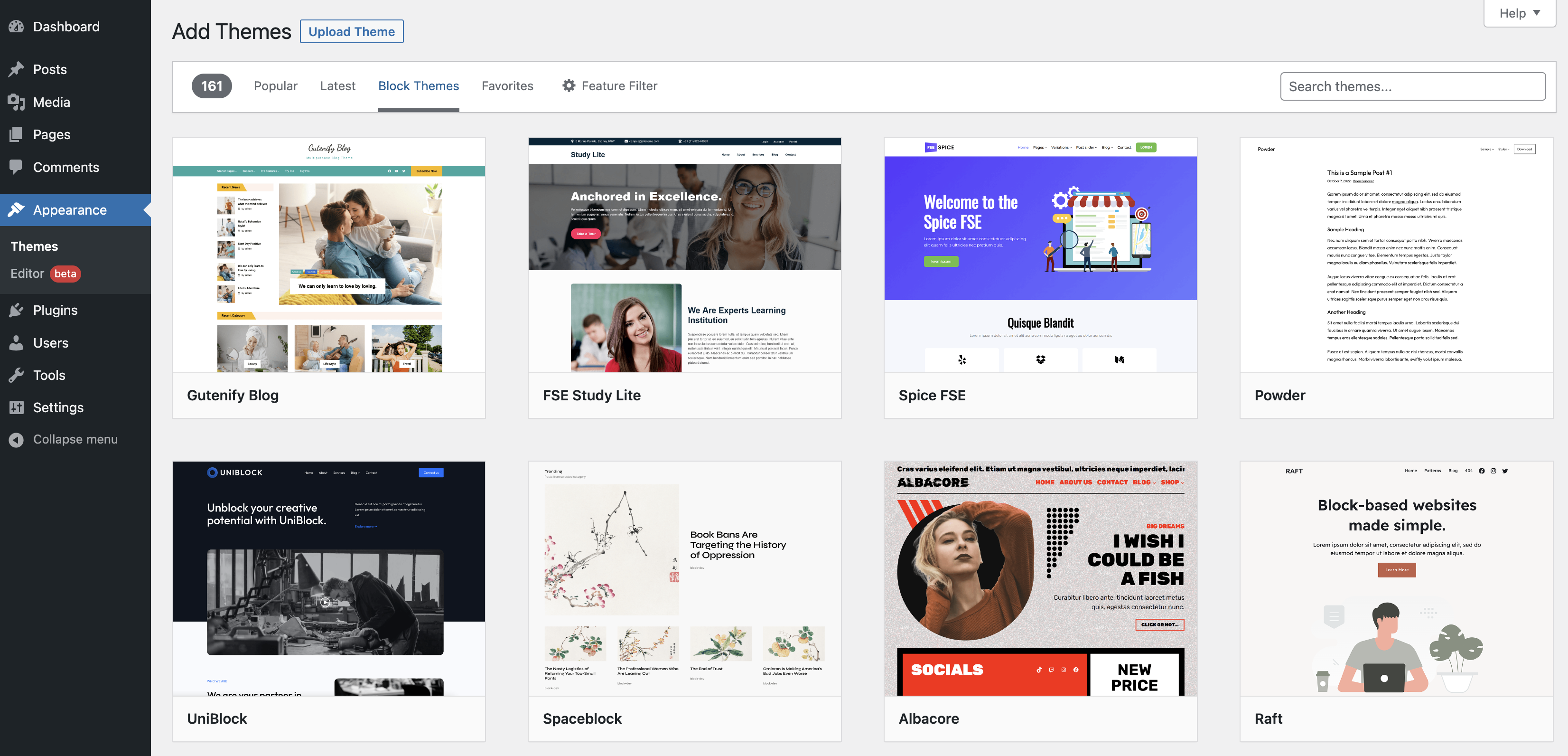
Credit: wordpress.org
Choosing The Right Template
Templates come in many types. Each type serves a different purpose. Some are for blogs. Others are for portfolios or online stores. Templates help change how your site looks. They also help organize your content. It is important to choose the right one for your needs.
Blog templates are good for sharing stories. Portfolio templates are best for showing art or projects. E-commerce templates help with selling products online. Each type offers unique features. Select a template based on what your site needs.
Start by thinking about your site’s purpose. Is it a blog? Is it a store? This will guide your template choice. Consider the features you need. Do you need a shopping cart? Or maybe a photo gallery? List out what your theme should have. This makes it easier to choose.
Your theme should match your brand. Colors and fonts should fit your style. Easy navigation is also key. This helps visitors find what they need. A good template can make your site look great and work well.
Preparing Your WordPress Environment
Backing up your site is very important. It protects your data. Use plugins like UpdraftPlus or BackupBuddy. They make backups easy. Save your backup files safely. You can store them on cloud platforms. Google Drive or Dropbox are good options. Don’t forget to back up regularly. This keeps your data safe.
A child theme lets you change your site safely. It keeps your main theme safe. First, create a new folder for your child theme. Name it something simple. Next, make a style.css file. This file holds your style rules. Add a functions.php file. It connects your child theme to the main theme. This setup helps you customize easily. You can change colors, fonts, and layouts without fear.
Locating Template Files
Find the theme folder in WordPress. Look in your site’s files. The folder is called wp-content/themes. Every theme has its own folder. Open the folder of the theme you use.
Templates end with .php. Common names are header.php, footer.php, and index.php. These files shape the look of your site. A new template must fit with these files. Read the names to know their roles.

Credit: wordpress.org
Creating A Custom Template
Adding a template to your WordPress theme involves creating a new file in the theme folder. Name the file with a unique identifier and include the necessary PHP code. Finally, upload the file through the WordPress admin panel to activate the custom template.
Using A Code Editor
Open your favorite code editor. This is where you will write code. Make sure to have a backup of your theme. This step is very important. Create a new file for your template. Name it something easy to remember. Use a .php extension. This is crucial for WordPress to recognize it.
Adding Essential Php Code
Start with a simple PHP tag: <?php. Next, add a template name comment. This helps WordPress know the template’s name. Example: Template Name: My Custom Template . This line is very important. It appears at the top of the file. Add your custom PHP code below this line. Save your file in the theme folder. Now your template is ready to use.
Integrating The Template Into Your Theme
Adding a template to a WordPress theme involves uploading the template file to the theme directory. Modify your theme’s PHP files to integrate the new template seamlessly. Ensure compatibility with existing styles and scripts for a smooth user experience.
Uploading The Template File
First, locate your WordPress theme folder. Use FTP or the File Manager. Find the folder named themes. Select your current theme folder. Upload the template file there. Ensure the file has a .php extension. This ensures WordPress recognizes it. Double-check the file name for typos. Proper naming is crucial. The template won’t work if named wrongly.
Registering The Template In WordPress
Open your theme’s functions.php file. Use a code editor for this. Add a special code snippet to register the template. This snippet makes WordPress aware of the new template. Use the add_filter function. This function connects your template with WordPress. Save the changes. Test the template by creating a new page. Look for the template in the page attributes.
Testing The New Template
Easily add a template to your WordPress theme by accessing the theme editor in the dashboard. Upload your desired template file, then save and activate it. This simple process helps customize your site quickly and efficiently.
Ensuring Proper Display
Check if the new template displays well on all devices. Use a phone, tablet, and computer to see it. Make sure images and text align properly. Look for any missing elements on the page. Ensure all links work by clicking on them. Fix any issues you spot right away. A proper display makes the site look good.
Troubleshooting Common Issues
Sometimes, templates might show errors. First, clear your browser cache to see updates. If errors still exist, check the template files. Look for mistakes in the code. Sometimes, plugins can cause problems. Try deactivating one plugin at a time. If the issue resolves, the plugin may be the culprit. Always back up your site before making changes. This keeps your data safe.
Optimizing Template Performance
Easily enhance your WordPress site by adding a template to your theme. Select the right template file. Then upload it to your theme’s directory. This method improves performance and design without complex coding.
Minimizing Load Time
Fast websites are happy websites. To make your site fast, use lightweight templates. Avoid bulky images and heavy scripts. They slow down your site. Compress images to make them smaller. Use tools like TinyPNG or ImageOptim. Caching is another key. Save versions of your pages. This helps them load faster next time. A fast site keeps users happy and returning.
Ensuring Mobile Responsiveness
Many people use phones to browse. Your site must look good on all devices. Use a responsive design. It adapts to different screen sizes. Test your site on phones and tablets. Make sure buttons are big enough. Text should be easy to read. A mobile-friendly site helps you reach more users.
Maintaining Template Updates
WordPress changes often. Staying updated is crucial. New updates can affect your template. They might bring new features. Or fix bugs. Or improve security. Missing updates can cause problems. Your template might break. Or become vulnerable. Regular updates help avoid issues. Keep your website safe. And smooth. Check for updates monthly. Or weekly if needed. Use the update button. It’s simple and quick. Backup before updating. Just in case something goes wrong.
Keeping Up With WordPress Changes
WordPress updates often. These changes are important. They improve features. They fix security holes. They make things run better. Always stay informed. Follow WordPress news. Subscribe to update alerts. Don’t miss any changes. Check forums for tips. Talk to other users. Share experiences. Learn from them. Stay aware of trends. Adapt your site accordingly.
Regular Backup Procedures
Backups are essential. They protect your site. From data loss. From hacking. From errors. Make backups regularly. Weekly is good. Daily is better. Use plugins for backups. They automate the process. Store backups in safe places. Cloud storage is ideal. External drives work too. Test backups often. Ensure they restore properly. Keep multiple copies. Never rely on just one. Your data is precious. Always safeguard it.

Credit: www.cloudways.com
Frequently Asked Questions
How Do I Add A Template In WordPress?
To add a template, access your WordPress dashboard. Navigate to Appearance > Editor. Choose the theme you wish to modify. Add your template file, typically a PHP file, to the theme directory. Ensure the file has a unique name. Save changes and apply the template to your desired pages.
Can I Use Custom Templates In WordPress?
Yes, you can use custom templates. Create a PHP file with unique template name. Upload it to your theme’s directory via FTP or the WordPress editor. Select the template when editing pages or posts. Custom templates offer flexibility and uniqueness to your WordPress site design.
Where Do I Find WordPress Theme Templates?
WordPress theme templates are located within your theme’s folder. Access them via the WordPress dashboard under Appearance > Editor. Templates typically include header, footer, and page files. Familiarize yourself with their structure and naming conventions to effectively modify or add new templates.
Do I Need Coding Skills For Templates?
Basic coding skills are helpful but not required. WordPress uses PHP, HTML, and CSS for templates. Beginners can learn from online tutorials and WordPress resources. Many themes offer built-in templates that require minimal coding. With practice, you can comfortably manage and customize templates.
Conclusion
Adding templates to WordPress themes is simple and effective. It boosts your site’s design without complex coding. Just follow the steps outlined above. You can customize your site’s appearance easily. Remember to choose templates that fit your brand. Test them before making changes live.
This ensures everything works smoothly. Regular updates keep your site fresh and functional. Explore different templates to find one that matches your vision. With practice, you’ll manage your site’s look confidently. Enhance your WordPress theme today and enjoy the benefits of a well-designed site.


