
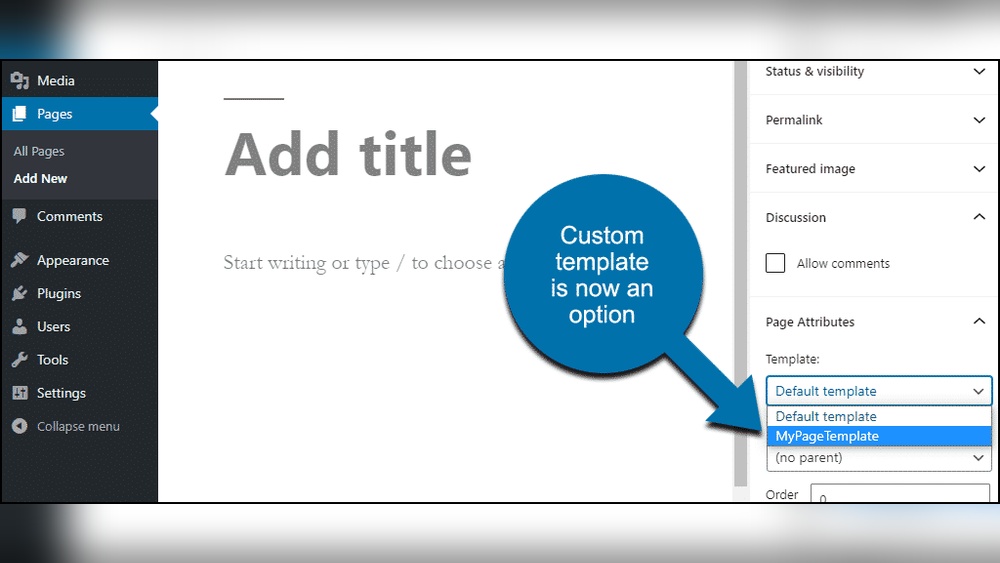
Are you ready to give your WordPress site a fresh, professional look? Adding a template can transform your website’s design instantly—no coding skills needed.
Whether you want a sleek blog, a stylish portfolio, or an online store, the right template makes all the difference. You’ll discover simple, step-by-step ways to add a template in WordPress. By the end, you’ll know exactly how to choose and install a design that fits your style and goals.
Let’s get started and make your website stand out!
Choosing The Right Template
Choosing the right template is key to building a good WordPress site. The right template shapes your site’s look and feel. It also affects how visitors use your site and find information. Picking a suitable template saves time and avoids future problems. Focus on features that match your site’s purpose and your skills.
Free Vs Premium Templates
Free templates cost nothing and offer basic designs. They are easy to use and good for small sites or beginners. Premium templates require payment but provide more options and support. These templates often come with better designs and extra features. Choose based on your budget and needs. Free templates can work well but may lack some tools.
Template Features To Look For
Look for templates with clear layouts and easy navigation. Responsive design is important for all devices. Check if the template supports customization like colors and fonts. Fast loading speed helps keep visitors on your site. Templates with built-in SEO tools improve search engine ranking. Also, see if the template supports popular plugins you plan to use.
Compatibility With WordPress Versions
Ensure the template works with the latest WordPress version. Updates fix bugs and improve security. An outdated template may cause errors or slow your site. Check the template’s update history before choosing it. Templates that update regularly stay compatible and safe. This keeps your site running smoothly over time.
Credit: wordpress.org
Preparing Your WordPress Site
Preparing your WordPress site is a crucial step before adding a new template. It helps to avoid problems and keeps your website safe. Taking a few simple actions can save you from losing data or facing errors during the template installation. Follow these steps to get your site ready.
Backing Up Your Website
Backing up your website protects your content and settings. It creates a copy of your site files and database. Use a reliable backup plugin or your hosting control panel. Store the backup in a safe place outside your server. This step ensures you can restore your site if something goes wrong.
Updating WordPress Core
Keep your WordPress core updated to the latest version. Updates fix bugs and improve security. They also make sure your site works well with new templates. Check your dashboard for available updates. Install them before adding the new template to avoid compatibility issues.
Disabling Conflicting Plugins
Some plugins may conflict with new templates. These conflicts can cause errors or display problems. Temporarily disable plugins that affect site appearance or functionality. You can reactivate them after the template is installed. This step helps your new template work smoothly without interference.
Installing A Template From WordPress Directory
Installing a template from the WordPress Directory is simple and quick. This directory offers many free templates created by the WordPress community. You can find templates for blogs, business sites, portfolios, and more.
This method does not require downloading files or using FTP. You can search, preview, and install directly from your WordPress dashboard. It saves time and helps you find the right design fast.
Searching For Templates
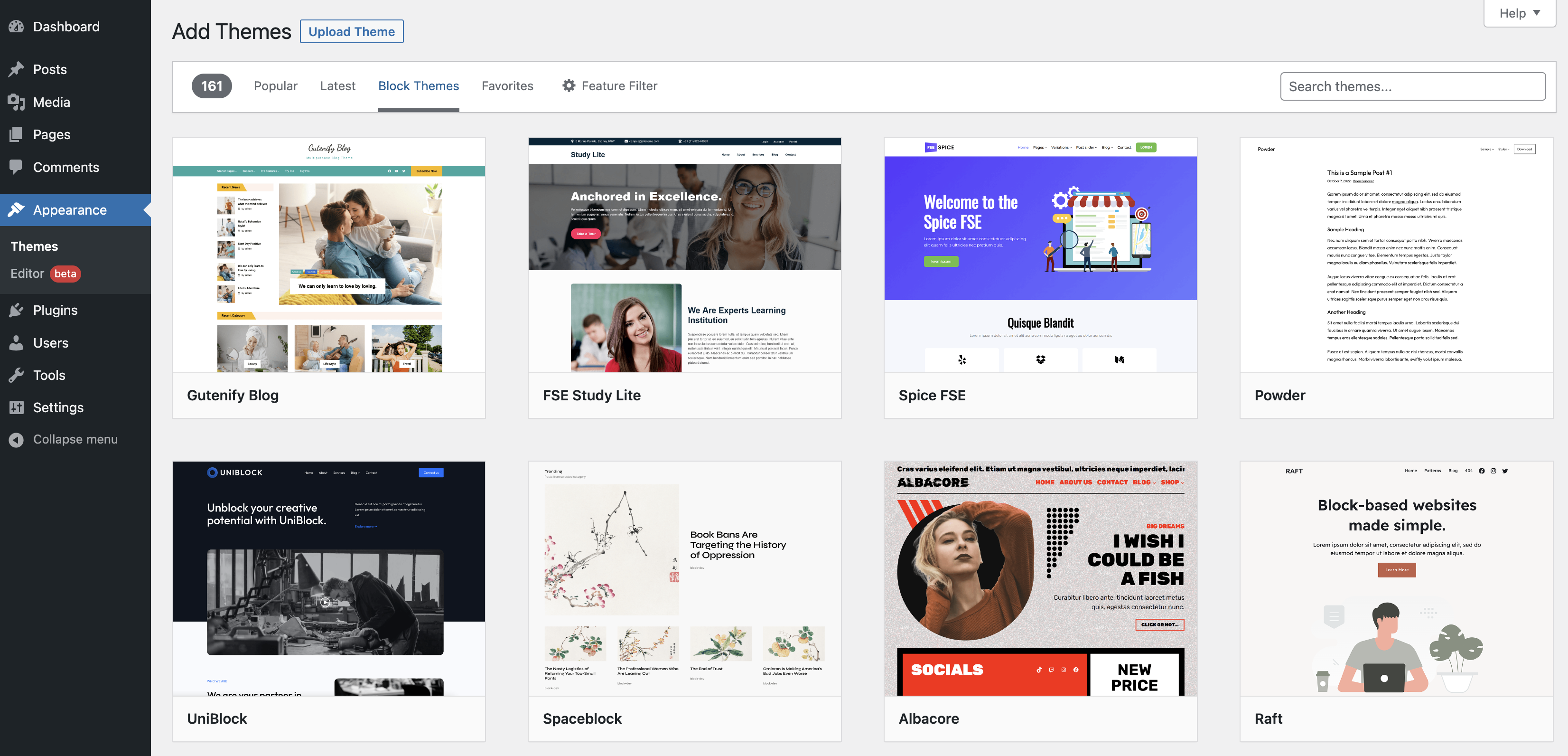
Go to your WordPress dashboard and open the “Appearance” menu. Click on “Themes” and then “Add New.” Use the search box to type keywords related to your site style. You can also filter templates by features, layout, or popularity.
The directory shows many templates. Read their names and short descriptions. This helps you pick a few that might fit your needs. Keep your site’s purpose in mind while searching.
Previewing Templates
Before installing, preview templates to see their look. Click the “Preview” button on any template. This opens a live demo with example content. It shows how the template looks on desktop and mobile.
Previewing helps decide if the template suits your style and content. Check colors, fonts, and layout. If it feels right, you can move to installation. If not, go back and explore others.
One-click Installation
Once you find a template you like, install it with one click. Click the “Install” button next to the template. WordPress downloads and adds it to your site automatically.
After installation, activate the template by clicking “Activate.” Your site will now use the new design. You can customize it further from the “Customize” menu under “Appearance.”

Credit: wordpress.com
Uploading A Template Manually
Uploading a template manually lets you use custom designs outside the WordPress theme library. It gives you control over the exact files you add. This method works well for premium or custom templates you have downloaded. Follow these steps to upload your template safely and correctly.
Downloading Template Files
Start by downloading the template files to your computer. Usually, these come as a .zip archive. Keep the file in an easy-to-find folder. Check if the template includes documentation or extra files. This helps with installation and setup later.
Using The WordPress Dashboard Upload
Log in to your WordPress dashboard. Go to Appearance > Themes > Add New. Click the Upload Theme button at the top. Choose the .zip file you downloaded. Click Install Now. Wait a few moments while WordPress uploads and unpacks the template. After that, activate the template to see it live on your site.
Installing Via Ftp
Connect to your website using an FTP client like FileZilla. Navigate to the /wp-content/themes/ folder. Extract the template .zip file on your computer. Upload the extracted folder to the themes directory. Once uploaded, return to the WordPress dashboard. Go to Appearance > Themes and activate your new template.
Activating And Customizing The Template
Activating and customizing a template in WordPress is the next step after installing it. This process helps you give your site a unique look. You can change colors, fonts, and layouts easily. Small changes make a big difference in how visitors see your site.
WordPress makes it simple to start using your new template. You do not need coding skills. Just a few clicks can activate and personalize your site design.
Activating Your New Template
Go to your WordPress dashboard. Find the “Appearance” menu and click “Themes.” You will see all installed templates here. Hover over the new template you want. Click the “Activate” button. Your site now uses this template immediately. Check your site to see the changes.
Customizing Appearance Settings
After activation, click “Customize” under the “Appearance” menu. Here, you can change many settings like colors, fonts, and background images. Use the live preview to see changes before saving. Adjust the header, footer, and layout options. Save each change to apply it to your site.
Adding Widgets And Menus
Widgets add extra features like search bars or recent posts. Go to “Appearance” and click “Widgets.” Drag widgets to the desired areas, such as sidebars or footers. Menus help visitors navigate your site. Under “Appearance,” select “Menus.” Create new menus or edit existing ones. Add pages, posts, or links to your menu. Save your work to make it live.
Troubleshooting Common Issues
Adding a template in WordPress can sometimes cause small problems. These issues are common and easy to fix. Knowing how to solve them saves time and keeps your site looking good. Here are some tips to help you fix common template problems.
Template Not Showing Correctly
Sometimes, the template does not appear as expected. This can happen due to cache issues or incomplete uploads. Clear your browser cache and refresh the page. Check if the template files are fully uploaded in your theme folder. Make sure your WordPress version supports the template you use.
Fixing Broken Layouts
Broken layouts happen when styles or scripts do not load properly. Check your CSS and JavaScript files for errors. Disable custom code that might conflict with the template. Use the browser’s developer tools to spot missing files. Updating your theme and WordPress often fixes layout problems.
Dealing With Plugin Conflicts
Plugins can sometimes interfere with templates. Deactivate all plugins and check if the template works. Reactivate plugins one by one to find the cause. Look for plugin updates or alternatives if conflicts persist. Keep plugins and templates updated to reduce compatibility issues.
Optimizing Template Performance
Optimizing your WordPress template helps your site run faster and perform better. A well-optimized template improves user experience and keeps visitors on your site longer. It also helps your site rank higher in search engines.
Focus on key areas like loading speed, SEO practices, and mobile responsiveness. These factors work together to make your template efficient and user-friendly.
Caching And Speed Tips
Caching stores parts of your site to load pages faster. Use plugins like W3 Total Cache or WP Super Cache. They reduce load time by serving saved versions of pages.
Minimize CSS and JavaScript files. Smaller files load quicker and improve speed. Optimize images by compressing them without losing quality. Fast sites keep visitors happy and reduce bounce rates.
Seo-friendly Template Practices
Use clean, simple code in your template. Search engines read clean code easily, improving your rankings. Make sure your template supports proper heading tags like H1, H2, and H3.
Include fast-loading fonts and avoid heavy scripts. Use alt text for images to help search engines understand your content. A well-structured template boosts your SEO efforts.
Mobile Responsiveness
Your template must look good on phones and tablets. Responsive design adjusts layout based on screen size. Test your site on various devices to ensure it works well everywhere.
Use flexible grids and scalable images. Mobile-friendly sites have lower bounce rates and higher engagement. Google favors mobile-responsive sites in search results.
Credit: www.smashingmagazine.com
Frequently Asked Questions
How Do I Add A New Template In WordPress?
To add a new template, go to your WordPress dashboard. Navigate to Appearance > Themes > Add New. Upload your template file or choose from the WordPress library. Activate the template once installed to apply it to your site.
Can I Customize WordPress Templates After Adding Them?
Yes, you can customize WordPress templates using the built-in Customizer. Go to Appearance > Customize to edit colors, fonts, layouts, and more. For advanced changes, use a child theme or page builder plugins to avoid losing edits during updates.
What File Types Are Supported For WordPress Templates?
WordPress templates typically come as. zip files containing PHP, CSS, and JavaScript files. When adding a template, upload the. zip file directly in the theme section. WordPress automatically extracts and installs the files for use.
Is It Safe To Add Third-party Templates In WordPress?
Adding third-party templates is safe if downloaded from reputable sources. Always check reviews, updates, and compatibility with your WordPress version. Use security plugins and backups to protect your site before installing new templates.
Conclusion
Adding a template to WordPress is simple and fast. Choose a template that fits your site’s style. Upload or activate it with a few clicks. Customize the template to make your site unique. This helps your website look professional and work well.
Keep your site updated and explore new templates anytime. Your WordPress site can grow as you learn more. Enjoy building your online presence with ease and confidence.


