
Are you struggling to organize your WordPress site effectively? A well-structured menu can make a world of difference in how visitors navigate your content.
Adding a submenu to your WordPress theme is an essential skill that can enhance your site’s user experience and keep your audience engaged. Imagine offering your readers a seamless way to find exactly what they’re looking for, right at their fingertips.
By mastering this simple yet powerful feature, you can transform your site’s navigation and keep your visitors coming back for more. Stick around, and discover how you can easily add a submenu to your WordPress theme, unlocking the potential for a more organized and inviting website.

Credit: shellcreeper.com
Understanding WordPress Menus
Menus help users find content on your site. They show main sections and pages. Menus are important for site navigation. They make your website user-friendly. Without good menus, visitors get lost. They might leave your site. Always plan your menu structure. Think about what your visitors need. Keep your menus simple and clear. Use easy words. This helps everyone understand.
Themes have different spots for menus. These are called menu locations. Some themes have many locations. Others have just one. Common places are the header, footer, and sidebar. Check your theme’s settings. Find out where you can put menus. You can use one menu in many spots. Or use different menus for each spot. Choose based on what works best. Keep the user experience in mind.
Setting Up Your WordPress Theme
Easily enhance your WordPress site by adding a submenu. Navigate to the Appearance tab, then Menus. Select your desired items, drag them under the main menu, and save. This simple setup improves navigation and user experience.
Theme Compatibility
Choosing the right theme is important. Not all themes support submenus. Check the theme’s documentation first. Look for submenu features. Many themes offer built-in submenu options. Ensure your theme is updated. Updates improve compatibility. Some older themes may lack submenu support.
Child Theme Creation
Making a child theme is smart. It protects your changes. A child theme uses a parent theme’s settings. Changes in the parent theme won’t affect your work. First, create a new folder in your themes directory. Name it child-theme. Inside, make a style.css file. Add code to link it to the parent theme. Use a functions.php file too. This setup keeps your customizations safe.
Creating A Custom Menu
Go to your WordPress dashboard. Click on Appearance. Then select Menus. You will see menu settings here. This is where you create your custom menu. It’s easy and fun. Try it!
Look for the Add Menu Items section. Choose pages, posts, or links. Click Add to Menu to include them. Items will appear on the right. Organize them in order. Drag and drop to rearrange. Use the indents to create submenus. Save your changes. Now, your menu is ready!
Designing A Submenu
A submenu helps organize content. It works like a list. The main item is the top. Below it are sub-items. Each sub-item belongs to the main item. Think of it like a family tree. Main item is the parent. Sub-items are the children. This is called a hierarchical structure. Make sure it is clear and easy to follow.
Submenus should look nice. They should match the main menu. Use similar colors and fonts. This makes them easy to read. Submenus should be easy to click. The size should fit the screen. Make sure it works on phones and computers. A good style helps users find what they need.
Incorporating Submenu Into Your Theme
To add a submenu, edit the theme files. Locate the `functions.php` file. Add code for the submenu. Use the `wp_nav_menu()` function. This helps display the menu. Ensure the submenu items are nested. Use `
- ` and `
- ` tags. This creates a list. Save changes to the file. Check your website. Verify if the submenu appears.
Hooks are useful for adding features. Use WordPress hooks to create submenus. `add_action()` is a popular hook. It helps in adding code. Place submenu code inside this hook. Use the `wp_enqueue_scripts` hook. It loads scripts for menus. Test the submenu on your site. Make sure it works correctly.
Testing And Troubleshooting
Adding a submenu in a WordPress theme involves navigating to the dashboard and customizing menu settings. Troubleshooting common issues, like submenu not appearing, requires checking theme compatibility and menu configuration. Ensure changes are saved and refresh the site to see updates.
Previewing Changes
After adding a submenu, it is important to check if it looks right. Visit your website to see the changes. Make sure the submenu appears where you want it. Check if the links work. They should take you to the correct pages.
Common Issues And Fixes
Sometimes, the submenu might not appear. This can be due to theme settings. Check the theme options to ensure the menu is enabled. Another issue can be conflicting plugins. Try deactivating plugins one by one to find the cause. If links do not work, check the URL paths. They should be correct and not broken. Ensure you save all changes after editing.
Enhancing User Experience
Mobile Responsiveness is very important. People use phones a lot. Menus must fit small screens. Easy to tap options matter. Submenus should not be hidden. They need to be easy to find. Make sure buttons are big enough. This helps fingers tap without mistakes.
Accessibility Features help everyone. Some people have difficulties. Menus must be easy for them. Use clear text and colors. Sounds or vibrations can guide users. Ensure that screen readers can read menus. Submenus should have helpful labels. This makes navigation smooth for all.

Credit: docs.themeisle.com
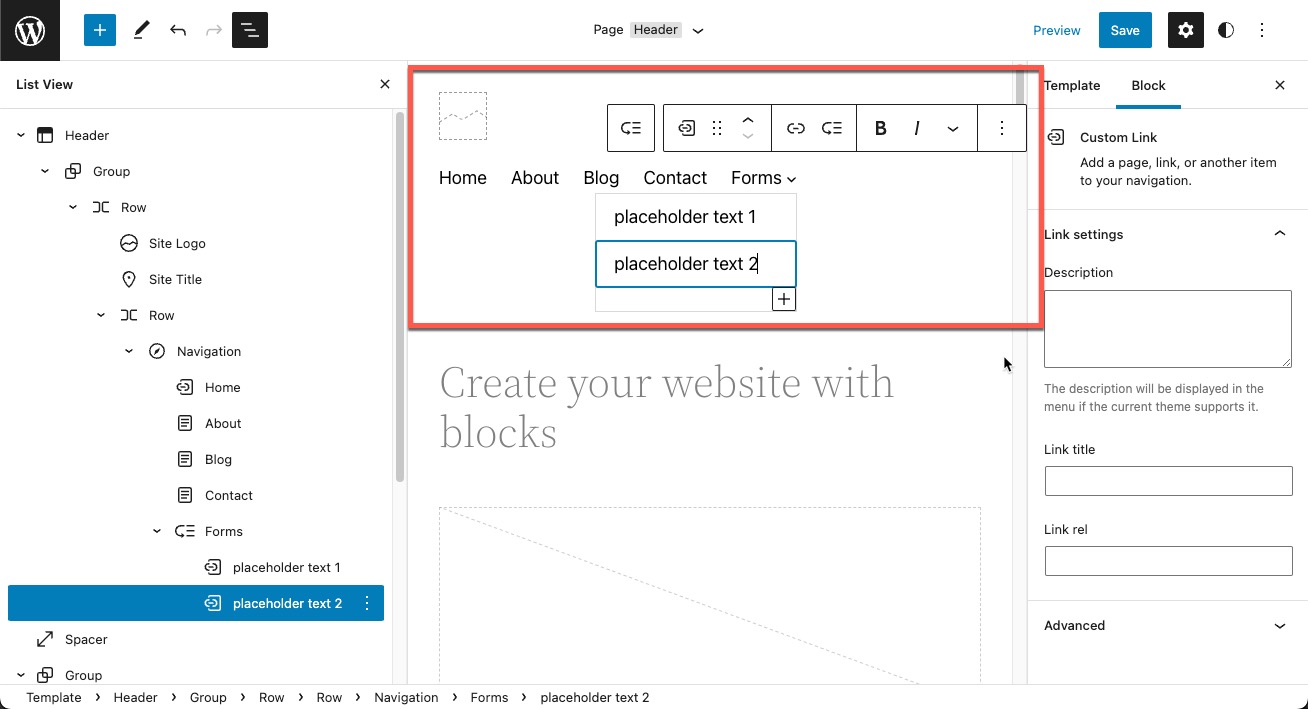
Credit: www.inmotionhosting.com
Frequently Asked Questions
How Do I Create A Submenu In WordPress?
To create a submenu in WordPress, navigate to the Appearance > Menus section. Select the menu you want to edit. Add items to your main menu and drag them slightly to the right under a parent item to create a submenu.
Save the changes to update your menu structure.
Can I Add A Submenu Without Coding?
Yes, you can add a submenu without coding by using WordPress’s built-in menu editor. Navigate to Appearance > Menus, and use drag-and-drop to organize menu items into submenus. This intuitive interface lets you manage your site’s navigation easily, without needing any technical skills.
Why Isn’t My Submenu Displaying?
If your submenu isn’t displaying, check your theme settings. Some themes may require specific configurations for submenus. Ensure that you have saved your menu changes in the Appearance > Menus section. Also, verify that your theme supports submenus by reviewing its documentation.
How Can I Style My WordPress Submenu?
To style your WordPress submenu, you can use custom CSS. Access your theme’s customizer or stylesheet and add CSS rules targeting the submenu class. This allows you to change colors, fonts, and sizes. Ensure your theme supports custom CSS for seamless styling adjustments.
Conclusion
Adding a submenu in WordPress is simple with the right steps. Follow the guide and practice regularly. Soon, you will feel confident making changes. Submenus enhance site navigation and improve user experience. They allow visitors to find content quickly. Always test your menu before going live.
Ensure it looks good on all devices. With practice, organizing your website becomes easier. Keep learning and exploring WordPress features. They offer many options to create a user-friendly site. Embrace creativity and functionality to engage your audience.


