
Are you eager to transform your WordPress site into a thriving online store? Imagine having the power to reach customers worldwide, showcase your products, and boost your sales—all from the comfort of your own website.
You might think adding a store to your WordPress theme is a daunting task, but it’s simpler than you think. In this guide, we’ll walk you through the process step-by-step, helping you unlock the potential of your website. By the end of this article, you’ll have the confidence and know-how to create a seamless shopping experience that captivates your audience and turns visitors into loyal customers.
Ready to dive in and revolutionize your site? Let’s get started!
Choosing The Right E-commerce Plugin
Adding a store to a WordPress theme requires selecting the right e-commerce plugin. Consider ease of use and compatibility with your theme. Look for plugins with good support and user reviews. These factors ensure a seamless shopping experience for your customers.
Popular Plugins Overview
WordPress has many e-commerce plugins. WooCommerce is very popular. It is user-friendly and free to start. Shopify is another choice but costs money. It is easy to set up and use. Easy Digital Downloads is great for digital products. It is simple and effective. BigCommerce is good for larger stores. It has many features.
Factors To Consider
Think about your store needs. Budget is important. Some plugins are free, others cost money. Ease of use matters too. Choose what you can manage. Features are key. Check if the plugin has what you need. Support is crucial. Good help can save time. Compatibility with your theme is also vital. Make sure they work well together.

Credit: ku.wordpress.org
Installing The E-commerce Plugin
First, open your WordPress dashboard. Find the Plugins section. Click on Add New. In the search bar, type WooCommerce. Click Install Now next to WooCommerce. Once installed, click Activate.
After activation, follow the setup wizard. Add store details like address, currency, and products. Choose a payment method. Click Finish Setup. Your store is now ready!
Sometimes plugins don’t install correctly. Check your WordPress version. It must be updated. Ensure your theme is compatible. Conflicts can occur with other plugins. Deactivate them one by one to find the problem. Reinstall the plugin if needed. Remember to clear your browser cache. This helps see changes.
Configuring Store Settings
Start by visiting the dashboard. Click on Settings. Here, you can set your store name. Also, add your store’s address. This helps with shipping and tax. Choose your currency for payments. Adjust the timezone to match your location. Save changes often.
Payment gateways are vital. They let customers pay online. Popular options include PayPal and Stripe. Each has its own fees. Choose one that suits your needs. Set up your account with the provider. Follow the setup guide carefully. Ensure the payment method is secure.
Go to Shipping settings. Add your shipping zones. Set shipping rates for each zone. Offer free shipping if possible. Next, configure tax settings. Enable automatic tax calculations. This is helpful for customers. Check the tax rules for your region. It keeps you compliant with laws.
Designing Your Storefront
Start by picking a theme that fits your style. Look for options that allow easy changes. Adjust the colors to match your brand. Change the fonts for a unique look. Add a logo to make it yours. Use the customizer tool in WordPress. It helps you see changes live. Make sure the layout looks good on phones. Check the site on different screens. This ensures everyone sees your store the best way.
Templates make it easy to set up a store. Choose a template that suits your products. Most themes come with ready templates. These have a standard layout. They help in arranging products neatly. Use them to save time. You can always tweak the design later. Templates can also include sections for featured items. They help in showcasing best products. Remember, a good template improves the shopping experience.
Adding Products To Your Store
Adding products to your store in a WordPress theme involves a few simple steps. Begin by accessing your WordPress dashboard, then navigate to the “Products” section. Here, you can input product details, upload images, and set prices.
Product Categories And Tags
Organize your products with categories and tags. Categories help shoppers find items easily. Tags give extra information like color or size. Choose clear names for categories. Use tags to describe product features. This makes searching simple for visitors.
Adding Product Details And Images
Product details are very important. Write simple descriptions for each item. Describe what the product does. Use easy words to explain features. Add prices and sizes too. Good descriptions help buyers decide. Images should be clear and bright. Show the product from different angles. Use high-quality pictures. Pictures help customers see what they are buying.

Credit: ve.wordpress.org
Managing Inventory And Orders
Keeping track of inventory is very important. Always know how much stock you have. Update your inventory list every day. Use online tools for easy tracking. Check for low stock alerts. Restock items before they run out. This keeps your store running smoothly.
Processing orders quickly is key. Send order confirmations to customers fast. Use a simple system to track orders. Keep customers informed about shipping. Offer easy returns if needed. This builds trust with customers. Happy customers mean more sales.
Enhancing Store Functionality
Integrating add-ons and extensions makes the store better. Many tools are available for WordPress. Some tools help with payment options. Others assist in product management. These tools make tasks easier. They add features like discounts or reviews. Each tool has its own benefits. Choose tools that suit your store’s needs. They improve the store without much effort. Adding tools is simple. Follow easy steps. Click, install, and activate.
Improving user experience is important. Make sure the store is easy to navigate. Simplify the checkout process. Users should find products easily. Fast loading times matter. Use clear images and descriptions. Ensure mobile compatibility. Happy users mean more sales. Users return when they like the store. Always check feedback. Make changes if needed. Listen to what users want.
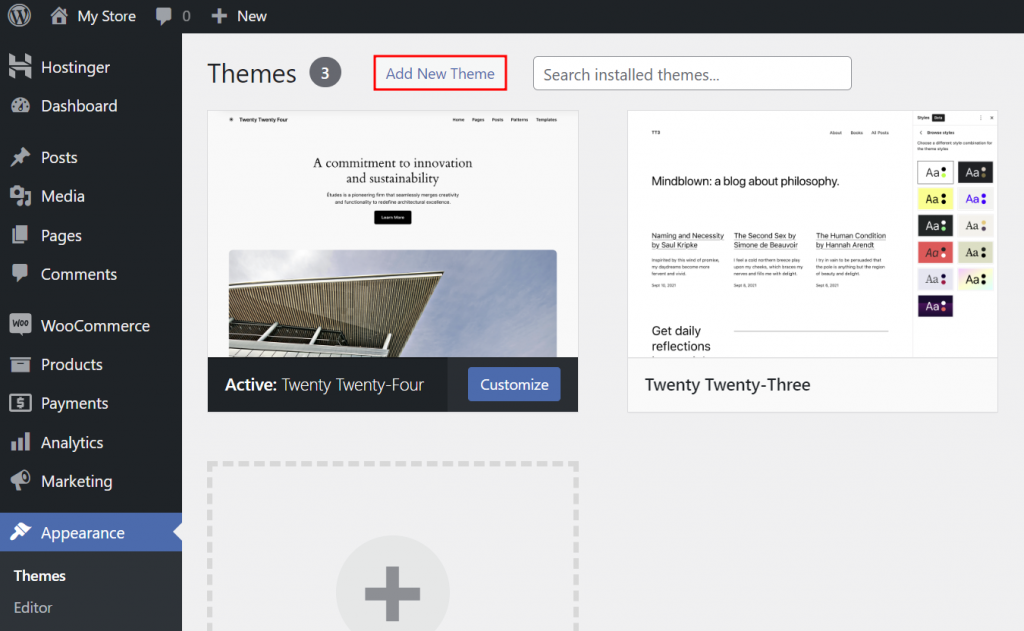
Credit: www.hostinger.com
Optimizing For Seo And Performance
WordPress sites need strong SEO. Use keywords wisely in titles and meta tags. Add alt text for images to help search engines. Structure content with header tags. Avoid keyword stuffing; it harms SEO.
Ensure your site is mobile-friendly. More users browse on phones than desktops. Responsive design is key. Use plugins that support SEO. Yoast SEO is popular. It guides you on optimization.
Site speed affects user experience. Faster sites rank higher on search engines. Reduce image sizes to boost speed. Use caching plugins like WP Super Cache. They store data to load pages faster.
Choose a lightweight theme for better performance. Avoid heavy scripts that slow down sites. Regular updates keep your WordPress smooth. They fix bugs and improve speed.
Testing And Launching Your Store
Integrating a store into a WordPress theme involves selecting suitable plugins and customizing them for seamless functionality. Test thoroughly to ensure smooth user navigation and transaction processes. Launch with a compelling design and optimized settings, attracting potential customers and enhancing shopping experience.
Pre-launch Checklist
Check all your links. Make sure they work. Look for errors in text. Fix any spelling mistakes. Ensure images load properly. Test on different devices. Try phones and tablets too. Check for broken links. Make sure they are fixed. Look at page speed. Your site should load fast. Review checkout process. It should be smooth and easy. Confirm payment methods work. Test all of them.
Testing For Usability
Navigate through your store. Is it simple? Can users find products easily? Ask someone to test it. Get their feedback. Check if buttons are clear. Are they easy to click? Try the search bar. Does it work well? Ensure menu items are visible. Test your store at night. Can you see everything? Adjust brightness if needed. Make sure text is readable. Avoid tiny fonts.
Maintaining And Updating Your Store
Keeping your store updated is crucial. Install new updates regularly. Updates fix bugs and improve security. Backups are essential too. They protect your data from loss. Use backup plugins for easy backups. Schedule backups weekly or daily. Always store backups in a safe location. Cloud services are a good choice for this. Backups should be tested to ensure they work. Test after each backup to avoid surprises. Regular checks keep your store safe.
Stores can have problems sometimes. Don’t panic when issues arise. Start by checking settings and plugins. Sometimes plugins conflict and cause trouble. Deactivate plugins one by one to find the problem. Check for recent changes or updates. Updates can lead to issues too. Consult support forums for help. Community members often share solutions. Follow guides or tutorials for detailed help. If the problem persists, contact support. They can provide expert advice. Keep records of issues and solutions.
Frequently Asked Questions
How Do I Integrate A Store In WordPress?
To integrate a store in WordPress, install a plugin like WooCommerce. It provides easy setup and management of products. Customize your store’s appearance using theme settings. Ensure your payment gateway is configured. Regularly update your product listings. This enhances user experience and boosts sales.
Always backup your site before major changes.
Can I Use Any WordPress Theme For A Store?
Yes, you can use most WordPress themes for a store. However, choosing a WooCommerce-compatible theme is recommended. These themes offer better layout and design options for products. Ensure the theme supports essential eCommerce features. Check reviews for performance and responsiveness.
A well-suited theme enhances your store’s functionality and appearance.
What Plugins Are Needed For A WordPress Store?
For a WordPress store, essential plugins include WooCommerce for eCommerce functionality. Payment gateways like PayPal or Stripe are crucial. SEO plugins like Yoast improve visibility. Security plugins protect customer data. Backup plugins safeguard store information. Regular updates ensure compatibility and security.
Choose plugins based on your store’s specific needs.
Is It Difficult To Add A Store In WordPress?
Adding a store in WordPress is straightforward with the right tools. WooCommerce simplifies setup and management. Follow installation guides and tutorials for assistance. Most themes support eCommerce features. Customize settings for your store’s needs. Regularly update plugins and themes. Seek community support for troubleshooting.
With patience, anyone can set up a store.
Conclusion
Adding a store to your WordPress theme is a straightforward process. Follow the steps outlined to integrate e-commerce seamlessly. Customize your store to reflect your brand identity. Explore plugins that enhance user experience and boost functionality. Keep your site updated for security and performance.
Regularly review analytics to understand customer behavior. This helps improve your store’s offerings. Stay informed about new WordPress updates and features. Adapt to changes for optimal store performance. Engage with your audience to build lasting relationships. Your store can thrive with attention and creativity.
Enjoy the journey of growing your online presence!


