
Are you looking to give your WordPress site a fresh, dynamic look? Adding a slider to your WordPress theme could be the game-changer you need.
Sliders not only enhance the visual appeal of your site but also improve user interaction, making your content more engaging. You might think that adding a slider is a complex task reserved for tech experts. But here’s the good news: with the right guidance, it’s easier than you think.
Imagine a stunning, interactive showcase of your best content that captivates your visitors from the moment they land on your site. You’ll discover step-by-step instructions to effortlessly integrate a slider into your WordPress theme. So, let’s dive in and transform your website into a captivating digital experience!
Choosing The Right Slider Plugin
Adding a slider to your WordPress theme can make it look great. Some popular plugins include Slider Revolution, LayerSlider, and Soliloquy. These plugins are easy to use. They help you create beautiful sliders with many features. You can add images, text, and even videos. Most plugins offer drag-and-drop builders, which make designing fun and simple.
Some features are important when choosing a slider plugin. Make sure the plugin is responsive. This means it looks good on any device. Check if the plugin supports multiple slideshows. Look for animation effects to make your slider stand out. Another important feature is SEO optimization. This helps your website rank better in search engines. Finally, ensure the plugin is compatible with your theme and other plugins.
Installing The Slider Plugin
Easily enhance your WordPress theme by installing the Slider Plugin. Begin by navigating to your dashboard’s plugin section. Search for a slider plugin, install it, then activate. Customize settings to create an engaging visual experience, showcasing images or content seamlessly on your site.
Plugin Installation Via Dashboard
Open your WordPress dashboard. Click on “Plugins” in the menu. Select “Add New”. Type the name of the slider plugin in the search box. Find the plugin you want. Click “Install Now”. Wait a few seconds. After installing, click “Activate”. Now, your plugin is ready to use.
Manual Plugin Upload
Download the plugin file to your computer. Go to your WordPress dashboard. Click on “Plugins”. Select “Add New”. Click “Upload Plugin”. Choose the downloaded file. Click “Install Now”. Wait for the upload. Click “Activate” after installing. Your slider plugin is now active.
Configuring Slider Settings
Start with the basic settings. Choose the slider layout. Options include full-width or boxed. Set the slide transition effect. Options like fade or slide are available. Adjust the speed of the transition. This controls how fast slides change. Add captions to each slide. Captions help explain images. Enable or disable navigation arrows. These allow users to move slides. Pick slide timing. This is how long each slide shows. Save changes to apply settings.
Use custom CSS for unique styles. Change font sizes for text. Adjust color schemes to match your theme. Modify the slider height and width. This ensures it fits your page. Add custom animations for slide entry. These make your slider stand out. Integrate video content if needed. Videos can engage viewers more. Use shortcodes for easy placement. Shortcodes help add sliders anywhere. Always preview changes before going live. This checks for errors.

Credit: www.youtube.com
Adding Slides To Your Slider
First, choose your best images. These will make your slider shine. Click on “Add New” in your WordPress dashboard. Select the images you want to upload. Make sure they are of high quality. Clear images catch the eye. After uploading, organize them. You can change the order later if needed.
Each slide can tell a story. Add text that describes the image. Keep it short and sweet. You can also add links. Links guide your visitors to more information. Always check your links. Broken links can confuse visitors. Make sure everything works perfectly.
Embedding The Slider In Your Theme
Shortcodes make adding sliders easy. Find the shortcode from your slider plugin. Copy the shortcode. Paste it in a post or page. The slider appears where you paste. Use widgets to add the slider in sidebars. Simply paste the shortcode in the text widget. Ensure the plugin is active for the shortcode to work.
Direct integration gives more control. Edit the theme files to embed the slider. Locate the file where you want the slider. Add the slider code there. Use PHP functions to integrate the slider. Ensure the theme is backed up. Mistakes can break the site. Seek help if unsure about editing code.
Credit: smashballoon.com
Styling Your Slider
Enhance your WordPress theme by adding a sleek slider. This feature boosts visual appeal and user engagement. Follow simple steps to integrate a dynamic slider effortlessly.
Using Custom Css
Custom CSS makes your slider look unique. Change colors, fonts, and sizes. Add borders or shadows to make the slider pop. Adjust spacing for a clean look. Test changes often to see results.
Use a child theme for edits. This keeps your main theme safe. Learn basic CSS to style with ease. You can change the slider’s width and height for different screens. This helps it look good on all devices.
Responsive Design Considerations
Responsive design keeps sliders nice on all screens. Use media queries to adjust styles for tablets and phones. Set flexible widths and heights. This helps sliders fit any screen size. Check sliders on different devices. Make sure they look great everywhere.
Use tools like Chrome DevTools for testing. They show how sliders look on different screens. Make sure text is readable on small devices. Simple changes make big differences in design.
Testing Your Slider
Check your slider on different browsers. Use Chrome, Firefox, and Safari. Make sure the slider works on all of them. Look for broken images or weird layouts. Fix issues quickly. Your slider should look the same everywhere. Users will like this.
Try the slider on a phone. Use Android and iPhone. Check if it looks good. Test swiping left and right. The slider should be easy to use. Small screens need clear images. Buttons should be big enough to tap. Make sure text is readable.
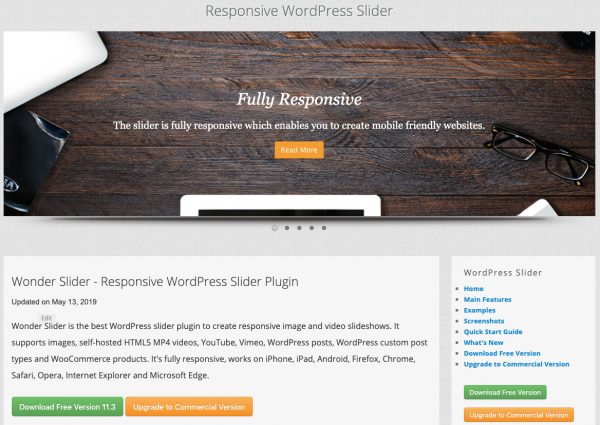
Credit: www.wonderplugin.com
Troubleshooting Common Issues
Plugins can sometimes not work well together. This causes conflicts. Always check if a plugin is updated. Use the latest version. Disable other plugins one by one. Find out which plugin is causing the conflict. This helps in identifying the problematic plugin.
A slider might not show properly. This could be due to theme issues. Check the theme’s compatibility with the slider. Ensure the CSS is not clashing. Adjust the slider’s settings. Check the dimensions and layout. Sometimes, sliders need to be resized. This makes them fit the page better.
Enhancing Slider Performance
Easily enhance your WordPress site’s appearance by adding a slider. Boost user engagement and showcase images effectively. Follow simple steps to integrate a slider seamlessly into your theme, improving visual appeal and website performance.
Optimizing Image Sizes
Large images make websites slow. Use small images for faster pages. Resize images to match slider dimensions. Tools like Photoshop help resize images easily. Smaller images load faster and save data. Fast websites are more fun to use.
Improving Load Times
Fast-loading sliders keep users happy. Use plugins to speed up loading. Plugins can compress images. This makes them smaller. Lazy loading is also helpful. It loads images only when needed. This reduces the wait time for users. A quick website makes visitors stay longer.
Frequently Asked Questions
How Do I Install A WordPress Slider Plugin?
To install a WordPress slider plugin, go to your WordPress dashboard. Click on “Plugins,” then “Add New. ” Search for a slider plugin, like Slider Revolution or MetaSlider. Click “Install Now” and then “Activate. ” The plugin is now ready to use and add sliders to your theme.
Can I Add Multiple Sliders To One Page?
Yes, you can add multiple sliders to one page. Most slider plugins allow this functionality. Simply create different sliders within the plugin settings. Then, use shortcodes or widgets to insert each slider into the desired page or post sections.
Are WordPress Sliders Mobile-friendly?
Most modern WordPress sliders are mobile-friendly. They automatically adjust to fit different screen sizes. This ensures a smooth user experience across devices. Always check the plugin’s description or documentation to confirm mobile responsiveness before installation.
How Do I Customize Slider Appearance?
To customize slider appearance, access the plugin’s settings in your WordPress dashboard. Most plugins offer options to change themes, transition effects, and navigation styles. Experiment with these settings to match your theme’s aesthetics. Always preview changes before publishing to ensure the desired look.
Conclusion
Adding a slider to your WordPress theme enhances your site’s visual appeal. It’s a simple way to showcase content beautifully. Start by choosing the right plugin. Install and activate it following the instructions. Customize the slider to fit your theme’s design.
Test its responsiveness across devices. Make adjustments as needed for best results. A well-integrated slider improves user engagement. It keeps your audience interested and engaged. Regularly update your slider content. This keeps your site fresh and dynamic. Enjoy the improved aesthetics and functionality of your WordPress site.


