
Are you looking to boost the functionality and aesthetics of your WordPress site? Adding a sidebar to your theme could be the perfect solution.
Imagine having a dedicated space for widgets that showcase recent posts, advertisements, or a simple search bar, providing a better experience for your visitors. This isn’t just about improving looks; it’s about enhancing usability, driving engagement, and ultimately converting visitors into loyal followers.
In this guide, you’ll discover how simple it is to integrate a sidebar into your WordPress theme. Whether you’re a seasoned developer or a curious beginner, these steps are designed to be straightforward. Stick around to find out how a small tweak can make a big impact on your website’s performance and user satisfaction.
Choosing The Right Theme
Not all themes work with sidebars. It’s important to choose a compatible theme. Check the theme’s description. Look for words like “sidebar support” or “widget-ready”. These terms mean the theme can have sidebars. Popular themes often offer this feature. Choosing a theme with many customization options is smart. This allows you to make your site unique. You want your site to look special, right?
Themes with good customization let you change colors and fonts. You can also adjust layouts and add widgets. Widgets are small tools that add features. Examples are calendars and search bars. Such options help personalize your site. They make it more engaging. A well-chosen theme offers many possibilities. It provides flexibility and ease. Your site will reflect your style.

Credit: ostraining.com
Creating A Child Theme
Enhance your WordPress theme with a sidebar by creating a child theme. This method preserves your customizations during updates. Add a sidebar by editing the functions. php file and style it using CSS for a seamless integration.
Why Use A Child Theme
A child theme is important for WordPress. It keeps your changes safe. If the main theme updates, your changes stay. This helps keep your site looking good. You can try new styles without fear. It is easy to switch back if needed.
Using a child theme is smart. It saves time and effort. You don’t lose your hard work. Your site stays unique and personal. Many people use child themes for this reason. It is a safe way to change your site.
Steps To Create A Child Theme
- Make a new folder in WordPress themes.
- Name it with the main theme name and “-child”.
- Create a style.css file inside the folder.
- Add a header to the style.css file.
- Create a functions.php file next.
- Link the child theme to the main theme.
- Activate the child theme in WordPress.
Registering The Sidebar
Adding a sidebar to a WordPress theme involves registering it in functions. php. This process enables users to display widgets and other elements efficiently. It enhances website navigation and provides a space for additional content.
Functions File Modifications
Edit the functions.php file to add a sidebar. This file is in your theme folder. Open it in a text editor. Add the code to register the sidebar. Use the register_sidebar() function. This function helps WordPress know about your sidebar.
Sidebar Arguments
Choose the sidebar’s name and description. These help you identify it. Add them to the arguments array. You can also set the before_widget and after_widget tags. These are HTML tags. They wrap your widgets. Set the before_title and after_title tags. These wrap the widget titles.
Don’t forget to save the file. Now WordPress knows about your sidebar. It’s ready to use in your theme. Check your theme’s sidebar section. You should see the new sidebar there.

Credit: www.youtube.com
Adding The Sidebar To Theme Files
First, find your theme folder in the WordPress directory. Open the wp-content folder. Then, click on themes. Look for the folder with your theme’s name. Inside, you will find several files. These are your template files. The main files include header.php, footer.php, and sidebar.php. Check if there’s a sidebar file. If not, you will need to create one.
Open the sidebar.php file. This is where you will insert your code. Add the following line: php get_sidebar(); ?. This tells WordPress to load the sidebar. Save the changes after adding the code. Now, go to the index.php or single.php file. Insert the same line where you want the sidebar to appear. Save your work. Check your website to see the new sidebar.
Styling The Sidebar
Use CSS to make your sidebar look good. Change colors and fonts. Add padding for space. Add borders for style. Use background colors to highlight. Make text bold for attention.
Ensure the sidebar works on small screens. Use media queries to adjust. Change layout for phones and tablets. Make images smaller for faster loading. Keep text readable for all sizes. Test on different devices. Make sure the sidebar does not break. Use flexible widths for better fit.
Testing And Debugging
Cross-Browser Compatibility is key for your website’s success. Every browser shows websites in a different way. Test your sidebar on popular browsers. Check it on Chrome, Firefox, Safari, and Edge. See if it looks the same everywhere. This ensures all users see your website as intended.
Fixing Common Errors can save time and stress. Sometimes, sidebars do not appear. Check your theme settings. Make sure the code is right. Look for missing brackets or semicolons. These small mistakes can cause big problems. Validate your HTML and CSS. Use online tools to find errors. Fixing these helps your sidebar work better.
Enhancing Sidebar Functionality
Adding a sidebar to a WordPress theme enhances user experience by organizing content. It provides easy access to important links and features, boosting engagement. Customizing sidebars helps tailor the website to specific needs and preferences, ensuring a seamless browsing experience for visitors.
Widgets And Plugins
Widgets and plugins make the sidebar more useful. They add extra features. Some popular options include Recent Posts, Search Bars, and Social Media Links. Users can easily drag and drop widgets in the sidebar area. Plugins give more advanced tools. They help in customizing the sidebar. Some plugins allow dynamic content display. This means content changes based on user actions. Choose plugins wisely. Too many can slow down the site.
Dynamic Content Options
Dynamic content makes the sidebar interactive. It can show different things to different visitors. This includes personalized messages or location-based details. Use plugins that support dynamic features. They can update content automatically. This keeps the sidebar fresh and engaging. Dynamic content improves user experience. It makes the site feel more personal.
Maintaining The Sidebar
Keeping your sidebar updated is very important. Themes and plugins can change often. Check for updates regularly to ensure compatibility. New updates can fix bugs and add features. It’s smart to back up your site before updating. This keeps your content safe.
User feedback is very helpful. Listen to what users say about the sidebar. They might suggest useful changes. Adjust the sidebar based on feedback. This can improve the user experience. Happy users return to your site.
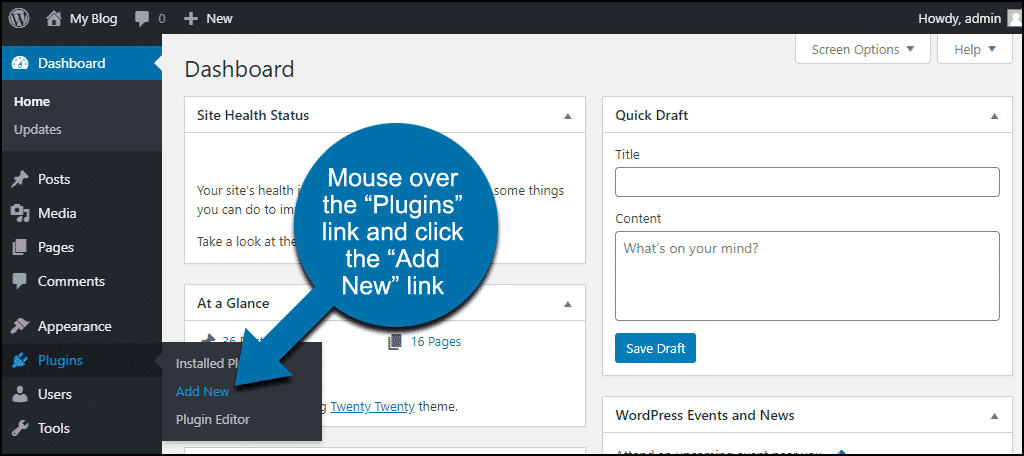
Credit: www.greengeeks.com
Frequently Asked Questions
How Do I Create A Sidebar In WordPress?
To create a sidebar, navigate to your WordPress dashboard. Go to Appearance > Widgets. Drag and drop desired widgets into the sidebar area. Customize the settings for each widget to fit your theme. Save changes to display the sidebar on your site.
Can I Add A Sidebar To Any Theme?
Yes, most WordPress themes support sidebars. Check your theme’s documentation to ensure compatibility. If your theme doesn’t support sidebars, consider using a plugin or customizing the theme files. Ensure your theme’s layout allows for sidebar integration without disrupting design.
What Are The Best Plugins For Sidebars?
Popular sidebar plugins include Custom Sidebars, Content Aware Sidebars, and Simple Page Sidebars. These plugins offer flexible sidebar management and customization options. Choose a plugin that suits your needs, considering compatibility with your theme and ease of use.
How Can I Customize My Sidebar?
Customize your sidebar by adding widgets in Appearance > Widgets. Use plugins for advanced customization options. You can change colors, layout, and content. Ensure the sidebar complements your theme design and enhances user experience.
Conclusion
Adding a sidebar to your WordPress theme is quite simple. It enhances your site’s functionality. Visitors find content faster. Customize the sidebar to suit your needs. Widgets make it versatile and useful. It’s a great way to improve user experience.
Your site becomes more interactive. Sidebars aid in navigation and engagement. They are essential for organizing content. Give your site a fresh look. Start today and boost your website’s appeal. With a few clicks, create a dynamic space. Your readers will appreciate the easy access.
Enjoy building a better WordPress site.


