
Are you looking to make your WordPress site more user-friendly and organized? Adding a sidebar menu is one of the easiest ways to help your visitors find what they need quickly.
Imagine giving your readers a simple way to explore your content without feeling lost. In this guide, you’ll learn step-by-step how to add a sidebar menu to your WordPress site, even if you have no coding experience. By the end, your website will not only look better but also keep visitors engaged longer.
Ready to take your site to the next level? Let’s dive in!
Credit: elementor.com
Choosing The Right Sidebar
Choosing the right sidebar is important for your WordPress site. A good sidebar improves navigation and user experience. It helps visitors find content easily. The choice depends on your website’s needs and design style. Think about what fits best with your content and layout.
Default Vs Custom Sidebars
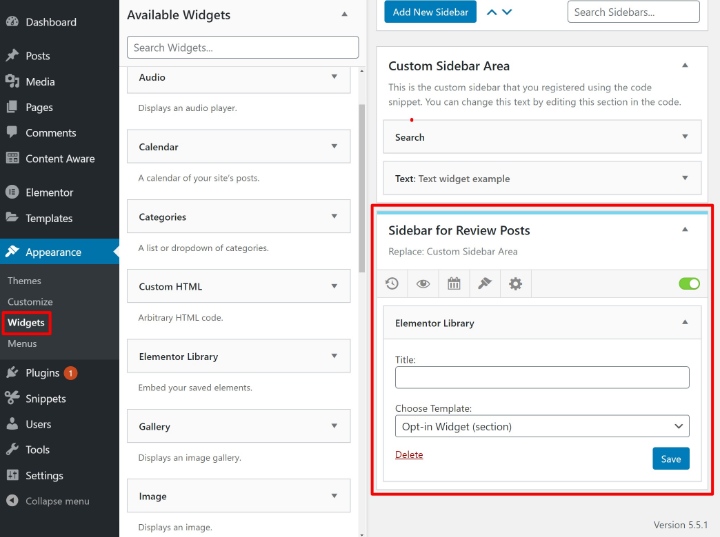
Default sidebars come with your WordPress theme. They are easy to use and require no extra setup. These sidebars often include widgets like recent posts or categories. Custom sidebars offer more control. You can create different sidebars for different pages. This helps tailor content to specific visitors. Plugins or theme options usually allow custom sidebars.
Sidebar Placement Options
Sidebar placement affects your site’s look and feel. Common placements are left, right, or below content. Right sidebars are popular for blogs and news sites. Left sidebars work well for navigation menus. Bottom sidebars suit mobile views better. Some themes allow multiple sidebars. Choose placement based on your content and design goals.
Preparing Your WordPress Site
Preparing your WordPress site is the first step to adding a sidebar menu. This stage ensures your site supports the new feature. Proper preparation prevents issues later. Follow simple steps to get ready.
Checking Theme Compatibility
Not all themes support sidebar menus. Check if your current theme has a sidebar area. Go to the Appearance menu and select Widgets. Look for available sidebar sections there. If none appear, your theme might not support sidebars.
You can also review the theme’s documentation. It often states if sidebars are included. Another option is to test with a default WordPress theme. Themes like Twenty Twenty-One usually support sidebars.
Installing Necessary Plugins
Plugins can add sidebar menus if your theme lacks support. Search for plugins like “Custom Sidebar” or “Sidebar Manager.” These tools help create and control sidebars easily.
To install, go to Plugins, then Add New. Type the plugin name in the search box. Click Install and then Activate. After activation, configure the plugin settings to match your needs.
Creating A Sidebar Menu
Creating a sidebar menu in WordPress helps visitors navigate your site easily. A well-organized sidebar improves user experience and keeps your content accessible. This section explains simple steps to create a sidebar menu using WordPress features.
Two main ways exist to create a sidebar menu: using widgets and building menus in the dashboard. Both methods are easy to follow and do not require coding skills.
Using WordPress Widgets
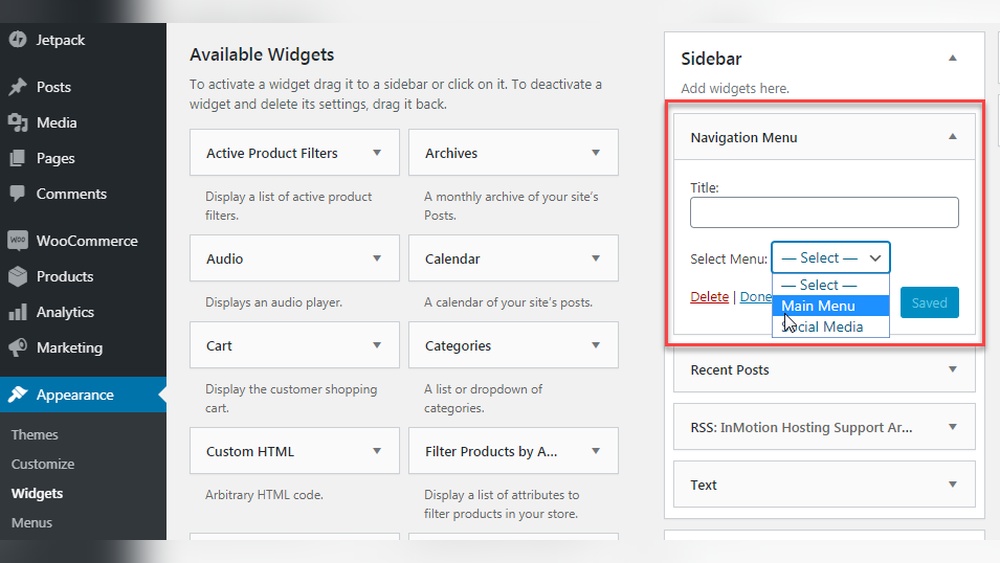
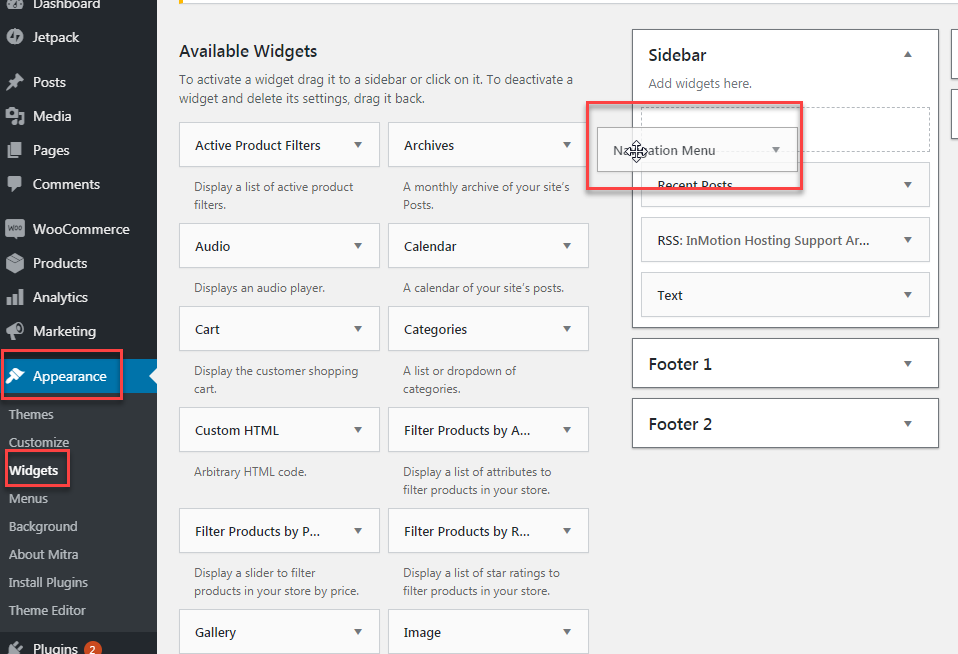
Widgets are small blocks that add content or features to your sidebar. To use widgets, go to the WordPress dashboard and select Appearance > Widgets. You will see available widgets on the left and sidebar areas on the right.
Drag and drop the “Navigation Menu” widget into the sidebar area. Then, choose the menu you want to display. If you have not created a menu yet, you can do so in the Menus section. Save the changes, and your sidebar menu will appear on your site.
Building Menus In The Dashboard
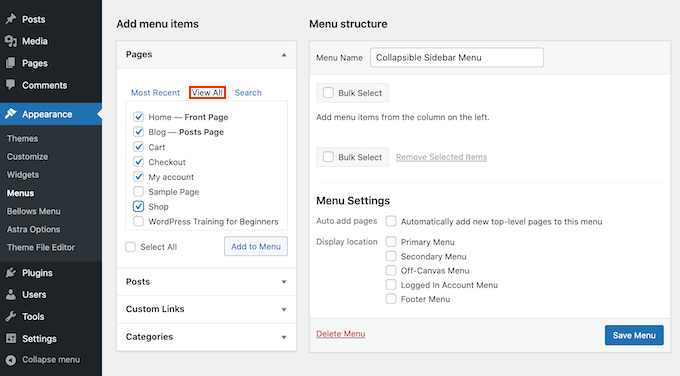
Start by going to Appearance > Menus in the WordPress dashboard. Click “Create New Menu” and give it a name. Add pages, posts, categories, or custom links to your menu by selecting them and clicking “Add to Menu.”
Arrange menu items by dragging them up or down. You can create sub-items by dragging items slightly to the right. This creates a dropdown menu in your sidebar. Once finished, save the menu.
Return to Appearance > Widgets and add the “Navigation Menu” widget to your sidebar. Choose the menu you just created. Save, and your custom sidebar menu will be live on your website.
Credit: www.inmotionhosting.com
Adding The Sidebar To Your Site
Adding a sidebar to your WordPress site helps organize your content. It creates space for menus, links, and other important items. Sidebars improve navigation and user experience. This section explains how to add a sidebar using theme settings and widgets.
Assigning The Sidebar In Theme Settings
Most WordPress themes support sidebars by default. You can assign the sidebar through the theme’s settings panel. Go to your WordPress dashboard and open Appearance > Customize. Look for a section like “Layout” or “Sidebar.” Select the option to show the sidebar on your pages or posts. Save your changes to apply the sidebar across your site.
Inserting Sidebar Using Widgets
Widgets are small blocks that add content to your sidebar. Open Appearance > Widgets in your dashboard. Find the sidebar area, often called “Sidebar” or “Primary Sidebar.” Drag and drop widgets like menus, search bars, or recent posts into this area. Customize each widget to fit your needs. Save each widget to display it on your site’s sidebar.
Customizing Sidebar Appearance
Customizing the sidebar appearance helps make your WordPress site look unique. It also improves user experience and site navigation. A well-styled sidebar matches your site’s theme and draws attention to key content. You can change colors, fonts, spacing, and more. These tweaks make your sidebar neat and easy to read.
Styling With Theme Customizer
The Theme Customizer is a simple way to style your sidebar. It lets you see changes in real-time before saving. You can adjust colors, background, and font styles easily. Most WordPress themes support sidebar customization here. Navigate to Appearance > Customize, then find Sidebar settings. Use the options to pick colors that fit your brand. Change font size to improve readability. Add padding to space out the menu items. Save the changes to update your sidebar instantly.
Using Custom Css For Advanced Design
Custom CSS gives more control over sidebar design. You can target specific elements and style them precisely. Use the Additional CSS section in the Customizer or a child theme file. Write CSS rules to change fonts, borders, or hover effects. For example, change link colors on mouse hover for better interaction. Add shadows or borders to separate sidebar from content. Use CSS to hide unwanted items or reorder menu elements. This method needs basic CSS knowledge but offers great flexibility.
Troubleshooting Common Issues
Adding a sidebar menu in WordPress can sometimes bring challenges. Common problems might stop your menu from showing or displaying correctly. Knowing how to fix these issues helps keep your site user-friendly and neat.
Sidebar Not Showing
Check if your theme supports sidebars. Some themes don’t have sidebar areas by default.
Go to Appearance > Widgets and see if the sidebar is active. Add widgets to the sidebar area to make it visible.
Clear your site cache and browser cache. Old files might block new changes.
Disable plugins one by one to find conflicts. Sometimes plugins stop sidebars from working properly.
Menu Items Not Displaying Correctly
Verify your menu structure in Appearance > Menus. Make sure all items are added and saved.
Check if the menu is assigned to the correct sidebar location.
Refresh permalinks by going to Settings > Permalinks and clicking Save Changes. This can fix broken links.
Inspect for CSS issues that hide or distort menu items. Use browser developer tools to find and fix style problems.
Enhancing Sidebar Functionality
The sidebar is a great place to add useful features for your visitors. Enhancing its functionality keeps users engaged. A well-organized sidebar can improve site navigation and user experience.
Adding interactive elements makes your sidebar more helpful. Simple tools like search bars and social links encourage visitors to explore more. These features help visitors find content faster and connect with your social profiles.
Adding Search And Social Links
Adding a search bar helps visitors find posts quickly. WordPress offers a built-in search widget. Drag it into your sidebar from the widget menu. Customize its title to match your site’s style.
Social links let visitors follow you on different platforms. Use social icons or text links for Facebook, Twitter, and Instagram. Many plugins offer easy social link widgets. Place these links in your sidebar for quick access.
Incorporating Recent Posts And Categories
Showing recent posts keeps your content fresh for readers. The Recent Posts widget displays your latest articles automatically. Visitors can easily click and read more of your work.
Categories help organize your posts by topics. The Categories widget lists all your blog categories. This helps visitors find topics that interest them. Both widgets are easy to add and set up in WordPress.
Credit: www.wpbeginner.com
Frequently Asked Questions
How Do I Add A Sidebar Menu In WordPress?
To add a sidebar menu, go to Appearance > Widgets in your WordPress dashboard. Drag the “Navigation Menu” widget to the sidebar area. Then select a menu or create a new one. Save changes, and your sidebar menu will appear on your site.
Can I Customize The Sidebar Menu Style In WordPress?
Yes, you can customize the sidebar menu style using custom CSS or your theme’s settings. Many themes offer options to change colors, fonts, and spacing. For advanced styling, use a child theme or plugins that enable easy design adjustments without coding.
What Plugins Help Create Sidebar Menus In WordPress?
Popular plugins for sidebar menus include “Max Mega Menu,” “WP Responsive Menu,” and “Sidebar Menu. ” These plugins offer advanced features like dropdowns, icons, and responsive design. They are easy to install and improve the functionality and appearance of your sidebar menus.
Is Adding A Sidebar Menu Good For Seo?
Yes, sidebar menus improve site navigation, helping users find content quickly. Better navigation reduces bounce rates and increases page views. Search engines also value easy-to-navigate sites, which can positively impact your SEO rankings.
Conclusion
Adding a sidebar menu in WordPress improves your website’s navigation. It helps visitors find important pages quickly. The process is simple and does not need coding skills. Choose the right widgets and arrange them carefully. Test the menu to ensure it works well on all devices.
A clear sidebar boosts user experience and keeps visitors engaged. Try these steps today and see the difference on your site.


