
Want to make your WordPress site easier to navigate and more user-friendly? Adding a side menu is a simple way to do just that.
Imagine your visitors finding what they need quickly, without frustration. You’ll learn exactly how to add a side menu to your WordPress site step-by-step. Whether you’re a beginner or just looking for a quick fix, this guide will help you improve your site’s layout and keep your visitors engaged.
Keep reading to discover the easy tricks that will make your website stand out.
Benefits Of A Side Menu
A side menu is a smart way to organize your WordPress site. It helps visitors find what they need quickly. This simple tool improves the overall user experience. Adding a side menu can make your website look clean and professional. It also helps keep the main content area free from clutter.
Enhancing Navigation
A side menu shows all important links clearly. Visitors can see options without scrolling too much. This makes moving around the site faster. It guides users directly to key pages. Good navigation keeps visitors on your site longer. It reduces confusion and frustration. Clear menus also help search engines understand your site structure.
Improving User Engagement
Side menus invite users to explore more pages. They highlight popular or related content easily. Visitors can find interesting topics with fewer clicks. This increases time spent on your site. More engagement means higher chances of interaction. It encourages visitors to read, comment, or buy. Simple menus make the website feel welcoming and easy to use.
Boosting Mobile Experience
Mobile users benefit greatly from side menus. These menus save screen space and stay out of the way. They collapse neatly, allowing more room for content. Easy-to-access menus improve browsing on small screens. Users can quickly find what they want on phones. A good mobile menu reduces bounce rates. It makes your site friendly for all devices.
Credit: www.inmotionhosting.com
Choosing The Right Side Menu Style
Choosing the right side menu style shapes the user experience on your WordPress site. The menu guides visitors, helping them find content quickly. A clear, easy-to-use menu keeps visitors engaged and reduces bounce rates. Different styles suit different websites and goals. Consider your site’s purpose and design before deciding.
Fixed Vs. Sliding Menus
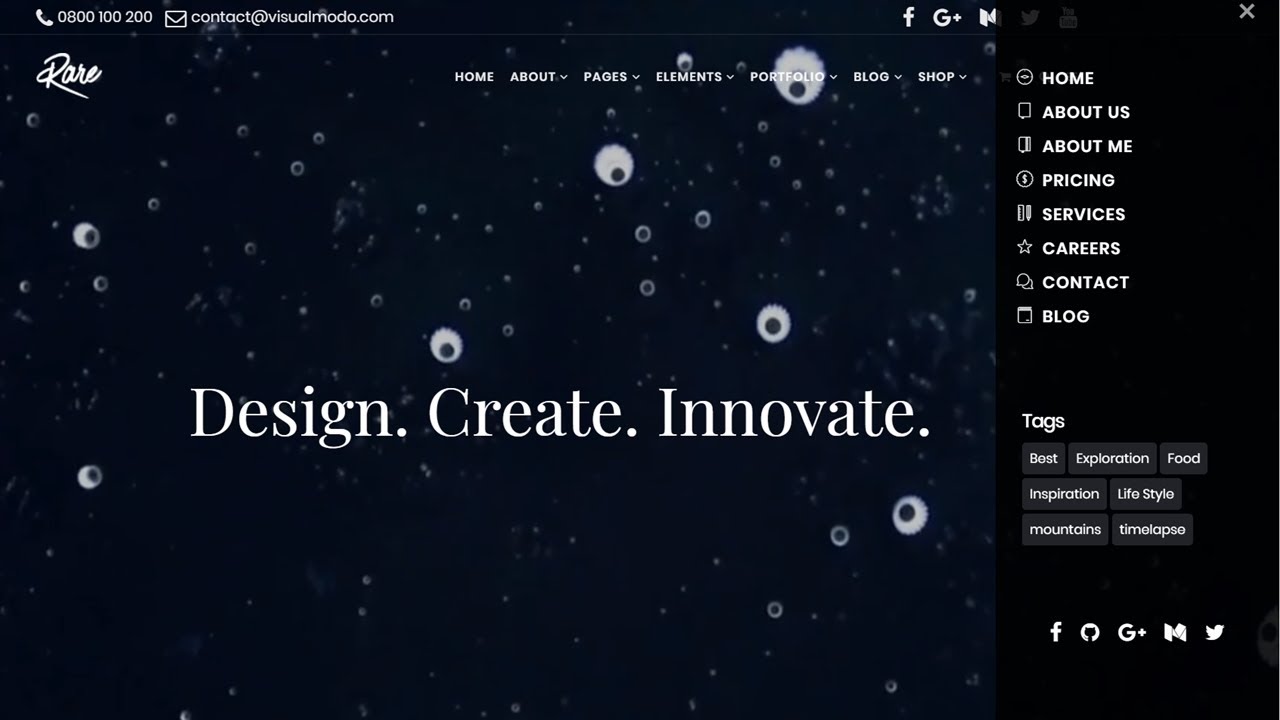
Fixed menus stay visible as users scroll down the page. They offer constant access to navigation links. Sliding menus hide off-screen and appear when triggered by a button or hover. Sliding menus save space and create a cleaner look. Fixed menus improve ease of use but take screen space. Sliding menus look modern and keep content front and center.
Vertical Vs. Collapsible Menus
Vertical menus show all links stacked from top to bottom. They work well on desktop screens with enough space. Collapsible menus hide links under expandable sections. This keeps the menu neat and tidy. Collapsible menus suit sites with many categories or pages. Vertical menus offer simplicity, while collapsible menus handle complexity.
Design Considerations
Choose colors that match your brand and stand out clearly. Use readable fonts and proper sizes for easy navigation. Ensure the menu works well on mobiles and tablets. Test how fast the menu loads and responds to clicks. Think about users with disabilities and follow accessibility rules. A well-designed menu improves user satisfaction and site usability.
Preparing Your WordPress Site
Preparing your WordPress site is the first step to adding a side menu. This ensures your site supports the new feature without issues. You must choose the right theme, install plugins, and back up your site before starting. These steps help keep your site safe and ready for changes.
Selecting A Compatible Theme
Choose a theme that supports side menus or custom menus. Many themes come with built-in side menu options. Check the theme details for menu locations and flexibility. Using a compatible theme saves time and prevents display problems later.
Installing Necessary Plugins
Some side menus need plugins to work properly. Look for plugins that add menu features or improve navigation. Install and activate these plugins from the WordPress plugin directory. Always choose plugins with good reviews and regular updates.
Backing Up Your Site
Backing up your site protects your data before making changes. Use a reliable backup plugin or your hosting service’s backup tool. Save a full backup including files and database. This step helps you restore your site if something goes wrong.
Creating A Custom Side Menu
Creating a custom side menu in WordPress helps improve site navigation. It guides visitors to important pages quickly. Custom side menus also give your site a unique look. You can control what links appear and how they are arranged. This section explains how to create a side menu step-by-step.
Using WordPress Menu Settings
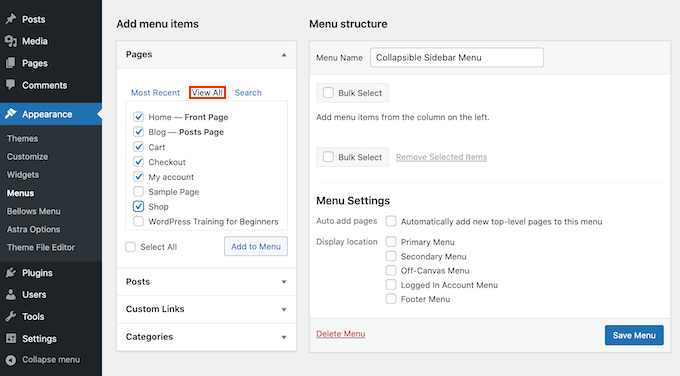
Start by opening your WordPress dashboard. Go to Appearance and then select Menus. Here, you can create a new menu by clicking the “Create a new menu” button. Give your menu a clear name, like “Side Menu”. Save your menu before adding items. This area is where you manage all menu options.
Adding Menu Items
After creating the menu, add items to it. Use the left side panels to choose pages, posts, or custom links. Check the boxes next to the items you want. Click “Add to Menu” to include them in your custom menu. You can add as many items as needed. This lets you highlight key pages or categories.
Organizing Menu Structure
Arrange the menu items by dragging them up or down. You can also create sub-items by moving items slightly to the right. This makes a drop-down menu under a main link. Organize your menu to show the most important links at the top. Save the menu after arranging. This structure helps visitors find content easily.
Implementing The Side Menu In WordPress
Adding a side menu in WordPress helps visitors navigate your site easily. It improves user experience and makes your content more accessible. There are several ways to implement a side menu. You can choose the best method based on your comfort level and theme.
Adding Menu To Sidebar Widget
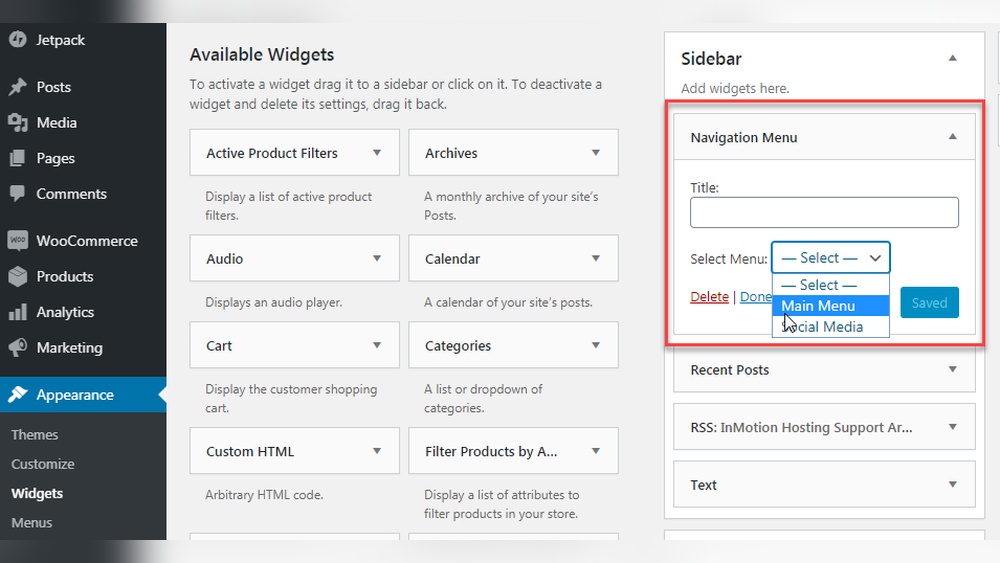
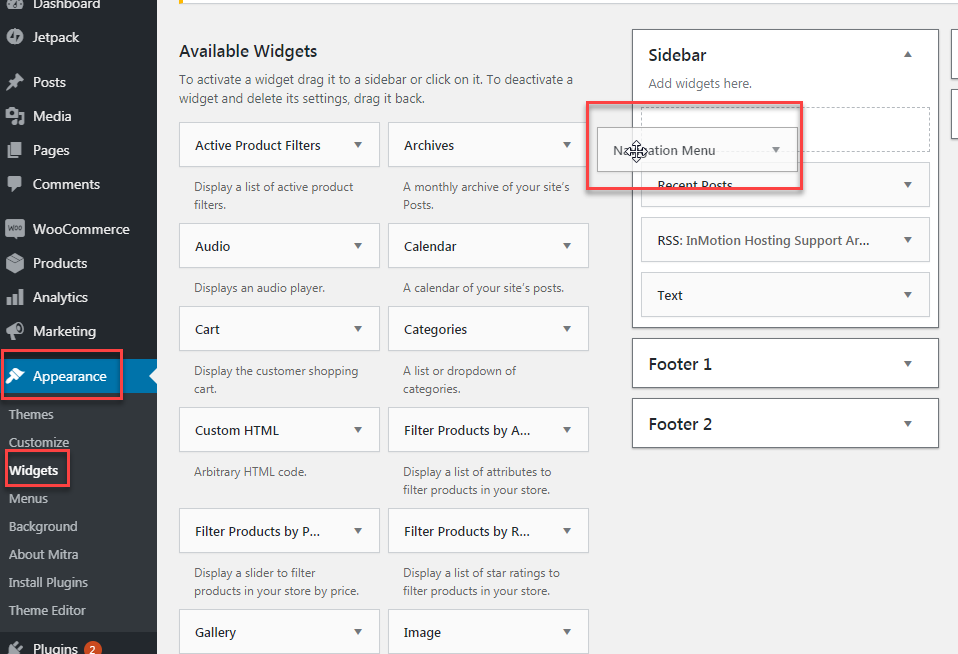
WordPress has a built-in widget area for sidebars. You can add a menu using the “Navigation Menu” widget. First, create a menu under Appearance > Menus. Then, go to Appearance > Widgets and drag the “Navigation Menu” widget to the sidebar area. Select your menu from the dropdown and save it. This method is quick and requires no coding.
Using Page Builders
Page builders like Elementor or Beaver Builder let you design side menus visually. Open your page or template in the builder. Add a menu block or widget to the sidebar section. Customize the style, layout, and links easily. This method is great for users who prefer drag-and-drop tools. It offers flexibility without editing code.
Editing Theme Files
For advanced users, editing theme files allows full control over the side menu. Access your theme’s sidebar.php or relevant template file. Insert the WordPress function wp_nav_menu() where you want the menu to appear. Specify the menu location or menu ID in the function parameters. Save the changes and check your site. This method requires basic PHP knowledge and a child theme to avoid losing changes after updates.
Credit: www.wpbeginner.com
Customizing Side Menu Appearance
Customizing the side menu appearance makes your website unique and user-friendly. A well-designed menu guides visitors to important pages quickly. You can change styles, colors, fonts, and add icons or images. These changes improve the look and feel of your site. Simple tweaks can make a big difference in user experience and site navigation.
Applying Css Styles
CSS lets you control the side menu’s layout and design. You can change the width, padding, and spacing between items. Use CSS to add hover effects for better interactivity. Custom styles help your menu blend with your site’s theme. Add the CSS code in the WordPress Customizer under “Additional CSS” or in your child theme’s stylesheet.
Changing Colors And Fonts
Colors and fonts affect how visitors see your menu. Choose colors that match your brand and improve readability. Use contrasting colors for menu backgrounds and text. Pick simple fonts for easy reading. WordPress themes often let you change colors and fonts without coding. Adjust these settings to create a clear and attractive menu style.
Adding Icons And Images
Icons and images add visual interest to your side menu. Use small icons next to menu items for quick recognition. You can find free icon sets or use WordPress plugins for icons. Adding images, like logos or banners, makes the menu stand out. Keep the images small to avoid slowing down your site. Visual elements help users find what they want faster.
Optimizing Side Menu For Mobile
Optimizing your side menu for mobile devices improves user experience and site navigation. Mobile screens are smaller and need menus that adapt well. A well-designed side menu helps visitors find what they want quickly. It also keeps your website looking clean and organized on any device.
Making Menus Responsive
Responsive menus change size and layout based on screen width. Use CSS media queries to adjust the side menu’s style for mobile. Hide or collapse the menu into a hamburger icon on small screens. This saves space and makes the menu easy to open and close.
Ensure text and buttons resize properly. Avoid menus that require horizontal scrolling. Responsive menus keep navigation simple and clear for all users.
Touch-friendly Navigation
Touch screens need larger buttons and easy-to-tap areas. Make sure menu items have enough space around them. Avoid small links that users struggle to tap.
Use clear icons and labels. This guides users to the right section fast. Smooth animations for opening and closing the menu help prevent accidental taps.
Testing Across Devices
Test your side menu on different phones and tablets. Check various screen sizes and operating systems. Look for any layout issues or hard-to-tap buttons.
Use tools like browser developer mode or real devices. Fix problems you find to ensure a smooth experience everywhere. Consistent testing keeps your menu user-friendly on all devices.
Troubleshooting Common Issues
Adding a side menu to your WordPress site should be simple. Sometimes, things do not go as planned. This section helps solve common problems. It guides you through fixing issues quickly. No need to feel stuck or confused.
Menu Not Displaying
Check if the menu is assigned to the side menu location. Go to Appearance > Menus and confirm the location setting. Clear your site cache and browser cache. Sometimes, changes do not show because of cached files. Make sure your theme supports side menus. Some themes do not have this feature.
Layout Conflicts
Side menus can clash with your site layout. Look for overlapping content or broken sections. Use the Customizer to adjust menu width or position. Sometimes, changing the theme or page builder helps. Test your site on different devices to spot layout issues. Fixing CSS conflicts might require small code tweaks.
Plugin Compatibility
Some plugins can cause menu problems. Disable plugins one by one to find the conflict. Check if your menu plugin is updated and compatible with WordPress. Avoid using many menu or page builder plugins at once. Use trusted plugins with good reviews and regular updates. Compatibility ensures smooth menu performance.
Credit: www.youtube.com
Frequently Asked Questions
How Do I Add A Side Menu In WordPress?
To add a side menu in WordPress, use the Appearance > Widgets section. Drag the Custom Menu widget to the sidebar area. Then, create and assign a menu under Appearance > Menus.
Can I Customize The Side Menu Appearance In WordPress?
Yes, you can customize the side menu using your theme’s settings or custom CSS. Many themes offer options to change colors, fonts, and layout for side menus.
What Plugins Help Create A WordPress Side Menu?
Popular plugins like “Max Mega Menu” and “WP Responsive Menu” simplify side menu creation. These plugins offer advanced styling and mobile-friendly options.
Is A Side Menu Mobile-friendly By Default?
Not all side menus are mobile-friendly by default. Use responsive themes or plugins to ensure your side menu works well on all devices.
Conclusion
Adding a side menu in WordPress helps visitors find content fast. It improves your site’s look and makes navigation easy. You can choose from many plugins or use built-in tools. Keep your menu simple and organized for best results. Try different styles to see what fits your site.
A clear side menu keeps users engaged longer. Start adding your side menu today and watch your site grow.


