
Have you ever needed to send visitors from one page on your WordPress site to another? Maybe you’ve changed a URL or deleted a page, and you don’t want your visitors to hit a dead end.
Adding a redirect in WordPress is the simple fix that keeps your site smooth and user-friendly. You’ll learn exactly how to set up redirects quickly and easily, even if you’re not tech-savvy. Stick with me, and by the end, you’ll have the confidence to manage your site’s traffic like a pro.
Let’s get started!
Credit: www.wpbeginner.com
Why Use Redirects
Redirects play a key role in managing website traffic. They guide visitors from old or broken URLs to the right pages. This keeps your site organized and user-friendly. Redirects also help search engines understand your site better. Using redirects correctly can improve your site’s performance and reputation.
Benefits For Seo
Redirects help preserve your search rankings. When you move content, redirects pass authority to the new URL. This prevents loss of traffic and ranking drops. Search engines see the redirect and update their index. It keeps your site visible in search results.
Improving User Experience
Visitors dislike broken links or missing pages. Redirects send users to the correct pages smoothly. This lowers frustration and keeps people on your site longer. A good user experience encourages visitors to return. It also increases trust in your website.
Handling Broken Links
Broken links hurt your site’s credibility. Redirects fix this problem by pointing to active pages. They stop visitors from landing on error pages. This helps maintain your site’s professional look. Redirects keep your content accessible and useful.
Types Of Redirects
Redirects are ways to send visitors and search engines to a different page than the one they requested. They help manage website changes, fix broken links, and improve user experience. There are several types of redirects, each with a specific purpose.
Choosing the right redirect is important. It affects how search engines treat your pages and how users find content.
301 Permanent Redirect
A 301 redirect tells browsers and search engines that a page has moved permanently. It passes almost all the original page’s SEO value to the new page. Use this redirect when you change URLs or move content to a new location forever. It helps keep your site’s ranking and traffic intact.
302 Temporary Redirect
A 302 redirect means the move is temporary. Search engines keep the original URL in their index. Use this redirect if you plan to bring the original page back soon. It does not pass SEO value to the new page. Good for site maintenance or testing new pages.
Meta Refresh Redirect
This redirect happens on the page level, not the server level. It uses HTML code to refresh and send users to another page after a few seconds. It is slower and less SEO-friendly. Use it only when server redirects are not possible. Avoid using it for important redirects.
Redirect Methods In WordPress
Redirects help send visitors from one URL to another. They keep your site visitors and search engines happy. WordPress offers several ways to create redirects. Each method suits different skill levels and needs.
Using Plugins
Plugins make redirects simple and quick. You can create, manage, and delete redirects without coding. Popular plugins include Redirection and Simple 301 Redirects. They offer user-friendly interfaces and extra features. Plugins handle 301, 302, and other redirect types easily.
Editing .htaccess File
The .htaccess file controls your website’s server settings. Adding redirect rules here works fast and is very efficient. This method suits users comfortable with code and server files. A common redirect rule looks like this:
Redirect 301 /old-page.html /new-page.htmlBe careful. Mistakes in .htaccess can break your site. Always back up before editing.
Adding Code To Functions.php
You can add redirect code directly to your theme’s functions.php file. This method uses PHP to send users to a new URL. It works well for custom redirects based on conditions. Example code:
function wpb_redirect() { if (is_page('old-page')) { wp_redirect(home_url('new-page'), 301); exit; } } add_action('template_redirect', 'wpb_redirect');Editing functions.php needs caution. Errors can cause site issues. Backup before making changes.
Popular Redirect Plugins
Redirect plugins help manage URL changes in WordPress easily. They prevent broken links and improve user experience. Using plugins saves time and avoids coding errors. Here are some popular redirect plugins for WordPress.
Redirection Plugin
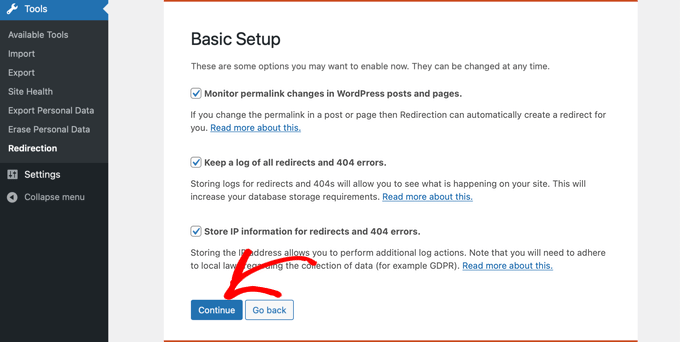
The Redirection plugin is free and simple to use. It tracks 404 errors and manages all redirects. You can create 301, 302, and 307 redirects quickly. The plugin logs all changes for easy review. It suits beginners and advanced users alike.
Yoast Seo Redirect Manager
Yoast SEO offers a redirect manager in its premium version. It helps fix broken links while optimizing SEO. Creating and managing redirects is straightforward with this tool. The plugin integrates well with other Yoast SEO features.
Simple 301 Redirects
Simple 301 Redirects focuses on creating basic 301 redirects fast. It is perfect for site moves or URL changes. The plugin has a clean interface with minimal options. It ensures redirects work without slowing down your site.
Step-by-step Redirect With Plugins
Adding redirects in WordPress is simple with plugins. They help you send visitors from one page to another. This keeps your website clean and user-friendly. Using plugins makes the process quick and easy, even without coding skills.
Installing The Plugin
Start by logging into your WordPress dashboard. Go to the Plugins menu and click “Add New.” Type “Redirection” in the search bar. Find the plugin named “Redirection” by John Godley. Click “Install Now,” then activate it. The plugin is ready to use.
Creating A Redirect
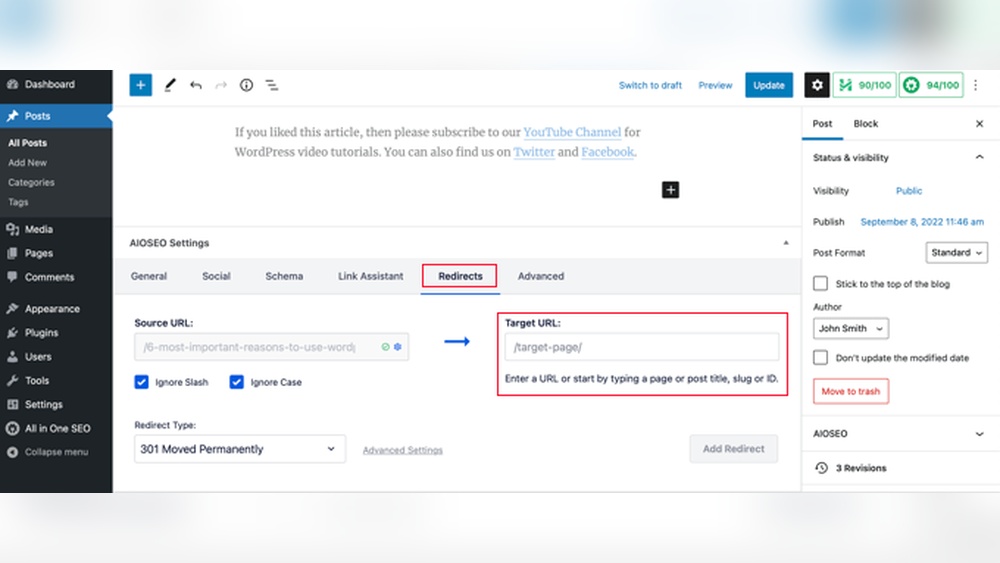
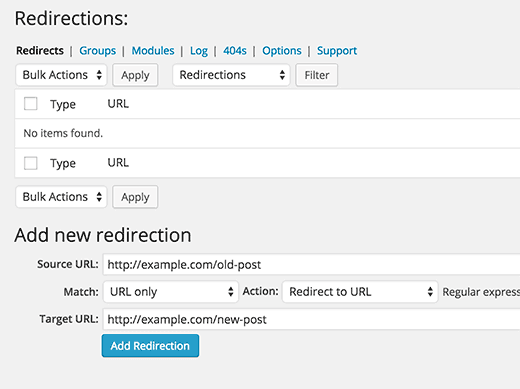
Open the Redirection plugin from the Tools menu. Click on the “Add New” button. Enter the URL you want to redirect from in the “Source URL” field. Then, type the new page URL in the “Target URL” field. Save your settings to create the redirect.
Testing The Redirect
Open a new browser tab or window. Type the old URL in the address bar. Press Enter and check if it redirects to the new page. If it works, your redirect is set up correctly. If not, review your settings and try again.
Manual Redirect Via .htaccess
Manual redirects via the .htaccess file give you full control over URL forwarding. This method is fast and works at the server level. It helps improve SEO by guiding visitors and search engines to the right pages. You can redirect old URLs, fix broken links, or change site structure easily.
Accessing .htaccess File
The .htaccess file is hidden in your WordPress root folder. Use an FTP client or your hosting file manager to find it. Make sure to back up the file before editing. Changes to this file affect your whole site, so be careful. If you don’t see it, enable hidden files view in your FTP client.
Writing Redirect Rules
Redirect rules use simple commands to send visitors to new URLs. Start each rule with Redirect 301 for permanent redirects. The format is: old URL followed by new URL. Write each rule on a new line. Save changes and test your redirects in a browser.
Common Redirect Examples
Redirect a single page:
Redirect 301 /old-page.html https://yoursite.com/new-page.htmlRedirect entire folder:
Redirect 301 /old-folder/ https://yoursite.com/new-folder/Redirect homepage to a new site:
Redirect 301 / https://newsite.com/Adding Redirects In Functions.php
Adding redirects in the functions.php file helps control page flow on your WordPress site. It sends visitors from one URL to another automatically. This method works well for simple redirects without extra plugins.
You write a small code snippet in functions.php. Then WordPress handles the redirect. This is useful for fixing broken links or moving pages.
Using Wp_redirect Function
The wp_redirect function sends users to a new URL. It is easy to use inside functions.php. You specify the target URL and the HTTP status code.
Example:
function my_custom_redirect() { if (is_page('old-page')) { wp_redirect(home_url('/new-page/'), 301); exit; } } add_action('template_redirect', 'my_custom_redirect'); This code checks if the user visits “old-page”. If yes, it redirects them to “new-page” with a 301 status.
Best Practices
Always use a 301 status code for permanent redirects. It tells search engines the page moved forever. Use 302 for temporary redirects only.
Place the redirect code inside a function hooked to template_redirect. This avoids conflicts with WordPress loading.
Always call exit; right after wp_redirect. It stops the rest of the page from loading.
Potential Pitfalls
Not using exit; can cause unexpected site behavior. The original page may still load partially.
Redirect loops happen if you redirect back to the same URL. This causes browser errors and poor user experience.
Editing functions.php directly risks site crashes if syntax errors occur. Always back up before changes.
Troubleshooting Redirect Issues
Redirect issues can cause confusion and hurt your website’s user experience. They stop visitors from reaching the right pages. These problems often happen after setting up redirects in WordPress. Knowing how to fix them is key to keeping your site smooth and efficient.
Redirect Loops
Redirect loops happen when a page sends visitors back and forth between URLs. This traps users in a never-ending cycle. Check your redirect settings carefully. Make sure no two pages redirect to each other. Use a tool to detect loops and fix them fast.
Caching Problems
Caching stores website data to speed up loading times. Sometimes caches keep old redirect rules. This causes users to see outdated redirects or no changes at all. Clear your browser cache and WordPress cache plugins after making redirect changes. This ensures visitors get the latest version.
Plugin Conflicts
Multiple plugins can create conflicts with redirects. Some plugins may override or clash with your redirect setup. Disable all redirect plugins and test your site. Then, enable them one by one to find the problem. Update plugins regularly to keep compatibility.
Tips For Managing Redirects
Managing redirects in WordPress helps keep your site running smoothly. Proper handling improves user experience and preserves SEO value. Use these tips to handle redirects effectively and avoid common issues.
Keeping Redirects Organized
Maintain a clear list of all redirects. Use a spreadsheet or plugin to track URLs. Note old URLs, new URLs, and redirect types. Organization saves time and prevents errors later.
Regularly Checking Redirects
Test redirects often to ensure they work correctly. Broken redirects cause bad user experience and hurt SEO. Use online tools or plugins to scan your redirects. Fix any broken or incorrect links quickly.
Avoiding Excessive Redirect Chains
Limit the number of redirects a user must follow. Long chains slow down your site and confuse visitors. Direct old URLs straight to the final destination. This keeps load times fast and users happy.
Credit: www.wpzoom.com
Credit: www.hostpapa.com
Frequently Asked Questions
How Do I Create A Redirect In WordPress?
To create a redirect in WordPress, use a plugin like Redirection or edit your. htaccess file. Plugins offer a user-friendly way to manage redirects without coding. Simply enter the old URL and the new destination to set up the redirect quickly.
Why Should I Use Redirects On My WordPress Site?
Redirects help maintain SEO rankings by forwarding visitors from outdated URLs to new pages. They improve user experience by preventing 404 errors. Redirects also allow smooth site restructuring and content updates without losing traffic or search engine value.
Which Plugins Are Best For WordPress Redirects?
Popular redirect plugins include Redirection, Yoast SEO, and Simple 301 Redirects. These plugins are easy to use, reliable, and offer powerful redirect management features. They support various redirect types like 301 and 302, essential for SEO and site maintenance.
How Do 301 And 302 Redirects Differ In WordPress?
A 301 redirect is permanent and passes SEO value to the new URL. A 302 redirect is temporary and does not transfer SEO ranking. Use 301 for permanent URL changes and 302 for short-term redirects or testing purposes.
Conclusion
Adding redirects in WordPress keeps your site visitors on the right path. It helps fix broken links and improves user experience. Redirects also support your SEO by guiding search engines properly. Use simple tools or plugins for quick setup. Check your redirects often to avoid errors.
Clear navigation builds trust and keeps people coming back. Start adding redirects today to keep your website smooth and friendly.


