
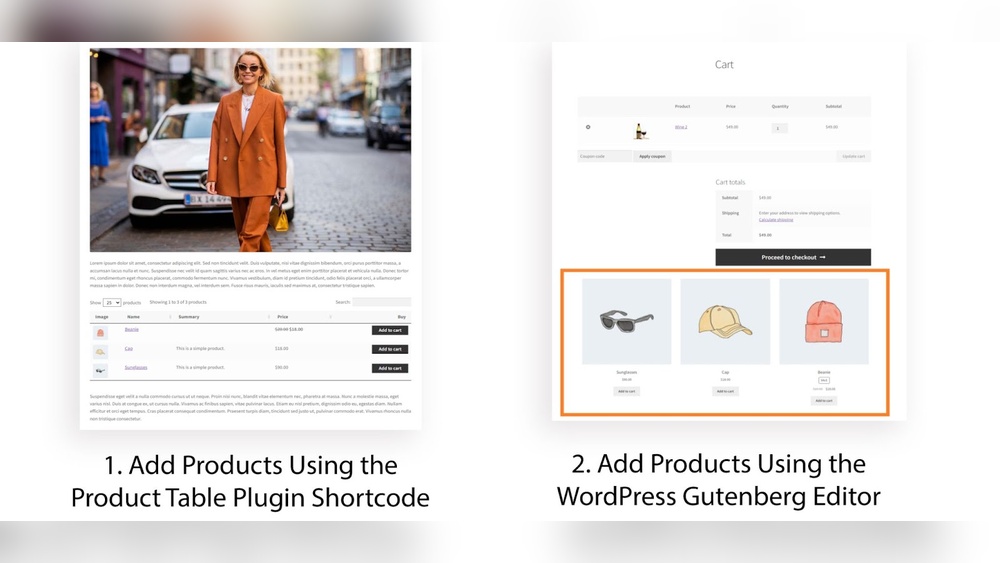
Are you ready to take your online store to the next level? Adding a product on WordPress might seem tricky at first, but it’s easier than you think.
Whether you’re selling handmade crafts, digital downloads, or physical goods, getting your products online quickly can boost your sales and grow your business. You’ll discover simple, step-by-step instructions to add your product without any hassle. Keep reading, and soon you’ll have your products shining in your store, ready to attract customers and increase your revenue.
Credit: www.omnisend.com
Preparing Your WordPress Site
Preparing your WordPress site is the first step to add a product successfully. This process sets a strong base for your online store. A well-prepared site improves user experience and helps your product stand out. Follow these simple steps to get ready.
Choosing The Right Theme
Select a theme that fits your product style. Themes control your site’s look and feel. Choose one that is clean, fast, and mobile-friendly. A good theme makes your products easy to find and buy. Many free and paid themes work well with WooCommerce.
Installing Woocommerce Plugin
WooCommerce is the best plugin to sell products on WordPress. It adds all the features needed for an online store. To install it, go to your WordPress dashboard. Click “Plugins” then “Add New.” Search for WooCommerce and click “Install Now.” After installation, activate the plugin.
Configuring Basic Settings
After activation, WooCommerce will guide you through a setup wizard. Enter your store details, like location and currency. Set payment methods and shipping options. These settings help your store run smoothly. Take time to check each option carefully.

Credit: www.youtube.com
Creating A New Product
Creating a new product in WordPress is a simple process that helps you showcase your items online. You can control how your product looks and where it appears on your site. Follow these steps to add a product quickly and easily.
Accessing The Product Section
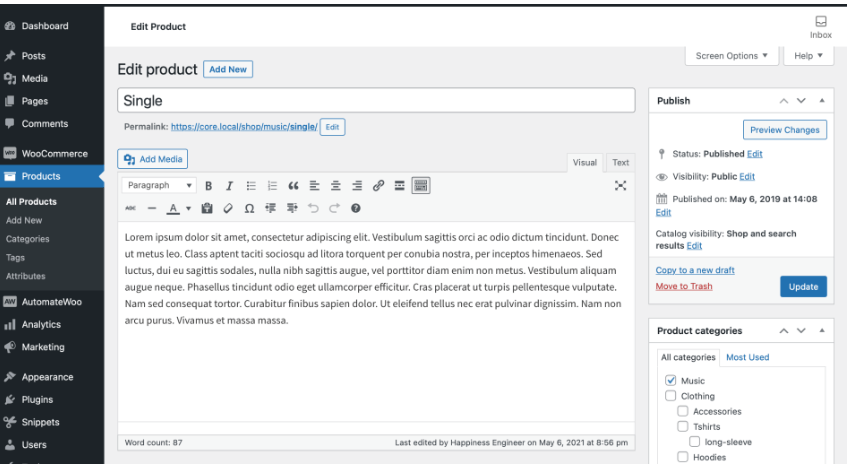
Start by logging into your WordPress dashboard. Look for the “Products” menu on the left side. Click it to open the product management area. Here, you can see existing products or add a new one. To add a product, click the “Add New” button at the top.
Adding Product Title And Description
Enter a clear and simple product title in the top box. This helps visitors know the product name fast. Below the title, add a detailed description. Write about the features, uses, and benefits in short sentences. This description appears on the product page and helps buyers decide.
Setting Product Categories And Tags
On the right side, find the “Product Categories” box. Choose the category that fits your product best. This organizes products and makes browsing easier for customers. You can also add new categories if needed. Below this, use “Product Tags” to add keywords. Tags help improve searchability inside your site.
Adding Product Details
Adding product details is a key step in creating a product listing on WordPress. It helps customers understand what you sell. Clear and complete details make your product more attractive. This part includes images, prices, and stock information. Each detail plays a role in making the product page useful and easy to browse.
Uploading Product Images
Images show your product clearly to buyers. Click the “Add product image” button in the product editor. Choose a good picture that shows your product well. You can add more images in the gallery section. Use clear, high-quality photos to help buyers see details. Avoid blurry or dark images. This builds trust and interest in your product.
Setting Regular And Sale Prices
Set a regular price for your product first. This is the usual cost customers pay. If you want to offer a discount, set a sale price. The sale price appears alongside the regular price. This shows buyers they get a deal. Make sure prices are correct and easy to read. Prices affect buying decisions a lot.
Managing Inventory Options
Inventory settings help you track product stock. Enable stock management to keep count automatically. Enter the stock quantity you have. Set options to allow or stop backorders. You can also mark a product as “out of stock.” This information helps avoid selling items you don’t have. It keeps your store running smoothly.
Enhancing Product Pages
Enhancing product pages helps customers find the right items fast. Clear details and options improve the shopping experience. Well-organized pages keep visitors interested and ready to buy.
Adding Product Attributes
Product attributes describe key features like size, color, or material. Adding these helps buyers filter products easily. In WordPress, go to the product edit page and find the attributes tab. Enter each attribute name and its values separated by commas. Save the attributes to display them on the product page.
Setting Up Product Variations
Variations allow different versions of the same product. For example, shirts in multiple colors or sizes. Enable variations by selecting a variable product type. Link attributes to create choices for customers. Add prices and images for each variation to provide clear options.
Using Product Short Descriptions
The short description appears near the product title. Use it to highlight key benefits or features. Keep it brief and easy to read. This small text helps customers decide quickly. Write clear sentences that explain why the product matters.
Optimizing For Sales
Optimizing your product page is key to increasing sales on WordPress. Small changes can make a big difference. You want visitors to trust your product and feel confident buying. Clear information and easy options help buyers decide faster.
Focus on features that improve user experience. Show product value and reduce doubts. This section guides you through essential steps for better sales results.
Enabling Reviews And Ratings
Reviews build trust. They show real customer experiences. Turn on the reviews feature in your WordPress product settings. Allow buyers to leave feedback and ratings. Positive reviews encourage others to buy. Respond to reviews politely to show you care.
Configuring Shipping Options
Clear shipping details reduce confusion. Set up shipping zones and rates in WooCommerce or your plugin. Offer multiple shipping methods if possible. Fast and affordable options attract more buyers. Display estimated delivery times on the product page. This helps customers plan their purchases better.
Applying Seo Best Practices
SEO brings more visitors to your product page. Use clear, simple product titles with keywords. Write unique descriptions that explain product benefits. Add alt text to images describing the product. Use short URLs with important keywords. Make sure your page loads quickly and works well on mobile devices.
Publishing And Managing Products
Publishing and managing products on WordPress is simple and keeps your online store fresh. It helps you control product visibility and update details easily. Good management improves customer trust and boosts sales.
Previewing Before Publishing
Preview each product before it goes live. This step shows how customers see your product page. Check images, descriptions, and prices carefully. Fix any mistakes to avoid confusion. Previewing saves time and prevents errors.
Scheduling Product Launches
Set a future date to publish your products. Scheduling helps you plan sales or promotions. Choose the perfect time to attract more buyers. WordPress automatically publishes products at your set time. No need to be online to launch.
Editing And Updating Products
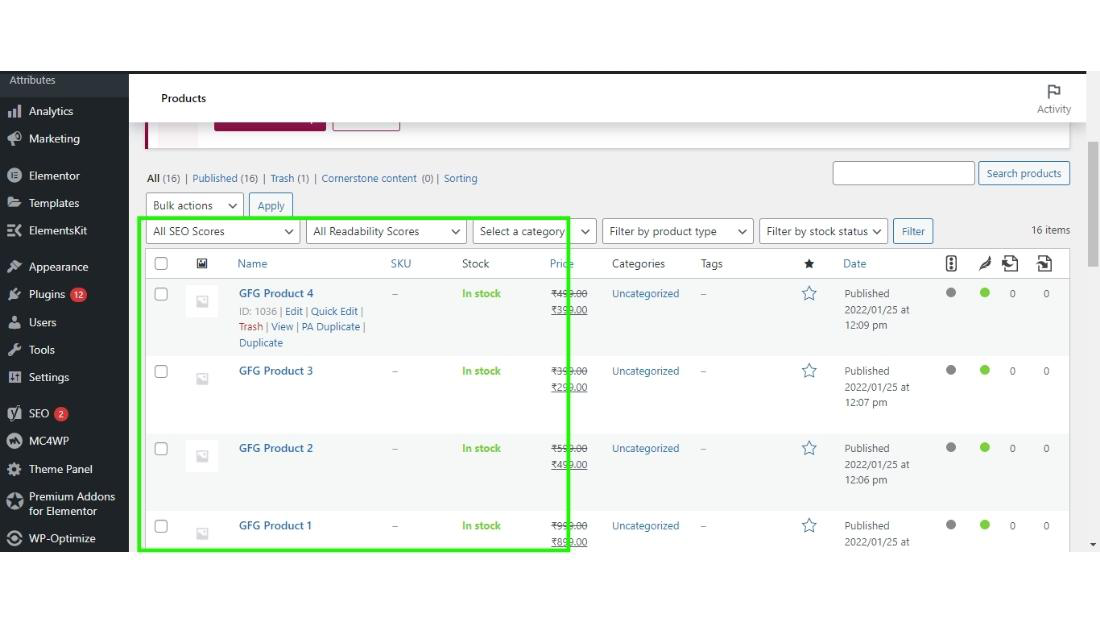
Edit product details anytime to keep information correct. Update prices, descriptions, and images as needed. Regular updates keep your store current and reliable. Always save changes before exiting to avoid loss.
Credit: www.geeksforgeeks.org
Frequently Asked Questions
How Do I Add A New Product In WordPress?
To add a product, install WooCommerce first. Then, go to Products > Add New. Enter the product title, description, price, and images. Finally, publish your product to make it live on your store.
Can I Add Product Variations In WordPress?
Yes, you can add product variations. Choose “Variable product” under product data. Add attributes like size or color. Then, create variations with unique prices and stock. Save changes before publishing.
What Product Details Are Essential For WordPress?
Include product name, description, price, and images. Add SKU for inventory tracking. Use categories and tags for better organization. Setting shipping options and stock status is also important.
How Do I Optimize Product Pages For Seo?
Use clear product titles with keywords. Write unique, detailed descriptions. Add alt text to product images. Use SEO-friendly URLs and meta descriptions. Enable customer reviews to boost credibility.
Conclusion
Adding a product on WordPress is simple and fast. Just follow the steps carefully. Use clear titles and descriptions to help customers. Upload good photos to show your product well. Set the right price to attract buyers. Check your product page before publishing it live.
Keep your store updated with new items. This way, your online shop stays fresh and inviting. Start adding products today to grow your website easily.


