
Are you ready to share your ideas, stories, or expertise with the world? Adding a post to WordPress is the first step to making your voice heard online.
Whether you’re starting a blog, promoting your business, or simply expressing yourself, knowing how to create and publish posts quickly and easily can save you time and frustration. In this guide, you’ll discover simple, clear steps to add your first post without any hassle.
Keep reading, and soon you’ll be confidently publishing content that grabs attention and keeps your readers coming back for more.
Setting Up WordPress
Setting up WordPress is the first step to creating your website. It involves choosing the right hosting, installing WordPress, and accessing its dashboard. These steps prepare your site for content creation and management.
Choosing A Hosting Provider
Start by picking a hosting provider that fits your needs. Hosting stores your website files and makes them visible online. Look for providers with good speed, uptime, and support. Shared hosting is affordable and good for beginners. Managed WordPress hosting offers extra features like automatic updates. Choose a plan that matches your budget and website goals.
Installing WordPress
Most hosting providers offer easy WordPress installation. Use one-click installers like Softaculous or Fantastico. Follow the prompts to set up your site name, username, and password. Installation usually takes a few minutes. Once done, you get access to your WordPress site. Manual installation is also possible but requires more steps.
Accessing The Dashboard
The dashboard is your WordPress control panel. Access it by adding “/wp-admin” to your website URL. Log in with the username and password you created. The dashboard lets you manage posts, pages, themes, and plugins. Spend some time exploring its sections to understand how it works. This is where you will add your first post.
Creating A New Post
Creating a new post on WordPress is simple and quick. This process lets you share your ideas, stories, or news with your readers. Follow easy steps to write and publish your content effectively.
Navigating To The Posts Section
Start by logging into your WordPress dashboard. On the left side menu, find the “Posts” option. Click on “Posts” to open the list of all your posts. This area helps you manage existing posts and create new ones.
Starting A New Post
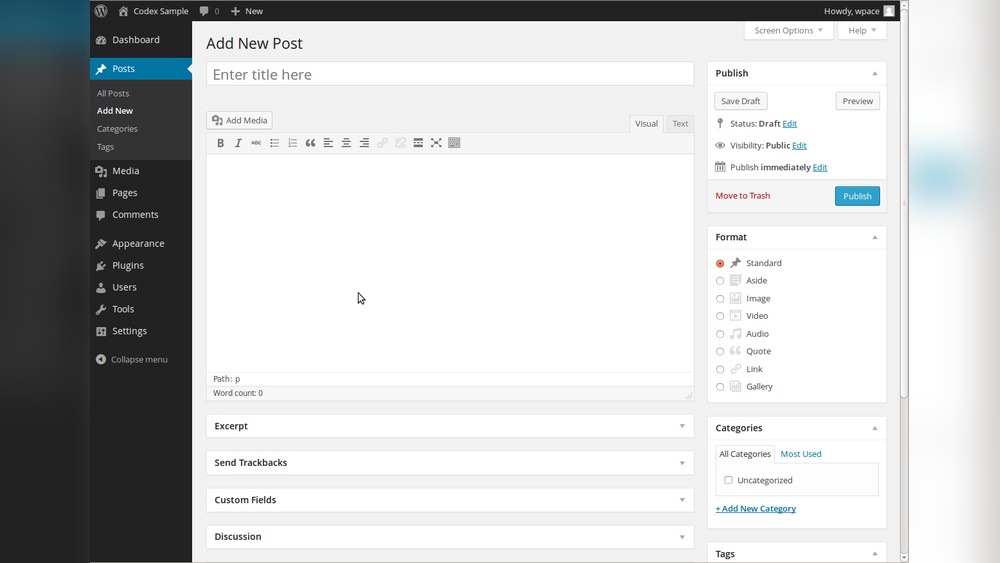
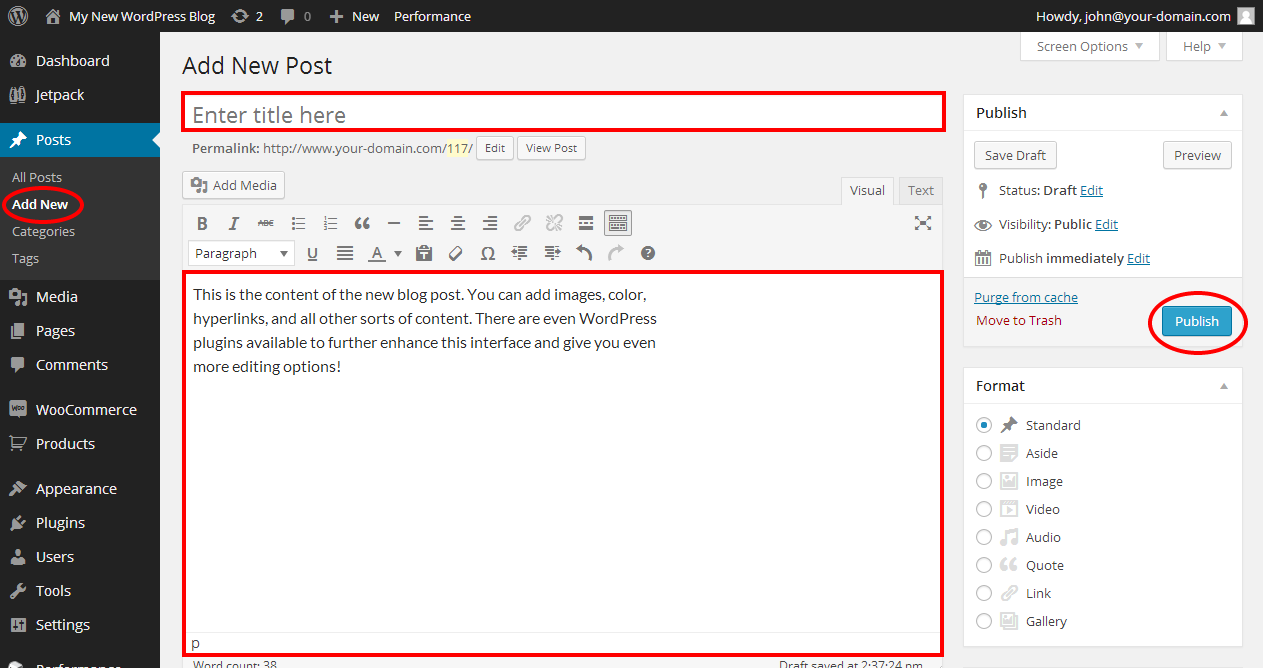
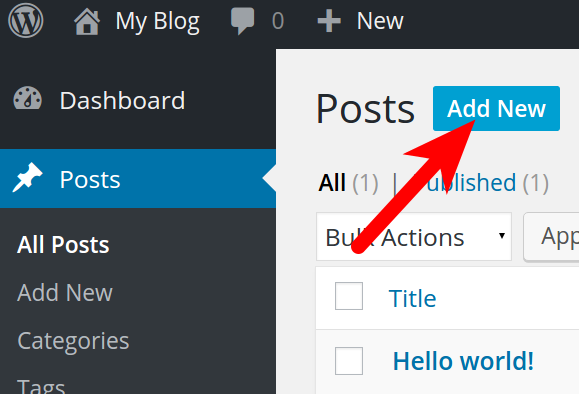
In the “Posts” section, click the “Add New” button. This opens a blank post editor where you can write your content. Enter your post title at the top. Then, add your text, images, or other media in the main editor area. Use the tools to format your post and make it look good.
Writing Your Post
Writing your post in WordPress is simple and flexible. The platform gives you tools to create clear and attractive content. You can add titles, format text, and insert images or videos easily.
Each step helps you build a post that readers enjoy. Focus on clear structure and good visuals to keep attention. WordPress’s editor supports all these functions smoothly.
Adding A Title
The title is the first thing readers see. Make it short and clear. It should describe the main idea of your post well.
Click the top box labeled “Add title.” Type your headline here. Keep it simple and direct to attract readers quickly.
Using The Block Editor
WordPress uses a block editor to build posts. Each paragraph, image, or video is a block. This makes content easy to arrange and edit.
To add a block, click the plus (+) icon. Choose the block type you want, like paragraph, image, or heading. Drag blocks to change their order.
Formatting Text And Media
Formatting improves the look and clarity of your post. Use bold or italics to highlight important words. Lists help organize ideas clearly.
Insert images or videos by adding media blocks. This breaks up text and makes the post more interesting. Resize or align media to fit your style.
Credit: www.ipage.com
Enhancing Your Post
Enhancing your post in WordPress helps it stand out and attract readers. Adding media, organizing content, and setting images make your post look professional. These steps also improve how search engines see your post.
Focus on making your post clear and visually appealing. This keeps readers interested and encourages them to stay longer on your site.
Inserting Images And Videos
Images and videos make your post more interesting. They explain ideas better than text alone. To insert media, click the “Add Media” button above the editor. Upload files from your computer or choose from the media library. Use descriptive filenames and alt text for better SEO. Videos can be embedded by pasting the URL directly into the editor.
Adding Categories And Tags
Categories group your posts into main topics. Tags highlight specific details. Both help visitors find related content on your site. Choose categories that fit your post’s theme. Add tags that describe key points or keywords. Use simple, clear words to help search engines understand your content better.
Setting A Featured Image
The featured image appears on your post’s preview and social shares. It draws attention and sets the tone. To set it, click “Set Featured Image” in the sidebar. Upload a high-quality image that matches your post. Keep image size balanced for fast loading and good display. Use descriptive alt text to improve SEO and accessibility.
Optimizing For Seo
Optimizing your WordPress post for SEO helps it rank better on search engines. It makes your content easier to find. Small changes can improve your post’s visibility. Focus on key SEO elements to get the best results.
Writing Meta Descriptions
Meta descriptions are short summaries of your post. They appear under your title in search results. Write clear and simple descriptions that explain your content. Use important keywords naturally, but don’t overuse them. Keep meta descriptions under 160 characters. This helps attract readers to click on your post.
Using Seo Plugins
SEO plugins simplify optimizing your posts. They guide you to improve titles, descriptions, and keywords. Popular plugins like Yoast SEO or Rank Math offer easy tools. These plugins analyze your content and give suggestions. Use them to check readability and SEO scores. Plugins save time and improve your post’s search ranking.
Publishing Your Post
Publishing your post is the final step to share your content with the world. This process makes your writing visible on your website. WordPress offers easy options to control when and how your post appears. Understanding these options ensures your content reaches readers at the right time.
Previewing The Post
Before publishing, preview your post to check its appearance. The preview shows how readers will see your content. Click the “Preview” button in the editor. This opens a new tab with your post layout. Use this view to catch any errors or formatting issues. Adjust your post if needed for a better reader experience.
Setting Publish Date And Time
WordPress lets you schedule posts to publish later. Find the “Publish” section in the editor sidebar. Click the date and time to set when your post goes live. Scheduling helps plan your content ahead. It keeps your site active even when you are busy. Set the date and time that fits your audience best.
Publishing Immediately
To publish your post right away, use the “Publish” button. This makes your content live on your site instantly. Confirm your post is ready before clicking. Once published, your readers can access your post immediately. You can always edit or update the post after publishing.
Managing Published Posts
Managing published posts keeps your WordPress site fresh and accurate. You can change content, fix errors, or remove outdated posts. This helps visitors trust your site and find useful information.
Editing Existing Posts
To edit a post, go to the WordPress dashboard. Click on “Posts” and find the post you want to change. Click the post title or the “Edit” link below it. Make your changes in the editor. You can update text, images, or other content. After editing, click “Update” to save your changes. The post will show the new content immediately.
Deleting Or Unpublishing Posts
Deleting a post removes it completely from your site. Find the post under “Posts” in the dashboard. Hover over the post title and click “Trash.” The post moves to the trash folder but can be restored. To unpublish a post, edit the post and change its status to “Draft.” This hides the post from visitors but keeps it in your dashboard. You can publish it again anytime.
Credit: www.inmotionhosting.com
Troubleshooting Common Issues
Adding a post to WordPress usually goes smoothly. Sometimes, small issues can slow you down. Troubleshooting these common problems helps keep your workflow fast and easy. This section covers simple fixes for typical errors.
Fixing Formatting Problems
Formatting issues often happen after copying text from other sources. Strange fonts or extra spaces appear. Clear formatting by selecting the text and clicking “Clear formatting” in the editor. Use the built-in tools to adjust font size, color, and alignment. Check how the post looks in preview mode before publishing.
Sometimes, paragraphs merge together. Press “Enter” twice to create proper spacing. Avoid using multiple spaces or tabs for alignment. Use lists or blockquotes to organize content clearly. These small steps improve readability on all devices.
Dealing With Image Upload Errors
Image upload errors can stop you from adding visuals. Check your file size first. WordPress limits uploads, usually to 2MB or 5MB depending on your host. Resize images if needed using free online tools.
File type also matters. Use JPG, PNG, or GIF formats. Other file types might not upload correctly. If you see an error message, try renaming the file with simple letters and numbers. Avoid special characters and spaces in file names.
Check your internet connection too. A slow or unstable connection can cause uploads to fail. Refresh the page and try uploading again. Clear your browser cache if problems persist.
Credit: www.hostinger.com
Frequently Asked Questions
How Do I Create A New Post In WordPress?
To create a new post, log in to your WordPress dashboard. Click on “Posts” then “Add New. ” Enter your title and content, then hit “Publish” to make it live.
Can I Add Images To My WordPress Post?
Yes, you can add images by clicking the “Add Media” button above the editor. Upload or select an image, then insert it into your post easily.
How Do I Save A WordPress Post As A Draft?
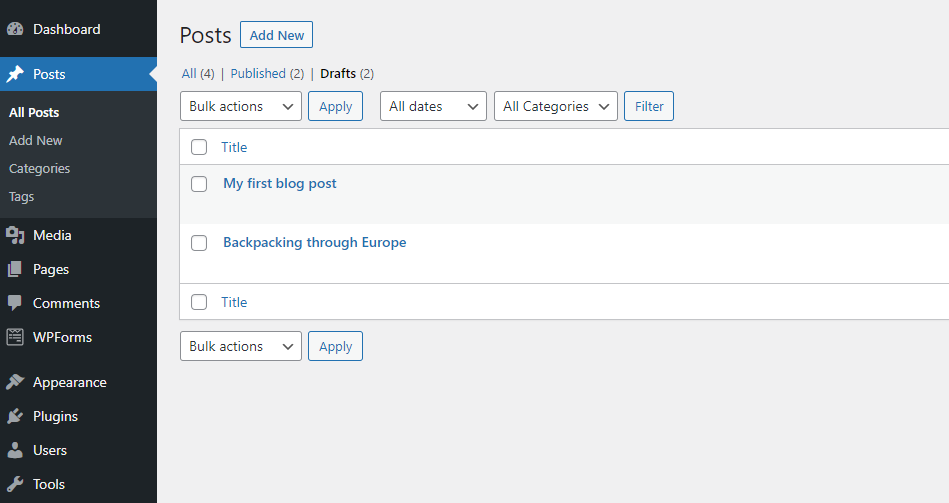
Click “Save Draft” in the post editor to save your work without publishing. This lets you edit and publish the post later when ready.
What Are Categories And Tags In WordPress Posts?
Categories organize your posts into broad topics, while tags describe specific details. Both improve site navigation and SEO by helping visitors find content easily.
Conclusion
Adding a post to WordPress is simple and quick. Just follow the steps carefully. Write your content clearly and add images if needed. Don’t forget to choose the right categories and tags. Preview your post to check everything looks good.
When ready, hit the publish button to share your post with the world. Keep practicing to feel more confident. Soon, adding posts will become easy and natural for you. Enjoy creating and sharing your ideas online!



