
Are you looking to enhance your WordPress site with new features and functionalities? Adding a plugin might just be the solution you need.
Whether you’re aiming to boost your site’s performance, improve its SEO, or simply add a new feature, plugins are the magic tools that can transform your WordPress theme. But how do you add a plugin to your WordPress theme without getting tangled in technical jargon?
Don’t worry; you’re not alone. This guide is designed with you in mind, breaking down the process into simple, easy-to-follow steps. By the end of this article, you’ll feel confident and empowered to enhance your website like never before. So, if you’re ready to unlock the full potential of your site, keep reading!

Credit: themedev.net
Choosing The Right Plugin
Start by understanding what your website needs. Do you need better security? Maybe you want faster load times. List down the features you want. This helps you decide which plugin is best.
Look for plugins that match your needs. Check online reviews for popular plugins. See what others say about them. Popular plugins are often trusted by many users. Check how often they get updates. Updated plugins are safer and usually work better.
Make sure the plugin works with your WordPress version. Some plugins might not work with new updates. Check if they fit your theme well. If a plugin doesn’t fit, it can cause errors. Always back up your site before adding new plugins.
Credit: www.greengeeks.com
Downloading The Plugin
Start by searching for trusted websites. Look for sources with good reviews. Check if the plugin is popular and updated. Popular plugins are often reliable. Visit the WordPress plugin directory. It is a safe place. Read user comments before downloading.
Once you find a good plugin, click the download button. The file will be in ZIP format. Save it on your computer. Keep it in a place where you can easily find it later. Remember the file name. You will need it when installing the plugin.
Installing The Plugin
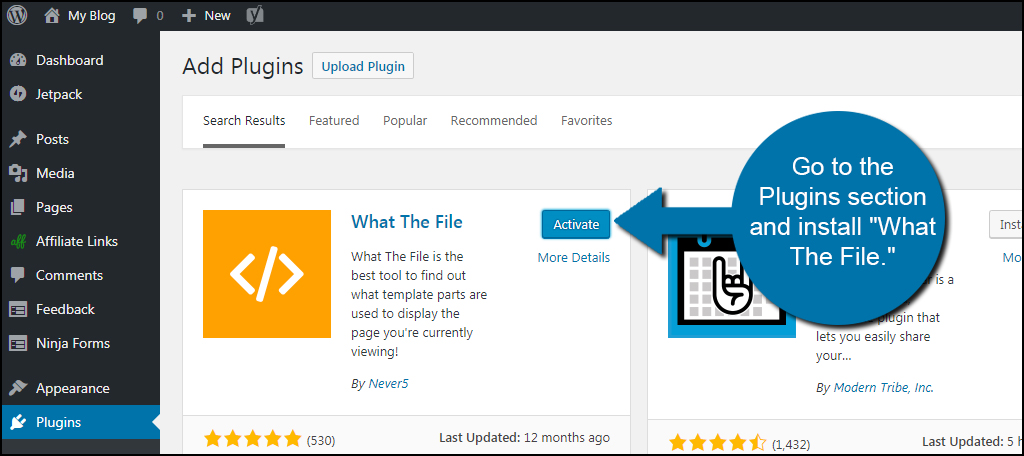
Open the WordPress dashboard. Click on “Plugins”. Then, click “Add New”. Find the search bar on the right. Type the plugin name. Click “Install Now” next to the plugin. Wait for installation. Click “Activate” to use the plugin. Easy and quick.
Download the plugin zip file. Extract the contents to your computer. Use an FTP client like FileZilla. Connect to your server. Go to the wp-content/plugins folder. Upload the extracted plugin folder here. Go back to the WordPress dashboard. Go to “Plugins”. Find your plugin and click “Activate”. Now, the plugin is ready to use.
Activating The Plugin
First, find the dashboard of your WordPress site. Look for the left-hand menu. There, you will see a menu item called “Plugins”. Click on it. This will take you to the Plugins page. Here, you can see all your installed plugins.
To add a new plugin, click on the “Add New” button at the top. It will open the plugin library. You can search for plugins using the search bar. Once you find a plugin, click on the “Install Now” button. Wait for it to install. After installation, click on the “Activate” button. Now, your plugin is active and ready to use.
Configuring Plugin Settings
Accessing Plugin Settings is easy. Begin by logging into your WordPress dashboard. Look for the Plugins tab on the left menu. Click on it. A list of all installed plugins will appear. Select the plugin you want to configure. Click on its name. This will open the settings page for that plugin. Here, you can adjust various options. Make changes according to your needs. Remember to click Save to apply changes. Always check for updates. Updated plugins work better.
Customizing Functionality can enhance your site. Each plugin offers different features. Explore these features in the settings. Some plugins allow you to add shortcodes. Others let you integrate third-party services. Modify settings to suit your site. Test changes before going live. This ensures everything works smoothly. Always back up your site before major changes. Backup prevents data loss.

Credit: wpmayor.com
Testing The Plugin
Adding a plugin to a WordPress theme involves accessing the admin panel and navigating to the “Plugins” section. Search for the desired plugin, install it, and activate it to test its functionality. Ensure compatibility with your theme to maintain site performance.
Checking For Conflicts
After adding a plugin, check for any conflicts. Conflicts can break your site. Open your website and click different pages. Ensure that everything works fine. If something seems off, disable the plugin. See if the problem goes away. If it does, the plugin is causing the conflict. You may need to find another plugin.
Verifying Functionality
Ensure the plugin does what it should. Try all the features it offers. Does it work smoothly? Check the settings page of the plugin. Adjust options to see changes. If you notice issues, contact the plugin support. Sometimes they offer solutions. Always keep your plugins updated. Updates fix bugs and improve features.
Updating And Maintaining Plugins
Adding a plugin to your WordPress theme enhances functionality and user experience. Start by accessing your WordPress dashboard. Then, navigate to “Plugins” and select “Add New” to begin installation.
Regular Updates
Plugins need updates. Updates keep them working well. Always check for new versions. Developers fix bugs. They add new features too. Regular updates ensure security. Outdated plugins can be risky. They may break your site. Update plugins often. This prevents problems. Use the WordPress dashboard. It shows available updates. You can set automatic updates. This saves time. It keeps your site safe.
Troubleshooting Common Issues
Sometimes plugins cause issues. Your site might not load. Or it shows errors. Check plugin compatibility first. Some plugins conflict. Disable one by one. This helps find the problem. Look for error messages. They guide you. Search online for solutions. Many users face similar issues. Contact plugin support if needed. They offer help. Always backup your site. Do this before fixing issues. Backups save data. They restore your site. Troubleshooting keeps your site running smoothly.
Frequently Asked Questions
How Do I Install A WordPress Plugin?
To install a plugin, go to the WordPress dashboard, click “Plugins,” then “Add New. ” Search for the plugin you want. Click “Install Now,” and once installed, activate the plugin. Ensure compatibility with your WordPress version before installation.
Can I Add Plugins To Any WordPress Theme?
Yes, plugins can be added to any WordPress theme. They function independently of the theme and enhance your site’s features. However, check compatibility with your theme and WordPress version to ensure smooth integration and functionality.
What Are The Steps For Plugin Activation?
After installing a plugin, go to the “Plugins” section in your dashboard. Find the plugin in the list and click “Activate. ” Activation enables the plugin’s features on your site. Always check for settings or configurations needed post-activation.
Are Plugins Safe To Use In WordPress?
Most plugins are safe, but choose reputable ones with good reviews. Regularly update them to reduce security risks. Review the developer’s track record and read user feedback before installing to ensure safety and reliability.
Conclusion
Adding plugins to your WordPress theme enhances functionality. Follow the steps outlined above. Ensure compatibility to avoid issues. Regularly update plugins for security. Keep your site running smoothly. Explore plugin options to meet your needs. Take time to understand features.
Experiment with different plugins. Always backup your site before changes. This protects your data. Enjoy customizing your WordPress site. Plugins make it easy. Improve your site’s performance. Keep learning and exploring new possibilities. Your site can grow with the right tools.
Make informed choices. Your WordPress journey begins here. Happy blogging!


