
Are you looking to enhance your WordPress site with new features? Adding a plugin to your WordPress theme can open up a world of possibilities.
Whether you want to improve your site’s performance, add new functionalities, or simply make it more user-friendly, plugins can be your secret weapon. But here’s the catch: the process can seem a bit daunting if you’re not familiar with it.
Don’t worry! This guide will walk you through the steps to seamlessly integrate plugins into your WordPress theme. By the end, you’ll feel confident and ready to transform your website into the powerhouse you’ve always imagined. Stick around to discover how easy it can be to enhance your site with just a few clicks.
Credit: elementor.com
Choosing The Right Plugin
First, think about what you need. What do you want the plugin to do? Some plugins help with SEO. Others help with security. List your needs. This helps in choosing the right one.
Check if the plugin works with your WordPress theme. Some plugins might not fit. Look for notes on compatibility. This ensures your site works well.
Read what others say about the plugin. User reviews can tell you a lot. Are people happy with it? Look at the ratings too. High ratings often mean good plugins.
Preparing Your WordPress Site
Backup your site before adding any plugin. Use a backup tool. This keeps your data safe. You can restore the site if something goes wrong. Always keep a copy of your site. This helps in emergencies.
Update WordPress Core to the latest version. New versions have better security. They have new features too. Updating is easy. Go to your dashboard. Click “Updates”. Follow the instructions.
Check theme requirements before adding plugins. Some themes need special plugins. Others might not work with certain plugins. Read theme documentation. This tells you what you need. It helps avoid problems. Always check before you change anything.
Installation Methods
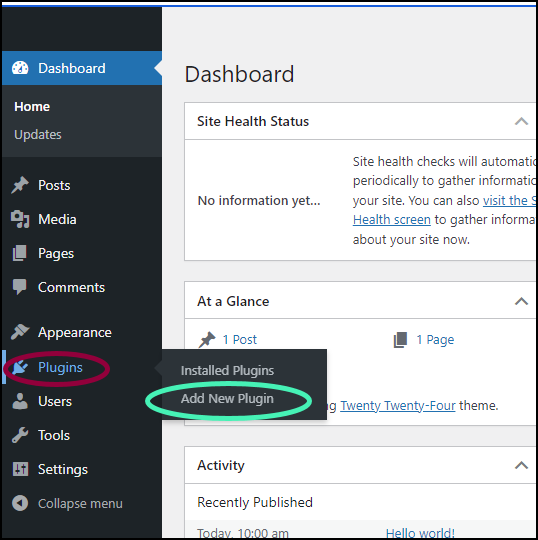
The WordPress Plugin Directory is simple. First, go to your dashboard. Click on Plugins and then Add New. Search for the plugin you want. Press the Install Now button. Once installed, click Activate. The plugin is now ready.
Download the plugin as a .zip file. Go to your WordPress dashboard. Click Plugins, then Add New. Click on Upload Plugin. Choose your .zip file and press Install Now. After installation, activate the plugin. It’s ready to use.
Download the plugin and extract it. Use an FTP client like FileZilla. Connect to your website. Go to the wp-content/plugins directory. Upload the extracted plugin folder. Go to your WordPress dashboard. Find the plugin under Plugins. Click Activate. The plugin is now active.
Activating The Plugin
First, go to your WordPress dashboard. On the left, you will see a menu. Look for the Plugins option. Click on it. You will now be in the Plugins page. This is where you manage all your plugins. To add a new plugin, click on “Add New” at the top. Now, you can search for plugins in the search bar.
Once you find a plugin you like, click “Install Now”. After installation, click “Activate”. This will turn on the plugin. Some plugins need extra settings. Go to the plugin’s settings page. Here, you can adjust features. Make sure to save any changes. This ensures your plugin works correctly. Enjoy your new plugin!
Configuring Plugin Settings
Navigating to Plugin Settings is simple. Find the plugin on your dashboard. Click to open its settings. Most plugins have a settings link. It is usually under the plugin name. This takes you to the settings page.
Adjusting Default Options allows you to control how the plugin works. Look for basic options first. These might include enabling or disabling features. Sometimes there are checkboxes or dropdown menus. Try changing a few settings to see what happens.
Customizing for Your Needs helps the plugin fit your website. Each plugin has unique settings. Find options that suit your goals. You might change colors, styles, or functions. Explore different settings for the best results. Adjust until everything looks right.

Credit: themedev.net
Testing Plugin Functionality
Plugins should work well with your theme. Check for compatibility to avoid issues. Some plugins might not fit your theme. Read plugin reviews and check updates. This helps find problems early. Testing in a sandbox environment is wise. It saves your live site from crashes. You can fix any bugs before going live.
Every plugin can affect site speed. Monitor your site’s performance after adding a plugin. Use speed testing tools to check load times. Plugins with heavy scripts slow down pages. Disable if performance drops. A fast site keeps visitors happy. Check regularly to ensure good speed.
Plugins can sometimes cause errors. Look for error messages after installation. Check your error log files for details. Fix errors before they affect users. Broken plugins can cause trouble. Keep plugins updated to avoid issues. Updates fix known bugs and improve security.
Troubleshooting Common Issues
Adding a plugin to a WordPress theme can face common issues. Users might encounter compatibility problems or installation errors. Ensuring the plugin version matches your WordPress can resolve many issues.
Resolving Installation Errors
Plugins sometimes won’t install. Check your internet connection first. A weak connection can cause problems. Ensure you have downloaded the correct plugin file. Double-check the plugin’s compatibility with your WordPress version. If the issue persists, try installing another plugin to see if the problem is specific to one plugin.
Addressing Conflicts With Themes
Plugins might not work with all themes. This can cause display problems. Deactivate the plugin to see if the issue resolves. If yes, then the theme might be the issue. Consider updating your theme or switching to a different one. Always backup your site before making changes. This ensures you don’t lose important data.
Seeking Support And Resources
Many plugins have support forums. Use them for help. Developers often reply with solutions. You can also check the plugin’s documentation. It contains useful information. Online communities like WordPress forums can be helpful. Here, users share their experiences and tips. Don’t hesitate to reach out for assistance.
Maintaining Your Plugins
Regular Updates keep plugins working well. Check for updates often. Update plugins when new versions come. This fixes bugs and adds new features. Updated plugins work better with the theme.
Removing Unused Plugins helps make your website fast. Unused plugins take up space. They can slow down the site. Remove plugins you do not use. This makes the site cleaner and quicker.
Keeping Plugins Secure protects your site. Security is important. Use plugins from trusted sources. Check reviews before adding new plugins. Keep an eye on security news. Update plugins to close security holes.

Credit: wpmayor.com
Frequently Asked Questions
How Do I Install A Plugin In WordPress?
To install a plugin, go to your WordPress dashboard, click on ‘Plugins’, then ‘Add New’. Search for the plugin you want, click ‘Install Now’, and activate it. This adds functionality without altering your WordPress theme’s core files.
Can Plugins Affect My WordPress Theme?
Yes, plugins can affect your theme’s appearance and functionality. Some plugins alter design elements while others add features. Always test plugins in a staging environment before applying them to your live site to ensure compatibility.
What Are Popular WordPress Plugins For Themes?
Popular plugins include Elementor for page building, Yoast SEO for optimization, and WooCommerce for e-commerce. These plugins enhance functionality and user experience without requiring extensive coding knowledge. They are widely used and have strong community support.
Are Plugins Safe For WordPress Themes?
Most plugins are safe if they come from reputable sources. Always check reviews and update them regularly to prevent vulnerabilities. Avoid plugins from untrusted developers to ensure your site’s security and integrity.
Conclusion
Adding a plugin to a WordPress theme is straightforward. Follow the steps carefully. Start by accessing your WordPress dashboard. Choose the “Plugins” option. Click on “Add New. ” Search for your desired plugin. Click “Install Now” to begin the process.
After installation, activate the plugin. Customize settings if needed. Ensure the plugin works well with your theme. Test your website for any changes. Regularly update plugins for better performance. Enjoy the enhanced functionality of your website. With practice, this process becomes easier.
Happy customizing!


