
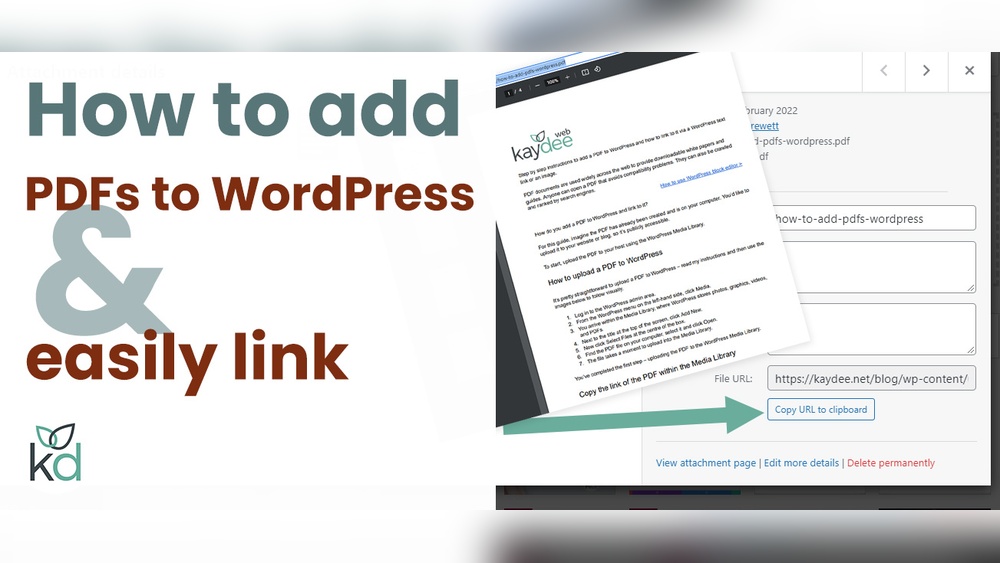
Are you looking to share important documents or resources on your WordPress website? Adding a PDF to your site is one of the easiest and most effective ways to do this.
Whether it’s a product brochure, a user guide, or a downloadable checklist, PDFs can boost your site’s value and keep your visitors engaged. You’ll discover simple, step-by-step methods to upload and display PDFs on your WordPress site without any hassle.
Keep reading to unlock the secrets that make your content more accessible and professional—your visitors will thank you for it!
Credit: wp-pdf.com
Prepare Your Pdf File
Preparing your PDF file is a key step before uploading it to your WordPress website. A well-prepared file ensures fast loading and a smooth user experience. It also helps avoid technical problems that can confuse visitors.
Start by checking the size and format of your PDF. Then, confirm it works on different devices and browsers. These steps make your file ready for online use.
Optimize File Size
Large PDF files slow down your website. Visitors may leave if the file takes too long to load. Use tools to reduce the PDF size. Compress images and remove unnecessary elements. Aim for a balance between quality and file size. Smaller files load faster and save bandwidth.
Check File Compatibility
Make sure your PDF opens on all devices. Test it on phones, tablets, and computers. Use common PDF versions supported by most browsers. Avoid special fonts or features that may not display correctly. This helps all visitors view your content without issues.
Upload Pdf To Media Library
Uploading a PDF to the WordPress media library is the first step. It stores your file safely on your website. This process lets you use the PDF anywhere on your site. It also keeps your files organized and easy to find.
Access WordPress Dashboard
Log in to your WordPress website. You will see the dashboard after logging in. This is the main control panel for your website. It lets you manage all your content and settings.
Navigate To Media Section
Look at the left side menu on the dashboard. Find the “Media” option and click it. This opens the media library where all files are stored. You can see images, videos, and documents here.
Upload Your Pdf
Click the “Add New” button at the top of the media page. A box appears to drag and drop your PDF file. Or click “Select Files” to browse your computer. Choose your PDF and upload it. After uploading, the PDF is ready to use.
Insert Pdf Link In A Post Or Page
Inserting a PDF link in a WordPress post or page lets visitors access important documents easily. This method keeps your site clean and saves space. Visitors click the link to open or download the PDF file.
Edit Your Content
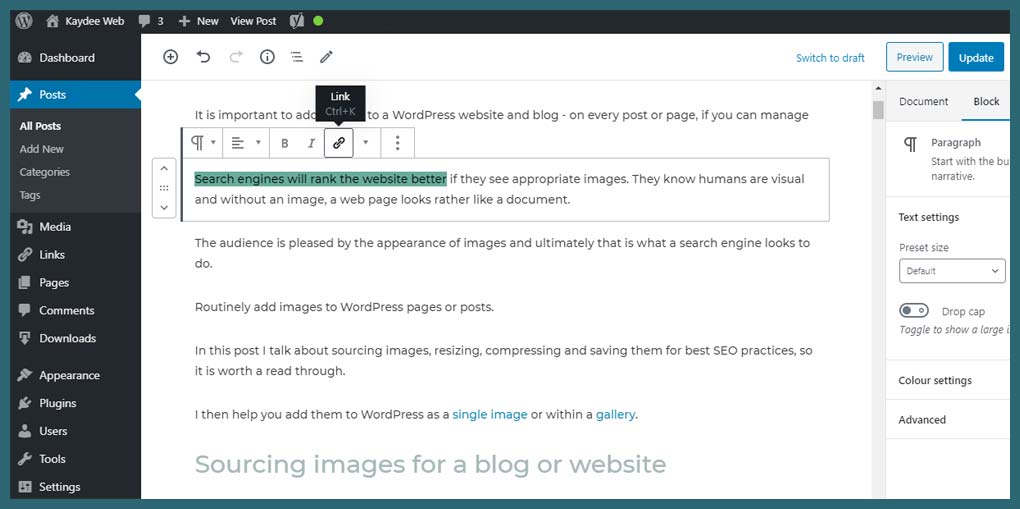
Open the WordPress editor for the post or page. Find the spot where you want the PDF link. You can add the link in a new paragraph or inside existing text. Make sure the content is ready to be updated.
Add Link To Pdf
Click the “Add Media” button above the editor. Upload your PDF file or select one from the media library. After choosing the file, click the “Insert into post” button. WordPress will add a link to the PDF in your content.
Customize Link Text
Select the default link text in the editor. Change it to something clear and inviting. Use words like “Download PDF” or “View Document.” This tells visitors what to expect when they click the link.

Credit: www.wpmadesimple.org
Embed Pdf Using Plugins
Embedding PDFs on your WordPress site is simple with plugins. Plugins help display PDFs directly on pages or posts. Visitors can view documents without downloading them. This method keeps your site clean and user-friendly.
Choose A Pdf Plugin
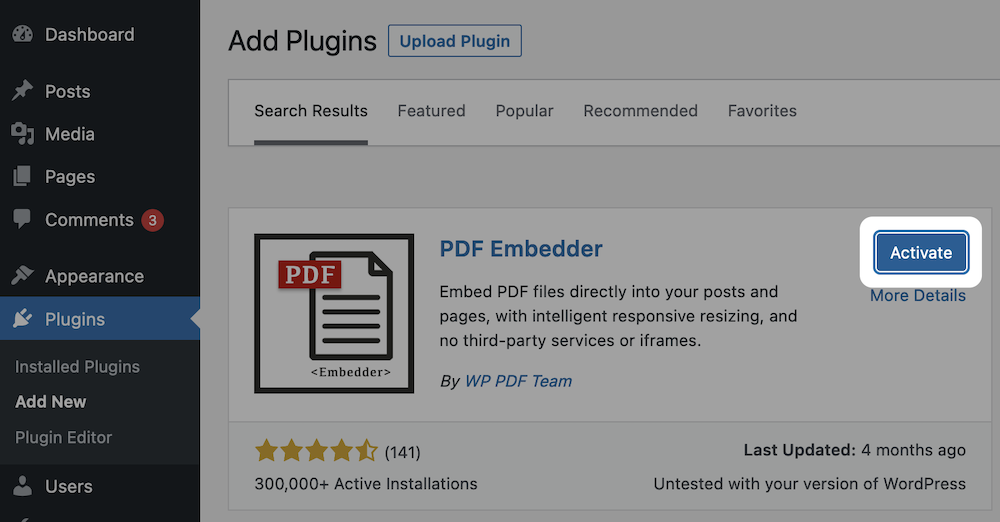
Pick a plugin that fits your needs. Some popular options include PDF Embedder, Embed Any Document, and WP PDF Viewer. Check plugin ratings and reviews before deciding. Ensure the plugin is updated regularly for best security.
Install And Activate Plugin
Go to your WordPress dashboard. Click “Plugins” then “Add New.” Search the plugin by name. Click “Install Now” and then “Activate.” The plugin is ready to use after activation.
Embed Pdf With Shortcodes
Upload your PDF file to the Media Library. Copy the file URL. Use the shortcode provided by the plugin to embed the PDF. Paste the shortcode in the page or post where you want the PDF to appear. Update or publish the content to see the PDF embedded.
Enhance User Experience
Enhancing user experience is key when adding PDFs to your WordPress website. A smooth and clear way to access documents keeps visitors interested. It also encourages them to explore more content on your site. Simple steps can improve how users interact with your PDFs and make your site look more professional.
Open Pdf In New Tab
Set your PDF links to open in a new browser tab. This keeps users on your website while they view the document. They can easily return to the main page without losing their place. Use the target=”_blank” attribute in your link code to do this. This small change helps keep visitors engaged and reduces bounce rates.
Add Download Button
Provide a clear download button for your PDF files. Visitors may want to save the document for offline use or later reading. A button labeled “Download PDF” is easy to spot and use. Place the button near the PDF link or preview. This encourages users to take action and increases document accessibility.
Ensure Mobile Compatibility
Make sure your PDFs are easy to view on mobile devices. Many people browse websites on phones and tablets. Use responsive PDF viewers or embed tools that adjust to screen size. Avoid large file sizes that load slowly on mobile data. Mobile-friendly PDFs improve user satisfaction and help keep visitors longer.
Credit: kaydee.net
Troubleshoot Common Issues
Troubleshooting common issues helps keep your PDF files accessible and working well on your WordPress site. Problems can stop visitors from viewing your PDFs. Fixing these issues improves user experience and site performance. Here are simple steps to solve frequent problems.
Fix Broken Links
Broken links stop visitors from opening your PDF files. Check the URL to make sure it matches your file location. Use WordPress’s media library to get the correct link. Update links if you moved or renamed the PDF file. Test links on different devices to ensure they work.
Resolve Upload Errors
Upload errors can happen due to file size limits or server settings. Check your file size and reduce it if needed. Contact your hosting provider to raise upload limits. Use an FTP client to upload large files directly. Clear your browser cache and try uploading again.
Handle Display Problems
PDF display problems often come from theme or plugin conflicts. Disable plugins one by one to find the cause. Switch to a default WordPress theme to test display issues. Use a PDF viewer plugin for better compatibility. Ensure your browser supports PDF viewing without extra software.
Frequently Asked Questions
How Do I Upload A Pdf To WordPress?
To upload a PDF, go to your WordPress dashboard. Click “Media” then “Add New. ” Select your PDF file and upload it. Once uploaded, copy the file URL for use in posts or pages.
Can I Embed A Pdf Directly In WordPress Posts?
Yes, WordPress allows embedding PDFs using plugins or block editor. The “File” block lets you upload and display a PDF link easily. For full embed, use plugins like PDF Embedder for better viewing options.
What Is The Best Plugin To Add Pdfs In WordPress?
Popular plugins include PDF Embedder, Embed Any Document, and Google Doc Embedder. These plugins offer easy embedding, responsive design, and user-friendly controls. Choose based on your features and customization needs.
How Do I Link A Pdf For Download On WordPress?
Upload the PDF via Media Library, copy its URL, then create a text or button link in your post. Paste the URL as the link destination. Visitors can click to download or view the PDF.
Conclusion
Adding a PDF to your WordPress website is simple and quick. Upload your file, copy the link, and place it where you want visitors to see. Visitors can easily download or view your PDF on any device. This helps share important documents, guides, or brochures with your audience.
Keep your site organized by naming files clearly. Try adding PDFs to improve your site’s content and user experience today.


