
Are you looking to make your WordPress site more user-friendly by adding a PDF to a button? Imagine your visitors clicking a simple button and instantly accessing important documents without any hassle.
It’s easier than you think, and you don’t need to be a tech expert to do it. You’ll discover step-by-step how to add a PDF to a button in WordPress. By the end, you’ll have a smooth, professional way to share files that keeps your audience engaged and coming back for more.
Ready to make your site more powerful? Let’s get started!
Choose The Right Pdf File
Choosing the right PDF file is an important step before adding it to a button in WordPress. The file must be clear and useful for your visitors. A good PDF helps users find what they need quickly.
Think about the content of your PDF. It should match the purpose of your button. For example, if the button says “Download Guide,” the PDF should be a helpful guide, not a random document.
Check the File SizeKeep the PDF file size small for fast loading. Large files slow down your website and can frustrate visitors. Aim for under 5 MB if possible. Use compression tools to reduce size without losing quality.
Use a Clear File NameName your PDF file with simple words. Avoid special characters or long names. A clear name helps with SEO and makes the file easy to find. For example, “product-guide.pdf” is better than “doc123.pdf”.
Ensure Relevant ContentMake sure the PDF content matches your website topic. Irrelevant content confuses visitors and lowers trust. Keep the text easy to read and well organized. Add images or tables if they help explain better.
Upload Pdf To WordPress Media Library
Uploading a PDF to your WordPress Media Library is the first step to link it with a button. The Media Library stores all your files, including images, videos, and documents. You can easily add PDFs here to use them anywhere on your site. This process is simple and quick.
After uploading, the PDF gets a unique URL. This URL helps to create links or buttons that visitors can click to view or download the PDF. The Media Library keeps your files organized and easy to access.
Accessing The WordPress Dashboard
Start by logging into your WordPress dashboard. Use your username and password to enter the backend. The dashboard is where you control all your website content and settings.
Navigating To The Media Library
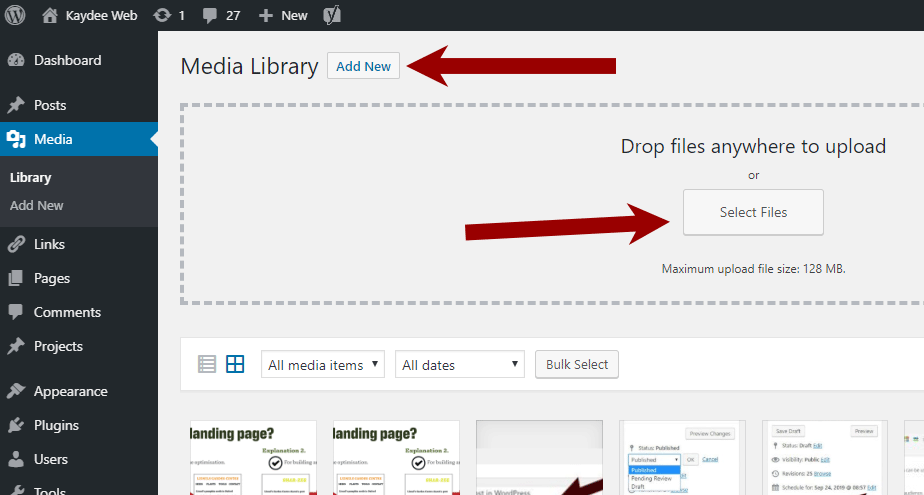
On the left menu, find and click “Media.” This opens the Media Library where all your uploaded files are stored. You can view, edit, or add new files here.
Uploading The Pdf File
Click the “Add New” button at the top of the Media Library page. A box will appear to upload files. Drag your PDF file into the box or click “Select Files” to browse your computer.
Confirming The Upload
Wait a few seconds for the upload to finish. Once done, the PDF appears in the Media Library list. Click on it to see details like file name, size, and URL.
Copying The Pdf Url
On the right side, find the “File URL” field. Highlight and copy this URL. Use this link to connect the PDF to your button later on your website.
Create A Button In WordPress
Creating a button in WordPress is simple and fast. Buttons help visitors click and access important files, like PDFs. You can make buttons using the built-in editor or with special plugins. Both methods do not need coding skills. This guide explains how to create a button step by step.
Using The Block Editor
The Block Editor is the default tool in WordPress. It lets you build pages with blocks for text, images, and buttons. To add a button, open your page or post.
Click the plus (+) sign to add a new block. Choose the “Button” block from the list. Type the text you want on the button, like “Download PDF.”
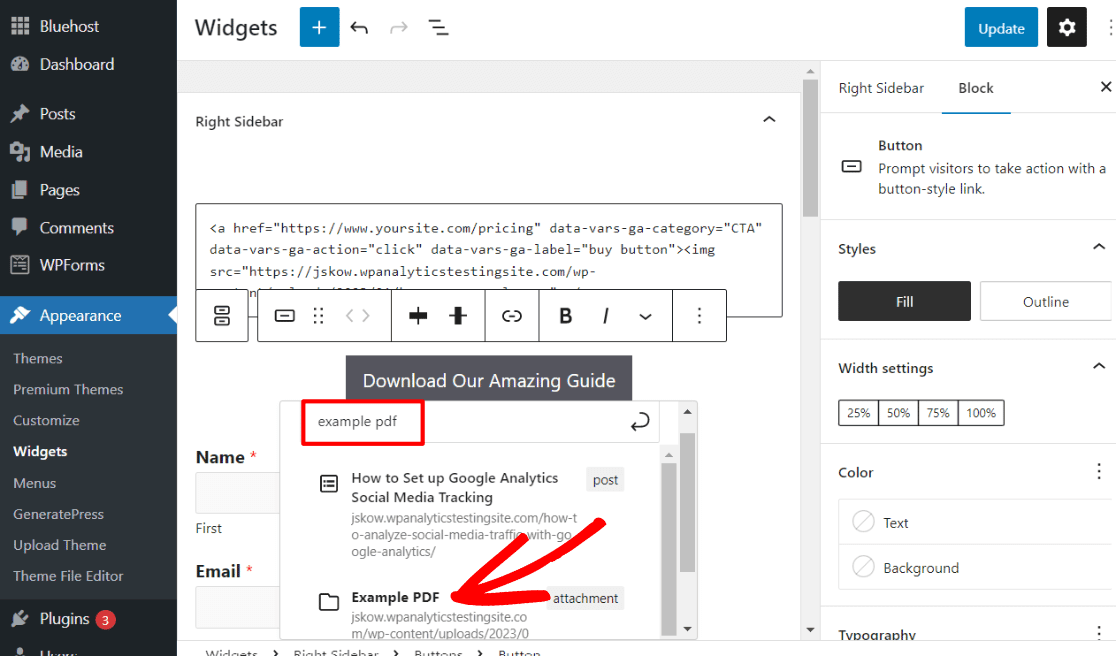
Next, click the button to select it. On the right side, find the link field. Paste the URL of your PDF file here. Save or update your page to make the button live.
Using A Page Builder Plugin
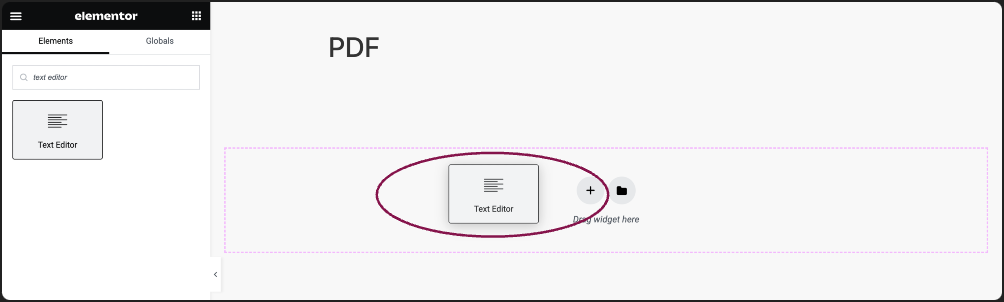
Page builder plugins offer more design options. Popular ones include Elementor and Beaver Builder. After installing a plugin, open the page editor with it.
Look for the button element in the plugin’s menu. Drag and drop the button to your page. Enter the button text, for example, “View PDF.”
Set the link to your PDF file by pasting its URL. Customize the button style if you want. Save or publish the page to display the new button.
Credit: kaydee.net
Link Pdf To The Button
Linking a PDF to a button in WordPress makes your content easy to share. Visitors click the button and get instant access to your PDF file. This method keeps your site neat and user-friendly.
Follow simple steps to link your PDF correctly. This helps your visitors open the file smoothly.
Adding Url In Button Settings
First, upload your PDF to the WordPress media library. Copy the URL of the uploaded PDF. Then, go to your button settings. Paste the copied URL into the link field. This connects your button to the PDF file. Save the changes to update the button.
Setting Link To Open In New Tab
It is best to open the PDF in a new tab. This keeps visitors on your site. In the button settings, find the option to open the link in a new tab. Check this box to enable it. Now, when visitors click the button, the PDF opens separately.
Test The Button Functionality
Testing the button functionality is a key step after adding a PDF to a button in WordPress. It ensures the button works correctly and the PDF opens as expected. This step helps avoid errors that can confuse visitors. Follow simple checks to confirm the button performs well.
Check The Button Link
Click the button to see if it opens the PDF file. The file should load in a new tab or download directly. If nothing happens, the link might be broken. Fix the link by editing the button settings in WordPress.
Test On Different Devices
Use a phone, tablet, and computer to test the button. Some devices handle PDFs differently. Make sure the PDF opens on all devices. This gives all users a good experience.
Confirm Pdf Accessibility
Check that the PDF file is easy to read and download. The file should not be too large or slow to open. A clear and accessible PDF improves user satisfaction and site quality.
Optimize Pdf For Better User Experience
Optimizing your PDF improves the user’s experience on your WordPress site. A well-prepared PDF loads faster and looks good on all devices. This makes visitors more likely to view and use your content.
Focus on making the PDF file smaller and easy to open on phones or tablets. This helps keep visitors engaged and reduces frustration.
Compressing Pdf Size
Large PDF files take longer to load. Compressing your PDF reduces its size without losing quality. Use tools like Adobe Acrobat or free online compressors. Smaller files open faster and use less data. This is important for visitors with slow internet or limited data plans.
Ensuring Mobile Compatibility
Many users access websites on mobile devices. Make sure your PDF is easy to read on small screens. Choose fonts that are clear and large enough. Avoid complex layouts that do not fit well on mobile. Test the PDF on different devices before uploading. A mobile-friendly PDF keeps users happy and improves your site’s usability.
Troubleshoot Common Issues
Troubleshooting common problems helps keep your PDF button working well. Small errors can stop the button or link from working. Fixing these issues fast improves your site’s user experience. Below are solutions for frequent problems you may face.
Broken Links
Broken links happen when the PDF file is moved or deleted. Check the file URL in your button settings. Make sure the link points to the correct PDF location. Upload the PDF again if needed and update the link.
Clear your browser cache to see recent changes. Test the link on different devices to confirm it works. Using a wrong file name or extension also breaks links. Double-check your PDF file name and extension for accuracy.
Button Not Showing
Buttons may not appear due to theme or plugin conflicts. Disable other plugins one by one to find the conflict. Switch to a default theme to see if the button shows up.
Check your button’s visibility settings in the editor. Sometimes buttons are set to be hidden on certain pages or devices. Clear your website cache and refresh the page. A caching plugin can prevent new buttons from displaying immediately.
Credit: www.monsterinsights.com
Credit: elementor.com
Frequently Asked Questions
How Do I Upload A Pdf To WordPress?
To upload a PDF, go to your WordPress dashboard, click Media > Add New. Select your PDF file and upload it. Once uploaded, copy the file URL for use in buttons or links.
How Can I Link A Pdf To A Button In WordPress?
Create or edit a button in your page editor. Paste the PDF file URL into the button’s link field. Save or update the page to make the PDF accessible via the button.
Which WordPress Editor Supports Pdf Buttons Easily?
Both Gutenberg and Classic editors allow adding PDF links to buttons. Gutenberg offers block-based button options, while Classic requires manual link insertion in button HTML or plugins.
Can I Customize Button Text When Linking A Pdf?
Yes, you can change the button text to describe the PDF content clearly. This improves user experience and SEO by signaling the file type and purpose.
Conclusion
Adding a PDF to a button in WordPress is simple and quick. You can help visitors access files easily. Just follow the steps carefully, and your site will look more professional. This small change improves user experience and keeps your content organized.
Try it today to make your website more useful. Keep practicing, and you will get better with WordPress tools.


