
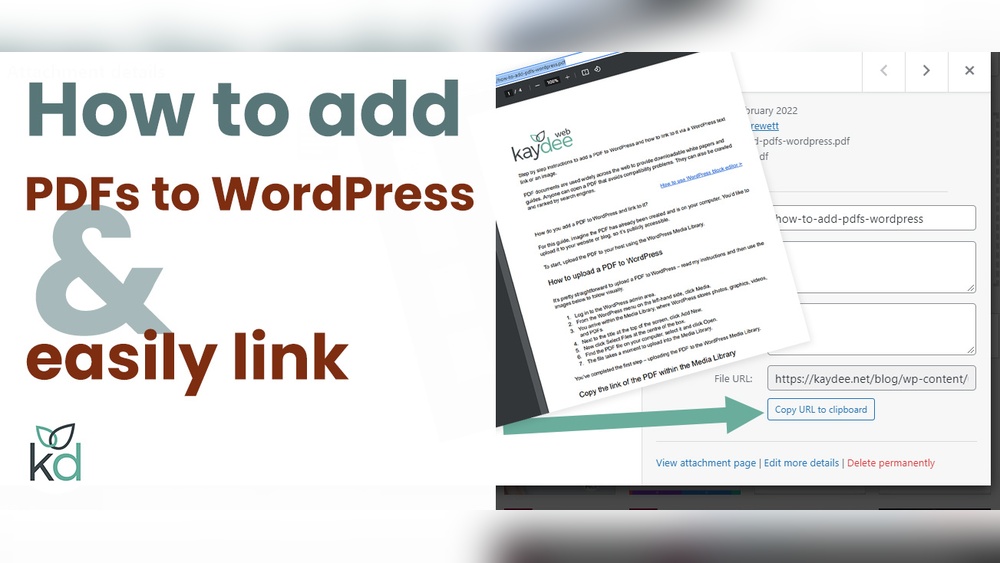
Are you looking to share important PDF documents on your WordPress website but don’t know where to start? Adding PDFs can boost your site’s value by giving visitors easy access to guides, reports, or menus.
Imagine your readers effortlessly downloading files right from your page without confusion or extra steps. You’ll discover simple, step-by-step methods to upload and display PDF documents on your WordPress site quickly and effectively. Keep reading to make your content more engaging and useful for everyone who visits your site.

Credit: www.wpmadesimple.org
Preparing Your Pdf File
Preparing your PDF file is an important step before uploading it to your WordPress site. A well-prepared PDF ensures fast loading and better user experience. It also helps search engines understand your content.
Follow these simple steps to get your PDF ready for your website.
Check File Size And Format
Make sure your PDF file is not too large. Large files take longer to load and may slow down your site. Aim for a file size under 5MB. Also, confirm the file is in the correct PDF format. Avoid other file types that WordPress may not support.
Optimize Pdf For Web
Optimize your PDF for faster loading. Use tools to compress images inside the PDF. Remove unnecessary pages or large images. This keeps the file size small and improves user experience.
Rename Pdf For Seo
Give your PDF a clear and descriptive name. Use keywords related to your content. Avoid spaces or special characters. Use hyphens to separate words. This helps search engines find your PDF and improves your website’s SEO.
Uploading Pdf To WordPress
Uploading a PDF to WordPress lets you share documents easily with your visitors. You can add reports, guides, or brochures directly to your website. This helps users access important files without leaving your page.
The process is simple and quick. WordPress has a built-in tool to handle file uploads. Follow the steps below to upload a PDF to your site.
Access Media Library
First, log in to your WordPress dashboard. Find the “Media” option in the left menu. Click on “Library” to open your media files. This is where all your images, videos, and documents are stored.
Here, you can see all files uploaded to your site. You can also add new files directly from this screen.
Upload Pdf File
Click the “Add New” button at the top of the Media Library. A box will appear to upload files. Drag your PDF file into this box or click “Select Files” to browse your computer.
Choose the PDF document you want to upload. The file will start uploading immediately. Wait for the upload to finish before moving to the next step.
Verify Upload Success
Once uploaded, the PDF appears in your Media Library. Click the file to open its details. Check the file name and size to ensure it’s correct.
Copy the file URL from the details pane. You can use this link to add the PDF to any page or post on your website.
Inserting Pdf Into Pages Or Posts
Adding a PDF to your WordPress pages or posts helps share important documents easily. You can show files like brochures, guides, or reports right on your site. WordPress offers simple ways to insert PDFs. Choose the method that fits your editor type and needs.
Using Block Editor
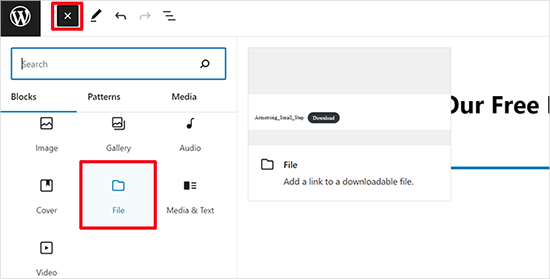
The Block Editor lets you add PDFs with just a few clicks. First, open the page or post where you want to add the file. Click the plus (+) icon to add a new block. Search for the “File” block and select it.
Next, upload your PDF file from your computer or select one from the Media Library. After uploading, WordPress automatically creates a download link and a preview button. Visitors can view or download the file easily.
Using Classic Editor
With the Classic Editor, adding PDFs is straightforward. Open your page or post. Click the “Add Media” button above the editor toolbar. Upload your PDF or choose one from the Media Library.
Once uploaded, select the file and click “Insert into post.” WordPress places a clickable link in your content. Visitors can click the link to open or download the PDF.
Adding Download Links
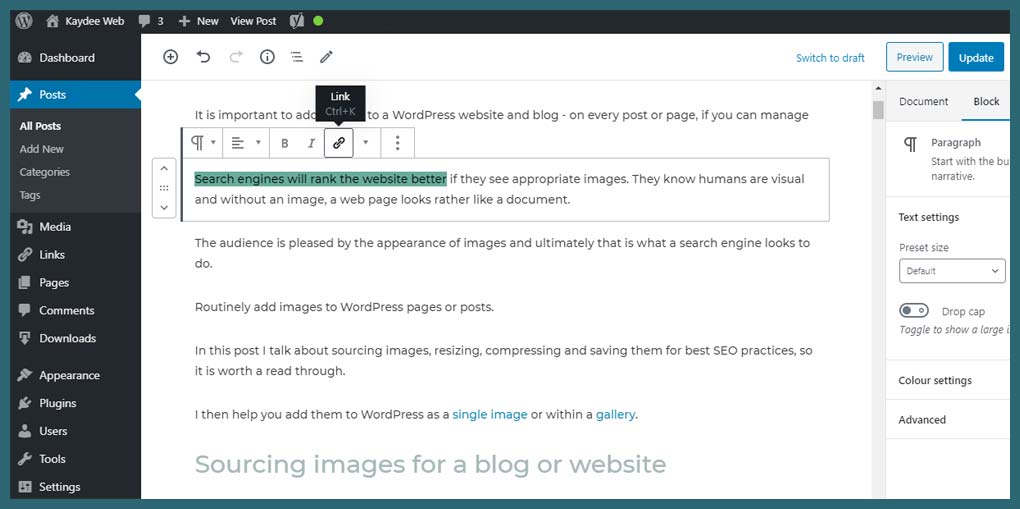
Sometimes, you want a simple download link without showing a file preview. Upload your PDF to the Media Library. Copy the file URL after uploading.
In your page or post editor, write the text for the link, like “Download PDF.” Highlight the text, then click the link icon. Paste the PDF URL and save.
This method creates a clean, easy-to-use download link on your site.
Embedding Pdfs With Plugins
Embedding PDFs with plugins is a simple way to show documents directly on your WordPress site. Plugins make it easy to upload and display PDFs without coding. They help visitors view files right on the page. This keeps users on your site longer and improves their experience.
Plugins also offer extra features like zoom, page navigation, and download options. You can choose how the PDF looks and behaves. This section explains popular plugins, how to set them up, and ways to customize the display.
Popular Pdf Plugins
Several plugins work well for embedding PDFs. PDF Embedder is a favorite for its ease and clean design. Embed Any Document supports multiple file types and cloud storage. Google Doc Embedder allows embedding with Google Docs viewer. Each plugin has unique tools and settings to explore.
Setting Up The Plugin
Start by installing the plugin from the WordPress dashboard. Go to Plugins > Add New, then search for your chosen plugin. Click Install and Activate. After activation, find the plugin’s settings in the menu. Upload your PDF file using the provided uploader or media library. Save changes to embed the PDF on your page or post.
Customizing Pdf Display
Most plugins let you change the size of the PDF viewer. Adjust width and height to fit your page layout. Enable or disable download and print buttons based on your needs. Some plugins offer light or dark mode for the viewer. Test different settings to create the best look for your site.
Improving Pdf Accessibility
Improving PDF accessibility is key to making your content usable for everyone. Accessible PDFs help people with disabilities read and navigate your documents easily. This improves user experience and boosts your website’s reach.
Accessible PDFs also help search engines understand your content better. This can improve your website’s SEO and increase traffic. Let’s explore simple ways to enhance PDF accessibility on your WordPress site.
Adding Descriptive Text
Descriptive text tells users what the PDF contains. Use clear, simple titles and summaries. Add alternative text for images within the PDF. This helps screen readers explain the content to users.
Before uploading, check that your PDF has proper headings. Use tags inside the PDF for structure. This makes navigation easier for all users. Descriptions improve clarity and support SEO by providing context.
Ensuring Mobile Compatibility
Many users access websites on phones or tablets. Make sure your PDFs display well on small screens. Use responsive design or mobile-friendly PDF viewers.
Test your PDFs on different devices to confirm readability. Choose simple layouts and large fonts. Avoid complex tables or tiny text that can be hard to read.
Mobile-compatible PDFs provide a better experience. They keep visitors engaged and reduce bounce rates.
Credit: kaydee.net
Troubleshooting Common Issues
Troubleshooting common issues helps keep your PDF uploads smooth and your site user-friendly. Errors during upload or display can cause frustration. Knowing quick fixes saves time and effort. This guide covers simple solutions for typical problems.
Fixing Upload Errors
Upload errors often occur due to file size limits. Check your WordPress media settings for max upload size. Compress your PDF if it is too large. Also, verify your internet connection is stable before uploading. Clear your browser cache and try again if errors persist.
File format issues can block uploads. Ensure your PDF file ends with “.pdf”. Some servers block certain file types; ask your host if this is the case. Updating WordPress and plugins can also fix upload bugs.
Resolving Display Problems
PDFs may not display properly due to theme conflicts. Test by switching to a default WordPress theme temporarily. If the PDF shows up, the issue lies in your theme. Contact the theme developer for help.
Browser compatibility affects PDF viewing. Check if the PDF opens in different browsers. Use a plugin designed for PDF embedding to improve display. Plugins like PDF Embedder or Google Doc Embedder often solve display issues.
Slow loading or blank spaces signal script conflicts. Deactivate other plugins one by one to find the culprit. Clear your site cache after changes to see results.
Credit: www.wpbeginner.com
Frequently Asked Questions
How Do I Upload A Pdf To WordPress?
To upload a PDF, go to your WordPress dashboard, click “Media,” then “Add New. ” Select your PDF file and upload it. Once uploaded, copy the file URL to use it in posts or pages.
Can I Embed A Pdf Directly On WordPress Pages?
Yes, you can embed PDFs using the Gutenberg block editor. Simply add a “File” block and select your PDF. This allows visitors to view or download the document without leaving the page.
What Are The Best Plugins For Adding Pdfs In WordPress?
Popular plugins include “PDF Embedder,” “Embed Any Document,” and “Google Doc Embedder. ” These plugins make it easy to display PDFs with customizable viewing options and mobile responsiveness.
How To Link A Pdf In A WordPress Post Or Page?
After uploading the PDF, copy its URL. Highlight the text or image in your post, click the link icon, and paste the PDF URL. This creates a clickable link to your document.
Conclusion
Adding a PDF to your WordPress site is simple and quick. Upload the file, copy its link, and place it in your post or page. Visitors can easily view or download your PDF documents. This helps share important information clearly and professionally.
Keep your files organized for easier updates later. Now you can improve your site with useful documents and enhance user experience.


