
Are you looking to organize your WordPress site better by placing a page under another page? It’s easier than you might think, and doing this can make your website cleaner and simpler to navigate.
When you add a page under a page, you create a clear structure that helps your visitors find information faster. In this guide, you’ll learn step-by-step how to do this quickly, even if you’re new to WordPress. Keep reading, and by the end, you’ll have a well-organized site that looks professional and works smoothly.
Credit: 10web.io
Creating Parent Pages
Creating parent pages is the first step to organize your content in WordPress. Parent pages help group related pages under one main topic. This makes your website easier to navigate for visitors. It also helps search engines understand your site structure better. Follow these steps to create a parent page quickly and easily.
Accessing The WordPress Dashboard
Start by logging into your WordPress admin area. Use your username and password to access the dashboard. The dashboard is the control center for your website. Here, you can manage all your pages, posts, and settings.
Navigating To Pages Section
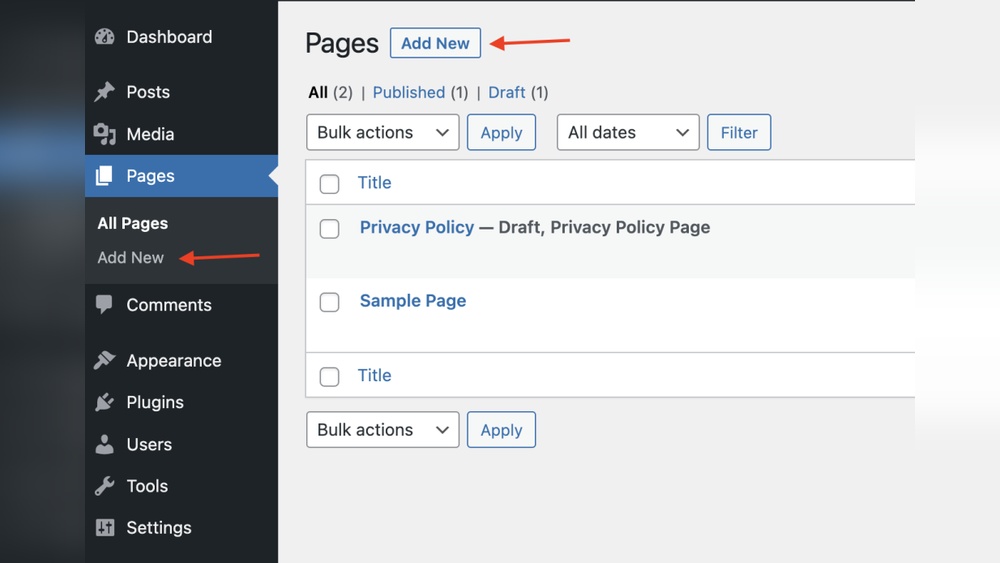
On the left side menu, find the “Pages” option. Click on it to see all existing pages. This section shows a list of pages already on your site. You can edit or add new pages from here.
Adding A New Parent Page
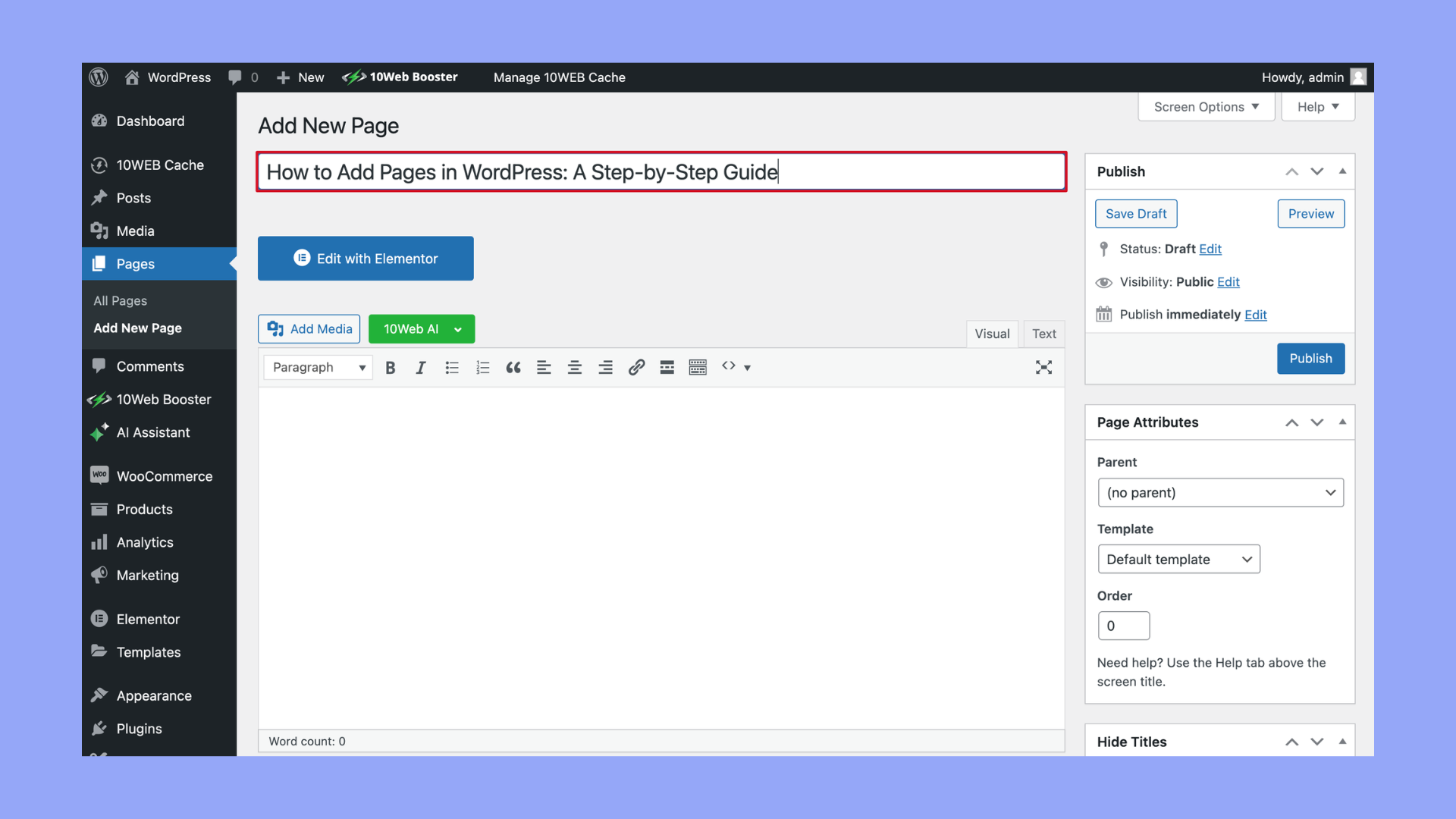
To create a new parent page, click the “Add New” button. Enter a title for your page. Add any content you want visitors to see. Do not select any parent page in the “Page Attributes” box. This keeps the page as a top-level parent. Finally, click “Publish” to make the page live.
Credit: solidwp.com
Adding Child Pages
Adding child pages in WordPress helps organize your content clearly. Child pages appear under a main page, called the parent page. This structure improves navigation and user experience. It also helps search engines understand your site better. Follow these simple steps to create child pages easily.
Starting A New Page
Go to your WordPress dashboard and select “Pages.” Click “Add New” to create a new page. Give your page a clear title that matches its content. Write your content in the editor. Keep your text simple and easy to read. This step lays the foundation for your child page.
Selecting A Parent Page
Look for the “Page Attributes” box on the right side. Find the “Parent” dropdown menu. Click it to see a list of existing pages. Choose the page you want as the parent. This action sets your new page as a child under the chosen parent page. It creates a clear page hierarchy.
Publishing The Child Page
Double-check your content and page settings. Click the “Publish” button to make your child page live. Your new page will now appear under the parent page in your site menu. Visitors can easily find related pages grouped together. This step completes the process.
Organizing Pages Hierarchically
Organizing pages hierarchically helps keep your website clear and easy to use. It shows how pages relate to each other. You can create main pages and subpages under them. This structure helps visitors find information fast. It also improves your site’s SEO by making navigation logical. WordPress offers simple tools to set this up.
Using Page Attributes
Page Attributes let you assign a parent page to any new or existing page. This creates a hierarchy. Go to the page editor and find the Page Attributes box. Select the parent page from the dropdown menu. Save or update the page. Now, your page sits under the chosen parent page. This method builds a clear page tree on your site.
Rearranging Pages In Menu
You can organize pages in your site menu to match your hierarchy. Go to Appearance > Menus in the WordPress dashboard. Drag and drop pages to place subpages below main pages. Indent subpages slightly to show they belong under a parent page. Save the menu to update your site. This keeps your menu tidy and easy to navigate.
Managing Page Order
Page order affects how pages appear in lists and menus. Use the Order field in Page Attributes to set this. Lower numbers show first. Change the number to reorder pages under the same parent. Save changes to see the new order. This helps highlight important pages and creates a smooth flow for visitors.
Customizing Page Appearance
Customizing the appearance of your WordPress pages helps your site look professional and unique. It improves user experience and keeps visitors interested. You can change how a page looks using built-in features and tools.
WordPress offers options to control the layout, URL, and design of your pages. These settings let you create a clear structure and easy navigation. Here are some key ways to customize your page appearance.
Choosing Templates
WordPress themes often include page templates. These templates change the layout of your page quickly. Some templates have full-width content, no sidebar, or special headers. Pick a template that matches your page’s purpose.
To choose a template, open the page editor. Look for the “Page Attributes” box. Select the template from the dropdown menu. Save or update your page to apply the new layout.
Adding Custom Permalinks
Permalinks are the web addresses of your pages. Custom permalinks make URLs shorter and easier to read. They also help with search engine rankings.
In the page editor, find the permalink field below the title. Edit the URL slug to something simple and relevant. Avoid spaces and special characters. Save your changes to update the permalink.
Using Page Builders
Page builders are plugins that allow you to design pages visually. They offer drag-and-drop tools to add sections, images, and buttons. No coding needed.
Popular page builders include Elementor, Beaver Builder, and Divi. Install your preferred builder and activate it. Open the page editor and launch the builder interface. Customize your page with blocks and layouts easily.
Troubleshooting Common Issues
Troubleshooting common issues helps keep your WordPress site running smoothly. Some problems may stop you from adding a page under another page. These issues often involve settings or display errors. Knowing how to fix them saves time and stress.
Parent Page Not Showing
Sometimes, the parent page does not appear in the dropdown menu. This happens if the parent page is in the trash or set to private. Check the status of your parent page first. Make sure it is published and visible to everyone. Also, clear your browser cache to see recent changes.
Url Structure Problems
WordPress creates URLs based on the page hierarchy. If the subpage URL looks wrong, the permalink settings may need updating. Go to Settings > Permalinks and click Save Changes. This refreshes the URL structure. Avoid using special characters or spaces in page titles to prevent errors.
Menu Display Errors
Menus might not show the new subpage correctly. This issue happens if the menu is not updated. Go to Appearance > Menus and add the subpage manually. Save the menu after changes. Also, check for theme or plugin conflicts that hide menu items.

Credit: wordpress.org
Frequently Asked Questions
How Do I Add A Subpage In WordPress?
To add a subpage, create a new page and set its parent page under “Page Attributes. ” This nests it below the main page.
Can I Reorder Pages Under A Parent Page?
Yes, WordPress lets you reorder subpages by changing the “Order” number in the “Page Attributes” section.
Why Use Parent And Child Pages In WordPress?
Parent and child pages organize content, improve site navigation, and boost SEO by creating clear page hierarchies.
Does Adding Subpages Affect WordPress Site Seo?
Yes, properly structured subpages help search engines understand your site’s layout, enhancing SEO and user experience.
Conclusion
Adding a page under another page in WordPress is simple and useful. It helps organize your website clearly. You can create a clear menu and improve navigation for visitors. Just follow the steps carefully, and you will have a neat page structure.
Practice a few times to get comfortable with the process. This small change can make your website easier to use and look more professional. Keep your pages well arranged to help visitors find information fast. Your WordPress site will be more user-friendly and neat.



