
Have you ever wanted to give your WordPress site a fresh look, but felt unsure about how to get started? You’re not alone.
Choosing and installing a new theme can feel daunting, especially if you’re not familiar with WordPress’s vast array of options. But don’t worry — adding a new theme is easier than you think. Whether you’re looking to revamp your personal blog, business site, or portfolio, a new theme can breathe life into your content and captivate your audience.
In this post, you’ll discover a simple, step-by-step guide to selecting and installing the perfect theme for your site. Get ready to unlock the potential of your WordPress website with just a few clicks!
Credit: themelooks.com
Choosing The Right Theme
Know your website’s purpose. A blog needs a simple layout. An online store needs a shopping cart feature. Colors and fonts should match your brand. Think about your audience. What will they like? Your theme should work for them.
Free themes are often simple. They offer basic features. Premium themes give more options. They can be expensive. Support is better with paid themes. Security features are often stronger. Choose based on your budget and needs.
Ensure the theme works with your plugins. Plugins add extra features. They help with SEO and security. Check if the theme works with the latest WordPress version. Avoid themes that are not updated often. Compatibility ensures smooth functionality.

Credit: wordpress.stackexchange.com
Installing A Theme From The WordPress Repository
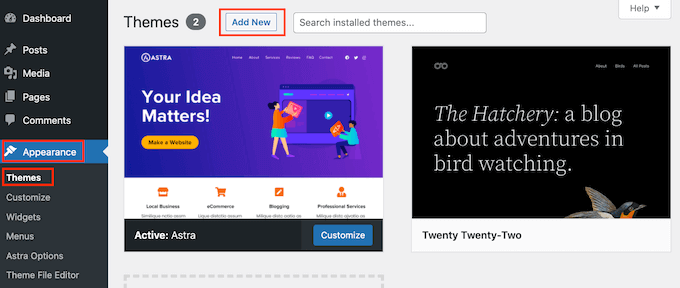
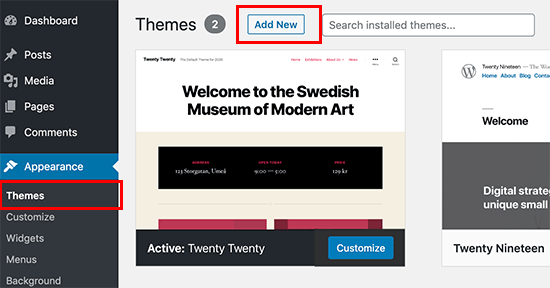
First, go to your WordPress dashboard. Find the Appearance tab. Click it. Then, choose Themes. A new page will show up. Here, you can see your themes.
Want a new theme? Use the search bar. Type what you like. Many themes will appear. Scroll through them. Pick one that you like.
Not sure about the theme? Click on Preview. See how it looks. The preview shows the theme’s design. Check if it fits your website.
Like the theme? Click Activate. Your site will change its look. Now, your new theme is ready. Enjoy the fresh design!
Uploading A Theme From A Third-party
Find a reliable site for themes. Click on the download button. Save the theme file on your computer. Ensure the file is in ZIP format.
Log into your WordPress dashboard. Click on “Appearance”. Then select “Themes”. Press the “Add New” button. Choose “Upload Theme” option.
Click “Choose File”. Select the saved theme file. Press “Install Now”. Wait for the installation. Activate your new theme. Enjoy your new site look!
Credit: thimpress.com
Customizing Your New Theme
The WordPress Customizer helps you change your theme’s look. It’s simple to use. You can find it in the dashboard. Click on “Customize”. Make changes in real-time. See them as you make them. Adjust colors, fonts, and more. Your website can look just how you want. Keep experimenting. Find what suits best.
Change the layout to fit your style. Choose a full-width page. Or, use sidebars. Pick from different templates. Each one gives a new look. Make the design unique to you. Try different layouts. Mix and match elements. Keep your site fresh and appealing.
Widgets add cool features to your site. Drag and drop them. Place them in sidebars or footers. Add a search bar or recent posts. Menus help users navigate. Create clear, simple menus. Add them to the top or side. Keep it easy for visitors. A good menu makes a site user-friendly.
Troubleshooting Common Issues
Struggling to add a new theme to WordPress? Ensure your theme is compatible and properly uploaded. Check for conflicts with plugins or WordPress version.
Theme Conflicts
Sometimes, themes don’t work well together. This is called a theme conflict. To fix this, try deactivating other themes. See if the new theme works. If it does, find the conflicting theme. You may need to choose only one theme to use. This helps make your site run smoothly.
Resolving Activation Problems
Problems can occur while activating a new theme. Start by checking your WordPress version. Ensure it is up-to-date. Then, look at the theme requirements. Make sure your site meets them. If you still face issues, contact theme support. They can provide specific help. This ensures your theme activates correctly.
Dealing With Broken Layouts
A broken layout can be frustrating. First, check your browser compatibility. Some themes work better in certain browsers. Next, review the theme settings. Adjust them to fix the layout. If the problem remains, consider restoring a backup. This can return your site to its original look. Your site should look good now.
Best Practices For Theme Management
Themes need regular updates. Updates fix bugs and improve security. Always check for theme updates. Use the WordPress dashboard. It shows you when updates are ready. Make sure to update them promptly. This keeps your site safe and fast.
Test new themes before using them. Create a staging environment. It’s a safe place to try things out. If things go wrong, your main site stays safe. Install the theme there first. Check if everything works well. See how it looks and feels. Only then, use it on your live site.
Back up your site often. Backups save your work. If something bad happens, you can restore it. Use a backup plugin. Set it to back up daily. Keep copies of your backups safe. Store them on another place like a cloud service. This way, your site is always protected.
Frequently Asked Questions
How Do I Add A New Theme To WordPress?
Go to WordPress dashboard. Click “Appearance” then “Themes. ” Select “Add New. ” Choose a theme, click “Install,” then “Activate. “
How Do I Activate A New Theme In WordPress?
Go to your WordPress dashboard. Click on “Appearance” then “Themes. ” Find your desired theme and click “Activate. “
How Do I Apply A Downloaded Theme?
Open your platform’s dashboard and navigate to the “Themes” or “Appearance” section. Click “Add New” and select “Upload Theme. ” Choose your downloaded theme file, then click “Install” and “Activate. ” Ensure your theme is compatible with your platform for best results.
How Do I Add A Theme Panel In WordPress?
To add a theme panel in WordPress, use a custom theme options framework. Install and activate the framework. Create functions in your theme’s functions. php file. Add options using the framework’s API. Customize settings in the WordPress admin panel. Save changes and refresh your site to see updates.
Conclusion
Adding a new theme to WordPress is simple and rewarding. It changes your site’s appearance and enhances user experience. Choose a theme that fits your site’s purpose. Consider the design, features, and user reviews. Install it through the WordPress dashboard.
Activate it with a single click. Customize it to match your brand’s style. Regular updates keep your theme secure and functional. With these steps, your website will look modern and inviting. Enjoy the new look and improved functionality. Start exploring different themes today and find the perfect match for your website.


