

Are you looking to add a new page to your WordPress site using Elementor but don’t know where to start? You’re in the right place.
Creating a fresh, stunning page can boost your website’s appeal and keep visitors engaged. This guide will walk you through every simple step, so you can build your page quickly and confidently. By the end, you’ll have a beautiful new page ready to impress your audience.
Let’s dive in and make your website stand out!
Credit: elementor.com
Create A New Page In WordPress
Creating a new page in WordPress is simple and quick. It allows you to add fresh content to your website. This step-by-step guide helps you start a new page easily.
Access The WordPress Dashboard
First, log in to your WordPress account. The dashboard is your website’s control center. It shows all the tools you need to build your site.
Navigate To Pages Section
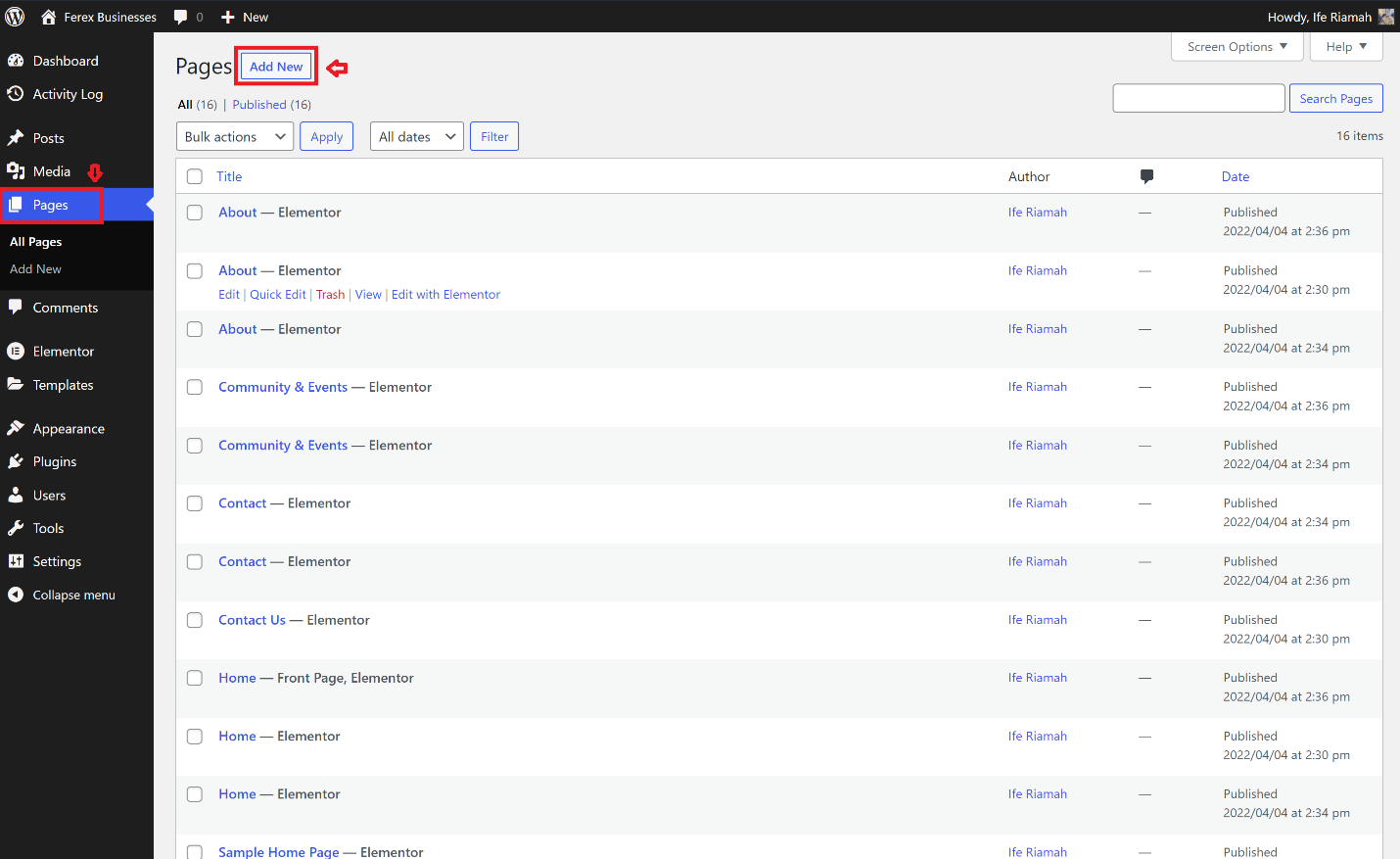
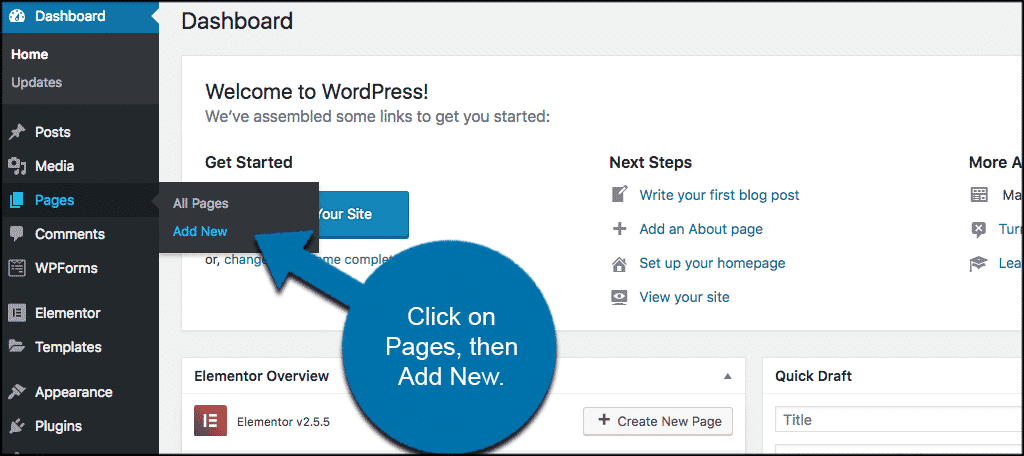
On the left menu, find the “Pages” option. Click it to see all existing pages. This area lets you manage your website’s content.
Add A New Page
Click the “Add New” button at the top. A blank page opens for you to start editing. Give your page a title and add content. Save your work by clicking “Publish”.
Set Up Elementor For The Page
Setting up Elementor for your new page is the next step after creating it. This step lets you design the page with ease. Elementor offers a drag-and-drop editor. It helps create beautiful pages without coding.
This section guides you through setting up Elementor for your new page. Follow simple steps to start editing and customizing your page.
Edit Page With Elementor
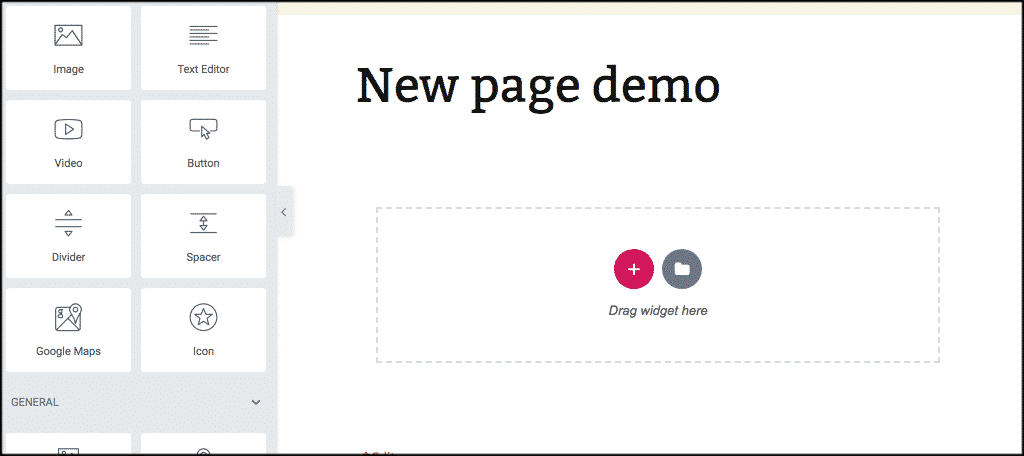
Go to your WordPress dashboard. Find the new page you created. Click on the “Edit with Elementor” button. This opens the Elementor editor. You will see a live preview of your page. Use the sidebar to add widgets like text, images, and buttons. Drag and drop elements to arrange them. Save your work often to avoid losing changes.
Choose A Page Template
Inside Elementor, look for the page settings. Click on the gear icon at the bottom left. Find the “Page Layout” option. Choose a template that fits your design style. Templates can be full width, canvas, or default. Full width removes sidebars for a clean look. Canvas gives a blank page, perfect for landing pages. Select a template that matches your page goal.
Configure Basic Page Settings
Still in the page settings, set the page title and URL. Check the SEO settings if available. Add a meta description to improve search ranking. Set the page visibility to public or private. Adjust the page’s featured image if needed. Configure comments settings to allow or block feedback. Review these basics before publishing your page.
Design Your Page With Elementor
Designing your page with Elementor is simple and fun. This tool helps you create beautiful pages without coding. You can build layouts using drag and drop features. Customize every part of your page to fit your style and needs. Start with a blank canvas and bring your ideas to life easily.
Add Sections And Columns
Sections are the main building blocks of your page. Add a new section by clicking the plus icon. Choose a structure with one or more columns. Columns help organize your content side by side. You can adjust the width of each column to balance your design. This setup makes your page look clean and organized.
Insert Widgets
Widgets are the content elements you add inside columns. Find widgets on the left panel in Elementor. Drag and drop text, images, buttons, or videos onto your page. Each widget serves a purpose like showing text or pictures. Use widgets to add all the information your visitors need.
Customize Widgets And Style
Click a widget to open its settings. Change text, colors, fonts, and sizes easily. Use the Style tab to adjust spacing and backgrounds. You can also add borders or shadows for better effects. Customize each widget to match your brand and look. Small changes make a big difference in design quality.
Optimize Page Layout
Optimizing your page layout improves user experience and keeps visitors engaged. A well-structured page looks clean and professional. It helps readers find information quickly. Elementor offers tools to make your layout responsive and consistent. Use these tips to create a better page that works on all devices.
Adjust Responsive Settings
Check your page layout on different screen sizes. Elementor lets you adjust settings for desktop, tablet, and mobile views. Change font sizes, margins, and padding to fit each device. Hide or show elements depending on the screen. This makes your page easy to read on any device.
Use Global Widgets
Global widgets save time and keep designs uniform. Create a widget once and use it on many pages. Editing the widget updates it everywhere instantly. Use global widgets for headers, footers, or contact forms. This method ensures consistency and simplifies maintenance.
Apply Templates And Blocks
Templates and blocks speed up page building. Elementor provides pre-designed sections and full page templates. Insert these into your page and customize them to match your brand. Using templates keeps your layout professional and saves time. Mix and match blocks for unique designs.
Publish And Manage Your Page
Publishing and managing your page in WordPress Elementor is simple and straightforward. This step ensures your content reaches your visitors quickly. Proper management helps keep your website fresh and updated. Let’s explore how to preview, publish, and edit your page with ease.
Preview Your Page
Before publishing, preview your page to see how it looks. Click the “Preview” button at the bottom of the Elementor panel. This opens a new tab showing your page exactly as visitors will see it. Check for errors, layout issues, or missing elements. Previewing helps you fix problems before going live.
Publish Or Schedule
Once satisfied, you can publish your page immediately. Click the “Publish” button to make your page live. Alternatively, schedule your page for later. Choose a date and time to publish automatically. Scheduling is useful for planning content ahead of time. It keeps your site active without manual work.
Edit Or Update Later
After publishing, you can edit your page anytime. Open the page with Elementor and make changes easily. Click “Update” to save your edits. Regular updates improve user experience and SEO. Keep your content relevant and fresh with simple edits.
Credit: www.greengeeks.com
Troubleshoot Common Issues
Adding a new page in WordPress Elementor is usually smooth. Sometimes, issues appear and slow down your work. Troubleshooting common problems helps save time and keeps your website running well.
Here are some simple ways to fix common Elementor issues. Follow these steps to solve problems fast.
Fix Elementor Loading Problems
Elementor may stop loading or load very slowly. Clear your browser cache first. Try to reload the page after that.
Check your internet connection for stability. Slow networks cause loading delays. Disable any browser extensions that block scripts.
Increase your server’s PHP memory limit. Low memory can cause Elementor to freeze. Ask your hosting provider for help if needed.
Resolve Styling Conflicts
Sometimes, your page style looks wrong or breaks. This happens when CSS from themes or plugins conflicts with Elementor’s styles.
Clear your site cache and browser cache. Refresh the page to see changes. Use the Elementor Safe Mode to test without other plugins.
Try switching to a default WordPress theme temporarily. This helps find if your theme causes style problems.
Check Plugin Compatibility
Plugins can clash with Elementor and cause errors. Deactivate all plugins except Elementor and Elementor Pro.
Activate your plugins one by one. Check the page after each activation. This shows which plugin causes the issue.
Keep all plugins and Elementor updated to their latest versions. Updates fix many bugs and compatibility problems.
Credit: www.greengeeks.com
Frequently Asked Questions
How Do I Create A New Page In Elementor?
To create a new page, go to your WordPress dashboard. Click on Pages > Add New. Then, click “Edit with Elementor” to start designing your page using Elementor’s drag-and-drop builder.
Can I Customize Page Layouts With Elementor?
Yes, Elementor offers flexible layout options. You can choose from pre-built templates or create custom layouts using sections and widgets for a unique design.
How To Publish A New Elementor Page?
After designing your page, click the green “Publish” button in Elementor. This makes your new page live and accessible on your website immediately.
Is Elementor Compatible With All WordPress Themes?
Elementor works well with most WordPress themes. For best results, use themes optimized for Elementor like Hello or Astra for smooth performance.
Conclusion
Adding a new page in WordPress Elementor is simple and quick. You just create the page, open Elementor, and start designing. No coding skills are needed. This tool helps you build pages that look good on any device. Keep practicing to improve your skills.
Soon, making new pages will feel easy and natural. Start today and see how your website grows step by step.


