

Want to make it easy for your visitors to log in right from your WordPress homepage? Adding a login button is a simple but powerful way to improve user experience and keep your site professional.
Whether you run a membership site, an online store, or a blog with exclusive content, having a clear login button helps your users access their accounts quickly. In this guide, you’ll discover straightforward steps to add a login button to your WordPress homepage — no complicated coding needed.
Ready to boost your site’s usability and engagement? Let’s dive in!
Credit: loginpress.pro
Choose A Method
Choosing how to add a login button to your WordPress homepage depends on your needs and skills. Different methods offer various levels of control and design options. Some methods require no coding, while others allow more customization. Select the approach that fits your comfort and site style.
Using WordPress Menu Settings
WordPress lets you add a login link directly in your menu. Go to your dashboard and open Appearance > Menus. Enable the Login/Logout option in Screen Options on top. Then, add the login item to your menu and save. This method is quick and does not need extra plugins. Visitors see the login button as a menu item.
Adding A Login Widget
Widgets can place a login form or button in sidebars or footers. Go to Appearance > Widgets in your dashboard. Find the Login Form block or widget and add it to a widget area. Customize the title and labels to match your site. This method shows the login form without changing menus. It fits well if you want the button outside the main menu.
Installing A Login Plugin
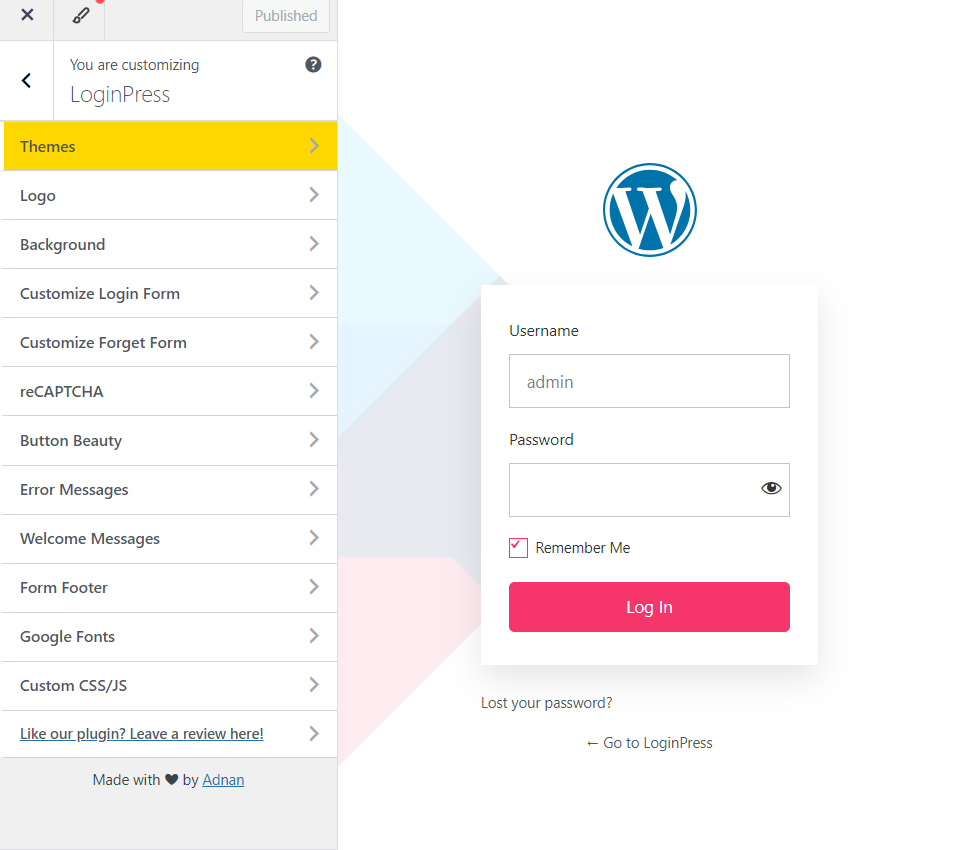
Plugins add extra features and styles for login buttons. In your dashboard, go to Plugins > Add New. Search for login plugins like “LoginPress” or “WPForms.” Install and activate your chosen plugin. Configure the plugin settings to create a login button on your homepage. Plugins often offer more design options and security settings. This method suits users who want advanced control over login appearance.
Credit: wp-glogin.com
Add Login Button Via Menu
Adding a login button to your WordPress homepage improves user experience. A clear login option helps visitors access their accounts quickly. One simple way to add this button is through your menu. This method keeps your site clean and easy to navigate. Follow these steps to add a login button via the menu.
Access Appearance Menus
Start by logging into your WordPress dashboard. On the left side, find the Appearance tab. Click on Menus to open the menu settings. Here, you can choose which menu to edit. Select the menu shown on your homepage. This is where you will add the login button.
Enable Login/logout Option
Look at the top right corner for Screen Options. Click to expand the panel. Check the box labeled Login/Logout. This option will add login and logout links to your menu editor. It allows you to add a dynamic login button that changes based on user status.
Add Login To Menu Items
After enabling the option, find the Login/Logout section in the menu panel. Select the Login link and click Add to Menu. The login button will appear in your menu structure. Drag it to the position you want it to show on your site. Finally, click Save Menu to apply the changes.
Use Login Widget On Homepage
Adding a login button on your WordPress homepage helps visitors access their accounts easily. The login widget is a simple tool to place a login form directly on the homepage. This method requires no coding and works well for most themes. It improves user experience by making login quick and visible.
Navigate To Widgets Section
First, log in to your WordPress dashboard. Go to Appearance and select Widgets from the menu. This area shows all widget-ready sections of your website. Find the widget area linked to your homepage. It might be named “Homepage Sidebar” or “Front Page.”
Add Login Form Block
Click the + Add Block button within the widget section. Scroll down to find the Widgets category. Select the Login Form block to add it to your homepage widget area. This block creates a simple login form for users.
Customize Widget Settings
After adding the login form, customize the widget settings. Set a clear title like “User Login” to guide visitors. Adjust labels and button text if needed. Choose to show or hide options such as “Remember Me.” Save your changes. Preview your homepage to ensure the login form appears correctly.
Install And Configure Plugins
Adding a login button to your WordPress homepage improves user experience. Plugins make this process simple and effective. Installing and configuring the right plugin ensures a smooth login feature on your site.
Find Suitable Login Plugins
Start by searching for login plugins that fit your needs. Use keywords like “login button” or “login form” in the WordPress plugin directory. Look for plugins with good ratings and recent updates. Check if they support your WordPress version and are easy to use.
Install And Activate Plugin
Go to your WordPress dashboard and open the Plugins menu. Click on “Add New” and enter the plugin name in the search bar. Click “Install Now” and wait for the process to finish. Then, click “Activate” to enable the plugin on your site.
Adjust Plugin Settings
After activation, find the plugin’s settings in the dashboard. Customize the login button’s appearance and placement. Set options like redirect URLs and user roles. Save changes and test the login button on your homepage to ensure it works correctly.
Place Login Button In Header
Placing a login button in your WordPress header makes it easy for visitors to access their accounts. The header is a prime spot because it appears on every page. This visibility encourages users to log in quickly without searching.
Adding the login button near the header menu keeps your site navigation clean and user-friendly. Follow these steps to place the button effectively and ensure it works smoothly.
Add Login Block Near Header Menu
Open your WordPress dashboard and go to Appearance > Customize. Select the Header or Menu area depending on your theme. Click the plus (+) icon to add a new block. Search for the Login or Button block and add it next to your menu items. Adjust the position by dragging the block if your theme allows.
Select Button Layout
Choose a button style that matches your site design. Simple layouts work best for clarity. Pick a color that stands out but fits your color scheme. Set the button text to “Login” or “Sign In” for easy understanding. Some themes let you customize size and font style for better visibility.
Test Button Functionality
Save your changes and visit your homepage. Click the login button to check if it leads to the login page. Test it on mobile and desktop for consistency. Ensure the button is responsive and easy to tap on smaller screens. Fix any issues in the block settings or with your theme’s support.
Add Social Login Options
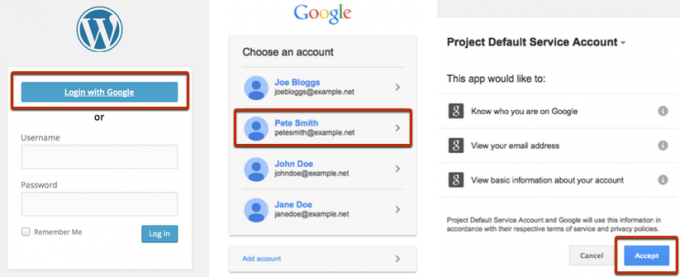
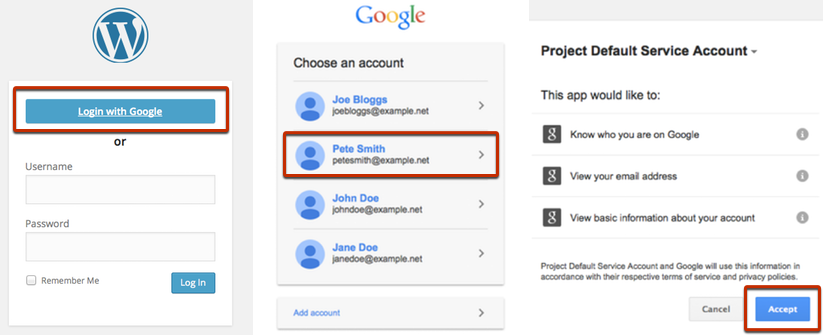
Adding social login options to your WordPress homepage makes it easier for visitors to sign in. Social login lets users access your site using accounts from platforms like Google or Facebook. This method saves time and improves user experience.
Implementing social login requires a few simple steps. First, select a plugin that supports social login. Then, configure Google or Facebook login details. Finally, place the social login buttons on your homepage for easy access.
Choose Social Login Plugin
Select a plugin that fits your needs and supports popular social platforms. Check plugin ratings and reviews to ensure reliability. Popular choices include “Nextend Social Login” and “WP Social Login.” Install the plugin through your WordPress dashboard under Plugins > Add New. Activate the plugin after installation.
Set Up Google Or Facebook Login
Create developer accounts on Google or Facebook to get API keys. These keys connect your website to the social login service. Follow the plugin instructions to enter these keys in the plugin settings. Set permissions to access user email and profile information. Save your settings to enable the social login feature.
Integrate Social Buttons On Homepage
Go to your homepage editor or widget area where you want the buttons. Use the plugin’s shortcode or block to add social login buttons. Arrange buttons to match your site design for a clean look. Test the buttons to confirm they work correctly. Visitors can now log in quickly using their social accounts.
Customize Login Button Design
Customizing the login button design helps your website look professional and user-friendly. A well-designed button invites visitors to sign in easily. Focus on simple changes that improve the button’s appearance and function. Adjust the text, add icons or animations, and make sure it works well on all devices.
Change Button Text And Style
Start by changing the button text to something clear and inviting. Use words like “Sign In” or “Log In” that users recognize quickly. Next, adjust the button style using colors and fonts that match your site’s theme. Use CSS to change the background color, font size, and border shape. Keep the design simple for easy reading and quick clicks.
Add Icons Or Animations
Adding icons can make the login button more noticeable. Use a small user or lock icon beside the text for clarity. Simple animations, like a hover effect, can also draw attention. For example, the button can change color or slightly grow when hovered over. These effects make the button feel interactive and modern.
Ensure Mobile Responsiveness
Check that the login button looks good on all screen sizes. On mobile devices, the button should be easy to tap with a finger. Make sure the button resizes correctly and does not overlap other page elements. Use responsive CSS techniques to keep the button accessible and visible on phones and tablets.
Credit: wp-glogin.com
Test And Troubleshoot
Testing and troubleshooting ensure your login button works well on your WordPress homepage. It helps catch errors early and improves user experience. Follow these steps to verify and fix any issues quickly.
Verify Button Visibility
Check if the login button appears on your homepage. Refresh the page and look in the expected area. Use different browsers to see if it shows everywhere. Clear your cache if the button is missing. Make sure your theme or plugin settings do not hide the button.
Check Login Functionality
Click the login button to test its action. Confirm it directs users to the login page. Try logging in with a test account. Verify the login process completes without errors. Ensure the button also works on mobile devices.
Fix Common Issues
Clear browser cache if the button does not appear. Disable conflicting plugins that might block the button. Check your theme for custom code hiding the button. Update WordPress, themes, and plugins to the latest versions. Review user roles and permissions affecting login access.
Frequently Asked Questions
How Do I Add A Login Button In WordPress?
Log in to your WordPress dashboard. Go to Appearance > Menus and enable Login/Logout in Screen Options. Add the Login item to your menu and save changes.
How Do I Add A Login To A WordPress Page?
Log in to your WordPress dashboard. Go to Appearance > Widgets or Menus. Add the Login Form block or Login menu item. Customize settings and save changes.
How Do I Add A Login Plugin In WordPress?
Log in to your WordPress dashboard. Go to Plugins > Add New. Search for a login plugin. Click Install Now and Activate it. Configure settings as needed.
How To Create A Front-end Login Page In WordPress?
Install a login plugin or use a shortcode to create a front-end login page. Customize it via Appearance > Widgets or Menus.
Conclusion
Adding a login button to your WordPress homepage makes access easy for users. You can follow simple steps without coding knowledge. Use built-in menus or plugins to create a clear login option. This improves user experience and site navigation. Keep your button visible and straightforward for best results.
Try it today to help visitors log in quickly and smoothly.


