
Are you finding it tricky to add a line break in your Genesis WordPress theme? You’re not alone.
Many users struggle with this seemingly simple task. But don’t worry, you’ve come to the right place. You’ll discover easy methods to add line breaks that will make your content more readable and visually appealing. Imagine creating a post that flows beautifully, with each thought clearly separated.
Line breaks play a crucial role in achieving this. They help maintain your reader’s focus, making your content engaging and easy to digest. If you’ve been wondering how to enhance your WordPress posts, mastering line breaks could be your secret weapon. Keep reading, and you’ll soon be able to transform your Genesis theme into a polished and professional-looking site. By the end of this article, you’ll feel confident in organizing your content effortlessly, ensuring your readers have the best experience possible.
Credit: www.wpkube.com
Genesis Theme Overview
The Genesis Theme is popular. It makes WordPress websites look nice. It is easy to use. People love its clean design. It is also fast. It helps websites load quickly. It is secure. It keeps websites safe from hackers.
- SEO Friendly: Helps your site rank better.
- Responsive Design: Looks good on phones and computers.
- Widget Areas: Add extra info easily.
- Theme Options: Change colors and fonts.
Genesis allows easy changes. You can change the look. Pick colors you like. Choose fonts that fit your style. Add widgets to your site. Make your site special. You can also change the layout. Pick from many options. Make your site unique.
Line Break Basics
Line breaks make text easier to read. In HTML, use the
Adding a line break in HTML is simple. Use the
CSS offers more style options. Use margin or padding for space. This way, you control how much space appears. It makes text look neat. Combine CSS with HTML for better results.
Using WordPress Editor
The Classic Editor is simple to use. Click where you need the line break. Press the “Enter” key on your keyboard. This creates a new line. It’s that easy! For a paragraph break, press “Enter” twice. You can see the changes right away. This editor is perfect for beginners. It keeps everything neat and tidy. No extra steps needed.
The Block Editor is flexible. Use a Paragraph block for text. To add a line break, press “Shift + Enter”. This keeps text in the same block. For a new paragraph, use the “Enter” key. Each block can hold different types of content. It’s fun to mix text with images. Blocks help in organizing your content well.

Credit: easywebdesigntutorials.com
Custom Css For Line Breaks
Adding line breaks with custom CSS is simple. First, go to your WordPress dashboard. Navigate to Appearance and click on Customize. Then, open the Additional CSS section. Here, you can add your custom CSS code.
To create a line break, use the
tag in your HTML. However, for styling, add a class in your CSS. For example:
            .line-break {
                margin-top: 10px;
                margin-bottom: 10px;
                border-bottom: 1px solid #ccc;
            }
Apply this class to any HTML element. It will add a styled line break. Customize the margin and border as needed. This method keeps your design clean and consistent.
Styling line breaks can enhance your page’s look. Use the CSS class you created. You can adjust colors and thickness. This makes your content more engaging. Remember, simple styles often look best.
Plugins For Line Breaks
Adding line breaks in the Genesis WordPress theme is easy with plugins. These tools help format text neatly. Enjoy a cleaner, more organized layout for your website content.
Popular Plugins
Many plugins help add line breaks in Genesis WordPress. WP Edit is a popular choice. It offers a simple way to add breaks. TinyMCE Advanced is another favorite. It enhances the editor with more tools. Line Break Shortcode is easy to use. It allows custom breaks with shortcodes. Each plugin has its own features. Choose one that fits your needs best.
Plugin Installation
Installing plugins is easy. First, go to the WordPress dashboard. Click on “Plugins.” Then, click “Add New.” Search for your chosen plugin. When you find it, click “Install Now.” Wait for it to finish. After that, click “Activate.” Your plugin is ready to use. Check settings for best use. Follow guides if needed. Enjoy the new features it brings.
Troubleshooting Line Break Issues
Many face issues with line breaks in Genesis themes. Sometimes, spaces don’t show up. This makes text look messy. Line breaks might disappear after saving. It’s frustrating. These issues make sites hard to read. Users may leave. Finding the cause is key. It may be a theme setting. Or a plugin conflict.
First, check your theme settings. Look for formatting options. Ensure that line breaks are allowed. Next, disable all plugins. Reactivate them one by one. This helps find conflicts. Use the text editor, not visual. It keeps line breaks in place. Always preview changes before saving. This ensures line breaks stay.
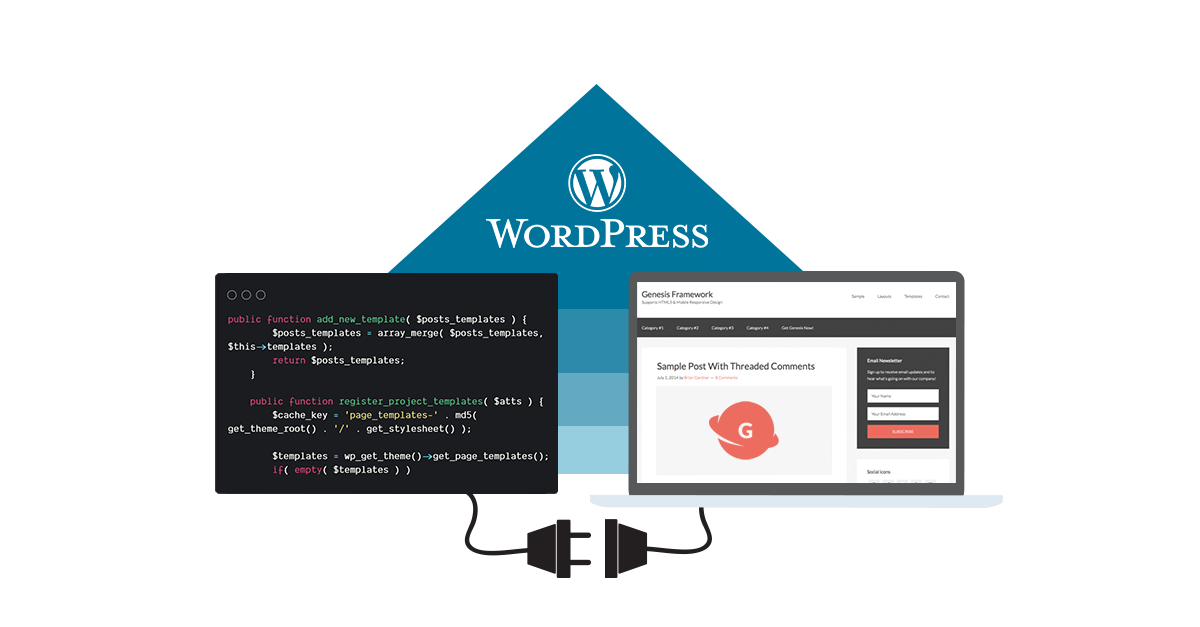
Credit: designhammer.com
Frequently Asked Questions
How Do You Add A Line Break In WordPress?
Press “Shift + Enter” to add a line break in WordPress. This creates a single line space. Use the “Enter” key for a new paragraph. Adjust spacing in the editor settings for more control over formatting. Ensure your theme supports these formatting options for best results.
How Do You Add A Line Break?
Press “Enter” to add a line break in text editors. Use “
” in HTML for web content.
How Do You Add A Line Break In Visual Studio?
Press “Shift + Enter” to add a line break in Visual Studio. This creates a new line without breaking the current code block or statement. Use this shortcut for better code organization and readability.
How Do I Insert A Line Break In Genesis?
To insert a line break in the Genesis theme, switch to the text editor. Use the HTML tag `
` where you want the break. Ensure you’re in the correct editor mode to avoid HTML being stripped out.
Conclusion
Adding a line break in the Genesis WordPress theme is simple. With our step-by-step guide, you can easily format your content. This ensures your text looks clean and organized. A well-structured blog enhances readability. Engaging your audience becomes easier. Remember, small changes can make a big difference.
Practice these tips to improve your site’s appearance. Keep experimenting with your blog’s layout. Happy blogging with Genesis!


