
Want to make your WordPress posts easier to navigate? Adding jump links lets your readers jump straight to the section they want, saving them time and keeping them engaged.
If you’ve ever scrolled endlessly looking for specific info, you know how frustrating it can be. By learning how to add jump links, you give your audience a smoother experience and keep them coming back for more. You’ll discover simple, step-by-step instructions to add jump links in WordPress—no tech skills needed.
Ready to boost your site’s usability and keep your readers hooked? Let’s get started!
Why Use Jump Links
Jump links help users reach specific parts of a page quickly. They make long content easier to use. Visitors can jump straight to the information they want. This simple tool improves how people interact with your site.
Enhancing User Experience
Jump links save time by skipping unnecessary content. Users feel more in control of their visit. They reduce frustration on lengthy pages. Clear paths make reading smooth and enjoyable.
Improving Navigation
Jump links act like a map inside your page. They guide visitors directly to important sections. Navigation becomes faster and less confusing. This keeps users on your site longer.
Boosting Seo
Search engines favor well-structured pages. Jump links show clear content hierarchy. They help bots understand your page better. This can improve your site’s ranking in search results.
Credit: kinsta.com
Preparing Your WordPress Page
Preparing your WordPress page is the first step to add a jump link. It helps your readers find important sections fast. Clear planning makes your page user-friendly. This improves navigation and keeps visitors engaged. Follow simple steps to prepare your content before adding jump links.
Identifying Target Sections
Start by finding the sections you want to link. These are usually headings or important parts of your page. Choose areas that visitors will want to jump to directly. These might be product details, FAQs, or key information blocks. Mark these spots clearly in your draft or editor. This makes it easy to add jump links later.
Choosing Anchor Text
Pick short, clear anchor text for each jump link. This text acts as the clickable link that leads to the target section. Use simple words that describe the section well. Avoid long or confusing phrases. Good anchor text helps readers understand where the link will take them. It also improves your SEO by using relevant keywords.
Creating Anchor Points
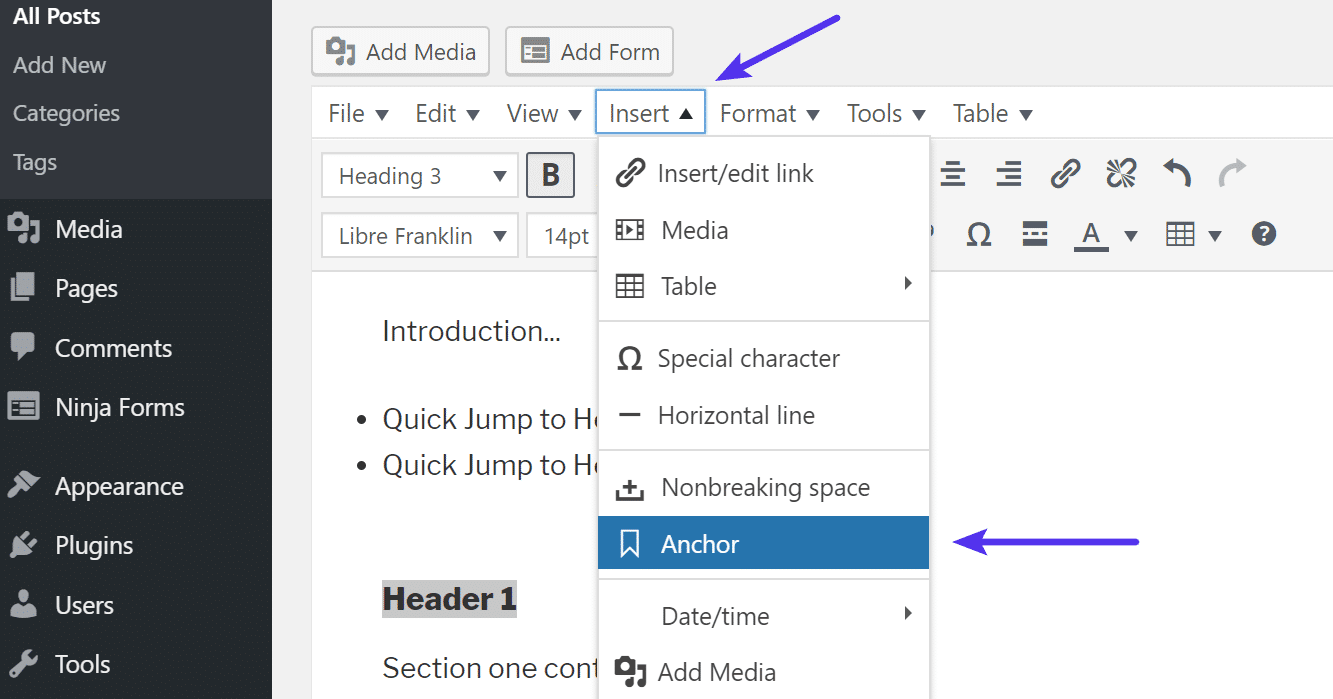
Creating anchor points is the first step in adding jump links to your WordPress page. Anchor points mark the exact spot where the page will jump. They act like bookmarks within the content. Setting these anchors correctly helps visitors navigate easily. This improves user experience and keeps readers engaged.
Using Html Anchors
HTML anchors use the tag with a name or ID attribute. The ID attribute is more common today. It looks like this: . Place the anchor tag before the heading or content you want to jump to. This tag creates a target for your jump link.
Adding Id Attributes In Gutenberg
The Gutenberg editor lets you add ID attributes without code. Click the block you want as an anchor point. In the block settings on the right, find the ‘Advanced’ section. Enter a unique ID in the ‘HTML anchor’ field. Use simple words and no spaces. This ID will link to your jump link.
Assigning Ids In Classic Editor
In the Classic Editor, switch to the ‘Text’ tab to see HTML code. Find the heading or element where you want to add the anchor. Add an ID attribute like this: Your Heading
Credit: bdthemes.com
Adding Jump Links
Adding jump links in WordPress helps visitors navigate your page easily. It guides users to specific sections without scrolling. This improves user experience and keeps readers engaged longer.
Creating jump links involves linking text, buttons, or images to an anchor point on the page. Each method works well depending on your page design and goals.
Inserting Links In Text
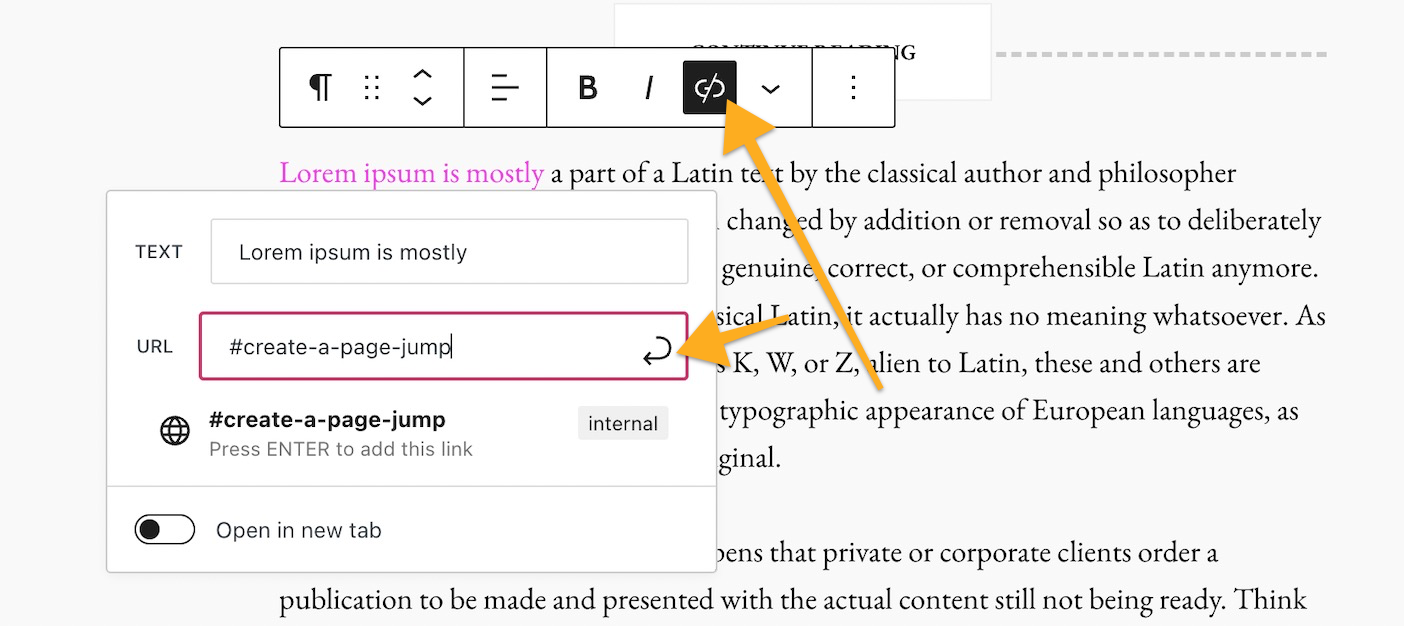
Start by selecting the text you want to turn into a jump link. Click the link icon in the WordPress editor toolbar. Enter the ID of the target section, preceded by a hash (). For example, use section1 to link to an element with the ID “section1”.
Make sure the target section has the matching ID in its HTML or block settings. This method is simple and works well in paragraphs or lists.
Linking Buttons And Images
Buttons and images can also serve as jump links. Select the button or image in the editor. Open the link settings and type the anchor ID starting with a hash (). For example, contact links to a contact section.
This approach makes navigation clear and visually appealing. Users see clickable elements that lead directly to important parts of your page.
Utilizing Menus For Jump Links
Menus offer a neat way to add jump links site-wide. Go to Appearance > Menus in your WordPress dashboard. Choose Custom Links and add the URL with the anchor, such as about.
Add a label for the menu item. Save the menu and check the links on your page. This method helps visitors jump to sections from any page with the menu.
Testing Your Jump Links
Testing your jump links is important. It ensures your visitors can navigate smoothly. Broken or faulty links hurt user experience and SEO rankings. Always verify jump links work before publishing your page. Testing helps avoid frustration and keeps readers engaged.
Checking Link Functionality
Click each jump link on your page. Confirm it jumps to the correct section instantly. Watch for delays or unexpected page movement. If the link does not respond, check the anchor ID matches the link target. Fix any typos or missing characters in the code. Test multiple links if your page has many jump points.
Ensuring Cross-browser Compatibility
Test your jump links in different web browsers. Use Chrome, Firefox, Safari, and Edge at least. Each browser may handle jump links slightly differently. Make sure the links work smoothly on all platforms. Also, check your site on mobile browsers. This guarantees all visitors enjoy a seamless experience.
Tips To Optimize Jump Links
Optimizing jump links helps visitors navigate your WordPress site smoothly. Well-optimized jump links improve user experience and site engagement. Simple tweaks can make your links clear and useful. This section offers practical tips to enhance your jump links.
Keeping Links Descriptive
Use clear and specific text for jump links. Describe the section the link leads to. Avoid vague words like “click here” or “read more.” Descriptive links help users understand what to expect. It also improves SEO by giving search engines context.
Avoiding Overuse
Limit the number of jump links on a single page. Too many links can confuse visitors and clutter your content. Use jump links only for important sections. Focus on key points to keep navigation simple. This keeps the page clean and easy to use.
Combining With Smooth Scrolling
Add smooth scrolling to jump links for better flow. This feature moves the page gently to the target section. It reduces sudden jumps that can confuse users. Smooth scrolling makes navigation feel natural and pleasant. Many WordPress plugins offer easy ways to enable this effect.
Credit: wordpress.com
Frequently Asked Questions
What Is A Jump Link In WordPress?
A jump link in WordPress is an anchor link that directs users to a specific section of a page. It improves navigation by allowing quick access to relevant content without scrolling.
How Do I Create A Jump Link In WordPress?
To create a jump link, add an HTML anchor ID to your target section. Then, link to that ID using a hashtag () followed by the anchor name in your link.
Can Jump Links Improve WordPress Seo?
Yes, jump links enhance user experience by making content easier to navigate. This can reduce bounce rates and increase engagement, positively affecting SEO rankings.
Are Jump Links Compatible With All WordPress Themes?
Most modern WordPress themes support jump links because they rely on standard HTML. However, it’s best to test your theme to ensure smooth functionality.
Conclusion
Adding jump links in WordPress makes your content easy to navigate. Readers find information quickly without scrolling too much. The process is simple and takes just a few steps. You can link to any section on your page smoothly. This helps keep visitors engaged and improves user experience.
Try using jump links in your posts today. Watch how your site feels more organized and friendly. Small changes like this can make a big difference. Keep your website clear and helpful for all readers.


