
Are you ready to make your WordPress site stand out with a stunning homepage? Adding a homepage is one of the first steps to creating a strong online presence.
But if you’re new to WordPress, it might feel a bit confusing. Don’t worry—this guide will walk you through the process step-by-step. By the end, you’ll have a homepage that grabs attention and keeps visitors coming back. Let’s dive in and turn your website into something truly memorable!
Credit: www.wpexplorer.com
Choosing Your Homepage Type
Choosing the right homepage type shapes your website’s first impression. It directs visitors to your key content. Selecting between a static page and latest posts affects how users interact with your site. Understanding each type helps you pick the best fit for your goals.
Static Page Vs Latest Posts
A static page stays the same for all visitors. It shows fixed content like a welcome message or business info. This option suits sites that need a clear introduction.
Latest posts update automatically as you publish new articles. Visitors see fresh content first, ideal for blogs or news sites. It keeps the homepage dynamic and engaging.
Decide based on your website’s purpose. Static pages offer control. Latest posts offer freshness.
Benefits Of A Custom Homepage
A custom homepage lets you combine text, images, and links. It highlights your best work or important services. You control the layout and message clearly.
This approach improves user experience. Visitors find key info quickly. It helps guide actions like signing up or contacting you.
Custom homepages can increase engagement and conversions. They make your site look professional and unique.
Credit: cyberchimps.com
Creating A New Homepage
Creating a new homepage in WordPress gives your site a fresh look. It helps guide visitors to important information. This section shows how to create a homepage step-by-step. The process is simple and fast. Anyone can do it with little experience.
Adding A New Page
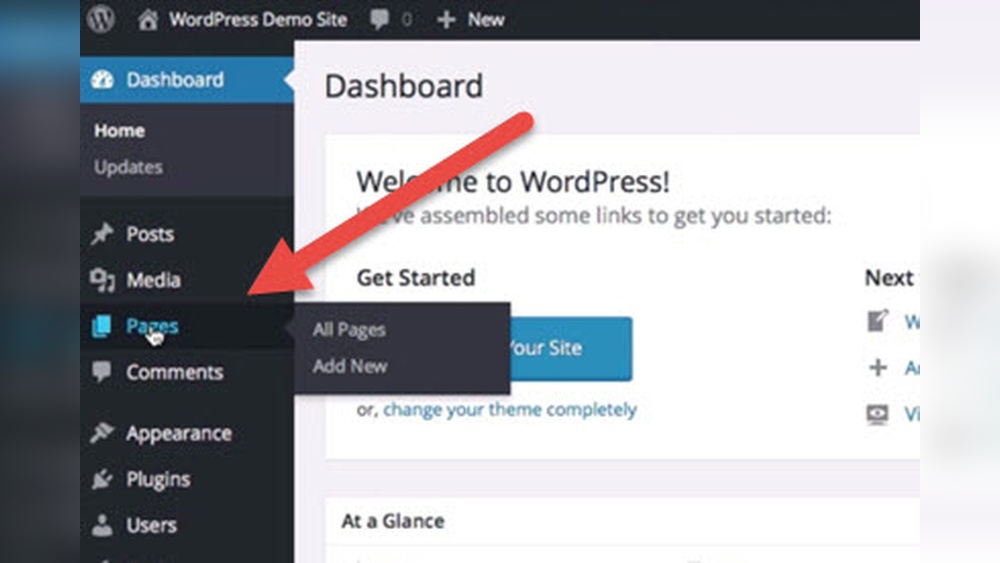
Start by logging into your WordPress dashboard. Find the “Pages” menu and click “Add New.”
Give your new page a clear title like “Home.” This helps visitors know they are on your homepage.
Leave the page blank for now. You will add content next.
Click “Publish” to save your new page. It is now ready to become your homepage.
Designing Your Homepage Content
Think about what visitors should see first on your homepage. Use simple text to explain your site.
Add images that match your message. Pictures catch attention and make the page lively.
Use headings to organize your content. Headings make it easier to read and scan.
Keep paragraphs short. Short sentences help visitors understand your message quickly.
Add buttons or links for important pages. This guides visitors to explore your site.
Setting The Homepage In WordPress
Setting the homepage in WordPress helps visitors see your main content first. You can choose a page or your latest posts as the homepage. This setting controls what people see when they visit your site’s main URL. It is easy to change and customize to fit your needs.
Accessing Reading Settings
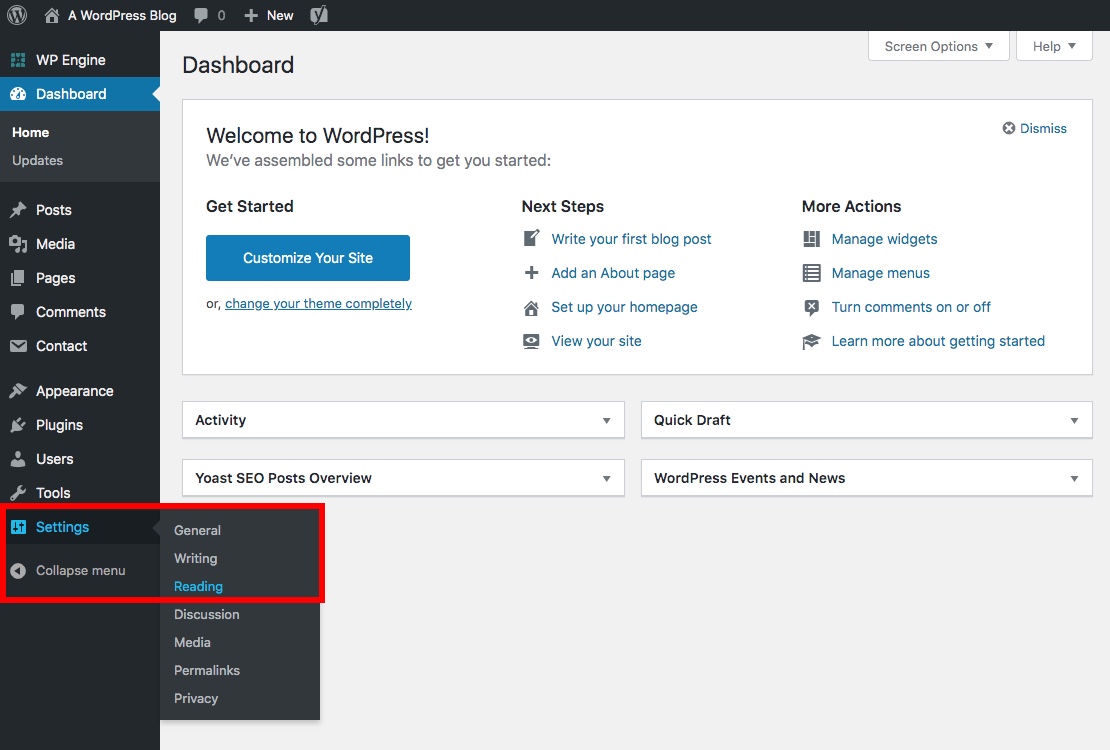
Log into your WordPress dashboard. On the left menu, find and click Settings. Under this, select Reading. This opens the Reading Settings page. Here, you control how your homepage displays. It is the place to set your homepage and blog page.
Selecting Your Homepage
Inside Reading Settings, look for Your homepage displays. Choose A static page to set a specific page as your homepage. Then, use the dropdown menu to pick the page you want. You can also select a different page for your posts if you want. Save changes by clicking the Save Changes button at the bottom.

Credit: docs.presscustomizr.com
Customizing The Homepage Layout
Customizing the homepage layout helps make your website unique. It guides visitors and shows the most important content first. With WordPress, you can change the look and feel without coding. Simple tools help you design a homepage that fits your style and goals.
Using Page Builders
Page builders let you design your homepage with drag-and-drop tools. You can add text, images, and buttons easily. These builders show you a live preview while editing. Popular page builders like Elementor or Beaver Builder work well. They give control over columns, backgrounds, and spacing. This makes your homepage look professional and clean.
Adding Widgets And Sections
Widgets add extra features to your homepage. You can place them in sidebars or footers. Common widgets include search bars, recent posts, and social icons. Sections help organize content into blocks. Use them to separate different topics or services. Both widgets and sections improve user experience and navigation.
Optimizing Homepage For Performance
Optimizing your WordPress homepage for performance improves user experience. Visitors expect pages to load fast and work well on all devices. A slow homepage can increase bounce rates and hurt your search rankings. Focus on key areas to make your homepage quick and responsive. This helps keep visitors engaged and encourages them to explore your site more.
Image Optimization
Large images slow down your homepage. Use compressed images with the right dimensions. Choose JPEG for photos and PNG for graphics with few colors. Use plugins or online tools to reduce image file size. Add alt text to improve SEO and accessibility. Lazy loading delays off-screen images, speeding up initial load time.
Speed And Mobile Responsiveness
Use a fast web hosting service to improve loading times. Minimize the use of heavy scripts and plugins. Enable caching to store page copies for faster delivery. Test your homepage speed with tools like Google PageSpeed Insights. Make sure your design adjusts to different screen sizes. A mobile-friendly homepage ranks better and keeps visitors longer.
Troubleshooting Common Issues
Troubleshooting common issues is important after adding a homepage to WordPress. Problems may stop your homepage from showing correctly. Fixing these fast keeps your site working well and visitors happy. This guide covers common errors and how to solve them simply.
Homepage Not Displaying Correctly
Your homepage may look wrong or not update. Sometimes, the wrong page is set as the homepage. Check this in the WordPress dashboard under Settings > Reading. Make sure the correct page is selected as the homepage.
Theme conflicts can also change the homepage look. Try switching to a default WordPress theme like Twenty Twenty-One. If the homepage looks right, your theme may need fixing or updating.
Plugins can cause display issues too. Deactivate all plugins, then check the homepage. Turn plugins back on one by one. This finds the one causing the problem.
Permalink And Cache Problems
Permalink settings affect how your homepage URL works. Go to Settings > Permalinks and click “Save Changes” without changing anything. This refreshes the links and can fix homepage loading problems.
Cache stores old versions of your site. This can stop homepage updates from showing. Clear your browser cache first. Then clear your WordPress cache if you use a caching plugin. Also, clear cache from your hosting provider if available.
Sometimes, caching at multiple levels causes issues. Clear cache on all layers to see changes on your homepage. This helps keep your homepage current and error-free.
Frequently Asked Questions
How Do I Set A Homepage In WordPress?
Go to WordPress dashboard, click Settings > Reading. Select “A static page” and choose your homepage. Save changes.
Can I Use A Blog Post As My Homepage?
Yes, under Settings > Reading, select “Your latest posts” to display blog posts on the homepage.
How To Create A Custom Homepage In WordPress?
Create a new page in WordPress, design it using the editor or page builder, then set it as homepage in Settings > Reading.
Does Changing Homepage Affect Seo In WordPress?
Changing your homepage can impact SEO if URLs or content structure change. Use redirects if needed to maintain SEO.
Conclusion
Adding a homepage to WordPress is simple and quick. You can create a clear starting point for your visitors. This helps people find your main content easily. Choose a page, set it as your homepage, and customize it. Small steps lead to a better website experience.
Keep your homepage updated and easy to read. A good homepage invites visitors to explore more. Try these tips today and improve your WordPress site.


