

Are you looking to make your WordPress site more engaging and visually appealing? Adding a gallery is one of the best ways to showcase your photos, products, or projects in a clean and organized way.
But if you’ve never done it before, it might feel a bit tricky. Don’t worry—you’re in the right place. You’ll learn simple, step-by-step methods to add a stunning gallery to your WordPress site quickly. By the end, you’ll have the tools to captivate your visitors and keep them coming back for more.
Ready to transform your website? Let’s dive in!
Choosing The Right Gallery Plugin
Choosing the right gallery plugin is important for your WordPress site. A good plugin makes your images look great. It also helps your site run smoothly. Not all plugins offer the same features. Some are free, while others cost money. Picking the best one depends on your needs and budget.
Consider how easy the plugin is to use. Look for features like responsive design and customization options. Check if the plugin works well with your current WordPress theme and other plugins. A well-chosen gallery plugin improves user experience and site performance.
Popular Free Plugins
Many free gallery plugins offer solid features. They work well for simple image displays. Examples include Envira Gallery Lite, NextGEN Gallery, and Photo Gallery by 10Web. These plugins allow basic customization and easy image uploads. Free plugins are good to start with. They often have upgrade options if you need more features later.
Premium Options
Premium gallery plugins provide extra tools and support. They usually have advanced layouts and effects. Examples are Envira Gallery Pro, Modula Pro, and FooGallery Pro. These plugins offer better speed and SEO settings. Premium plugins often include priority support. They suit users who want more control and professionalism.
Plugin Compatibility
Check if the gallery plugin works with your WordPress version. Make sure it fits your theme and other plugins. Compatibility prevents site errors and slowdowns. Test the plugin on a staging site first. Read user reviews about conflicts or bugs. A compatible plugin ensures smooth operation and better user experience.
Preparing Your Images
Preparing your images is an important step before adding a gallery to WordPress. Well-prepared images load faster and look better. Proper preparation helps your site run smoothly and improves user experience.
Optimizing Image Size
Large images slow down your website. Resize images to fit your gallery space. Use tools like Photoshop or free online compressors. Aim for a file size under 200 KB for faster loading. Smaller images keep your gallery responsive and quick.
Naming And Organizing Files
Give your images clear, descriptive names. Use words that describe the image content. Avoid spaces and special characters; use hyphens instead. Organize images into folders by topic or date. This makes it easier to find and upload files later.
Choosing Image Formats
Select the right format for your images. Use JPEG for photos with many colors. PNG works well for images with transparency or text. WebP offers good quality with smaller sizes but check browser support. Correct formats improve image clarity and page speed.
Creating A Gallery With WordPress Block Editor
Creating a gallery with the WordPress Block Editor is simple and quick. It helps you display multiple images neatly on your page or post. The editor offers a special block designed just for galleries. You can add photos directly from your computer or choose from your media library. Adjusting the layout and look of your gallery is easy too. This way, your images will look great on any device.
Adding The Gallery Block
Open your WordPress post or page. Click the plus (+) icon to add a new block. Search for the “Gallery” block in the block menu. Select it, and the block will appear in your editor. Now you are ready to add images to your gallery.
Uploading And Selecting Images
Click the “Upload” button to add new images from your computer. Or choose “Media Library” to pick photos you already uploaded. Select one or many images for your gallery. After selection, click “Create a new gallery.” The images will load inside the gallery block. You can rearrange them by dragging and dropping.
Customizing Gallery Layout
The Block Editor lets you change the gallery’s look easily. Choose the number of columns to show images side by side. You can set it from one to several columns. Pick the image size that fits your page best. Toggle options like cropping images to keep them uniform. Add captions under each photo if you want. These settings make your gallery clear and attractive.
Using A Gallery Plugin For Advanced Features
Using a gallery plugin offers more control and creative options for your WordPress galleries. Plugins often include features like lightboxes, filters, and customizable layouts. These tools help your images look professional and fit your website style.
Plugins also make managing many images easier. You can organize photos, add captions, and change settings without hassle. This method saves time and gives your site a polished look.
Installing And Activating The Plugin
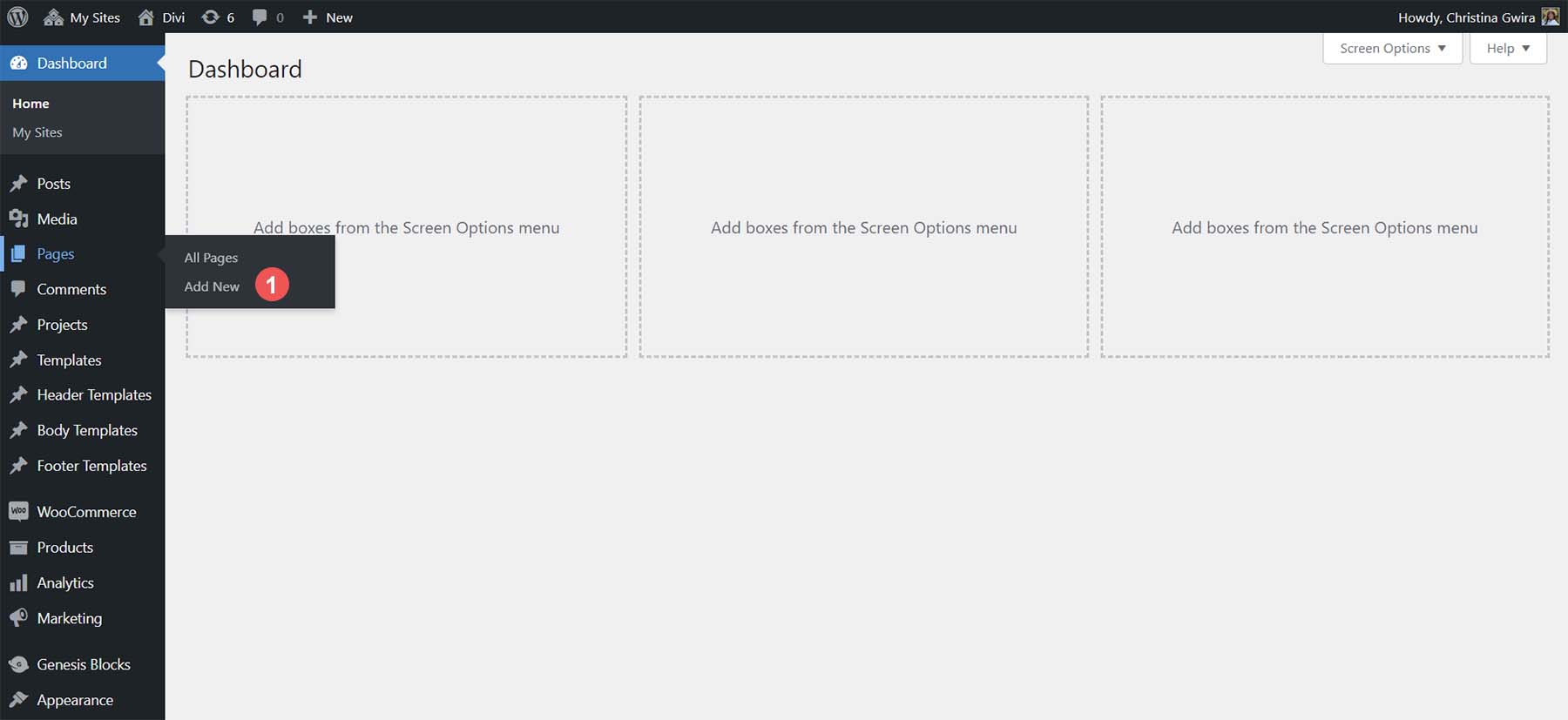
First, go to your WordPress dashboard. Click on “Plugins” and then “Add New.”
Search for a gallery plugin that fits your needs, like “Envira Gallery” or “NextGEN Gallery.”
Click “Install Now” next to the plugin name. After installation, click “Activate.”
The plugin is now ready to use on your site.
Configuring Gallery Settings
After activation, find the plugin menu in the dashboard. Open it to access settings.
Adjust layout options such as grid style, columns, and spacing between images.
Set up lightbox effects if you want images to open in a larger view.
Choose image sizes and enable captions or descriptions if needed.
Save your settings to apply changes to all galleries.
Adding Galleries To Posts And Pages
To add a gallery, open the post or page editor.
Look for the plugin’s gallery button or block in the editor toolbar.
Select images from your media library or upload new ones.
Arrange images in your preferred order and apply any custom settings.
Insert the gallery into your content and preview the page.
Publish when satisfied with the gallery’s appearance.
Customizing Gallery Appearance
Customizing the appearance of your WordPress gallery makes it more attractive and user-friendly. Simple changes can improve how visitors see your images. You can change how many columns the gallery has, add space between pictures, and make photos open in a larger view. Adding captions and titles also helps explain the images better. These small tweaks enhance the overall look and feel of your site.
Adjusting Columns And Spacing
WordPress lets you set the number of columns in your gallery. Choose fewer columns for bigger images or more columns for smaller ones. You can also change the spacing between photos to avoid crowding. This adjustment makes your gallery look neat and balanced on the page.
Enabling Lightbox Effects
A lightbox effect shows a larger version of an image when clicked. It keeps visitors on your page while viewing photos. Many WordPress plugins offer easy ways to turn on this feature. Lightbox improves user experience by allowing detailed views without leaving the gallery.
Adding Captions And Titles
Captions and titles give context to your images. They help visitors understand what each photo shows. In WordPress, you can add these texts while uploading pictures or editing the gallery. Clear captions make your gallery more informative and engaging for your audience.
Credit: www.seedprod.com
Optimizing Gallery Performance
Optimizing the performance of your WordPress gallery improves site speed and user experience. Fast-loading galleries keep visitors engaged and reduce bounce rates. Proper optimization also helps search engines rank your site higher. Focus on techniques that reduce loading time without hurting image quality.
Lazy Loading Images
Lazy loading delays image loading until the user scrolls near them. This reduces initial page load time and saves bandwidth. WordPress supports lazy loading by default for images. You can also use plugins to enhance this feature. Lazy loading is especially useful for galleries with many pictures.
Caching Strategies
Caching stores copies of your gallery pages on users’ browsers or servers. This speeds up repeat visits by avoiding full page reloads. Use caching plugins like WP Super Cache or W3 Total Cache for easy setup. Enable browser caching and object caching for best results. Proper caching reduces server load and improves gallery responsiveness.
Using A Content Delivery Network
A Content Delivery Network (CDN) delivers your gallery images from servers near the visitor. This reduces latency and speeds up image loading. Popular CDNs include Cloudflare, StackPath, and KeyCDN. CDNs also handle traffic spikes better than a single server. Integrate a CDN with your WordPress site for faster, reliable gallery performance.
Troubleshooting Common Issues
Troubleshooting common issues with WordPress galleries can save time and reduce frustration. Many users face problems that stop their images from showing correctly. Others find their gallery does not work well on mobile devices. Identifying and fixing these issues quickly helps keep your website looking professional.
Fixing Image Display Problems
Images not showing or loading slowly is a frequent problem. Check the image file size first. Large files take longer to load and may not display. Resize images to a smaller, web-friendly size. Also, clear your browser cache to remove old data. Check the image URL to ensure it is correct and accessible. Use the WordPress media library to upload images again if needed.
Resolving Plugin Conflicts
Plugins can sometimes clash and cause gallery errors. Deactivate all plugins except the gallery one. Then, reactivate plugins one by one. This process helps find the one causing trouble. Update all plugins and WordPress to the latest version. Outdated software often leads to conflicts and bugs. Use plugins from trusted sources to avoid issues.
Ensuring Mobile Responsiveness
Many visitors use mobile devices to view websites. Galleries should look good on small screens too. Test your gallery on phones and tablets. Use responsive themes and plugins that adapt to screen size. Adjust image sizes and layout for mobile viewing. Avoid fixed-width galleries that break the page on mobile. Mobile-friendly galleries improve user experience and keep visitors engaged.
Credit: www.elegantthemes.com
Credit: www.elegantthemes.com
Frequently Asked Questions
How Do I Create A Gallery In WordPress?
To create a gallery, go to the WordPress editor, click “Add Media,” then select “Create Gallery. ” Choose your images and insert the gallery into your post or page.
Can I Customize WordPress Gallery Layouts?
Yes, WordPress allows you to customize gallery layouts. You can adjust columns, image size, and gallery style directly in the editor or use gallery plugins for advanced options.
Are There Free Plugins For WordPress Galleries?
Yes, many free plugins offer enhanced gallery features. Popular options include Envira Gallery Lite, NextGEN Gallery, and FooGallery, which improve design and functionality.
How Do I Add Captions To Gallery Images?
When uploading images, you can add captions in the media library. These captions appear below each image in the gallery, enhancing context and SEO.
Conclusion
Adding a gallery on WordPress is simple and effective. You can showcase images clearly and attractively. Choose the right plugin or use the built-in gallery feature. Organize photos to keep your site neat and easy to navigate. Regular updates keep galleries fresh and interesting.
Visitors enjoy seeing pictures that tell your story. Start building your gallery today and improve your website’s look. It makes your content more engaging and visually appealing. A well-made gallery helps visitors connect with your site.


