

Are you looking to add a file to your WordPress site but don’t know where to start? You’re in the right place.
Adding files like PDFs, images, or documents can boost your site’s value and keep your visitors engaged. Whether you want to share important resources or simply make your content more interactive, learning this simple skill will save you time and frustration.
Keep reading, and by the end, you’ll feel confident managing files on your WordPress site like a pro.
Preparing Your File
Preparing your file before uploading it to WordPress is an important step. It helps your site load faster and keeps visitors happy. Proper preparation also ensures your file works well on all devices.
Choosing The Right File Format
Select a file format that fits your content type. Use JPEG or PNG for images. PNG is better for graphics with few colors. JPEG works well for photos. For documents, use PDF or DOCX. Audio files should be MP3 or WAV. Videos work best as MP4 files. Choosing the right format keeps your site smooth.
Optimizing File Size
Keep your file size small to improve loading speed. Large files slow down your website. Use tools to compress images without losing quality. For documents, remove unnecessary pages or images. Audio and video files can be compressed using software. Smaller files save bandwidth and improve user experience.
Credit: barn2.com
Accessing The WordPress Dashboard
Accessing the WordPress dashboard is the first step to managing your website. The dashboard is the control center where you add files, create pages, and change settings. It provides easy access to all tools needed for your site.
To start, open your web browser. Enter your website’s URL followed by /wp-admin. This will take you to the login page.
Logging Into Your WordPress Account
Enter your username and password in the login form. These details were set when you installed WordPress. Click the “Log In” button to proceed.
Understanding The Dashboard Layout
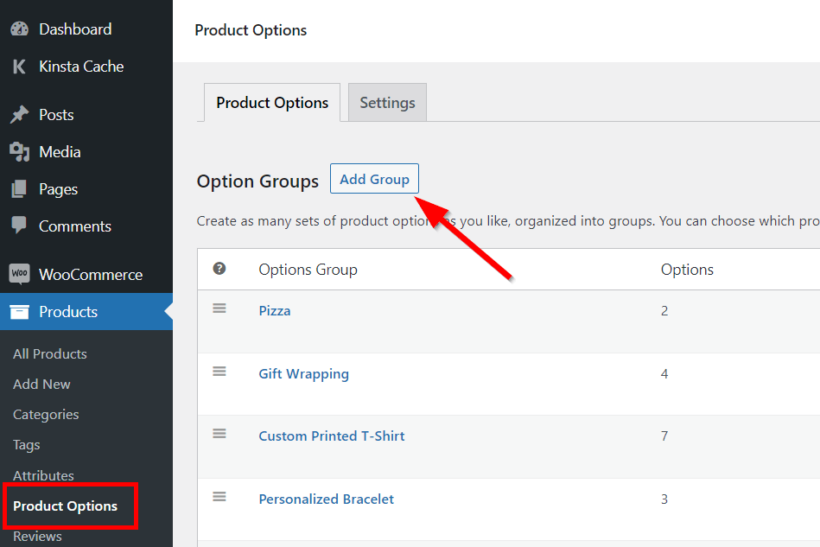
The dashboard shows a menu on the left side. It lists options like Posts, Media, Pages, and Settings. The center area displays an overview of your site’s activity.
Finding The Media Library
Look for the “Media” option in the left menu. Click it to open the Media Library. Here, you can upload and manage your files easily.
Uploading Files Via Media Library
Uploading files via the Media Library in WordPress is simple. It helps you manage images, documents, and videos easily. The Media Library stores all your files in one place. You can upload files directly to use in posts or pages. This method saves time and keeps your site organized.
Using The Upload Button
Go to the WordPress dashboard and click on “Media.” Select “Add New.” You will see the “Upload” button. Click this button to open a file browser on your computer. Choose the file you want to upload. Click “Open” to start uploading. The file will appear in your Media Library after upload. You can now insert it into your content with ease.
Drag And Drop Method
Open the Media Library and select “Add New.” Instead of clicking the upload button, drag your file from your computer. Drop the file into the upload area. WordPress will start uploading the file automatically. This method is faster for many files. You will see each file appear as it uploads. It is a smooth way to add multiple files quickly.
Credit: kaydee.net
Adding Files To Posts Or Pages
Adding files to your WordPress posts or pages helps share important documents or media. Files like PDFs, images, or audio can support your content. WordPress allows easy file uploads and linking to enhance user experience. Below are simple steps to insert files using different editors.
Inserting Files With The Block Editor
The Block Editor makes file insertion straightforward. Click the plus (+) icon to add a new block. Select the “File” block from the list. Upload your file or choose one from the media library. The block automatically creates a download link for visitors. You can also add a button style for better visibility. Adjust the block settings to customize the link text or display options. This method works well for all common file types.
Using Classic Editor For File Links
The Classic Editor uses a toolbar for adding files. Place your cursor where you want the file link. Click the “Add Media” button above the editor. Upload your file or pick one from the media library. Insert it as a link to the file. You can change the link text in the editor. This method keeps your post clean and easy to read. It works best for users who prefer the older editor style.
Managing Uploaded Files
Managing uploaded files in WordPress keeps your media library tidy. It helps you find files fast and saves space on your site. Proper file management improves website performance and user experience.
Editing File Details
You can change file names and descriptions easily. Go to the Media Library and select a file. Click “Edit” to update the title, caption, or alt text. Clear details help with SEO and accessibility. Always use simple, clear words for file descriptions.
Deleting Unused Files
Remove files that are no longer needed. Unused files take up storage and slow down your site. Select the files in the Media Library and click “Delete Permanently.” Regular cleanup keeps your site fast and organized.

Credit: ninjaforms.com
Using Plugins For Advanced File Uploads
Using plugins for advanced file uploads makes managing files easier on WordPress. Plugins add features like drag-and-drop, file size limits, and security checks. They help create a better experience for users who upload files to your site.
These tools work well for contact forms, job applications, or any place visitors need to send files. Plugins often support multiple file types and allow you to control where files are stored. This boosts your site’s functionality without complex coding.
Popular File Management Plugins
Several plugins stand out for handling file uploads effectively. WPForms offers user-friendly drag-and-drop file upload fields. File Manager lets you manage files directly from the WordPress dashboard. Another option, Uploadcare, supports large files and cloud storage integration. Each plugin suits different needs and skill levels.
Setting Up File Upload Forms
After choosing a plugin, install and activate it on your WordPress site. Next, create a new form or edit an existing one. Add a file upload field to the form. Customize settings like allowed file types and maximum upload size. Place the form on a page or post where visitors can easily find it. Test the form to ensure files upload correctly and notifications work.
Troubleshooting Common Upload Issues
Uploading files to WordPress sometimes causes problems. These issues often stop the upload from finishing. Knowing common problems helps solve them fast. Below are two frequent upload issues and easy ways to fix them.
File Size Limits
WordPress sets a limit on file size for uploads. Large files may not upload properly. This causes error messages or failed uploads. Check your file size before uploading. If too big, reduce its size using tools or settings. You can also ask your hosting provider to increase the limit. This allows bigger files to upload without issues.
Unsupported File Types
WordPress supports many file types, but not all. Some files are blocked for security reasons. Uploading unsupported types results in errors. Confirm the file format matches WordPress allowed list. Convert files to accepted formats when needed. For example, change .bmp to .jpg for images. This keeps uploads smooth and safe.
Frequently Asked Questions
How Do I Upload A File To WordPress?
To upload a file, go to your WordPress dashboard. Click on Media > Add New, then drag and drop your file or click Select Files to upload it from your computer. Once uploaded, you can insert the file link into your posts or pages easily.
What File Types Can I Add To WordPress?
WordPress supports common file types like images (JPEG, PNG), documents (PDF, DOCX), audio (MP3), and video (MP4). You can upload these directly via the Media Library. For unsupported types, you may need plugins or server configuration changes.
How To Add Downloadable Files In WordPress Posts?
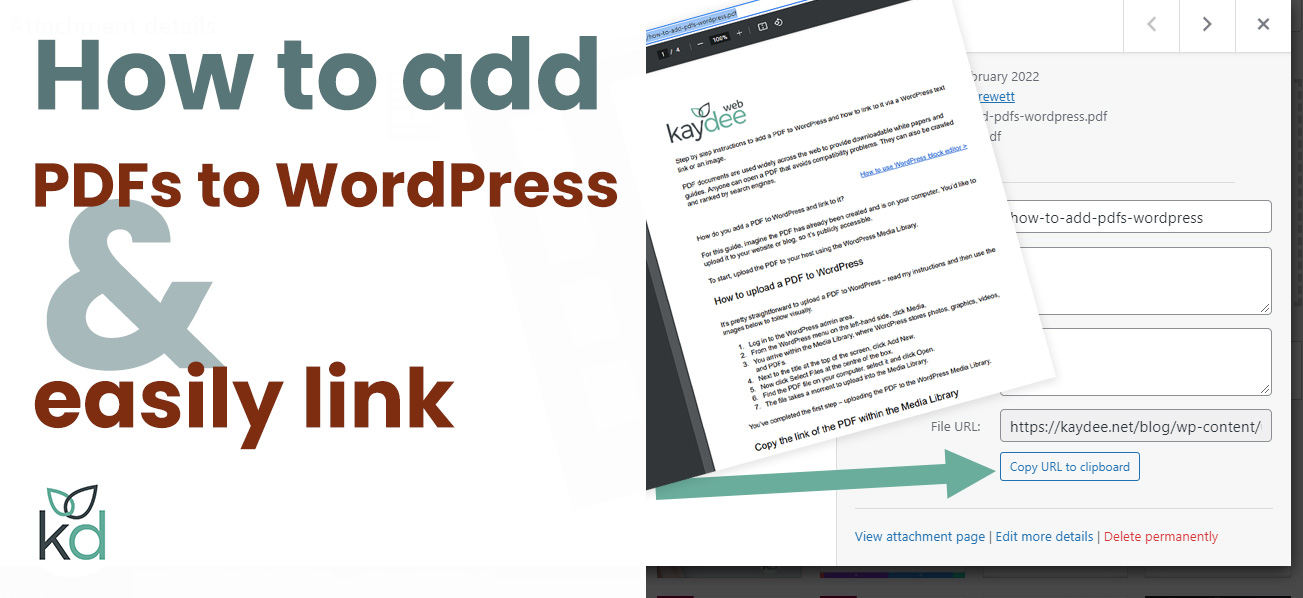
Upload your file to the Media Library first. Then, copy the file URL and paste it into your post using the link tool or add a button for users to download the file directly.
Can I Upload Large Files To WordPress?
WordPress has a default upload size limit, often 2MB to 128MB. To upload larger files, adjust your PHP settings or ask your hosting provider to increase the upload max filesize limit.
Conclusion
Adding a file to WordPress is simple and quick. You just need to follow a few clear steps. Upload your file, add it to a post or page, and publish. This helps share documents, images, or other files easily with visitors.
Practice a few times to feel confident. Soon, managing files on your site will become second nature. Keep your website organized and user-friendly by regularly updating your files. This small skill improves your site’s value and visitor experience. Give it a try today and see how easy it can be!


