
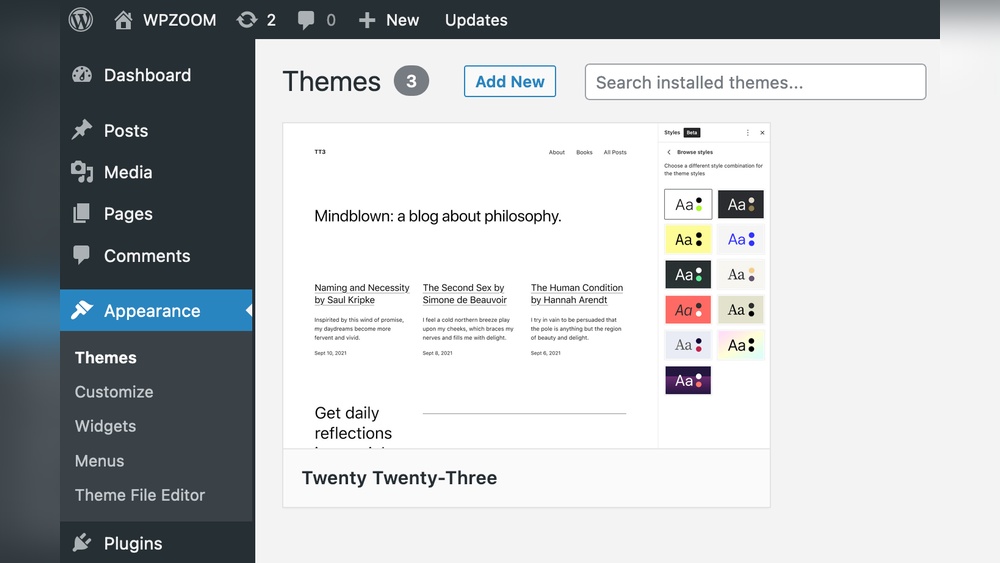
Are you looking to give your WordPress site a fresh, professional look without spending hours customizing? Adding a default theme can be the quickest way to achieve that.
Whether you’re starting from scratch or want a reliable fallback design, knowing how to add a default theme puts you in control of your website’s appearance. In this guide, you’ll discover simple steps that anyone can follow, even if you’re new to WordPress.
Keep reading to unlock the secret to making your site look great instantly—and keep your visitors coming back for more.
Choosing A Default Theme
Choosing a default theme in WordPress sets the look and feel of your website. It affects how visitors see your site. Picking the right theme helps you create a good first impression. The default theme also impacts your site’s speed and usability. It is important to choose one that fits your website’s purpose and style.
Popular WordPress Default Themes
WordPress offers several default themes that come pre-installed. These themes are simple, clean, and regularly updated. Themes like Twenty Twenty-Three, Twenty Twenty-Two, and Twenty Twenty-One are very popular. They work well for blogs, business sites, and portfolios. These themes focus on speed and accessibility. They are easy to customize without coding skills. Using a popular default theme ensures good support and compatibility.
Factors To Consider When Selecting
Check if the theme is mobile-friendly. Most users visit websites on phones. A responsive theme adjusts to all screen sizes. Speed matters too. A fast theme improves user experience and SEO. Look for themes that support the latest WordPress features. Customization options help you change colors and fonts easily. Choose a theme that matches your site’s style and goals. Make sure it is regularly updated for security. Read reviews to learn about other users’ experiences.
Credit: www.wpzoom.com
Preparing Your WordPress Site
Before adding a default theme, prepare your WordPress site carefully. This step helps avoid problems later. You keep your data safe and ensure the theme works well.
Follow simple steps to get ready. These steps protect your site and make the process smooth.
Backup Your Website
Always backup your website before making changes. A backup saves your files and database. It helps restore your site if something goes wrong.
Use plugins or your hosting service to create a backup. Store the backup in a safe place. This step is important for your site’s security.
Check WordPress Version Compatibility
Check if the default theme matches your WordPress version. Themes may not work well with old WordPress versions. This check prevents errors and display problems.
Update WordPress if needed to ensure full compatibility. A current version improves security and performance. Always test the theme on a staging site first.
Installing A Default Theme
Installing a default theme in WordPress is simple and quick. It helps you set a clean, ready-to-use look for your website. WordPress comes with several default themes that are easy to add. You can install these themes directly from your dashboard or upload them manually.
Using The WordPress Dashboard
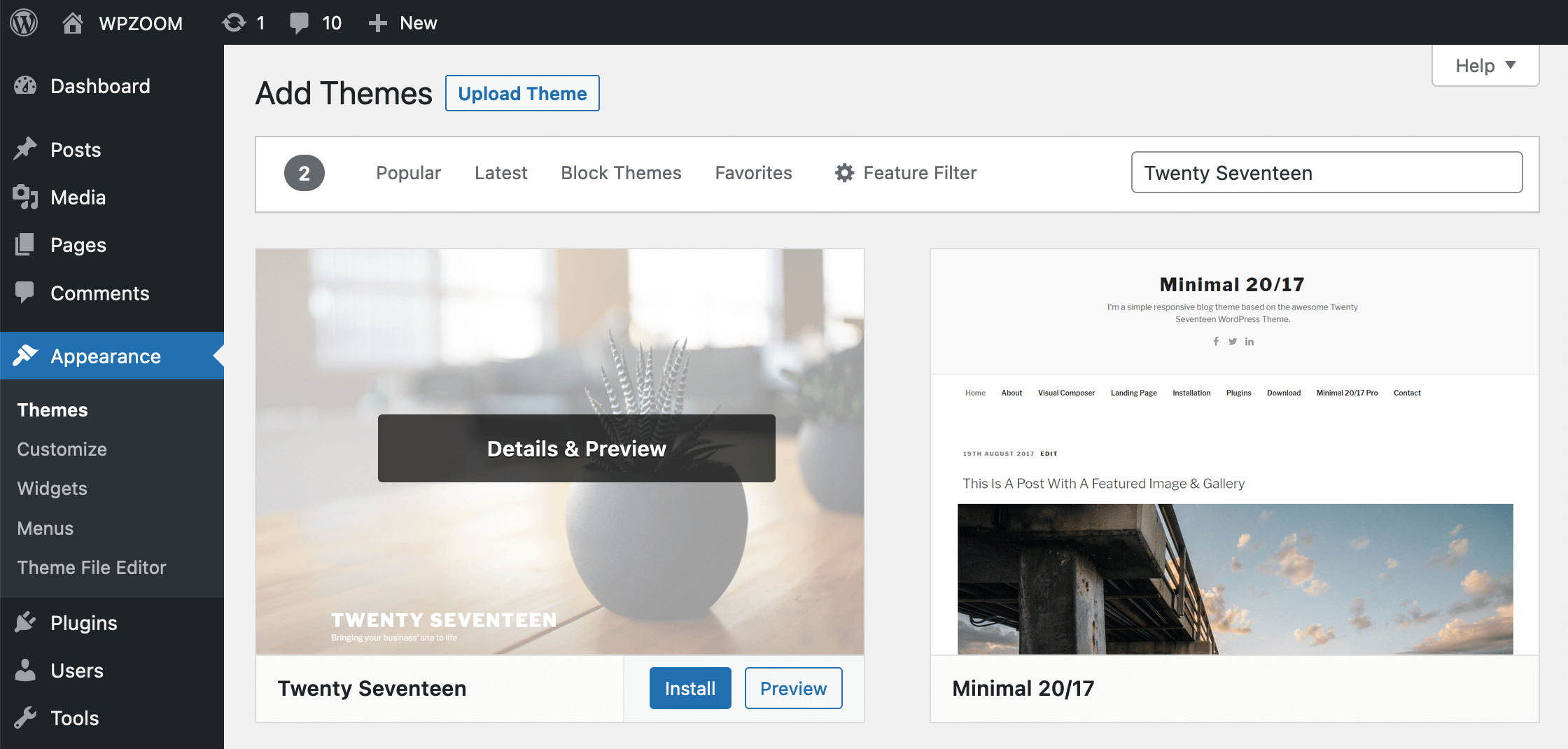
Log in to your WordPress dashboard first. On the left menu, find and click “Appearance.” Then select “Themes.”
Click the “Add New” button at the top of the page. You will see a list of available themes. Use the search bar to find default themes like “Twenty Twenty-Three” or “Twenty Twenty-Two.”
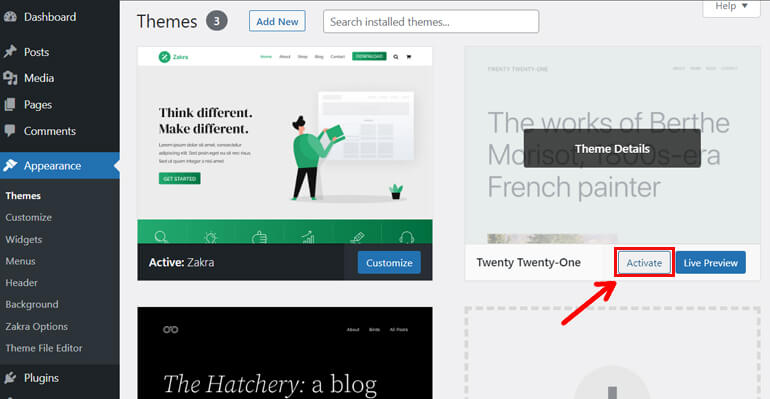
Hover over the theme you want and click “Install.” After installation, click “Activate” to apply the theme to your site. The theme is now live and ready to use.
Uploading A Theme Manually
Download the default theme ZIP file from the official WordPress theme repository. Go back to your dashboard, then “Appearance” > “Themes.”
Click “Add New” and then “Upload Theme” at the top. Choose the ZIP file from your computer and click “Install Now.”
After the upload finishes, click “Activate.” Your theme will appear on your site immediately. Manual upload is useful if you have a theme file saved locally.
Credit: themegrill.com
Activating The Default Theme
Activating the default theme in WordPress is a simple process. It helps you quickly set a clean, basic look for your site. This step is useful when your current theme has issues or you want to start fresh. The default themes are tested and reliable, making them safe choices for your website.
Switching Themes Safely
Switching themes can affect your site’s appearance and functionality. Before activating the default theme, backup your site. This protects your content from accidental loss. Also, check if your plugins work well with the new theme. Safe switching avoids downtime or broken layouts.
Previewing Before Activation
WordPress lets you preview themes before activation. Use this feature to see how the default theme looks on your site. Previewing helps you spot any issues with layout or design. It ensures your site stays professional and user-friendly after the switch.
Customizing The Default Theme
Customizing the default theme in WordPress helps you create a unique website look. It lets you change colors, fonts, and layouts easily. You do not need coding skills. WordPress offers tools that make customization simple and quick.
Changing the theme design helps match your site to your brand or style. Small tweaks improve user experience and keep visitors interested. You can start with basic adjustments and grow your site over time.
Using The Customizer Tool
The Customizer tool in WordPress lets you change your theme settings live. You can see the changes before saving them. It includes options to edit site title, colors, and background images.
Open the Customizer from your WordPress dashboard under Appearance. Use the menu to explore sections like Typography, Colors, and Layout. Adjust sliders or select options to see instant results.
Save your changes when you are happy with the look. The Customizer is user-friendly and does not require technical skills. It helps you quickly personalize your default theme.
Adding Widgets And Menus
Widgets add extra features to your site’s sidebar, footer, or other areas. Common widgets include search bars, recent posts, and social media links. You can drag and drop widgets to your desired spot.
Menus help organize your website navigation. Create menus for header, footer, or custom locations. Add pages, posts, or categories to menus to guide visitors easily.
Manage widgets and menus under the Appearance section in your dashboard. This simple process improves site usability. It also helps visitors find information faster.
Troubleshooting Theme Issues
Troubleshooting theme issues in WordPress can be frustrating. Themes control the look and feel of your site. Problems with themes can affect your site’s appearance and functionality. Understanding common errors helps fix problems quickly. You can restore your previous theme to avoid downtime. Keeping calm and following simple steps solves most issues.
Common Errors And Fixes
One common error is the white screen of death. This happens when the theme code breaks. To fix it, deactivate the theme via FTP or file manager. Rename the theme folder to force WordPress to use the default theme.
Another issue is broken layout or missing images. Clear your browser cache and reload the page. Check if all theme files uploaded correctly. Sometimes, incomplete uploads cause display problems.
Slow site speed can occur due to heavy themes. Switch to a lightweight default theme like Twenty Twenty-One. Test your site speed after the switch to confirm improvement.
Restoring Previous Theme
Access your WordPress dashboard. Go to Appearance > Themes. Find your previous theme in the list. Click Activate to restore it quickly.
If you cannot access the dashboard, use FTP. Navigate to wp-content/themes folder. Rename the current theme folder to disable it. WordPress will activate the default theme automatically.
Always back up your site before making changes. This keeps your data safe. Restoring a previous theme can fix many layout and function problems.
Maintaining Your Theme
Maintaining your WordPress theme is important for your website’s health and performance. A well-maintained theme keeps your site secure and running smoothly. It also ensures your visitors have a good experience every time they visit.
Regular care prevents issues like slow loading or broken layouts. It also helps you use the latest features and designs. Keep your theme updated and backed up to avoid problems.
Regular Updates
Update your theme regularly to fix bugs and improve security. Developers release updates to keep themes compatible with WordPress. Without updates, your site may face errors or vulnerabilities. Check for updates in your WordPress dashboard often. Install updates as soon as they are available to stay protected.
Keeping Backups
Back up your site before making any changes to your theme. Backups save your work if something goes wrong. Use plugins or your hosting service to create backups. Store backups in a safe place outside your website. Regular backups help you restore your site quickly after issues.

Credit: www.alphr.com
Frequently Asked Questions
What Is A Default Theme In WordPress?
A default theme is a pre-installed WordPress theme activated automatically. It provides a basic design and layout for your website. It ensures your site looks good even before you install a custom theme. Default themes are updated regularly for compatibility and security.
How Do I Add A Default Theme In WordPress?
To add a default theme, go to your WordPress dashboard. Navigate to Appearance > Themes > Add New. Search for the default theme like “Twenty Twenty-Three” and click Install. Once installed, activate the theme to apply it to your site immediately.
Can I Switch Back To A Default Theme Anytime?
Yes, you can switch back to a default theme anytime. Simply go to Appearance > Themes and select the default theme. Click Activate to make it your site’s active theme. This is useful for troubleshooting or refreshing your website’s look.
Why Use A Default Theme Instead Of Custom Themes?
Default themes are lightweight, secure, and regularly updated by WordPress. They offer reliable compatibility with plugins and WordPress updates. Using a default theme ensures your site runs smoothly without conflicts or errors. They are ideal for beginners and quick website setups.
Conclusion
Adding a default theme in WordPress helps keep your site ready to go. It ensures your website looks good even if your main theme has issues. You can switch themes easily without losing content. This simple step saves time and avoids problems.
Try setting a default theme today to keep your site running smoothly. Your visitors will have a better experience. Keep your WordPress site safe and reliable with this easy tip.


