
Are you tired of seeing the same old footer on your WordPress site? You’re not alone.
A unique custom footer can set your website apart, reflecting your brand’s personality and providing a personal touch that visitors will remember. Imagine turning those often-overlooked final lines on your page into a powerful tool for engagement and information. By adding a custom footer, you not only enhance your site’s aesthetic appeal but also improve functionality and user experience.
In this guide, you’ll discover the straightforward steps to create and implement a custom footer for your WordPress theme. Whether you’re a beginner or have some experience with WordPress, you’ll find that customizing your footer can be both simple and rewarding. Let’s dive in and explore how you can transform your website’s bottom line into a dynamic space that captures your audience’s attention.
Why Customize Your Footer
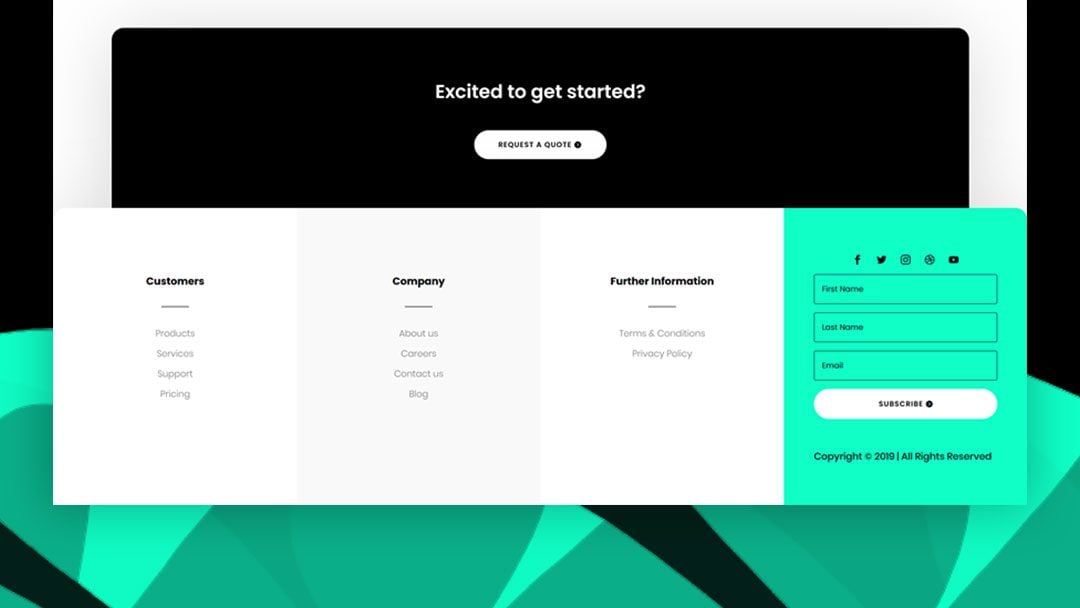
A custom footer makes your website look unique. It helps in showing your brand’s identity. Visitors remember your site easily. You can add links to important pages. This helps people find what they need quickly. A footer can also display contact information. This is useful for visitors who want to reach you. A custom footer can improve your site’s overall design. It makes your site look professional.
Custom footers can include social media icons. This encourages visitors to connect with you on other platforms. Adding a copyright notice protects your content. It shows you care about your site’s content. Using a custom footer can make your site stand out. It offers a better user experience. This can lead to more visitor engagement.
Choosing The Right Tools
Plugins are easy to use. They save time and effort. Manual coding gives more control and flexibility. It can be hard for beginners. Plugins offer pre-made designs and settings. They are user-friendly. But, they may not fit all needs. Manual coding lets you create a unique look. It is best for those who know coding basics.
Some plugins are very popular. Elementor is one of them. It has many options and is simple to use. Beaver Builder is another choice. It works well for creating custom designs. WPForms allows for adding forms to footers. SiteOrigin is also good. It is free and has many features. These plugins help add a custom touch to your site.
Editing The Footer Via WordPress Customizer
Open your WordPress dashboard. Find the Appearance tab. Click on it. Then, select Customize. This opens the WordPress Customizer. The Customizer helps in making changes. You see changes in real-time. Look for the Footer settings. These settings are usually at the bottom. Click on the footer settings. Make your changes. Save the changes by clicking Publish. Your new footer is now live.
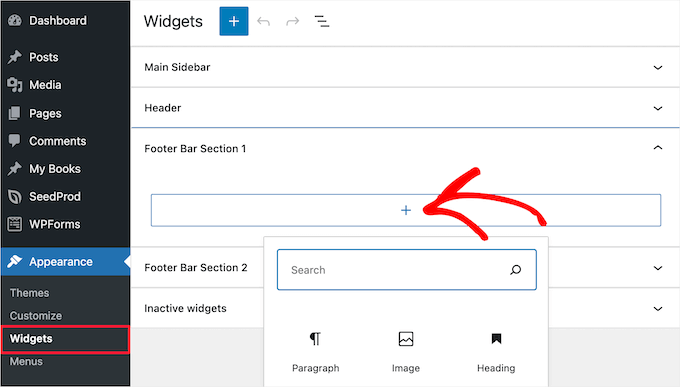
Widgets add features to your footer. Go to the dashboard. Click on Appearance, then Widgets. You will see available widgets. Drag a widget to the footer section. Drop it there. You can add text, images, or links. This makes the footer useful. Widgets can be moved around. Change their order by dragging them. Save your changes. Visit your site to see the new footer.
Credit: 10web.io
Modifying Footer Code
The footer.php file is part of your theme. It controls the bottom area of your website. This file is found in the theme folder. Open it with a text editor. Inside, you will see HTML and PHP code. Be careful while editing. A wrong change can break your site. Always keep a backup. Look for the closing tag. This is where you add custom code. It can be text, links, or images. Save changes after editing.
A child theme protects your changes. It keeps them safe during updates. Create a new folder in the themes directory. Name it something unique. Inside, make a style.css file. Write a few lines to set it up. Import the parent theme’s styles. Next, make a functions.php file. This file will handle extra functions. Finally, activate the child theme in WordPress. Now, add custom footer code without worry.
Adding Custom Css
Enhance your WordPress theme by adding a custom footer using CSS. Modify the footer’s appearance and style to match your site’s design. This approach allows for a personalized touch and improved aesthetics.
Locating The Additional Css Section
Start by logging into your WordPress dashboard. On the left side, click on Appearance. Then select Customize. This will open the Customizer screen. Look for the Additional CSS option. Click on it to open the CSS editor. This is where you can add your custom styles. These changes will affect your theme’s appearance.
Common Css Customizations
Custom CSS lets you change many things. You can adjust the font size and color. Change the background color or add a border. Make the footer sticky to keep it at the bottom. Use CSS to hide elements you don’t want. These changes help make your site unique.
Using Page Builders For Footers
Page builders make designing easy. They help you create a custom footer. No coding skills needed. With simple drag and drop, you can add features.
Many themes support page builders. They offer flexibility. You can change designs quickly. This makes your site unique. A good choice for beginners.
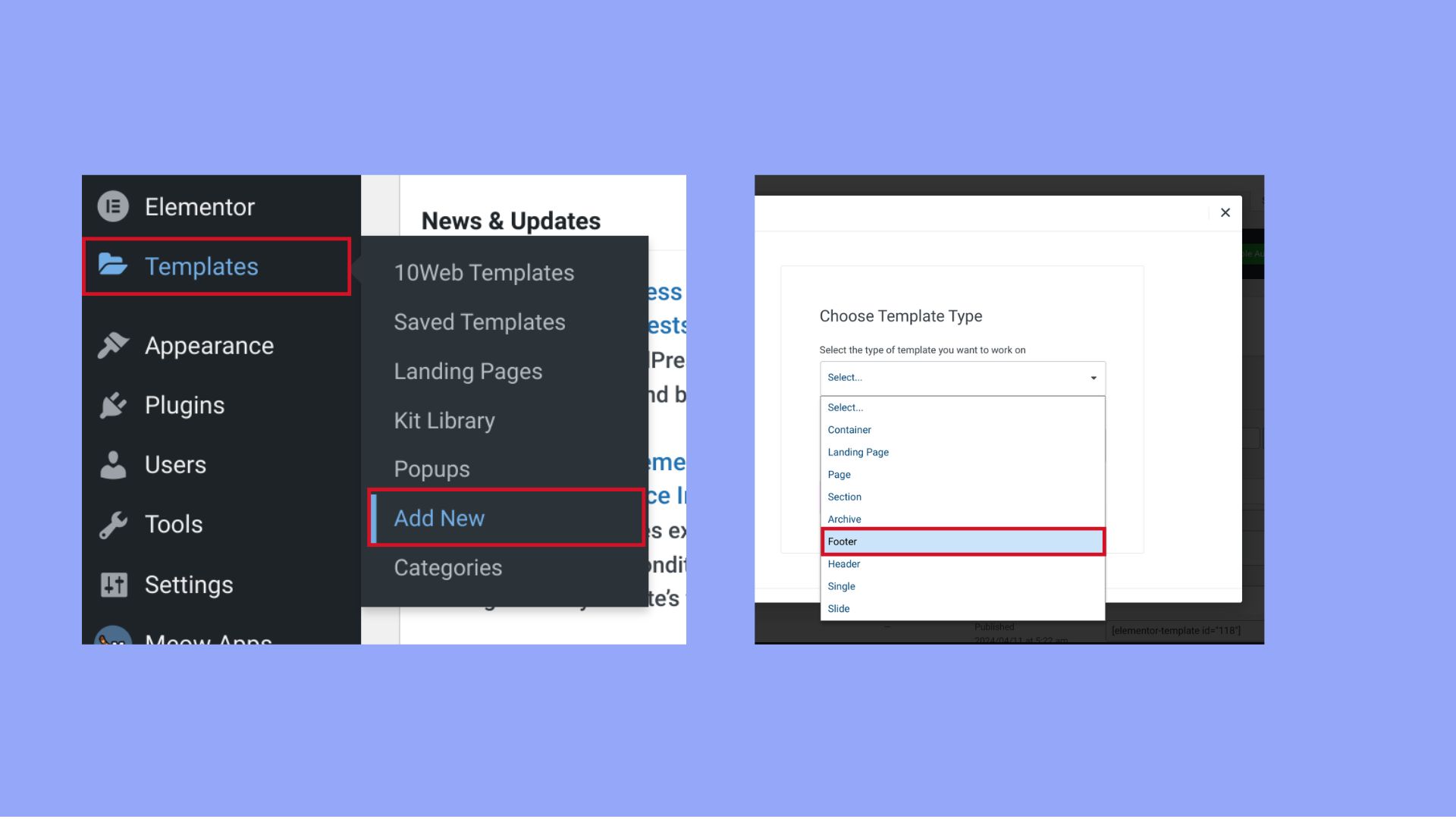
Elementor is a popular tool. It helps build footers fast. You can add widgets easily. These include social media links. Also, add contact forms and maps.
Elementor has many templates. You can choose the one you like. Then, adjust colors and fonts. Make your footer match your brand. It’s easy and fun.
Testing And Troubleshooting
Adding a custom footer to your WordPress theme involves testing and troubleshooting steps. Ensure compatibility with your theme by checking code snippets and plugins. Resolve any issues by examining error messages and adjusting settings for optimal display.
Previewing Changes
Test the custom footer before making it live. Use the preview feature in WordPress. Check the footer on different pages. Make sure it looks right. Ensure links work and images appear correctly. Verify text is readable and clear.
Common Issues And Fixes
Sometimes, footers don’t show correctly. Check for missing CSS or wrong HTML code. Ensure the footer file is uploaded properly. If the footer looks strange, check theme compatibility. Some themes may need extra settings. Update your theme if needed.
If links break, make sure URLs are correct. Double-check the link paths. For styling issues, review your CSS code. Adjust colors or fonts as needed. Keep testing until everything works fine.
Credit: www.elegantthemes.com
Best Practices For Footer Design
A responsive footer adapts to screen sizes. It looks good on phones and computers. Users should see all links clearly. Test the footer on different devices. Ensure all parts are visible and work well.
Include essential links like contact, privacy policy, and terms. Make them easy to find. Users often look for these links. Use clear, simple words for link names. This helps users know where each link leads.
Good footers enhance user experience. They provide important information. Keep the design simple. Avoid clutter. Simple designs are easier to navigate. Users appreciate easy navigation. It makes them stay longer on the site.
Credit: www.wpbeginner.com
Frequently Asked Questions
How To Add A Custom Footer In A WordPress Theme?
Go to your WordPress dashboard, navigate to Appearance, then Editor. Edit the footer. php file. Add your custom HTML or PHP code for a personalized footer. Save changes, and refresh your site. Use a child theme to avoid losing changes during updates.
How To Create A Custom Header And Footer In WordPress Without A Plugin?
Edit your theme’s header. php and footer. php files. Access them via Appearance > Theme Editor. Customize the HTML and CSS within these files to create your desired design. Save your changes and refresh your website to see the updated header and footer.
Always back up your files before making changes.
Why Can’t I Edit The Footer In WordPress?
You can’t edit the footer in WordPress due to theme restrictions or lack of necessary permissions. Some themes require coding knowledge or customizer access. Consider using a child theme or page builder plugin to customize it. Always back up your site before making changes.
How Do I Change The Footer On My WordPress Home Page?
To change the WordPress footer, go to your dashboard. Navigate to Appearance, then Customize. Select Footer settings. Make desired edits and save changes. You can also modify footer widgets through Appearance, then Widgets. Adjust widget content and save. Ensure your theme supports footer customization for a smooth process.
Conclusion
Adding a custom footer enhances your WordPress theme. It’s simple and effective. Follow the steps outlined above for a seamless experience. Customize your site to fit your unique style. Personal touches can make your site stand out. Always preview changes before finalizing them.
This ensures everything looks perfect. Don’t hesitate to experiment with different designs. Your footer can be as unique as you want. Enjoy the process and watch your site come to life. Engage your visitors with a professional look. A well-crafted footer leaves a lasting impression.


