
Are you looking to boost engagement on your WordPress site? Adding a comment section is one of the easiest and most effective ways to start a conversation with your visitors.
Imagine turning casual readers into active participants who share ideas, ask questions, and build a community around your content. In this guide, you’ll learn simple steps to add a comment section that fits your site perfectly. By the end, you’ll have everything you need to make your website more interactive and exciting for your audience.
Let’s dive in and get your comment section up and running!
Enable Comments In WordPress
Enabling comments in WordPress lets visitors share their thoughts on your content. It helps build a community around your site. Comments can increase engagement and improve user experience. WordPress offers simple tools to turn comments on or off. Follow these steps to enable comments easily.
Adjusting Discussion Settings
Start by opening your WordPress dashboard. Go to Settings and select Discussion. Here you control how comments work on your site. Check the box that says “Allow people to post comments on new articles.” This setting enables comments on all future posts.
You can also manage other options here. Choose if comments need approval before appearing. Decide if users must fill in their name and email. Adjust these to keep your site safe and friendly.
Allowing Comments On Pages And Posts
Open the post or page where you want to allow comments. On the editor screen, find the Discussion box. If you don’t see it, click “Screen Options” at the top and enable Discussion.
Tick the “Allow comments” box to enable comments for that specific page or post. Save or update your content to apply changes. This control helps you choose where visitors can leave feedback.
Choose A Comment Plugin
Choosing the right comment plugin can improve how visitors interact with your WordPress site. A good plugin offers easy ways for users to leave feedback and join conversations. It also helps manage comments efficiently and keeps spam under control.
Many plugins come with features like social login, moderation tools, and design options. Picking the best one depends on your site’s needs and the kind of experience you want to offer.
Popular Comment Plugins
Several comment plugins are widely used by WordPress users. Disqus is popular for its clean design and social media integration. Jetpack Comments adds extra security and spam protection. WPDiscuz offers real-time commenting and customizable layouts. Facebook Comments lets visitors comment using their Facebook profiles, which can increase engagement.
Installing And Activating Plugins
Start by logging into your WordPress dashboard. Go to the Plugins section and click Add New. Use the search bar to find your chosen comment plugin. Click Install Now and wait for the process to finish. Then, click Activate to enable the plugin on your site.
After activation, check the plugin settings. Customize the options to fit your needs. This may include comment display style, user permissions, and spam filters. Test the comment section to ensure it works correctly.
Customize Comment Appearance
Customizing the comment appearance helps match your website style. It improves user experience and keeps your site visually neat. Small changes create a better space for conversations.
Modifying Comment Layout
Change the comment layout to fit your theme. Use CSS to adjust spacing, fonts, and colors. You can move the date or author name to different spots. A clean layout makes comments easier to read.
WordPress allows editing the comment template in your theme files. Look for comments.php to customize the structure. Add or remove elements to create a unique look. Simple tweaks can make comments stand out.
Adding Comment Avatars
Avatars show user images next to comments. They add a personal touch to each message. WordPress supports avatars through Gravatar by default. Enable avatars in your discussion settings for quick setup.
Customize avatar size and shape using CSS. Round or square images can match your design style. You may also upload default avatars for users without images. Avatars help identify commenters easily.
Manage Comment Moderation
Managing comment moderation is essential for keeping your WordPress site clean and friendly. It helps you control what appears in the comment section. This keeps spam and harmful content away. Also, it ensures that genuine comments get the attention they deserve.
Setting Up Comment Approval
Go to your WordPress dashboard. Click on “Settings” and then “Discussion.” Here, you can choose how comments are approved. Select “Comment must be manually approved” to review each comment before it shows up.
You can also allow comments from users who have had approved comments before. This reduces your workload. Checking comments before they appear keeps your site safe and respectful.
Filtering Spam Comments
Spam comments can harm your website’s reputation. Use plugins like Akismet to filter out spam automatically. This plugin checks comments and blocks those that look suspicious.
Enable comment blacklists to block words, IPs, or emails that often send spam. This helps to stop unwanted comments before they appear. Filtering spam keeps your comment section clean and useful for real visitors.
Add Comment Section Manually
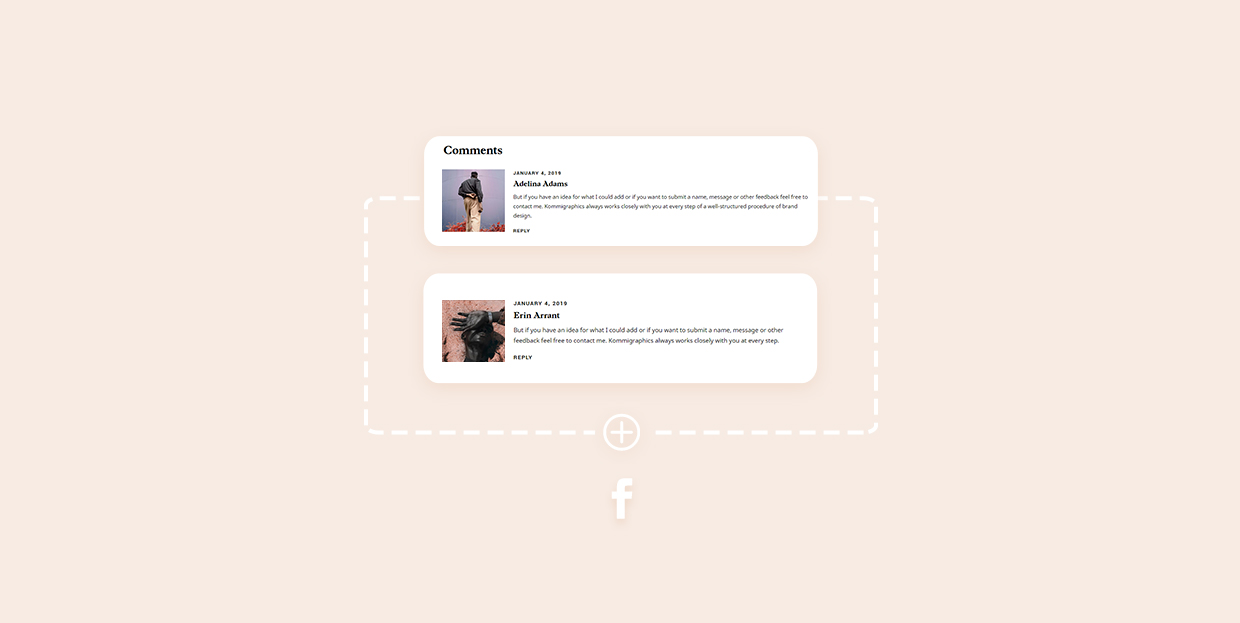
Adding a comment section manually in WordPress gives you full control over its design and placement. This method lets you customize how comments appear on your site. You can make the section fit perfectly with your theme and content style.
Manual addition requires some basic coding and editing theme files. It is a straightforward process if you follow the right steps. You can also use shortcodes to place the comment section anywhere on your site. This approach is flexible and works well for custom layouts.
Editing Theme Files
To add a comment section manually, start by editing your theme files. Open the single.php or page.php file in your theme folder. These files control how posts and pages display.
Find the spot where you want the comment section to appear. Usually, this is after the post content. Insert the following PHP code:
php if (comments_open() || get_comments_number()) { comments_template(); } ? This code checks if comments are open or if there are existing comments. Then, it loads the default WordPress comment template. Save your changes and upload the file back to your server.
Visit your post or page to see the comment section live. You can style it using CSS to match your site’s look. Editing theme files gives you flexibility but requires caution. Always back up your theme before making changes.
Using Shortcodes For Comments
Shortcodes offer an easy way to add comments without editing theme files. You can place the comment section inside posts, pages, or widgets. To do this, add a custom shortcode in your theme’s functions.php file.
Insert this code to create a shortcode for comments:
function display_comments_shortcode() { ob_start(); if (comments_open() || get_comments_number()) { comments_template(); } return ob_get_clean(); } add_shortcode('comments_section', 'display_comments_shortcode'); Use the shortcode [comments_section] in any post or page content. The comment section will appear where you insert this shortcode. This method is simple and safe. It also allows you to add comments to custom post types or special pages easily.
Credit: qodeinteractive.com
Enhance Comment Functionality
Enhancing comment functionality makes your WordPress site more interactive. It encourages readers to join conversations and share thoughts. Simple improvements can lead to better engagement and user experience.
Enable Nested Replies
Nested replies let users respond directly to specific comments. This keeps conversations clear and organized. Enable this feature in WordPress settings under “Discussion.” It helps readers follow discussions easily. Nested replies create a sense of community among visitors.
Add Like And Share Buttons
Like and share buttons boost interaction on your comments. Readers can show appreciation without typing a reply. Share buttons let users spread interesting comments on social media. Use plugins to add these buttons quickly. They increase visibility and invite more participation.
Test The Comment Section
Testing the comment section is a crucial step after setting it up. It ensures your visitors can leave feedback smoothly. Testing helps catch errors early, making your site user-friendly. It also improves engagement and trust with your readers.
Submitting Test Comments
Start by visiting a post with the comment section enabled. Enter a name, email, and a simple message. Submit the comment to check if it appears correctly. Refresh the page to see if the comment stays visible. Test both logged-in and guest users for full coverage.
Try different browsers and devices to ensure compatibility. Check if notifications about new comments work. Confirm the comment form’s layout looks good on mobiles. Testing these elements avoids surprises for your readers.
Troubleshooting Common Issues
Comments not showing? Clear your site cache and refresh. Check your comment settings in WordPress dashboard. Ensure comments are enabled for the post type. Look for plugin conflicts by deactivating new plugins temporarily.
Spam comments appearing? Activate anti-spam tools like Akismet. Broken comment form? Inspect your theme’s code for errors. White screen or errors? Increase PHP memory limit or debug mode. Test again after fixes to confirm the issue is solved.
Credit: www.tutorialspoint.com

Credit: wordpress.org
Frequently Asked Questions
How Do I Enable Comments In WordPress?
To enable comments, go to WordPress Dashboard > Settings > Discussion. Check “Allow people to post comments on new articles. ” Save changes to activate comments on your posts.
Can I Customize The WordPress Comment Section?
Yes, you can customize comments using themes or plugins. Customize layout, style, and moderation settings to match your website’s design and needs.
How Do I Moderate Comments In WordPress?
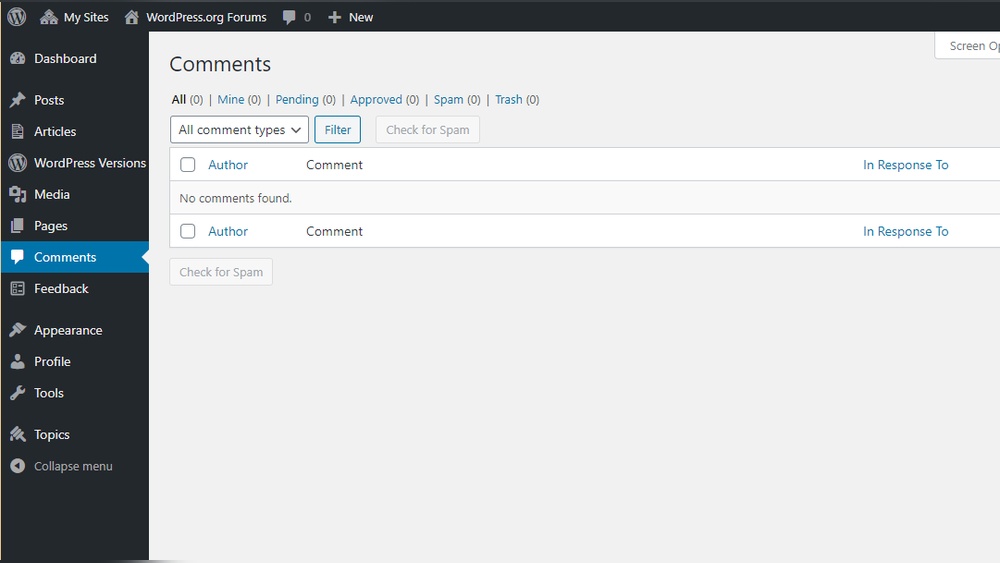
Go to Dashboard > Comments. Here, you can approve, reply, edit, or delete comments. Enable moderation to review comments before they appear publicly.
What Plugins Add Advanced Comment Features?
Popular plugins like Disqus, WPDiscuz, and Jetpack enhance comment functionality. They offer features like threaded replies, social login, and spam protection.
Conclusion
Adding a comment section in WordPress helps you connect with readers. It allows visitors to share thoughts and ask questions easily. Enabling comments also builds a sense of community on your site. Keep your comment area simple and easy to use.
Regularly check and respond to comments to keep conversations active. This way, your blog stays lively and engaging. Start adding comments today and watch your site become more interactive.


