
Are you looking to make your WordPress site more engaging and visually appealing? Adding a carousel is one of the easiest ways to showcase your best content, products, or images in a dynamic and attractive way.
But how do you add a carousel without getting lost in complicated steps or confusing plugins? This guide will walk you through the process step-by-step, helping you create a stunning carousel that keeps your visitors hooked and encourages them to explore more.
Ready to transform your site and grab your audience’s attention? Let’s dive in!
Choosing The Right Carousel Plugin
Choosing the right carousel plugin is important for your WordPress site. The plugin affects your site’s speed, design, and user experience. You want one that fits your needs and works well with your theme. This section helps you decide which carousel plugin suits your site best.
Free Vs Premium Options
Free plugins are good for simple needs. They offer basic features and easy setup. Premium plugins provide extra options like animations and custom styles. They often include support and regular updates. Choose free for small projects. Pick premium for more control and professional look.
Key Features To Look For
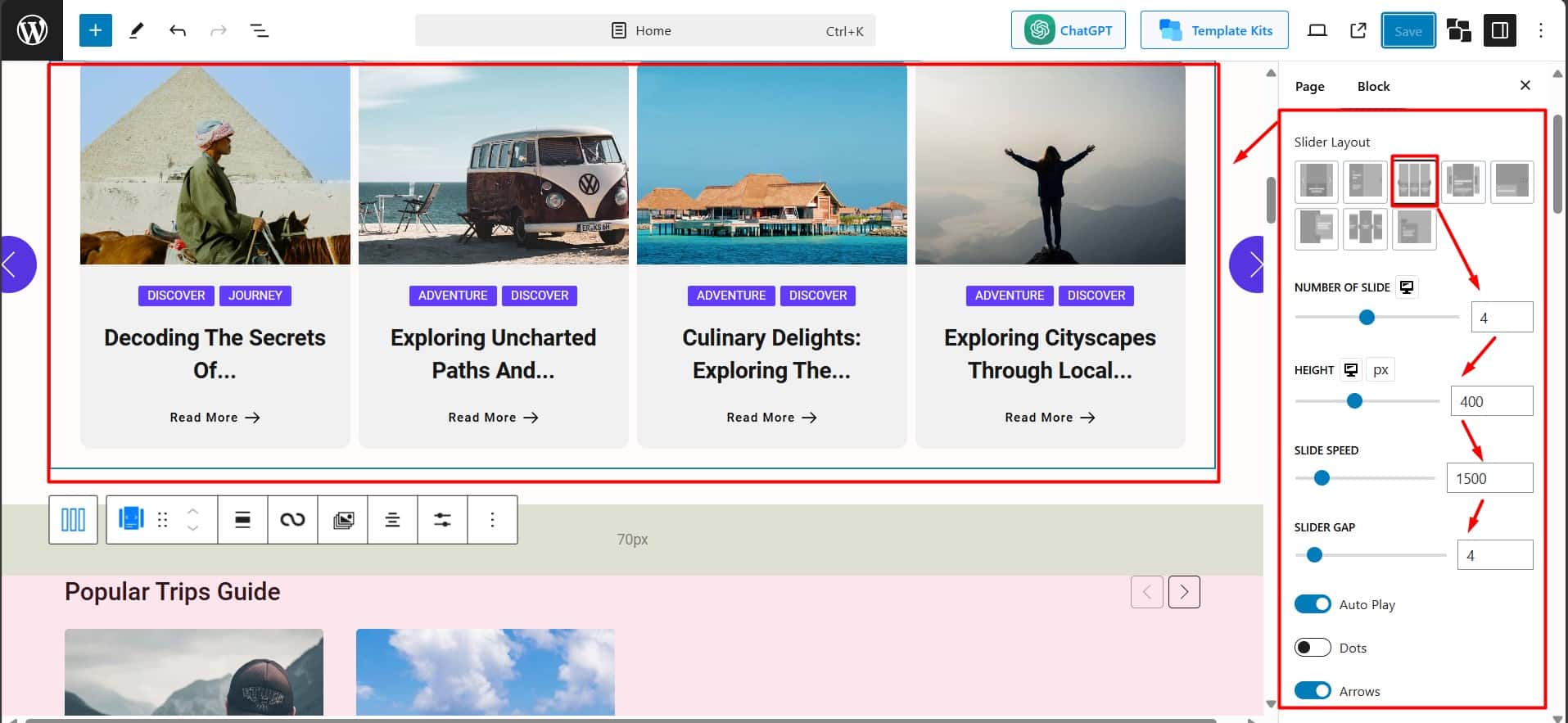
Look for features like responsive design. The carousel should work on all devices. Easy navigation is important, such as arrows or dots. Check if it supports images, videos, or text slides. Speed matters. The plugin should not slow down your site. Customization options let you match your brand style.
Compatibility With WordPress Themes
Not all plugins fit every theme. Some may cause design issues or conflicts. Test the plugin with your current theme first. Choose one that adapts to your theme’s layout and colors. Good compatibility ensures smooth performance and a polished look.
Credit: www.wpxpo.com
Installing And Activating The Plugin
Installing and activating a plugin is the first step to add a carousel to WordPress. It is simple and fast. You can use two main methods to install plugins: through the WordPress Plugin Directory or by manual upload. Both ways will get the plugin ready to use.
Using The WordPress Plugin Directory
Go to your WordPress dashboard. Find the “Plugins” menu and click “Add New.” Use the search bar to type the name of the carousel plugin you want. Look at the results and find the best one. Click “Install Now” next to the plugin. Wait a few seconds for the process to finish.
Manual Upload Method
Download the plugin file from a trusted source. It will be in a .zip format. Go to the WordPress dashboard and open “Plugins.” Click “Add New” and then select “Upload Plugin.” Choose the .zip file from your computer. Click “Install Now” and wait while WordPress uploads the file.
Activating The Plugin
After installation, the “Activate” button appears. Click it to enable the plugin on your site. Activation allows you to use the carousel features. Check the plugin settings in the dashboard to customize it. Your carousel is now ready to be added to your pages or posts.
Creating Your First Carousel
Creating your first carousel in WordPress is easier than you think. It gives your site a fresh, dynamic look. A carousel displays images or content in a sliding format. This keeps visitors engaged and helps showcase important information.
Start by adding your images or content. Then, arrange the slides in the order you want. Finally, customize how each slide looks to match your site’s style.
Adding Images Or Content
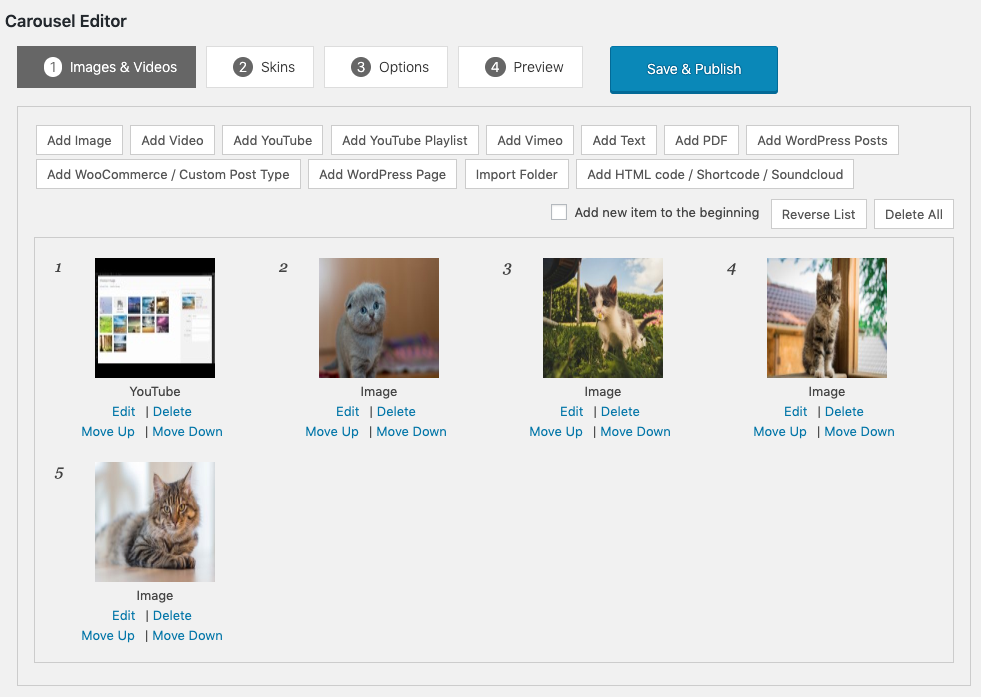
Open your WordPress editor and find the carousel plugin or block. Click on the option to add new slides. Upload images or paste content for each slide. Use high-quality images to make the carousel attractive. Add captions or text if the plugin allows. Save your changes before moving on.
Setting Slide Order
After adding slides, decide their order. Most plugins let you drag and drop slides. Move slides up or down until you like the sequence. The first slide is the one visitors see first. Keep important content near the start for better impact. Confirm the order before saving.
Customizing Slide Appearance
Adjust the look of each slide to fit your site. Change background colors or add borders if available. Set slide transitions like fade or slide effect. Choose how long each slide stays on screen. Preview changes to see how they look. Save your settings to apply the style.
Configuring Carousel Settings
Configuring carousel settings helps you create a smooth and attractive slideshow. You can control how fast the slides change, how users move between slides, and how the carousel looks on different devices. Proper settings make the carousel easy to use and visually appealing. Adjust these options carefully to fit your website’s style and audience.
Adjusting Slide Speed And Transition
Slide speed controls how long each slide stays visible. Set a speed that is not too fast or too slow. A good speed lets users read or view content comfortably. Transition effects add style to slide changes. Choose simple fades or slides for smooth movement. Avoid flashy effects that distract from your content.
Enabling Navigation Controls
Navigation controls help visitors move through the carousel easily. Arrows let users go forward or backward on slides. Dots show the number of slides and the current one. Turn these controls on for better user experience. Make sure controls are visible and easy to click on any device.
Responsive Design Settings
Responsive settings adjust the carousel for different screen sizes. Check how the carousel looks on phones, tablets, and desktops. Set the number of visible slides based on screen width. This keeps the carousel clear and easy to use everywhere. Test these settings to ensure smooth display on all devices.
Embedding The Carousel On Your Site
Embedding a carousel on your WordPress site brings dynamic content to your visitors. It showcases images or posts in a sliding format. This makes your site more interactive and visually appealing.
There are simple ways to embed carousels on your site. These methods fit different user needs and skill levels. Choose the one that suits your site best.
Using Shortcodes
Many carousel plugins generate shortcodes automatically. Shortcodes are small code snippets. You copy and paste them to display the carousel anywhere on your site. This method is quick and does not require coding skills.
Find the shortcode in the plugin settings or documentation. Paste it into the editor of a page, post, or widget area. Save and preview to see the carousel live on your site.
Adding Via Widgets
Widgets offer an easy way to add carousels to sidebars or footers. Most carousel plugins add their own widget after activation. Go to Appearance > Widgets in your WordPress dashboard.
Drag the carousel widget to your desired widget area. Configure the settings to select the carousel you want to show. Save the widget, then check your site’s front end.
Inserting Into Pages Or Posts
Embedding a carousel directly into pages or posts creates engaging content sections. Use the WordPress block editor for this. Many plugins add a custom block for the carousel.
Open the page or post editor. Click the + button to add a new block. Search for the carousel block provided by your plugin. Select it, then customize the settings as needed.
Publish or update the page to display the carousel. Visitors see a smooth sliding gallery right inside your content.
Credit: www.wonderplugin.com
Optimizing Carousel Performance
Carousels can slow down your WordPress site if not optimized well. Fast-loading carousels keep visitors engaged and improve user experience. Focus on reducing image sizes and loading times for better performance. Follow these simple tips to make your carousel quick and smooth.
Image Compression Tips
Compress images before uploading to reduce file size. Use tools like TinyPNG or JPEG-Optimizer. Smaller images load faster and save bandwidth. Keep image quality good enough to look clear. Avoid uploading large, uncompressed photos directly.
Lazy Loading Slides
Load only visible slides first to save resources. Delay loading other slides until users scroll or click. Many WordPress plugins support lazy loading automatically. This method cuts initial load time and improves page speed. It also saves data for mobile users.
Avoiding Common Performance Issues
Don’t add too many slides in one carousel. Limit slides to prevent long loading times. Avoid using heavy scripts or animations that slow down browsers. Test your carousel on different devices to ensure smooth operation. Regular updates keep plugins compatible and fast.
Troubleshooting Common Issues
Adding a carousel to WordPress can be simple, but sometimes problems arise. Troubleshooting helps fix these common issues fast. Knowing what to check saves time and stress. Below are typical problems and easy ways to solve them.
Carousel Not Displaying
Check if the carousel plugin is active. Inactive plugins cause the carousel to disappear. Clear your browser cache to see recent changes. Make sure you added the shortcode or block correctly. Some themes hide carousels by default. Test with a default WordPress theme to find out.
Conflicts With Other Plugins
Plugins can clash and stop the carousel from working. Deactivate other plugins one by one to spot the conflict. Update all plugins to their latest versions. Sometimes, older versions cause compatibility problems. Use plugins from trusted sources only.
Fixing Layout Problems
Layout issues happen if the carousel styles clash with your theme. Check for CSS errors in the browser console. Add custom CSS to fix alignment or size problems. Resize images for faster loading and better display. Adjust carousel settings like slides per view or spacing.

Credit: www.wpxpo.com
Frequently Asked Questions
What Is The Easiest Way To Add A Carousel In WordPress?
Using a WordPress plugin like Smart Slider 3 or MetaSlider is the easiest method. These plugins offer drag-and-drop interfaces and customizable options for quick carousel creation without coding.
Can I Add A Carousel Without Coding In WordPress?
Yes, many plugins allow you to add carousels without any coding. Simply install a carousel plugin, upload images, and configure settings through the WordPress dashboard.
How Do I Make My WordPress Carousel Mobile-friendly?
Choose a responsive carousel plugin that automatically adjusts to screen sizes. Test your carousel on different devices to ensure smooth navigation and proper image scaling.
Are There Free Plugins To Add Carousels In WordPress?
Yes, several free plugins like MetaSlider, Smart Slider 3, and Carousel Slider Lite offer basic carousel features. They are ideal for beginners and small websites.
Conclusion
Adding a carousel to your WordPress site can boost user interest. It helps show many images or posts in a small space. Choose a simple plugin that fits your needs. Customize it to match your website’s style. Test the carousel on different devices to ensure it works well.
Keep it easy to use and not too fast. A good carousel makes your site look professional and neat. Try it today and see how it improves your page.


