

Are you looking to make your WordPress site more interactive and user-friendly? Adding a button is one of the easiest and most effective ways to guide your visitors exactly where you want them to go.
Whether it’s for a call-to-action, a link to your shop, or a simple contact form, a button can boost your site’s engagement instantly. You’ll discover simple, step-by-step instructions to add a button to your WordPress site—no technical skills needed. Keep reading, and you’ll have a clickable button ready to improve your site’s performance in no time!
Benefits Of Adding Buttons
Adding buttons to your WordPress site makes it easier for visitors to interact. Buttons catch attention and guide users to important parts of your website. They improve the overall user experience by making actions clear and simple.
Buttons help organize your content and highlight key messages. They create a smoother flow for visitors, helping them find what they need quickly. This makes your website more user-friendly and professional.
Increase User Interaction
Buttons invite users to click and explore more. They turn passive visitors into active participants. This boosts the time visitors spend on your site. More clicks mean users engage with your content deeply.
Enhance Website Navigation
Buttons help users move through your website easily. They point to important pages like contact forms or product details. Clear navigation reduces confusion and frustration. This keeps users on your site longer and improves their experience.
Drive Conversions
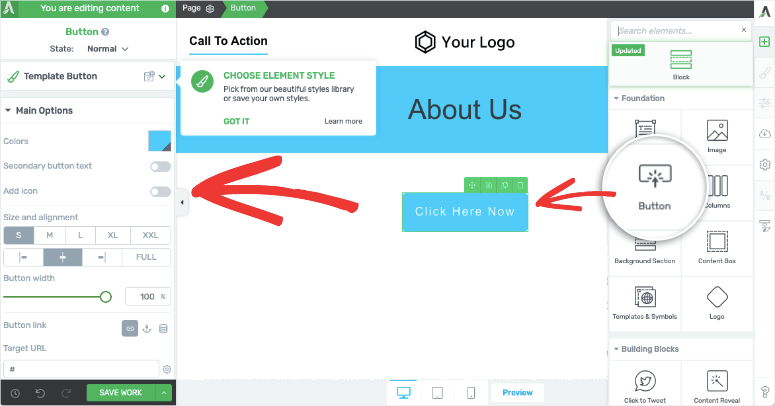
Buttons guide visitors to take specific actions. Examples include buying a product or signing up for a newsletter. Well-placed buttons increase the chances of completing these actions. This helps you achieve your website goals effectively.
Credit: www.isitwp.com
Choosing The Right Button Type
Choosing the right button type shapes how visitors interact with your site. Buttons guide users to take specific actions. Picking the best type fits your website goals. Each button type has a unique role. Understanding these roles helps you create effective buttons.
Call-to-action Buttons
Call-to-action (CTA) buttons encourage visitors to act fast. They often say things like “Buy Now” or “Sign Up.” These buttons stand out with bold colors and clear text. CTAs drive sales, registrations, and other important goals. Place them where visitors can easily see and click.
Social Media Buttons
Social media buttons link your site to platforms like Facebook or Twitter. They help users share your content or follow your pages. These buttons build community and increase traffic. Use simple icons that users recognize quickly. Keep them visible but not distracting.
Download And Subscription Buttons
Download buttons let visitors save files like PDFs or apps. Subscription buttons invite users to join newsletters or services. These buttons usually appear near valuable content. Clear labels show what users get by clicking. Make sure they load quickly and work well on phones.
Adding Buttons Using Gutenberg Editor
Adding buttons in WordPress is simple with the Gutenberg editor. This editor uses blocks to build content. Buttons help guide visitors to take action. They can link to pages, downloads, or forms.
The Gutenberg editor makes button creation quick. You don’t need any coding skills. Just follow a few easy steps to insert and customize buttons. This improves your site’s user experience and engagement.
Inserting A Button Block
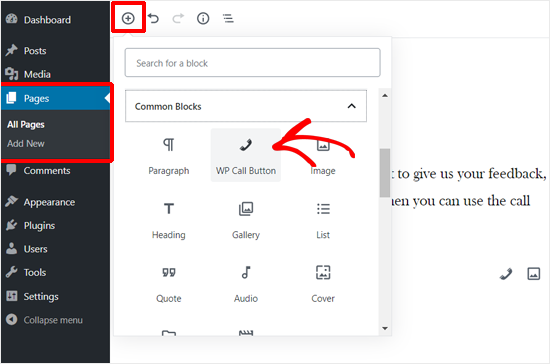
Start by opening the page or post. Click the plus (+) icon to add a new block. Search for the “Button” block in the block menu. Click on it to insert the button into your content.
You can move the button block anywhere on the page. Just drag and drop it to the desired spot. This allows you to place buttons exactly where visitors will see them.
Customizing Button Style
Click on the button to select it. Use the block toolbar to change the button text. Enter a clear, simple call to action like “Buy Now” or “Contact Us.”
On the right sidebar, find style settings. Choose from preset styles or create your own. Adjust colors, border radius, and font size to match your site’s look.
Linking The Button
To link the button, click the link icon in the toolbar. Enter the URL you want the button to go to. This can be an internal page or an external website.
Make sure the link is correct and working. You can also set the link to open in a new tab. This keeps visitors on your site while they explore other pages.
Using Plugins For Advanced Buttons
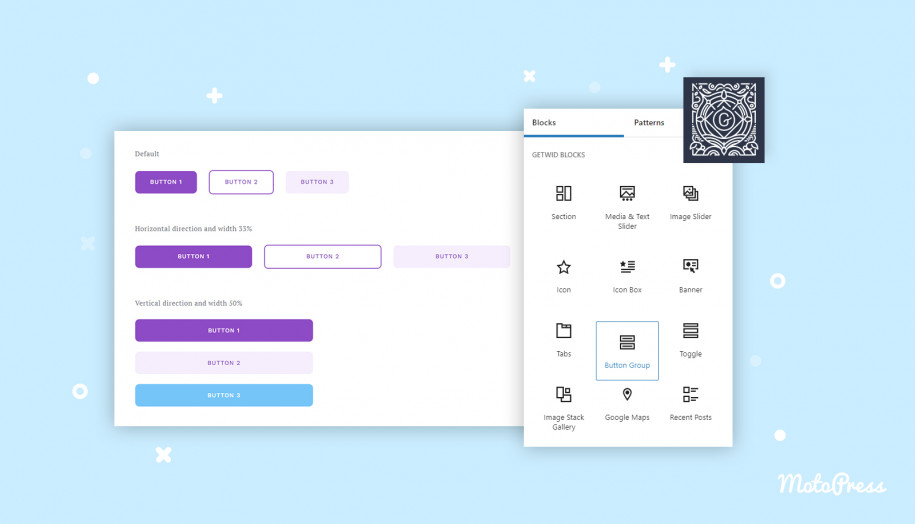
Using plugins for advanced buttons makes your WordPress site more interactive. Plugins offer many styles and functions beyond the default button. You can create buttons with custom colors, shapes, icons, and animations. These tools help you design buttons that match your site’s look and feel. They also improve user experience and can increase clicks.
Top Button Plugins
Several plugins provide great button options. “MaxButtons” is popular for easy drag-and-drop design. “Forget About Shortcode Buttons” offers simple styling without coding. “WPForms” includes buttons with forms and call-to-actions. Each plugin suits different needs and skill levels. Choose one that fits your site goals and design style.
Installing And Activating Plugins
Go to your WordPress dashboard. Click on “Plugins” then “Add New.” Use the search bar to find your chosen button plugin. Click “Install Now” next to the plugin. After installation, press “Activate” to enable it on your site. The plugin will add new settings or blocks for buttons.
Configuring Button Settings
Open the plugin’s settings from the dashboard menu. Select button style, color, and size options. Add text and links for your button. Some plugins let you add icons or animations. Preview your button before saving changes. Place the button in posts or pages using shortcodes or blocks. Adjust settings anytime to improve your buttons.
Adding Buttons With Custom Html And Css
Adding buttons with custom HTML and CSS gives you full control over their look and feel. You can create buttons that match your site’s design perfectly. This method works well for those who want simple but unique buttons. It also helps you learn basic web coding.
Writing Button Html
Start by writing the button’s HTML code. Use the
This code creates a simple clickable button. You can add an ID or class to target it with CSS later.
Styling Buttons With Css
Use CSS to change the button’s color, size, and shape. Add styles inside a
button { background-color: 0073aa; color: white; padding: 10px 20px; border: none; border-radius: 5px; cursor: pointer; }This style makes the button blue with white text and rounded corners. Adjust the code to match your site’s colors.
Embedding Code In WordPress
Open your WordPress editor and switch to the HTML or Code view. Paste your HTML and CSS inside a Custom HTML block. Save and preview your post. The button should appear styled and clickable.
This method works on pages, posts, or widgets. It is simple and does not need extra plugins.
Optimizing Buttons For Mobile
Optimizing buttons for mobile is key to a smooth user experience. Mobile users tap with fingers, so buttons need to be easy to see and press. Small or crowded buttons can cause frustration and lost clicks. A well-designed button improves navigation and keeps visitors engaged on your site.
Responsive Design Tips
Make buttons flexible to fit all screen sizes. Use relative units like percentages or ems for button width. Avoid fixed pixel sizes that may look too small on phones. Add enough padding so fingers can tap easily. Keep button text large and clear. Choose colors with good contrast for readability.
Testing Buttons On Devices
Check how buttons look and work on different devices. Use real smartphones and tablets for testing. Tap buttons to confirm they respond quickly and correctly. Adjust button size or spacing if taps miss or feel cramped. Testing ensures visitors get a smooth experience across devices.
Tracking Button Performance
Tracking button performance helps you see how users interact with your site. It shows which buttons get clicks and which do not. This data helps improve your website’s design and user experience. You can make changes based on real user behavior. This section explains simple ways to track button clicks using tools like Google Analytics.
Using Google Analytics
Google Analytics collects data about your website visitors. It tracks page views, clicks, and more. You can use it to monitor button clicks. First, link your WordPress site to Google Analytics. This allows data to flow from your site to the analytics dashboard. You can then see detailed reports on button interactions.
Google Analytics shows which buttons users click most often. It helps identify popular calls to action. You get insights on user preferences and behavior. Tracking button clicks guides you in making smart updates.
Setting Up Event Tracking
Event tracking in Google Analytics records specific actions. Button clicks are common events to track. You set up event tracking with a small code snippet. This code tells Google Analytics to log each button click.
Use Google Tag Manager or add code directly in WordPress. Assign categories, actions, and labels to each event. These tags organize the data for easy understanding. After setup, check your Google Analytics reports to see button performance.
Tracking events helps measure success of buttons. It shows which buttons drive user engagement. Use this data to improve your website’s results.
Credit: motopress.com
Credit: www.wpbeginner.com
Frequently Asked Questions
How Do I Add A Button In WordPress Without Coding?
You can add a button using the WordPress block editor. Simply select the “Button” block and customize its text, color, and link. This method requires no coding and works well for most themes.
Can I Customize WordPress Buttons With Plugins?
Yes, you can use plugins like MaxButtons or WPForms to create and style buttons easily. These plugins offer advanced design options and are beginner-friendly.
Where Do I Place Buttons For Best User Engagement?
Place buttons prominently on pages, such as near calls to action or at the end of posts. This placement increases visibility and encourages clicks.
How To Add A Button Linking To Another Page In WordPress?
Use the button block or plugin and insert the URL of the target page in the link field. Make sure the URL is correct to ensure proper navigation.
Conclusion
Adding a button to your WordPress site is simple and quick. You can use built-in tools or plugins to create attractive buttons. Buttons help guide visitors and improve your site’s usability. Experiment with styles and links to fit your needs.
Keep your buttons clear and easy to find. Now you have the basics to start adding buttons today. Enjoy making your website more interactive and user-friendly!


