

Are you ready to share your ideas, stories, or expertise with the world? Adding a blog post to WordPress is easier than you might think, even if you’re new to it.
In this guide, you’ll discover simple, step-by-step instructions to create your first post quickly and confidently. By the end, you’ll have the skills to keep your blog fresh and engaging, attracting more readers every time you publish. Let’s get started and bring your voice to life on your WordPress site!
Setting Up Your WordPress Site
Setting up your WordPress site is the first step to start blogging. It lays the foundation for your online presence. A well-set site ensures smooth blogging and good user experience.
This section guides you through the essential steps to prepare your WordPress site for posting. You will learn how to choose hosting, install WordPress, and access the dashboard.
Choosing A Hosting Provider
Choose a hosting provider that fits your needs and budget. Hosting stores your website files and makes your site live. Look for providers with good speed, uptime, and support. Shared hosting is affordable for beginners. Managed WordPress hosting offers better performance but costs more.
Installing WordPress
Many hosts offer one-click WordPress installation. This makes setup fast and easy. Follow the host’s instructions to install WordPress. You will need to create a username and password. Keep these safe to protect your site. After installation, WordPress is ready for use.
Accessing The Dashboard
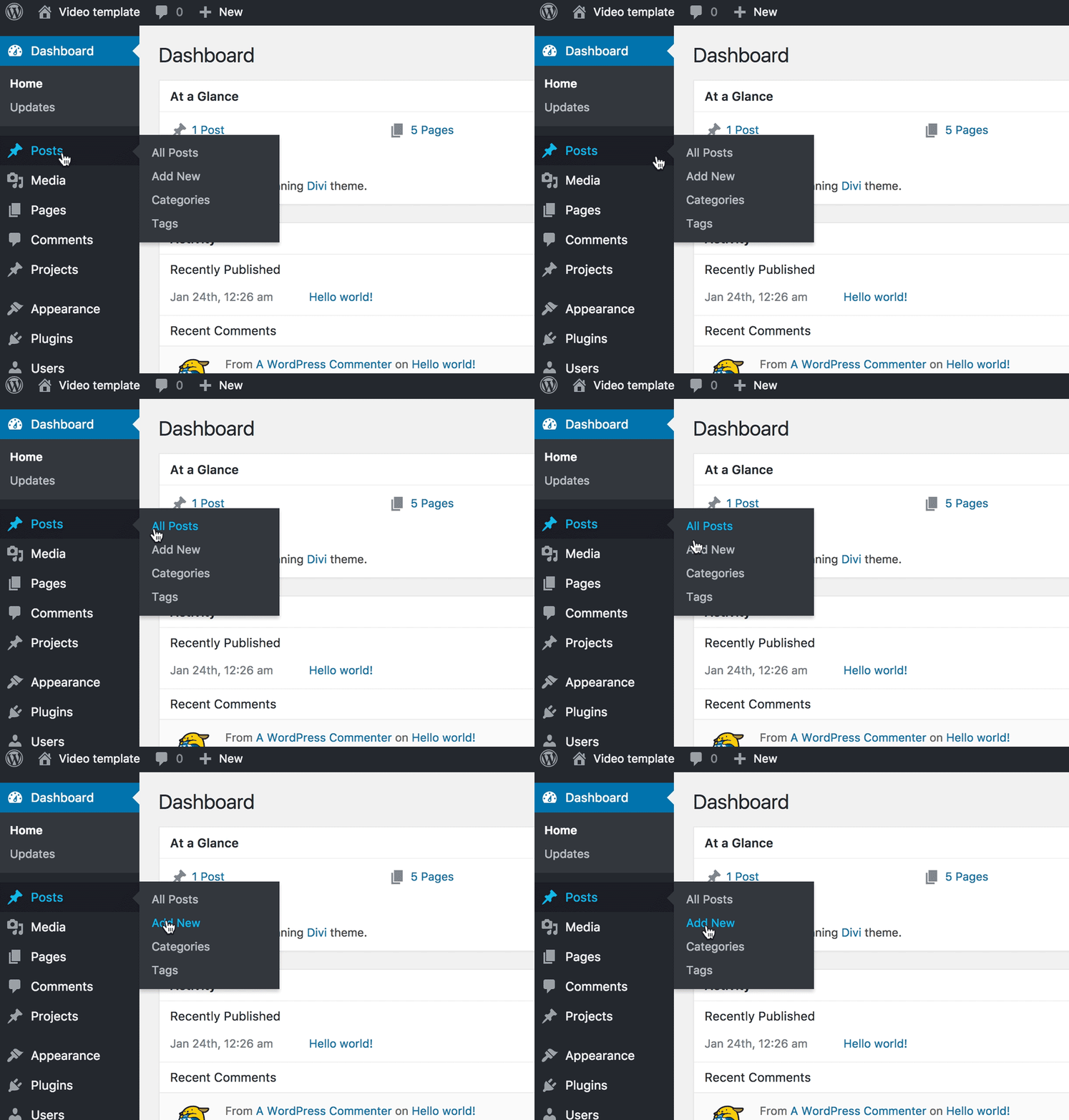
Access the WordPress dashboard by typing your site URL with /wp-admin. Enter your username and password to log in. The dashboard is your control center. Here, you can create posts, install plugins, and customize your site. Spend time exploring the dashboard to understand its features.
Credit: shortiedesigns.com
Creating A New Blog Post
Creating a new blog post in WordPress is simple and quick. It lets you share your ideas with the world. This section will guide you through the steps to start a new post easily.
Navigating To The Post Editor
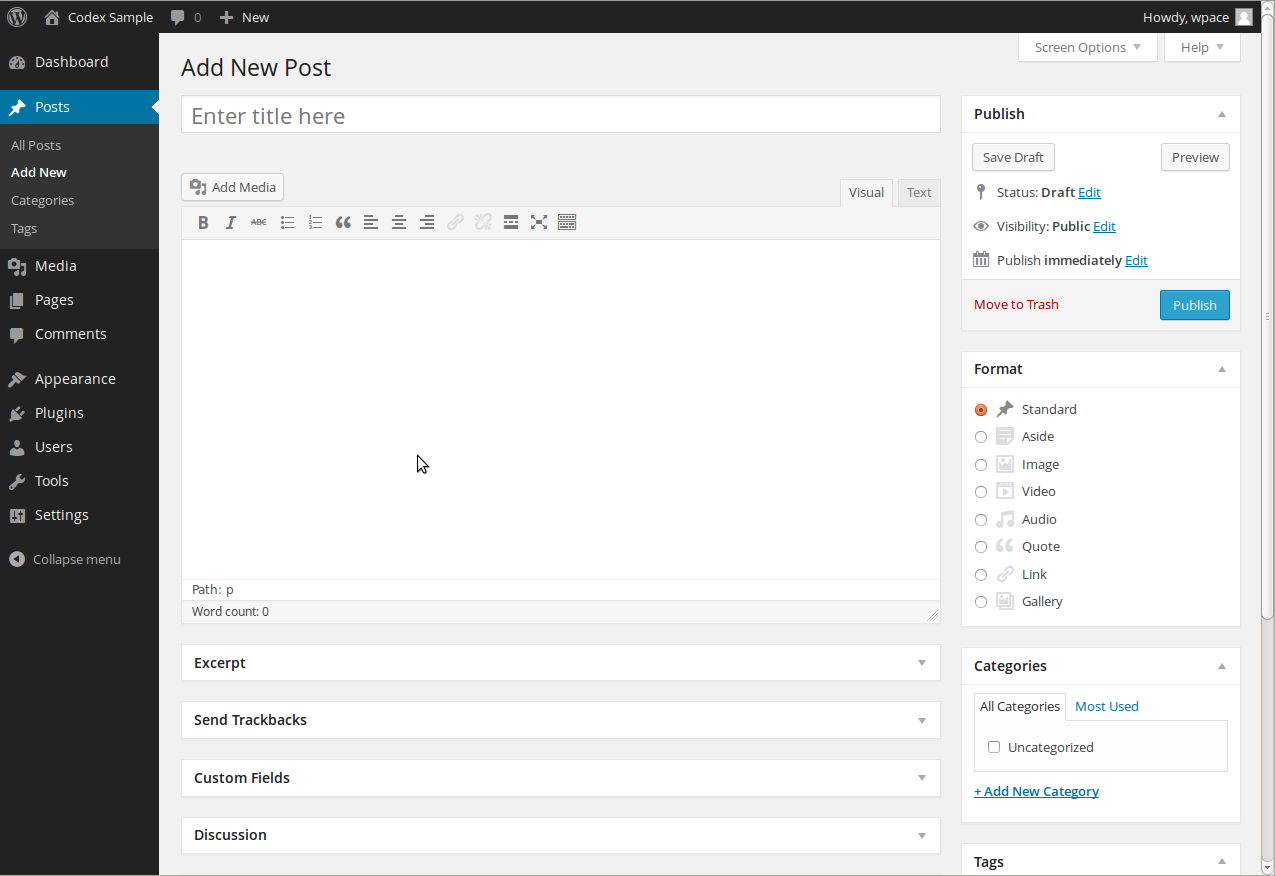
First, log in to your WordPress dashboard. Look for the menu on the left side. Click on “Posts” to open the posts section. Then, select “Add New” to open the post editor. This is where you write and design your blog post.
Adding A Title And Content
Start by typing your blog post title at the top. Make it clear and interesting. Below the title, you find the content area. Write your main text here. You can add paragraphs, images, and links. Keep your sentences short and easy to read.
Using The Block Editor
WordPress uses a block editor to build posts. Each part of your content is a block. You can add blocks for text, images, videos, and more. To add a block, click the “+” button. Arrange blocks by dragging them up or down. This tool gives you control over your post’s layout.
Enhancing Your Blog Post
Enhancing your blog post makes it more attractive and easier to find. It helps readers understand your message better. Simple steps can improve the look and reach of your post. Adding images, organizing categories, and using SEO tools are key parts.
Inserting Images And Media
Images catch the reader’s eye and break up text. Use the WordPress editor to add pictures or videos easily. Click the “Add Media” button and select your files. Make sure your images relate to the content. Use clear, simple captions for better understanding.
Optimizing image size helps your page load faster. Choose the right file format like JPEG or PNG. Add alt text to describe images for search engines. This also helps visually impaired readers. Keep media balanced; avoid too many images that slow your site.
Adding Categories And Tags
Categories group your posts by topic. Choose broad terms that match your blog’s theme. Tags highlight specific details or topics within a post. They help readers find related content quickly. Use relevant, simple words for both categories and tags.
Assign each post to one or two categories. Add several tags but avoid overloading. This organization improves navigation and search engine ranking. Categories and tags help readers explore your blog with ease.
Using Seo Plugins
SEO plugins guide you to improve your post’s search ranking. Popular plugins like Yoast SEO or Rank Math offer easy tools. They check keywords, readability, and meta descriptions. Use these suggestions to make your post more visible.
Fill in the SEO title and meta description fields. Keep keywords natural and relevant. SEO plugins also help with internal linking and sitemap creation. Use them to boost your blog post’s performance online.
Credit: wordpress.org
Publishing Your Post
Publishing your post is the final step to share your content with readers. This process lets you check your work, set the right time, and make your post visible. Careful publishing helps your blog look professional and reach your audience effectively.
Previewing The Post
Previewing shows how your post looks before it goes live. Click the “Preview” button in WordPress. This opens a new tab with your post as visitors will see it. Check for layout issues, typos, and images. Make sure everything appears clear and neat.
Setting The Publish Date
You can choose when your post appears on your blog. By default, WordPress sets the current date and time. To schedule, find “Publish” settings on the right side. Pick a future date and time to delay publishing. This helps plan posts ahead and keeps content steady.
Making The Post Live
After preview and date settings, it is time to publish. Click the “Publish” button to make your post live immediately. Your blog visitors will see the new content at once. For scheduled posts, WordPress will publish automatically at the set time. Now your post is ready for readers.
Editing And Managing Posts
Editing and managing posts in WordPress helps keep your blog fresh and organized. It allows you to improve your content and control what readers see. You can update old posts, remove those you no longer want, and arrange posts for better user experience. This section explains how to do these tasks easily.
Updating Published Posts
To update a post, go to your WordPress dashboard. Click on “Posts” and find the post you want to change. Click “Edit” to open the post editor. Make your changes in the text, images, or settings. After editing, click “Update” to save your work. The updated post will show on your blog immediately.
Deleting Unwanted Posts
Deleting posts you no longer need keeps your blog clean. In the dashboard, select “Posts.” Find the post to delete and hover over it. Click “Trash” to move it to the trash folder. Posts in the trash can be restored or permanently deleted later. Empty the trash to free up space.
Organizing Posts For Readers
Organize posts with categories and tags. Categories group posts by broad topics. Tags highlight specific details in your posts. Assign relevant categories and tags when you edit a post. This helps readers find related content fast. Use clear and simple names for both categories and tags.
Credit: www.youtube.com
Frequently Asked Questions
How Do I Create A New Blog Post In WordPress?
To create a new post, log into your WordPress dashboard. Click “Posts” then “Add New. ” Enter your title, content, and click “Publish” to go live.
Can I Add Images To My WordPress Blog Post?
Yes, you can add images by clicking the “Add Media” button. Upload your image, insert it into the post, and adjust size or alignment.
How Do I Optimize My WordPress Post For Seo?
Use keywords naturally in the title, headings, and content. Add meta descriptions, use alt text for images, and install SEO plugins for guidance.
What Is The Best Way To Schedule WordPress Blog Posts?
In the post editor, click “Publish” and select “Schedule. ” Choose your desired date and time, then confirm to publish automatically later.
Conclusion
Adding a blog post to WordPress is simple and quick. Just follow the steps carefully, and you will see your content live soon. Regular posting helps keep your website fresh and interesting. Keep your writing clear and focused to attract readers.
Practice often to get better at using WordPress tools. Start sharing your ideas with the world today.


