
Are you ready to take your WordPress website to the next level? Adding a blog page is one of the best ways to connect with your audience, share valuable content, and boost your site’s visibility.
But if you’re wondering how to add a blog page to your WordPress website without any hassle, you’re in the right place. You’ll find simple, step-by-step instructions that anyone can follow. By the end, you’ll have a fully functional blog page that attracts visitors and keeps them coming back for more.
Let’s dive in and get your blog up and running!

Credit: libroediting.com
Set Up WordPress For Blogging
Setting up WordPress for blogging is the first step to share your ideas online. WordPress offers tools to create a blog page easily. You need to prepare your site to make it look good and work well. This process includes choosing a theme and installing plugins. These choices help your blog attract readers and run smoothly.
Choose A Suitable Theme
Select a theme that fits your blog style. Themes control how your blog looks. Pick one with a clean design and easy navigation. Make sure it works well on phones and tablets. A good theme keeps readers focused on your content. Avoid themes that are too complex or slow down your site.
Install Necessary Plugins
Plugins add extra features to your blog. Install a plugin for SEO to improve search engine ranking. Use a plugin for social sharing to help readers share your posts. Add a plugin for security to protect your site from hackers. Choose only plugins that you need to keep your site fast and safe.
Create A New Blog Page
Creating a new blog page is the first step to share your ideas and stories. This page will host all your blog posts in one place. Setting it up in WordPress is simple and fast. Follow these steps to create your blog page smoothly.
Add A Page In WordPress Dashboard
Start by logging into your WordPress dashboard. Look for the “Pages” option in the left menu. Click on “Add New” to create a new page. This opens a blank page where you can build your blog page. No coding needed here. Just a few clicks to get started.
Name And Publish The Page
Next, give your page a clear name like “Blog” or “News.” This helps visitors know what to expect. After naming, check everything looks good. Press the “Publish” button on the top right. Your new blog page is now live and ready for posts. Easy and quick setup helps you focus on writing.
Assign The Blog Page For Posts
Assigning a blog page for your posts is a key step to organize your content. It tells WordPress where to show your latest blog posts. This setup helps visitors find your articles easily.
Without assigning a blog page, your posts may not display correctly. You need to select a specific page to act as your blog. This guide walks you through that process.
Navigate To Reading Settings
First, log in to your WordPress dashboard. Find the “Settings” option in the left menu. Click on “Reading” to open the reading settings page.
This page controls how your content appears on your website. It includes options for your homepage and blog page display.
Select The Blog Page For Posts
Look for the “Your homepage displays” section. Choose the option “A static page.” This lets you set separate pages for your homepage and blog.
Below, find the “Posts page” dropdown menu. Click it to see a list of your pages. Select the page you want to use for your blog posts.
After selecting, scroll down and click “Save Changes.” Your blog posts will now appear on the chosen page.
Customize Blog Page Appearance
Customizing your blog page appearance helps make your site unique and user-friendly. You can change how your blog looks to match your style. It also improves visitor experience and keeps readers interested.
Adjust Layout And Design
Start by choosing a layout that fits your content. WordPress themes often offer different blog layouts. You can select grid, list, or full-width styles. Use the WordPress Customizer to see changes live. Adjust colors, fonts, and spacing to suit your brand. Keep your design clean and easy to read. Avoid clutter to help visitors focus on your posts.
Configure Sidebar And Widgets
Sidebars show extra content beside your blog posts. You can add widgets like recent posts, search bars, or categories. Go to Appearance > Widgets in your WordPress dashboard. Drag and drop widgets into your sidebar area. Choose widgets that add value for your readers. Keep the sidebar simple to avoid distraction. Widgets can improve navigation and engagement on your blog.
Create Your First Blog Post
Creating your first blog post is an important step in starting your WordPress blog. It lets you share your ideas and connect with readers. The process is simple and fast. Follow the steps below to make your first post live.
Add New Post
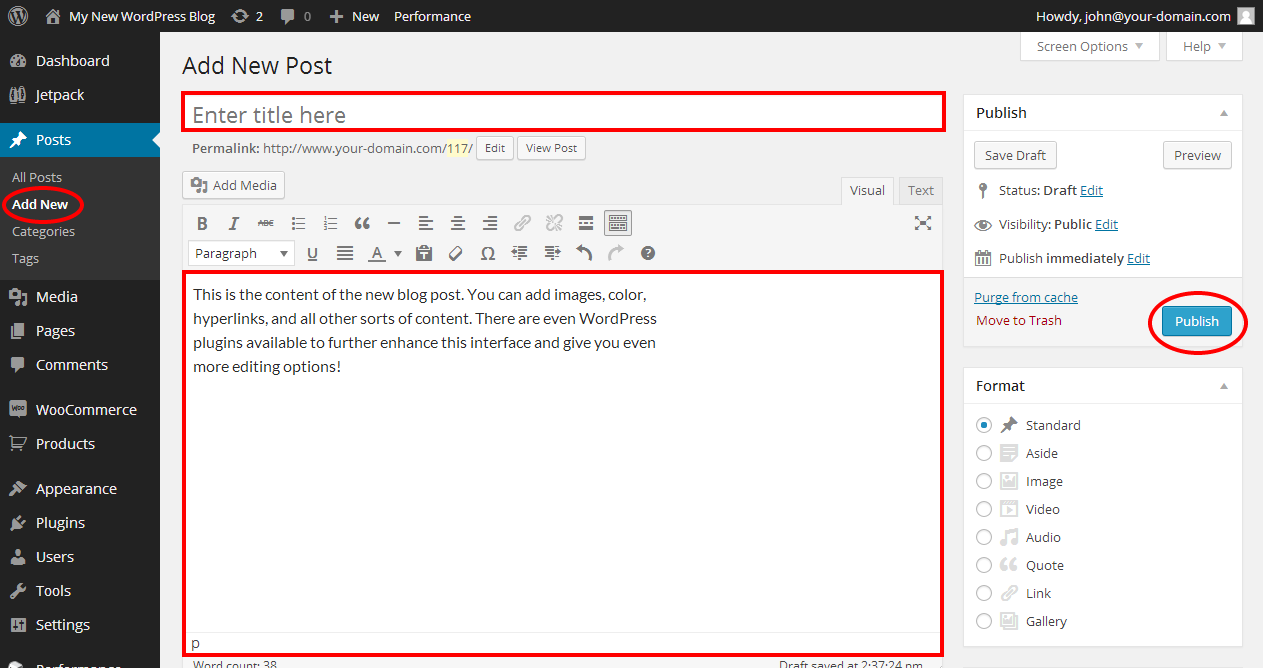
Log in to your WordPress dashboard. On the left menu, click “Posts.” Then select “Add New.” A new page will open where you can write your post.
Enter the title at the top. This is the main heading your readers will see. Below the title, you can start writing your content in the editor box. You can add text, images, and other media.
Format And Publish Content
Use the formatting tools to style your text. Make headings, bold important words, or add lists. Insert images to make your post more attractive. Preview your post by clicking the “Preview” button to see how it looks.
When ready, click “Publish.” Your post will appear on your blog page immediately. You can always edit it later if needed.
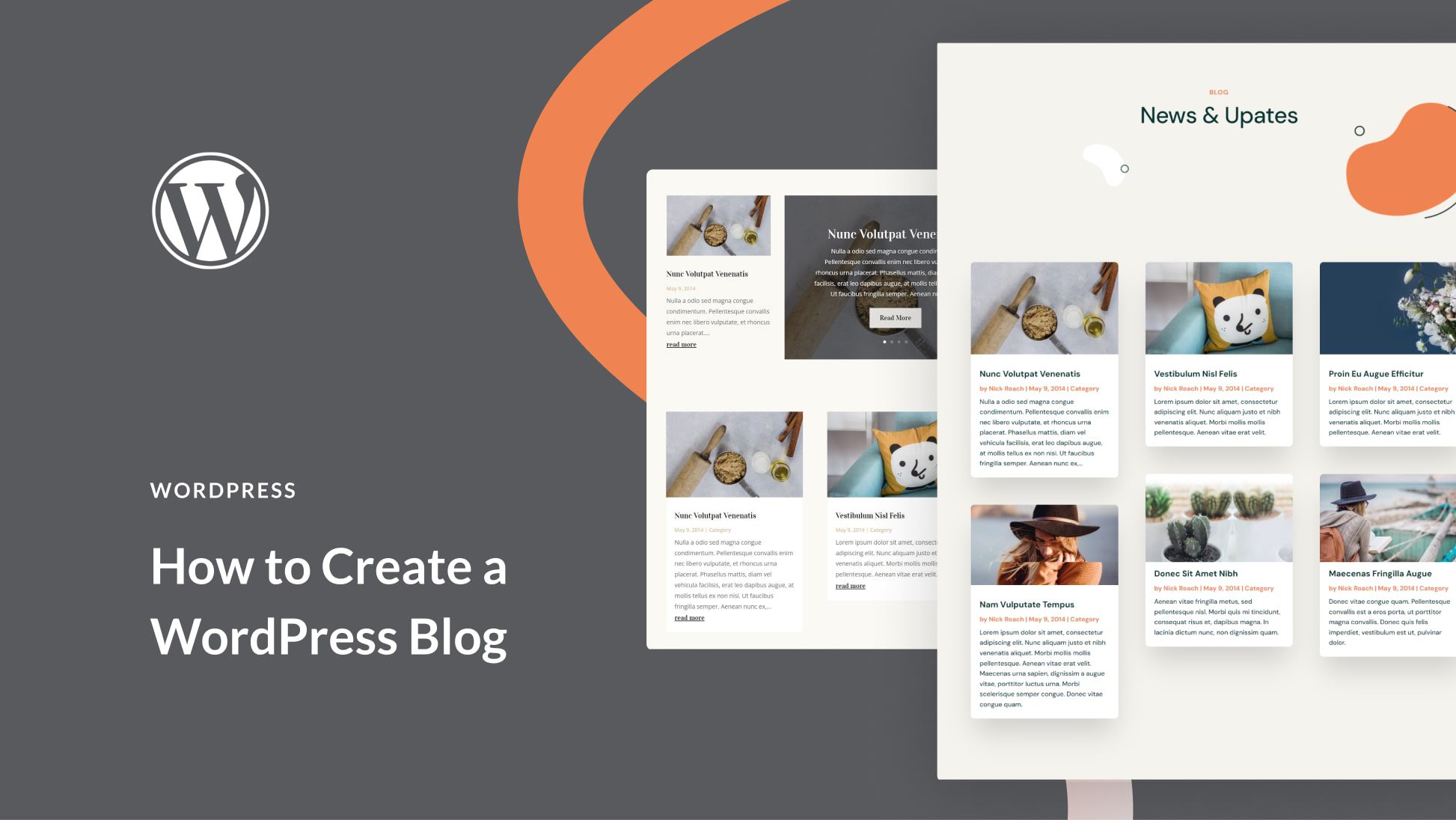
Credit: www.elegantthemes.com
Add Blog Page To Website Menu
Adding a blog page to your website menu makes it easy for visitors to find your posts. A clear menu link helps users explore your content quickly. This step-by-step guide shows how to place the blog page link in your website menu.
Access Menu Settings
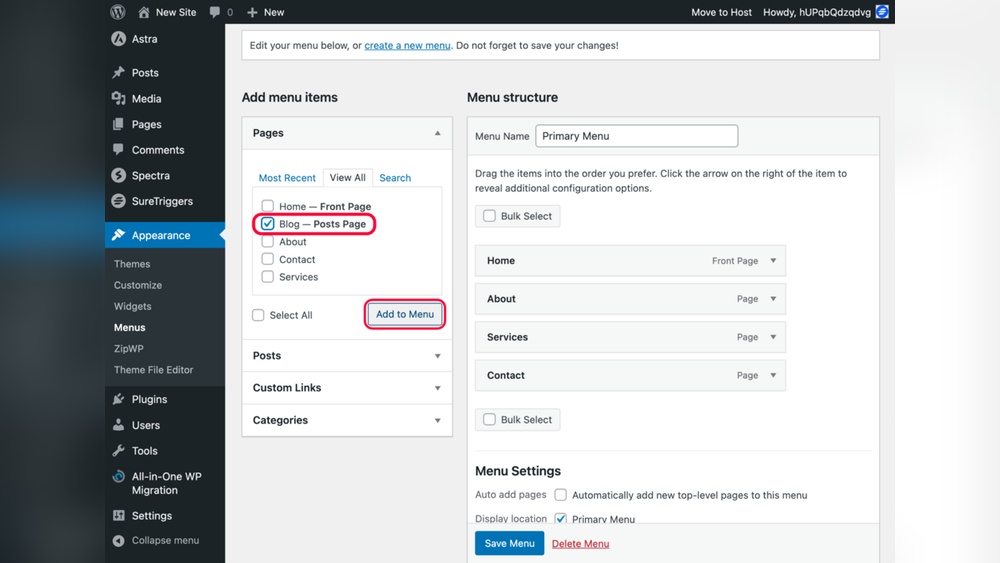
Log in to your WordPress dashboard to start. Look for the “Appearance” section in the left sidebar. Click on “Menus” to open the menu settings. This area controls the links shown on your website menu. Choose the menu you want to edit from the dropdown list. If you don’t have a menu yet, create one by clicking “create a new menu.”
Insert Blog Page Link
Find the blog page in the list of pages on the left side. Check the box next to your blog page name. Click the “Add to Menu” button to include it in the menu structure. The blog page link will appear at the bottom of the menu list. Drag and drop it to your preferred position in the menu. Save the changes by clicking the “Save Menu” button. Your blog page link now shows on your website menu for easy access.
Optimize Blog For Seo
Optimizing your blog for SEO helps your posts rank higher in search engines. It brings more visitors to your site. Simple steps make your blog more visible and easier to find.
Use Seo Plugins
SEO plugins help you manage your blog’s search engine settings. Plugins like Yoast SEO or Rank Math guide you on keywords and readability. They show how to improve titles, descriptions, and content. These tools save time and boost your blog’s SEO without technical skills.
Write Effective Meta Descriptions
Meta descriptions summarize your blog post for search engines. Write clear and short descriptions that include main keywords. A good meta description encourages users to click your post. Keep it under 160 characters and make it interesting. This small text plays a big role in attracting visitors.
Manage And Update Blog Regularly
Keeping your blog active and fresh is key to attracting visitors. Regular updates help your site stay relevant and improve search engine rankings. A well-managed blog builds trust and keeps readers coming back for more.
Schedule Posts
Planning posts ahead saves time and keeps your blog consistent. WordPress lets you set dates and times for your articles to publish automatically. This feature ensures fresh content appears even when you are busy.
Try creating a content calendar. Decide how often you want to post, like once or twice a week. Then, write and schedule posts in advance. This method prevents gaps in your blog updates.
Engage With Readers
Responding to comments shows readers you value their opinions. It encourages conversations and builds a loyal community. Regular interaction boosts your blog’s activity and appeal.
Ask questions at the end of your posts to invite feedback. Check your comment section daily and reply politely. Use clear language and keep answers short. Engaging readers helps your blog grow naturally.
Credit: www.ipage.com
Frequently Asked Questions
How Do I Create A Blog Page On WordPress?
To create a blog page, go to WordPress Dashboard > Pages > Add New. Name it “Blog” and publish. Then, set it under Settings > Reading as your posts page.
Can I Customize My WordPress Blog Page Layout?
Yes, you can customize using themes or page builders like Elementor. Many themes offer blog-specific templates to enhance design and functionality easily.
How Do I Add Blog Posts To My WordPress Blog Page?
Add posts via Dashboard > Posts > Add New. Once published, posts automatically appear on your designated blog page based on your settings.
Is A Separate Blog Page Necessary For WordPress Sites?
A separate blog page helps organize your posts and improves user navigation. It also boosts SEO by clearly defining content structure.
Conclusion
Adding a blog page to your WordPress site is simple and rewarding. You can share ideas, news, or updates easily. Just follow the steps carefully to create your page. Keep your posts clear and interesting to attract readers. Regular updates help your site stay active and relevant.
This guide helps you start blogging without hassle. Enjoy connecting with your audience through your new blog page.


